

Adding/Removing Tags for Each Sales Order
Last updated:
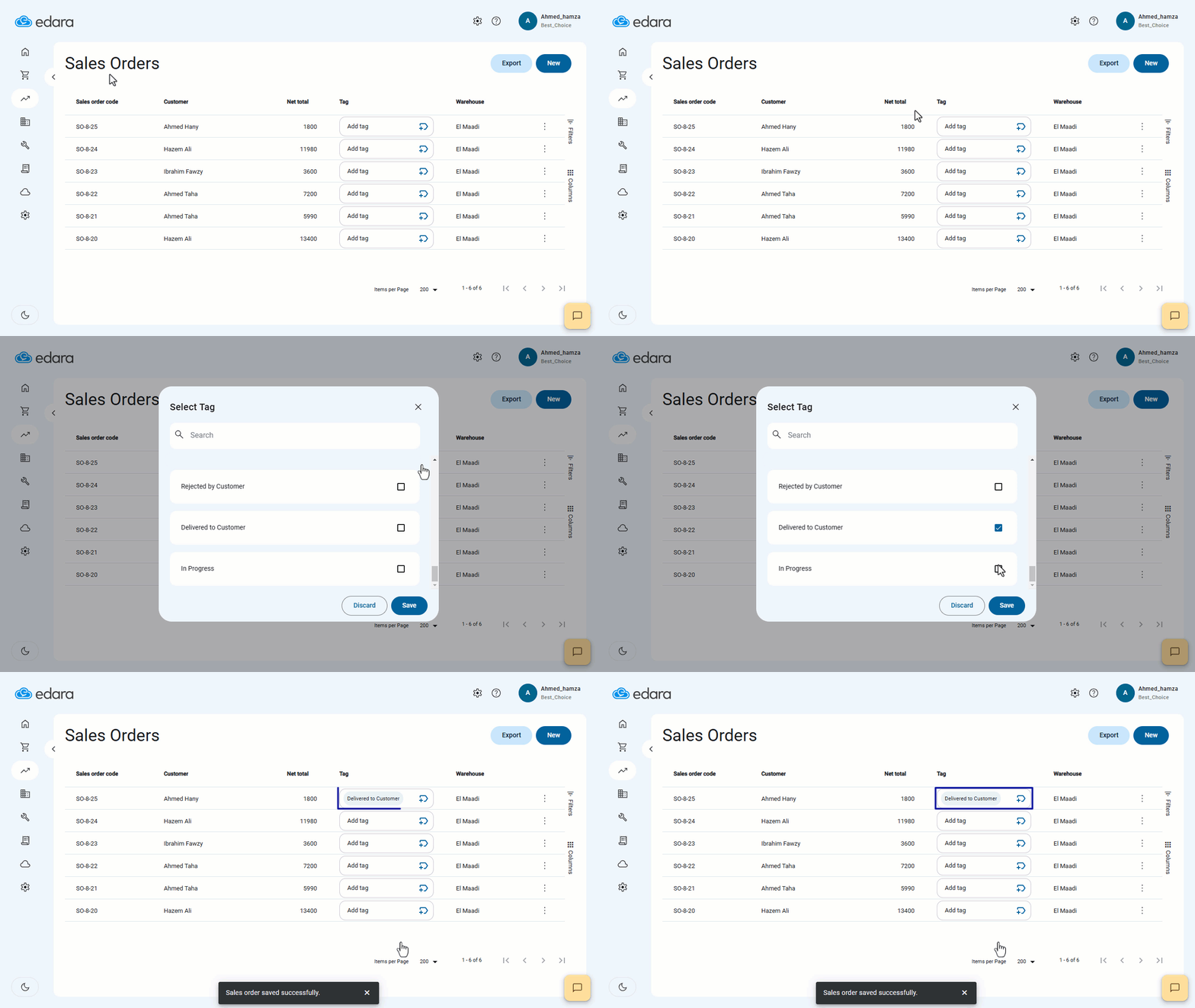
To simplify the organization and tracking of sales orders, you can add or remove tags directly from the sales orders page without needing to open each order individually.
This allows you to quickly and efficiently add tags such as "Delivered" or "Shipped", saving time and effort in managing orders.
Adding Tags for Each Sales Order
First, ensure you have created the tag you want to add at the sales order level Then, follow these steps:
- Go to the Point of Sale module.
- Open the “Sales Orders” page.
- Click on "
 " to add a tag to the sales order.
 - Select the ☑ checkbox next to the tag you want to add.
- Click “Save”.
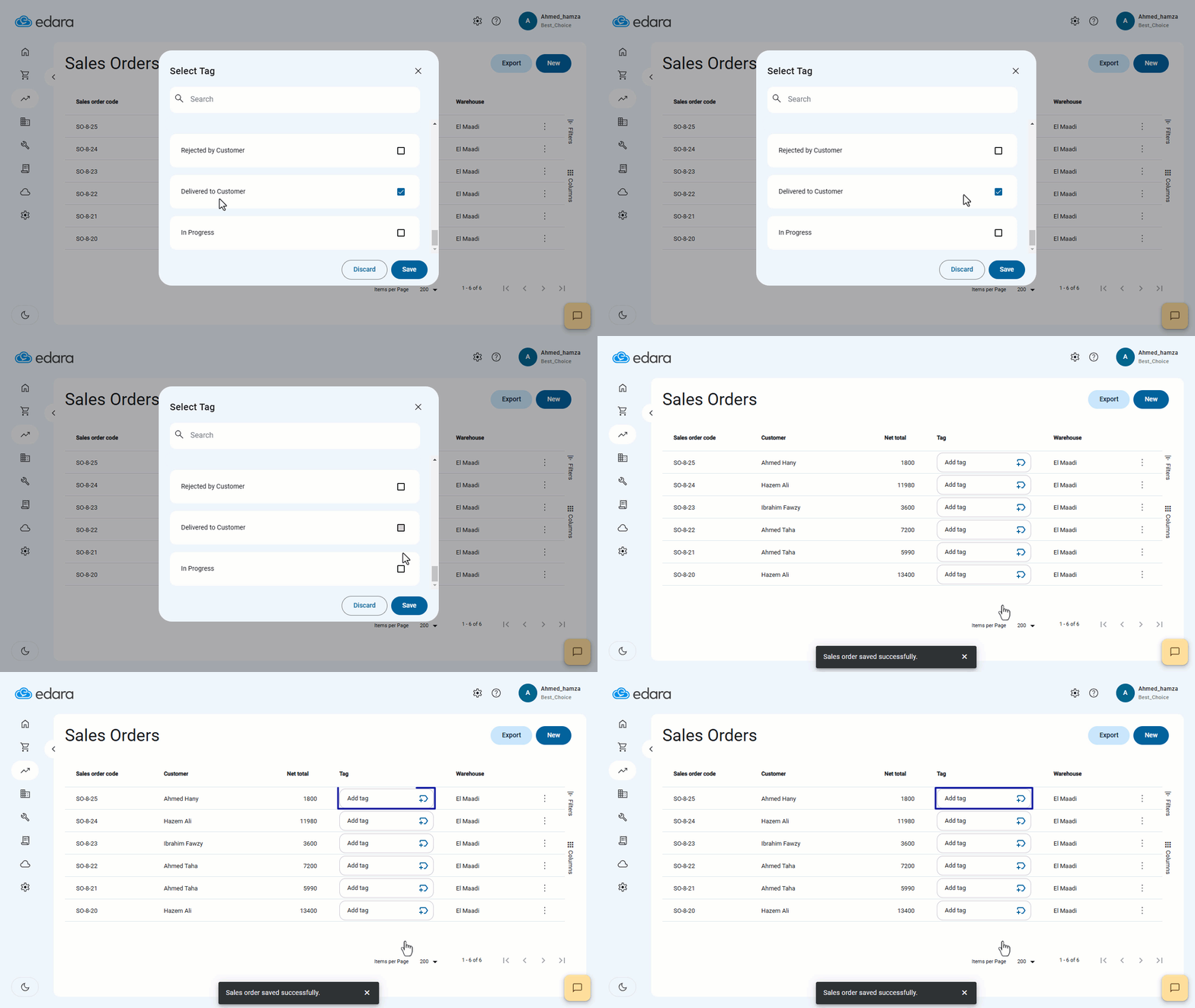
Note: If you want to remove a previously added tag, follow the same steps but uncheck the box in step 4.
Frequently asked questions
How do I remove a tag from a sales order?
If you want to remove a previously added tag, follow the same steps but uncheck the box in step 4.
If you encounter any challenges or have questions during these processes, you can contact our technical support team, who are ready to assist you at any time.