

Creating a New Tag
Last updated:
Tags in “Edara” are system-wide and are not restricted to specific pages. You can create them from the “Stock Items” page, the “Customers” page, the “Sales Order” page, or any other page that allows tagging.
For example, if you need to distinguish specific sales orders (e.g., shipped or delivered) from others, you can create a new tag within one of these documents. Once added, you can use this tag to categorize similar orders and filter reports accordingly.
Creating a New Tag
Before proceeding, ensure you have permission to create tags. Then, follow these steps:
- Go to the Sales module.
- Open the “Sales Order” page.
- Search for the sales order you want to tag.
- Click on “Add Tag”.
- Enter the desired tag name.
- Save the tag by clicking “
 ”.
”.
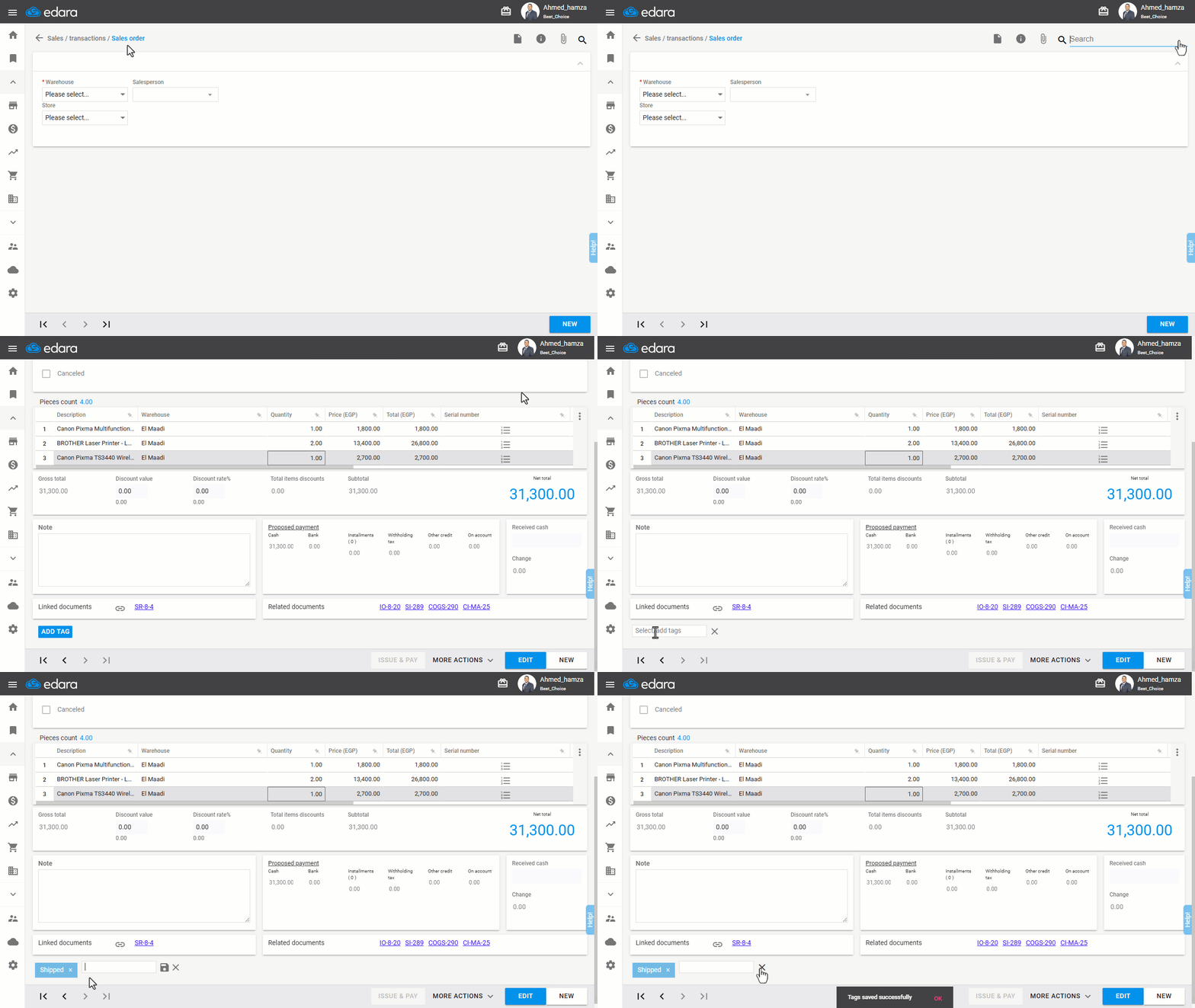
Note: Once you complete these steps, the tag will be available for any user and on any page in “Edara”. It will not be limited to the specific sales order you assigned it to.
If you encounter any challenges or have questions during these processes, you can contact our technical support team, who are ready to assist you at any time.