

Editing Stock Item Quantity from the Serial Entry Screen
Last updated:
While receiving goods, you might need to increase or decrease the number of serials for a specific item — due to excluding a damaged piece or adding an extra quantity — after you’ve already started entering the data.
Now, Edara allows you to adjust the stock item quantity (number of serials) directly from the Serial Entry screen. The document will be updated automatically with the new quantity, without having to restart the process from scratch.
Editing Stock Item Quantity from the Serial Entry Screen
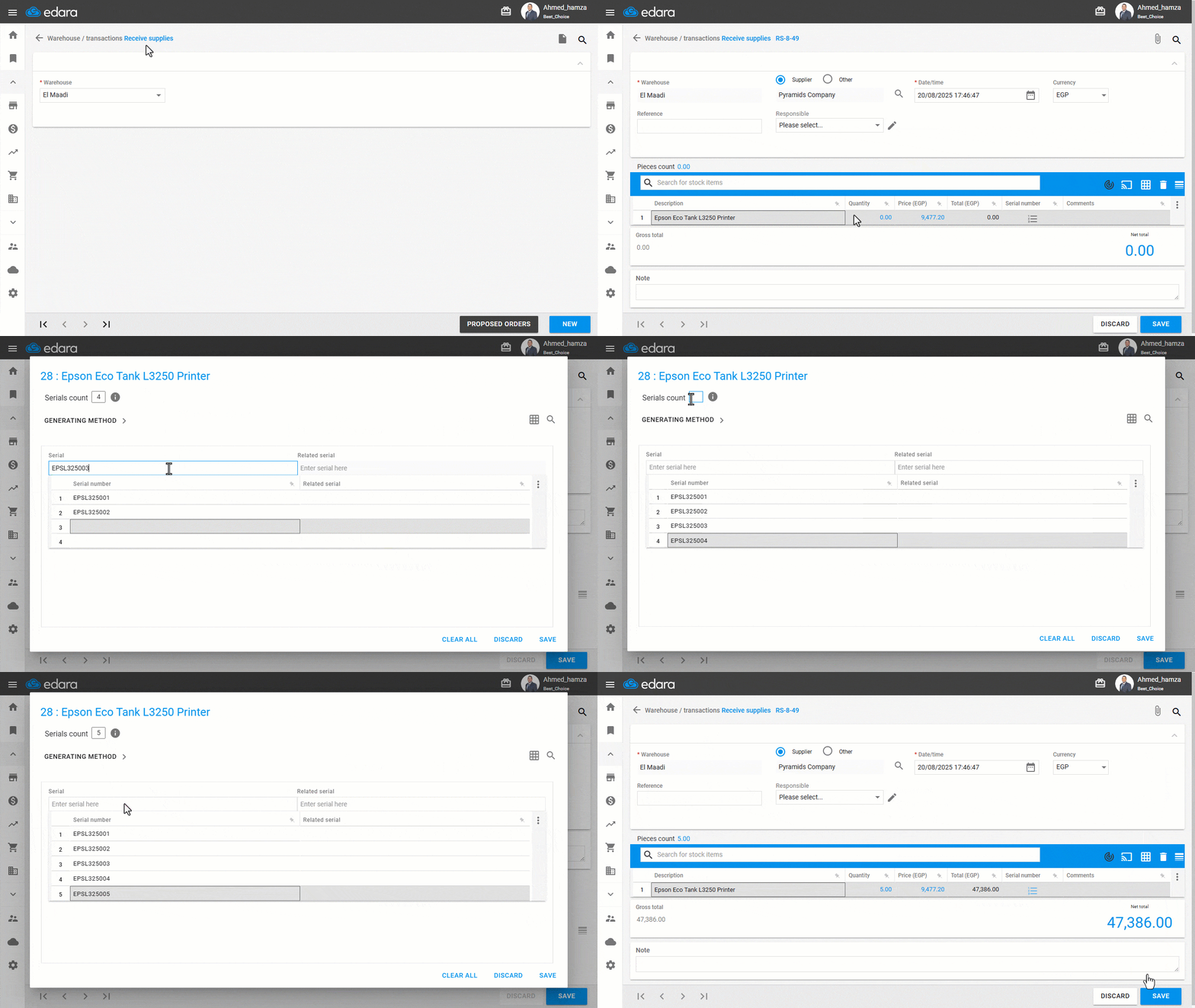
- Go to the “Warehouse” module.
- Open the “Receive Supplies” page.
- Click on “New”.
Note: To edit an existing document, search for the required goods receipt using the 🔍 icon or the navigation arrows at the bottom of the page.
- Enter the items to be received with their quantities.
- Click on "
 " in the Serial column next to the stock item for which you want to enter the serials.
 - The Serial Entry screen will open with the number of rows equal to the stock item’s quantity.
- Adjust the quantity in the “Serials count” field.
- Press Enter on your keyboard. The number of rows will update automatically to match the new quantity, and the item quantity in the document will also be updated.
Note: When entering a number higher than the current quantity, the system will increase it and add empty rows. When entering a smaller number, the system will decrease it by removing rows from the end of the list, even if they contain data.
- Enter the required serials.
- Click on “Save”. The document will be updated automatically with the new quantity.
Important Notes:
- Editing is only available from within the Serial Entry screen, and only if:
- The document is in Edit mode.
- Not using one of the auto-run methods.
- The quantity in the original document is editable. /
- This feature focuses on adjusting the total number of serials, not editing or deleting individual serials.
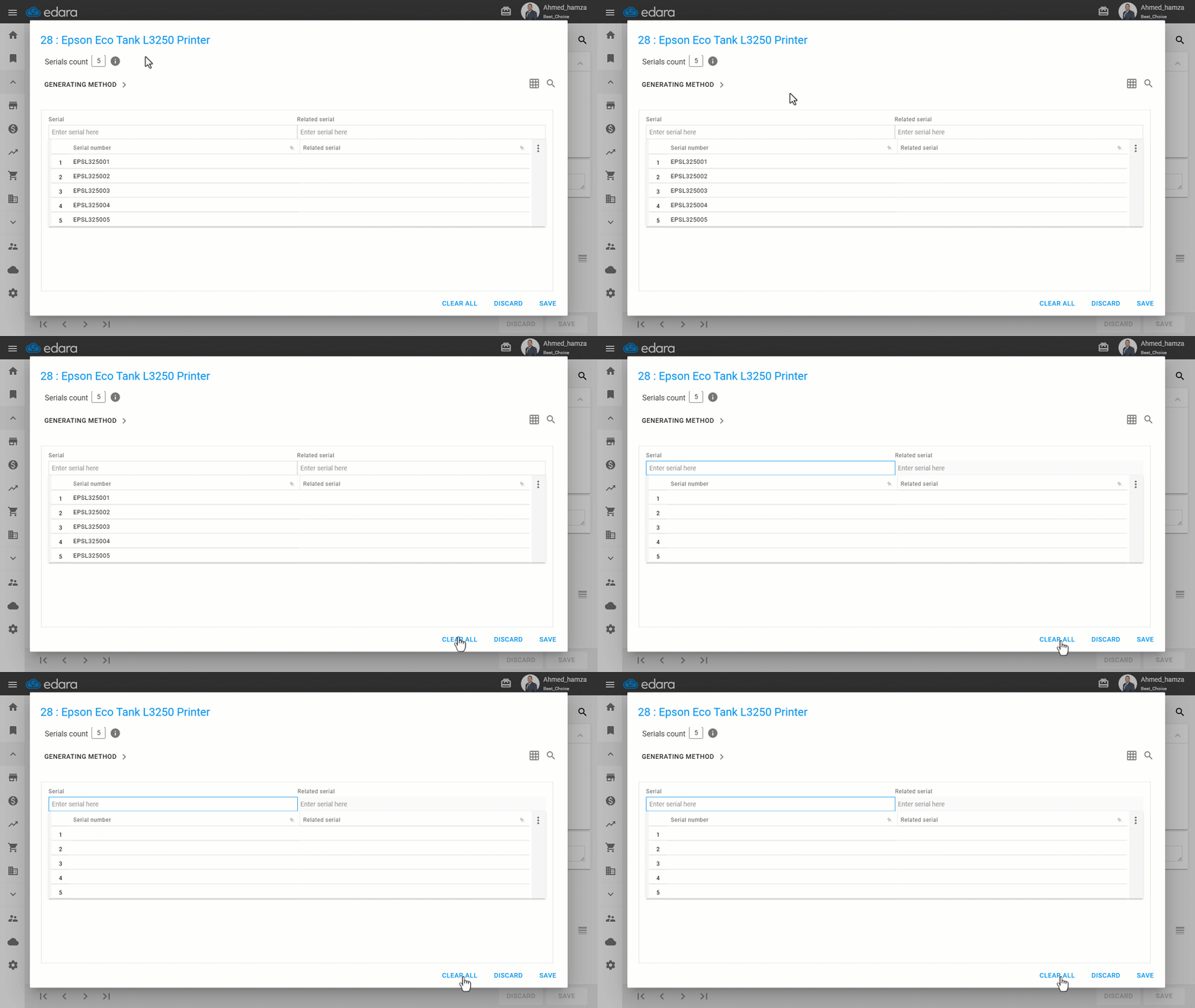
- To delete all serials at once, use the “Clear All” button, as shown in the screenshot below.
Frequently asked questions
What happens to the entered serials when I reduce the serials count?
When entering a number higher than the current quantity, the system will increase it and add empty rows. When entering a smaller number, the system will decrease it by removing rows from the end of the list, even if they contain data.
If you encounter any challenges or have questions during these processes, you can contact our technical support team, who are ready to assist you at any time.