

Saving a Document as PDF
Last updated:
Instead of printing documents on paper, “Edara” allows you to save them as PDF files on your device — providing a convenient way to keep digital records.
.g., a Sales Order) as a PDF.
Saving a Document as PDF
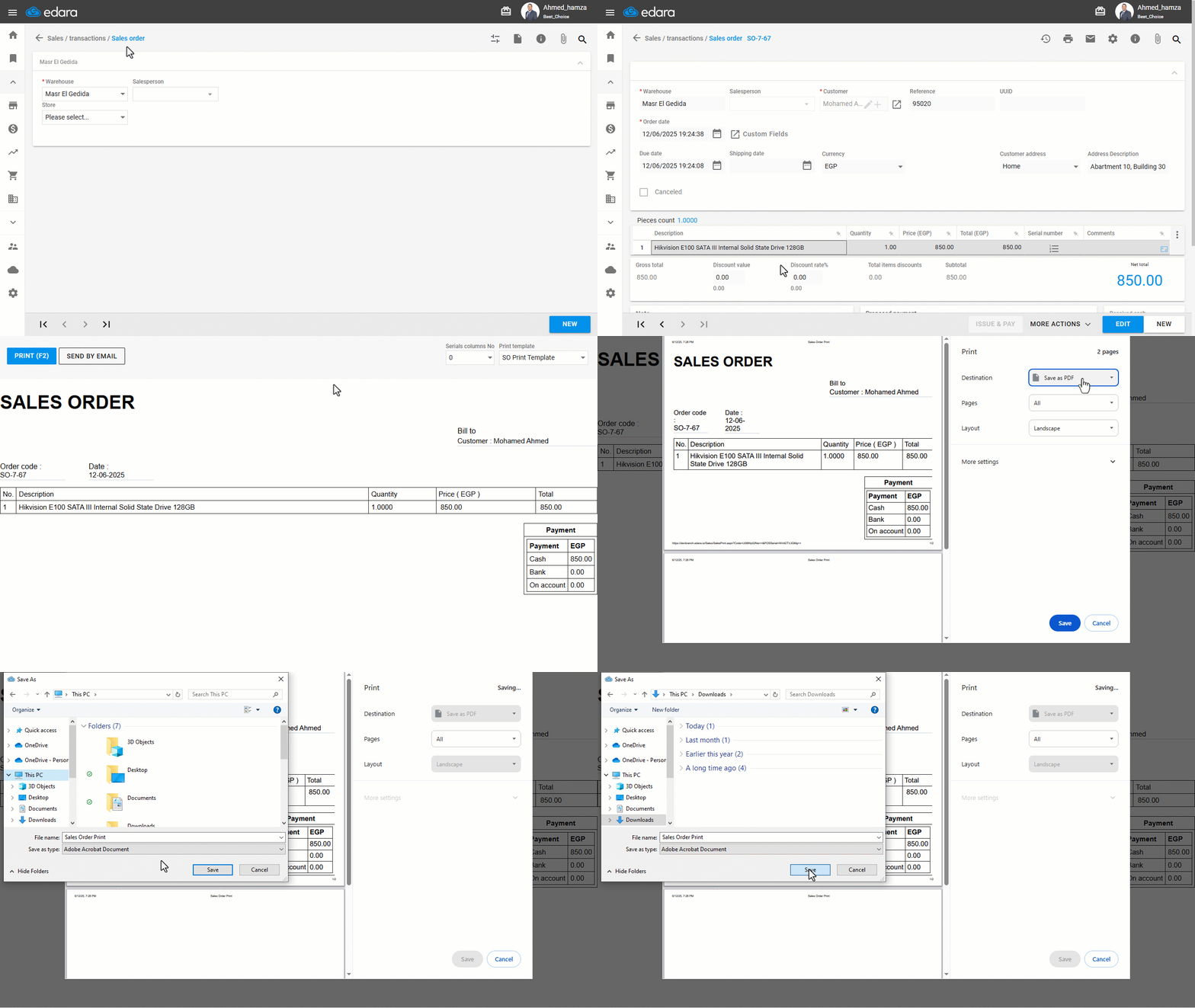
Let’s take a Sales Order as an example:
- Go to the Sales module.
- Open the Sales Orders page.
- Search for the desired order using the 🔍 icon (You can also browse using the navigation arrows at the bottom of the page).
- Click on the printer icon "
 ".
". - Select "Print Order".
- Click on "Print".
- Choose "Save as PDF" in the Destination field.
- Click on "Save".
- Choose the desired location on your device.
- Click "Save" again to complete.
If you encounter any challenges or have questions during these processes, you can contact our technical support team, who are ready to assist you at any time.
Did this answer your question?