

Adding Another Party in the Warehouse Documents
Last updated:
There are multiple reasons for adding a second party in Issue offerings or Receive supplies. For example, this feature can be used when offering gifts, settling stock balances (shortages or surpluses), or during manufacturing by issuing supplies at a zero value to be accounted for at cost.
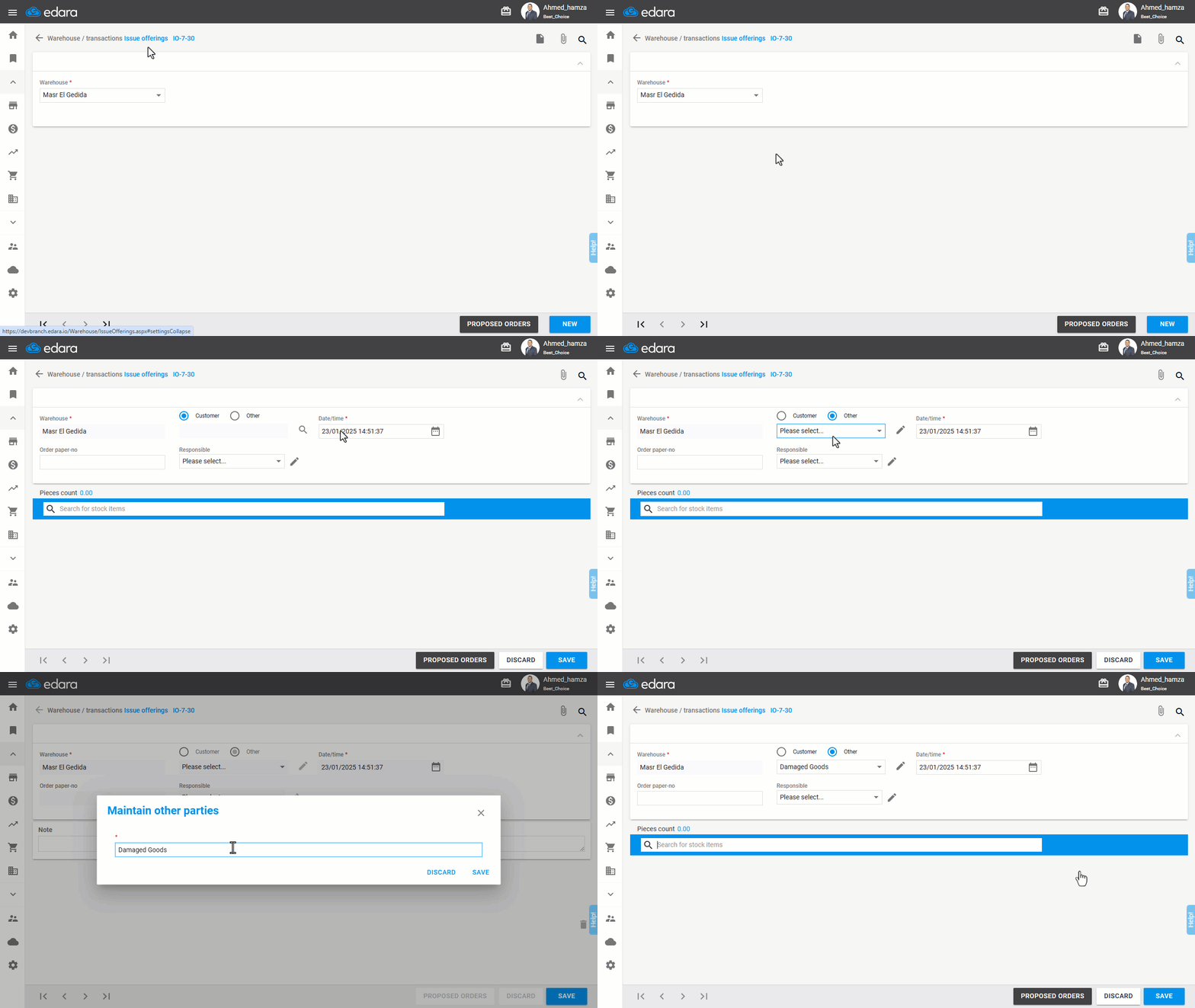
First: Adding Another Party
- Go to the Warehouse module
- Open the "Issue Offerings" page (or the "Receive Supplies" page).
- Select the warehouse
- Click on "New"
- Choose “Other” after dismissing the customer or supplier search screen.
- Ensure the cursor is on "Please select..", then click 🖉.
- Enter the name of the second party to be added.
- Click "Save"
Second: Linking the Other Party in the Warehouse Documents to an Account
- Go to Data.
- Select the “warehouse GL Interface”.
- Choose "Other Parties".
- Specify the account you have created in the IO/RS.
- Select the account to assign inventory transactions to (e.g., Damaged goods).
- Click "+".
- Click "Save”.
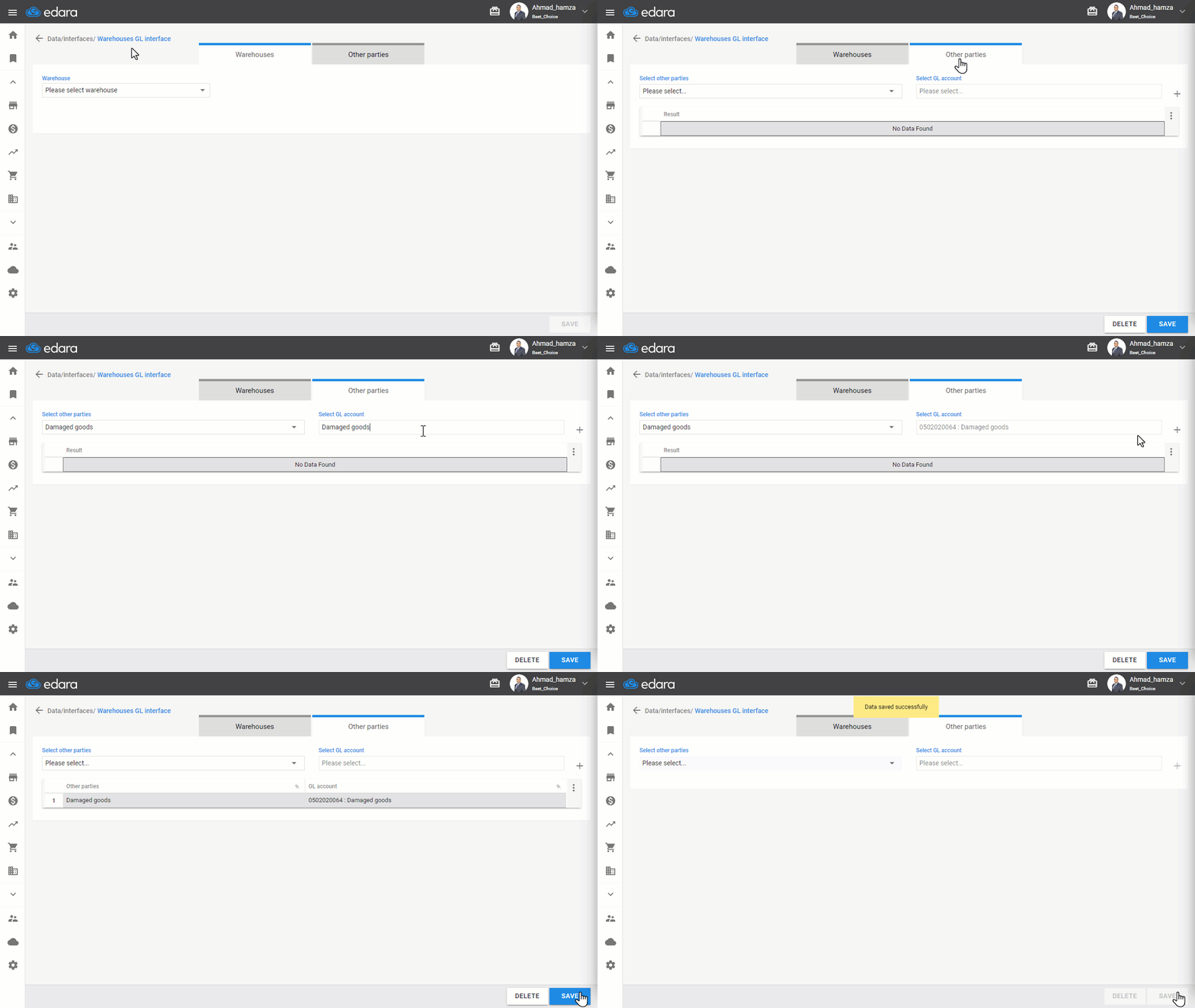
Note: After completing the linking steps, you can return to the (Issue Offerings / Receive Supplies) page to enter the required items and quantities.
Additional Notes:
- For Issue Offerings documents, set the price to zero to calculate the cost of goods.
- For Receive Supplies documents, set the cost price of the items.
Frequently asked questions
What price do I set in an issue offering for the other party?
For Issue Offerings documents, set the price to zero to calculate the cost of goods.
If you encounter any challenges or have questions during these processes, you can contact our technical support team, who are ready to assist you at any time.
Did this answer your question?