

Linking Manufacturing with Warehouse and Accounting
Last updated:
To start working with the Manufacturing Module, you first need to link it with both Warehouse and Accounting. Once the link is established, any changes made in the manufacturing process will automatically update the related warehouse and accounting data.
Linking Manufacturing with Warehouse and Accounting
The process goes through several stages:
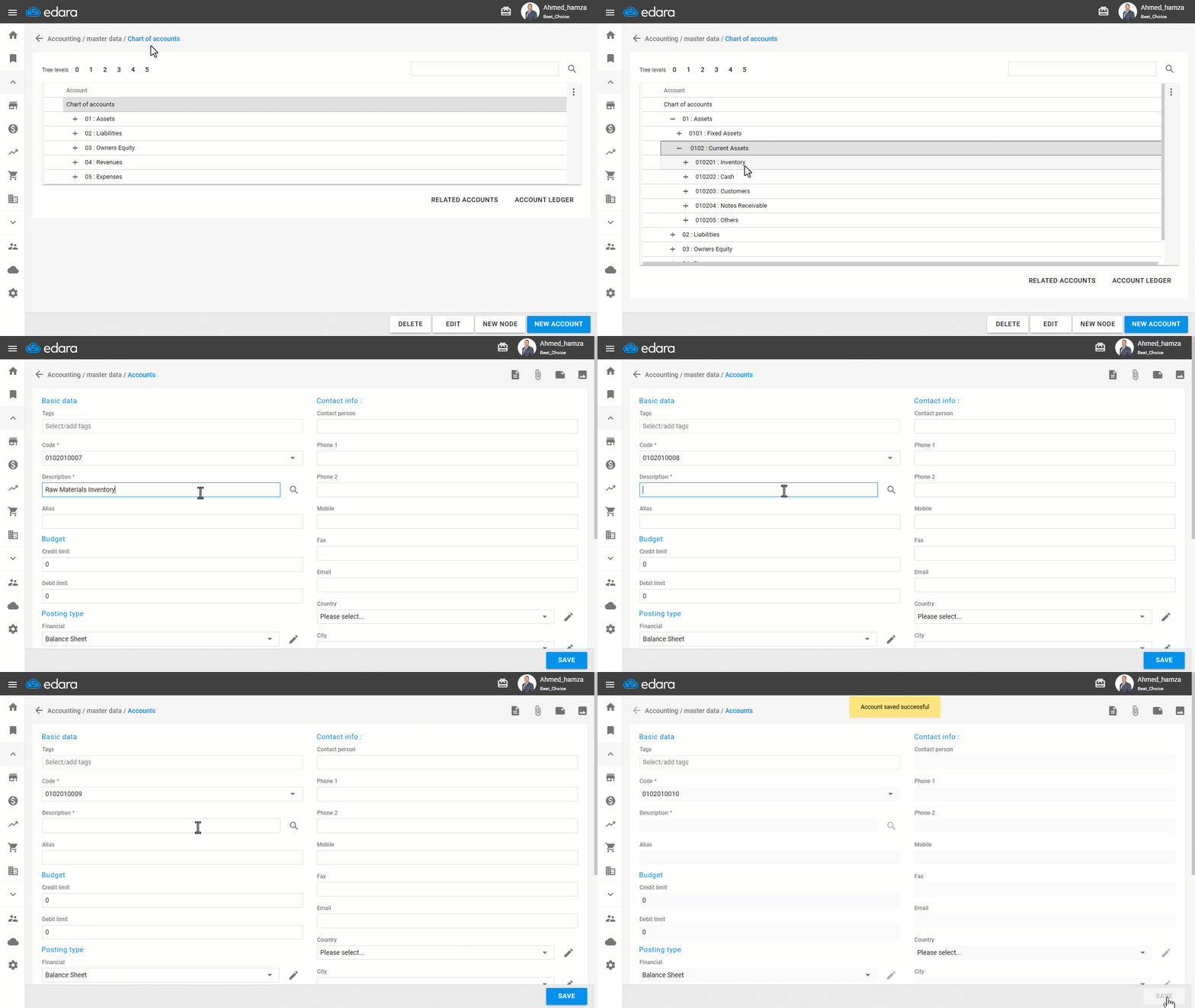
1. Creating Inventory Accounts
- Go to the Accounting module.
- Open the “Chart of Accounts” page.
- Click the “+” sign next to “Assets”.
- Open “Current Assets”.
- Click on “Inventory”.
- Click on “New Account”.
- Create a “Raw Materials Inventory” Account.
- Create a “Work in Progress Inventory” Account.
- Create a “Finished Goods Inventory” Account.
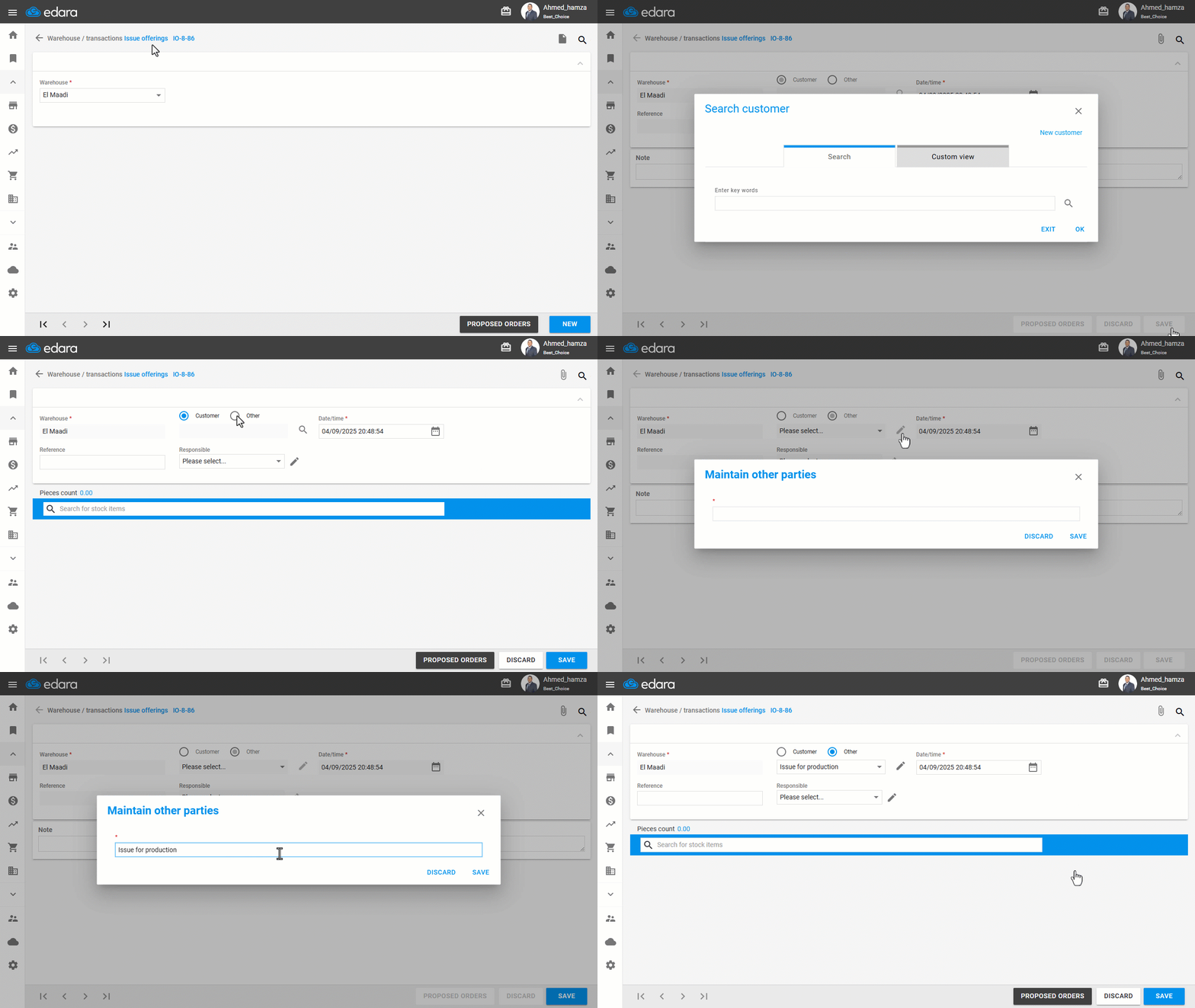
2. Defining a Second Party in the Issue Offerings Document
- Go to the “Warehouse” module
- Open the “Issue Offerings” page.
- Click on “New”.
- Create a new other party for handling Work-in-Progress (It is recommended to name this party: Issue for production).
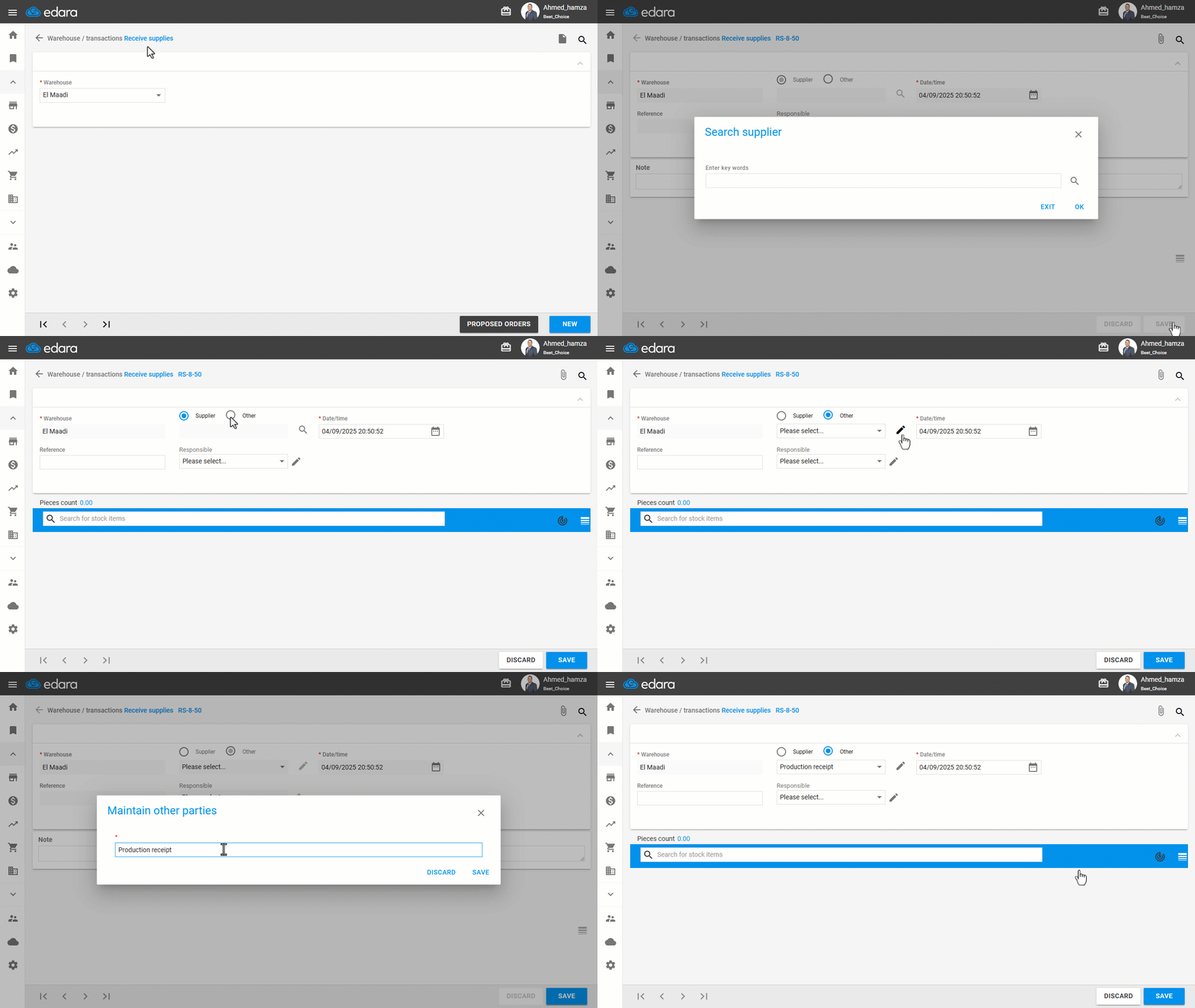
3. Defining a Second Party in the Receive Supplies Document
- Go to the “Warehouse” module
- Open the “Receive Supplies” page.
- Click on “New”.
- Create a new other party for handling Work-in-Progress (It is recommended to name this party: Production receipt).
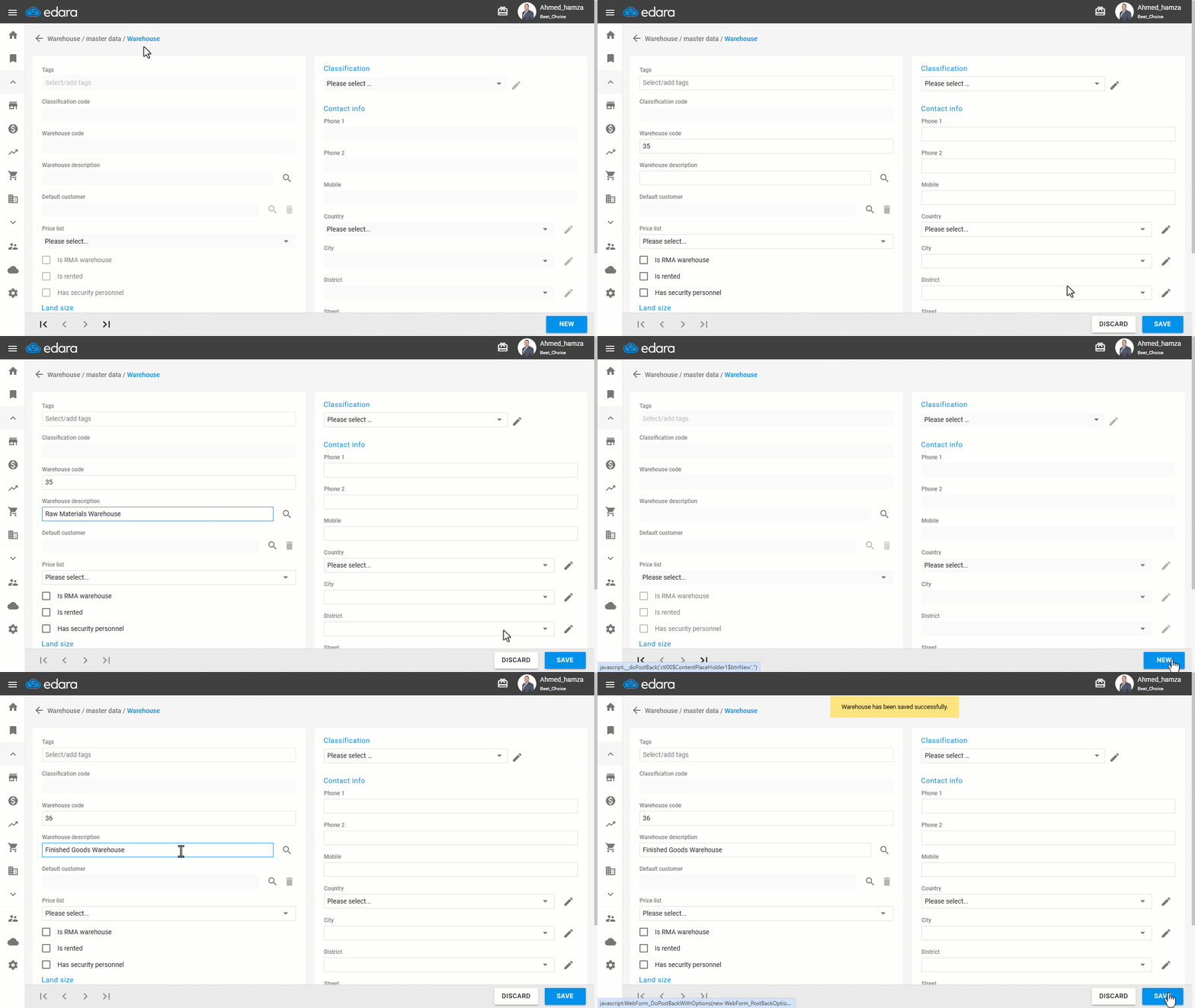
4. Creating Warehouses
You will need to:
- Create a Raw Materials Warehouse.
- Create a Finished Goods Warehouse.
You can follow the detailed steps in the article: Creating a Warehouse.
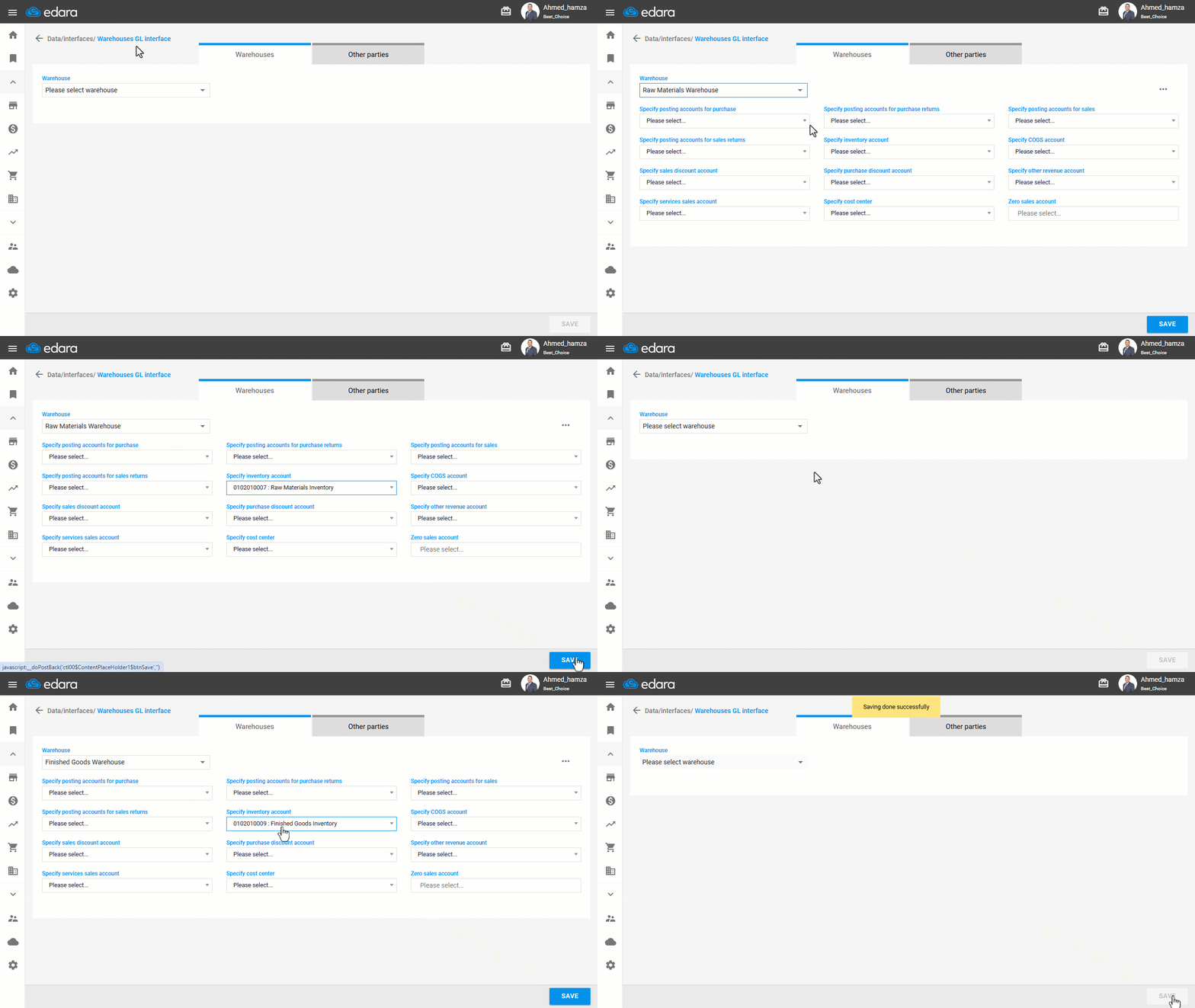
5. Linking with the Warehouse Interface
- Go to Data.
- Open the “Warehouse Interface” page.
- Select the “Raw Materials Warehouse”.
- Assign the “Raw Materials Inventory” Account for the “Raw Materials” Warehouse.
- Click on “Save”.
- Select the “Finished Goods Warehouse”.
- Assign the “Finished Goods Inventory” Account for the “Finished Goods” Warehouse.
- Click on “Save”.
6. Linking the Second Parties to the WIP Account
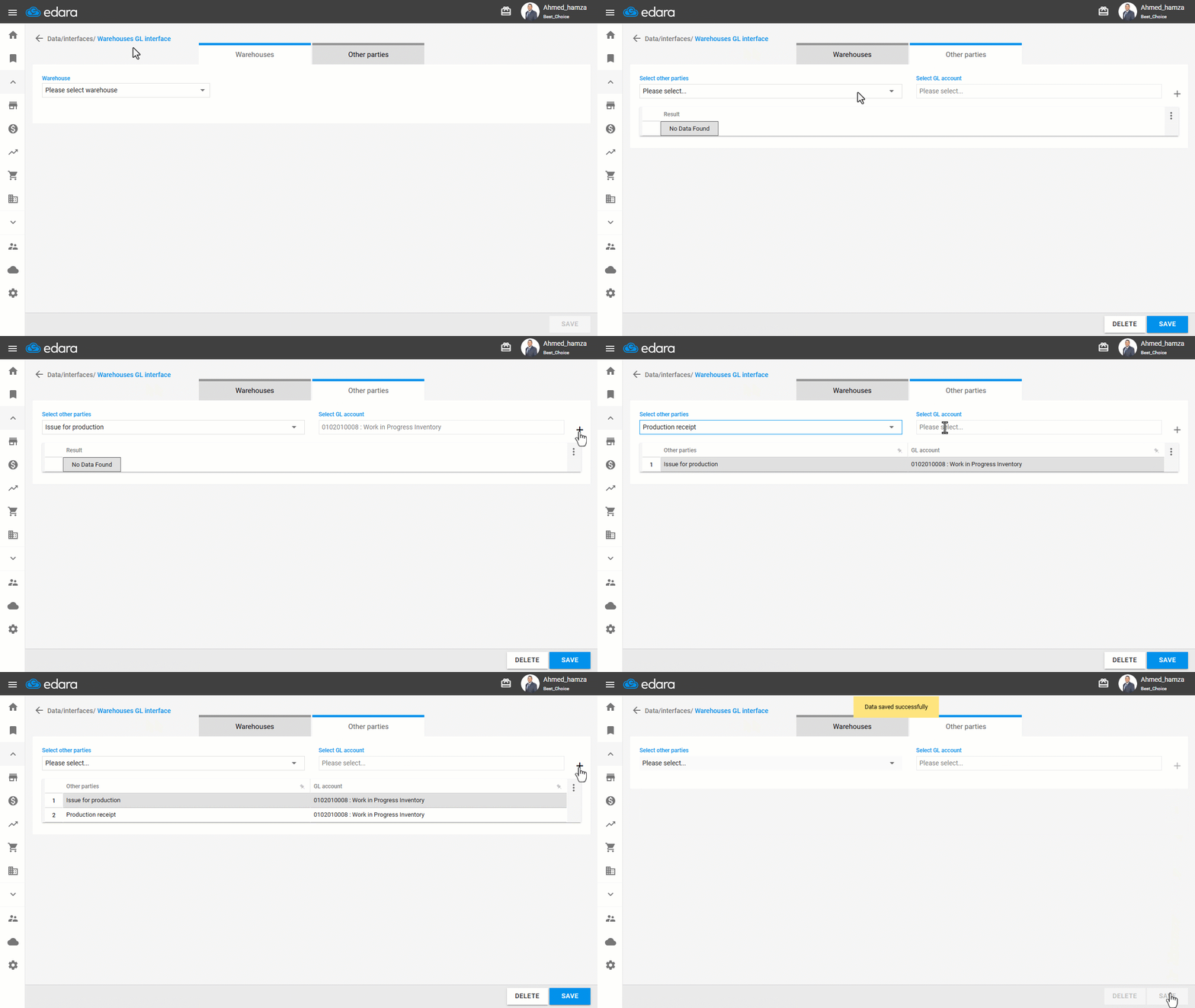
- Go to Data.
- Open the “Warehouse Interface” page.
- Go to the “Other parties” section.
- Select the “Issue for production” Party.
- Choose the “Work in Progress Inventory” Account.
- Click on “+”.
- Select the “Production receipt” Party.
- Choose the “Work in Progress Inventory” Account.
- Click on “+”.
- Click on “Save”.
If you encounter any challenges or have questions during these processes, you can contact our technical support team, who are ready to assist you at any time.
Did this answer your question?