

Creating a Warehouse
Last updated:
Inventory management and organizing Stock Items within warehouses help improve operational efficiency and support more accurate decision-making. You can achieve this by creating a warehouse, assigning the Stock Items that will be managed within it, and linking the warehouse to the required accounts to manage inventory transactions and accurately track Stock Item movements.
Creating a Warehouse
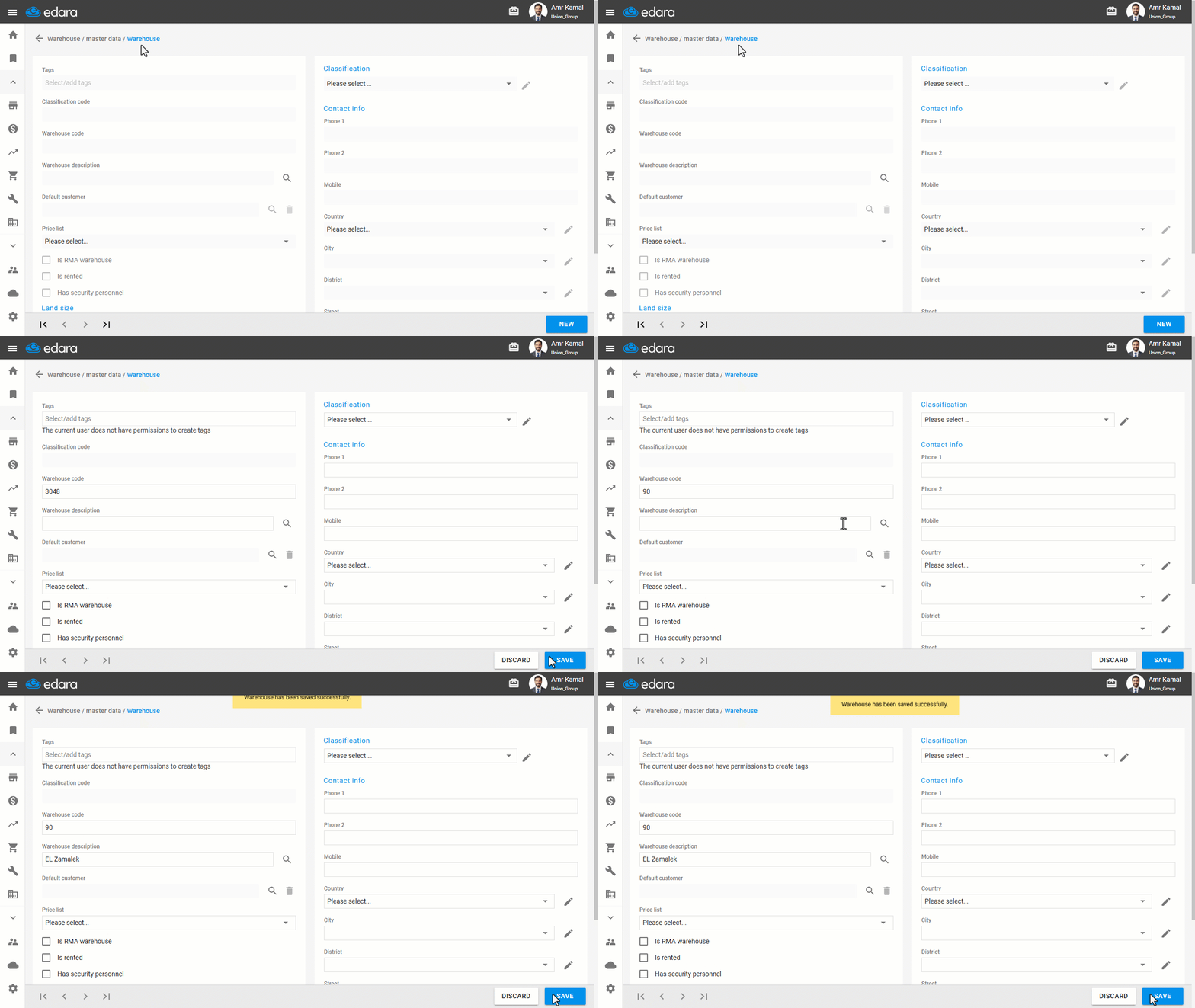
- Go to the "Warehouse" Module.
- Open the "Warehouses" page.
- Click on "New".
- Enter the warehouse code.
- Enter the warehouse description.
- Click on "Save".
Notes:
- After saving the warehouse, a message will appear asking, "Do you want to allocate some stock items to this warehouse?" You can choose to assign all Stock Items to the warehouse or assign specific Stock Items by classification when not all Stock Items need to be available in the warehouse. Stock Item Allocation must be completed before the warehouse can be used in any inventory transactions or operations.
- Company-level default accounts are automatically applied to new warehouses. To configure these accounts or customize a warehouse’s accounts, see Managing GL Interface.
If you encounter any challenges or have questions during these processes, you can contact our technical support team, who are ready to assist you at any time.
Did this answer your question?