

Managing GL Interface
Last updated:
The GL Interface helps you define the accounts used to create the accounting entries associated with documents issued from different departments, such as Warehouses, Sales, and Purchases, ensuring that each transaction is posted to its corresponding accounting account.
You can also customize accounts based on the nature of each entity, while applying the default settings to warehouses to reduce repetitive account configuration.
Managing GL Interface
- Go to “Data”.
- Open the “GL Interface” page.
GL Interface settings include “Warehouses”, “Sales Stores”, “Other Parties”, and “Company GL interface defaults”.
Setting Company-Level Account Defaults
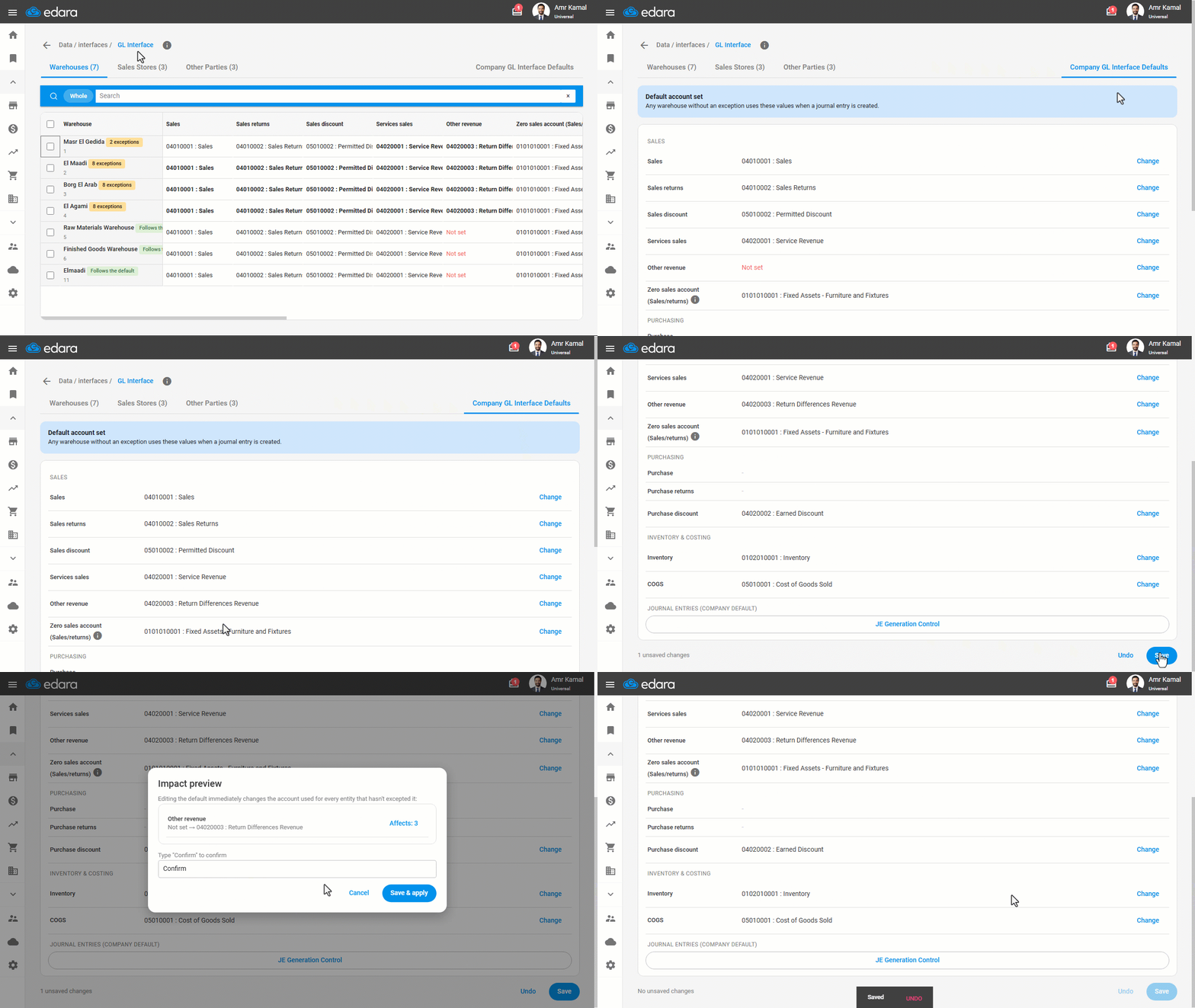
- Go to “Company GL interface defaults”.
- Click on “Change” next to the group whose default account you want to change.
- Enter the account name or number.
Once you click on the account field, the available accounts appear for selection. You can search for an account by entering any part of its name or number.
- Click on “Save”.
A preview message will appear before saving, showing the number of warehouses affected by the change, with the option to view the list of affected warehouses in detail.
Note: If a warehouse has an account assigned as an exception, it will not be affected by changes to the company defaults for that account. Also, once an account is selected in the company defaults, it cannot be changed back to "Not set"; you can only change it to another account.
- Type “confirm” to confirm.
- Click on “Save & Apply”.
These accounts will be used as company-level defaults, and any new warehouse will automatically inherit them when created.
Any changes made to the company defaults are applied directly to all warehouses that still follow these defaults, while warehouses with accounts assigned as exceptions remain unchanged.
Linking Warehouse Accounts
When you manage a large number of warehouses, setting accounts for each warehouse separately and repeating the same setup can take extra time, especially when most warehouses use the same accounts.
You can also track which warehouses follow the company defaults and which have exceptions, and make bulk changes when needed, reducing repetitive setup and making warehouse account management easier.
- Go to “Warehouses”.
- Select the required warehouse.
- Click on the edit icon “
 ”, or double-click on the warehouse row to open its settings.
 - Modify the required account.
- Click on “Save”.
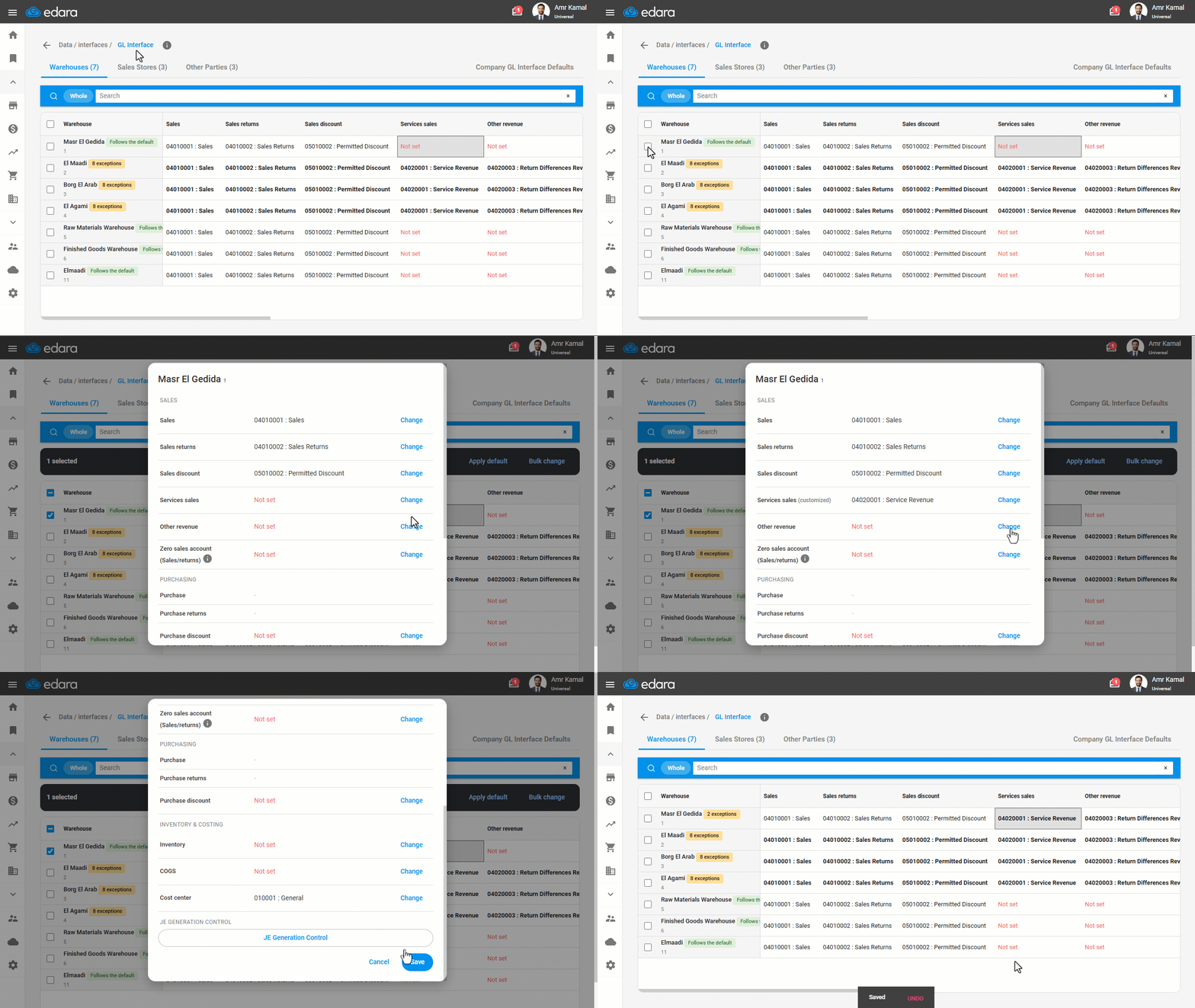
You can modify the accounts linked to a warehouse either by clicking the pencil icon next to the warehouse or by double-clicking on the warehouse row, then modifying the required accounts and saving the changes.
When you change a specific account for a warehouse, that account becomes an exception, while the remaining accounts continue to use the company defaults.
The exception account appears in bold in the warehouse table.
The word “Exceptions” also appears next to it in the edit screen, and the total number of exceptions for the warehouse is displayed in the table.
Note: When creating the journal entry, the system uses the account specifically assigned to the warehouse if it is set as an exception. If no exception is configured, the system uses the current company default.
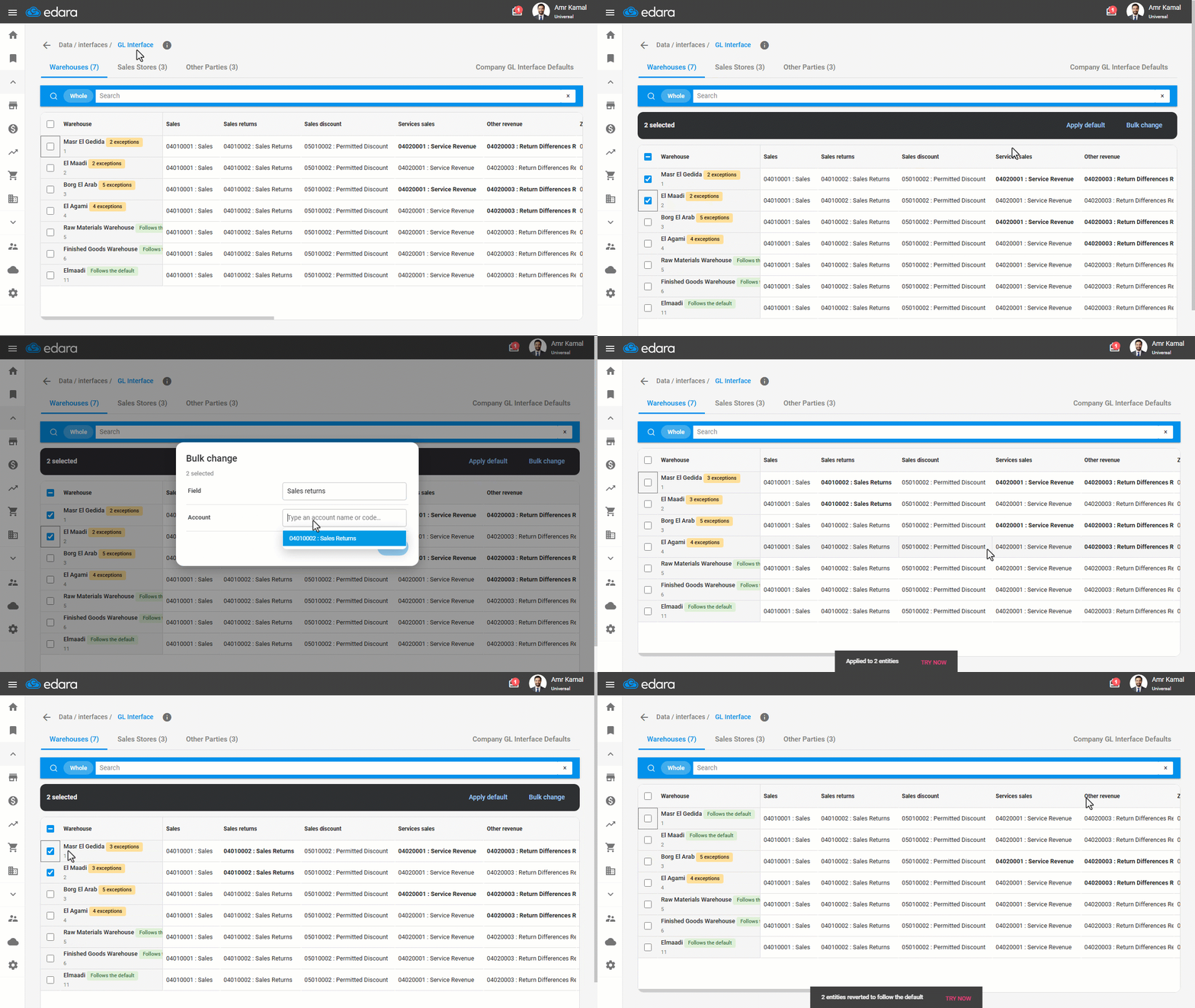
You can also update multiple warehouses in bulk by following these steps:
- Select the warehouses you want to update.
- Click on “Bulk Change”.
- Select the field.
- Enter the account name or number.
- Click on “Save”.
The change is applied to the selected warehouses, and the updated account is recorded as an exception to the company defaults.
Notes:
- You can return warehouses to the default configuration by selecting the warehouses you want to reset and clicking on “Apply Default”. This removes their account exceptions and returns the selected warehouses to using the company defaults.
Note:
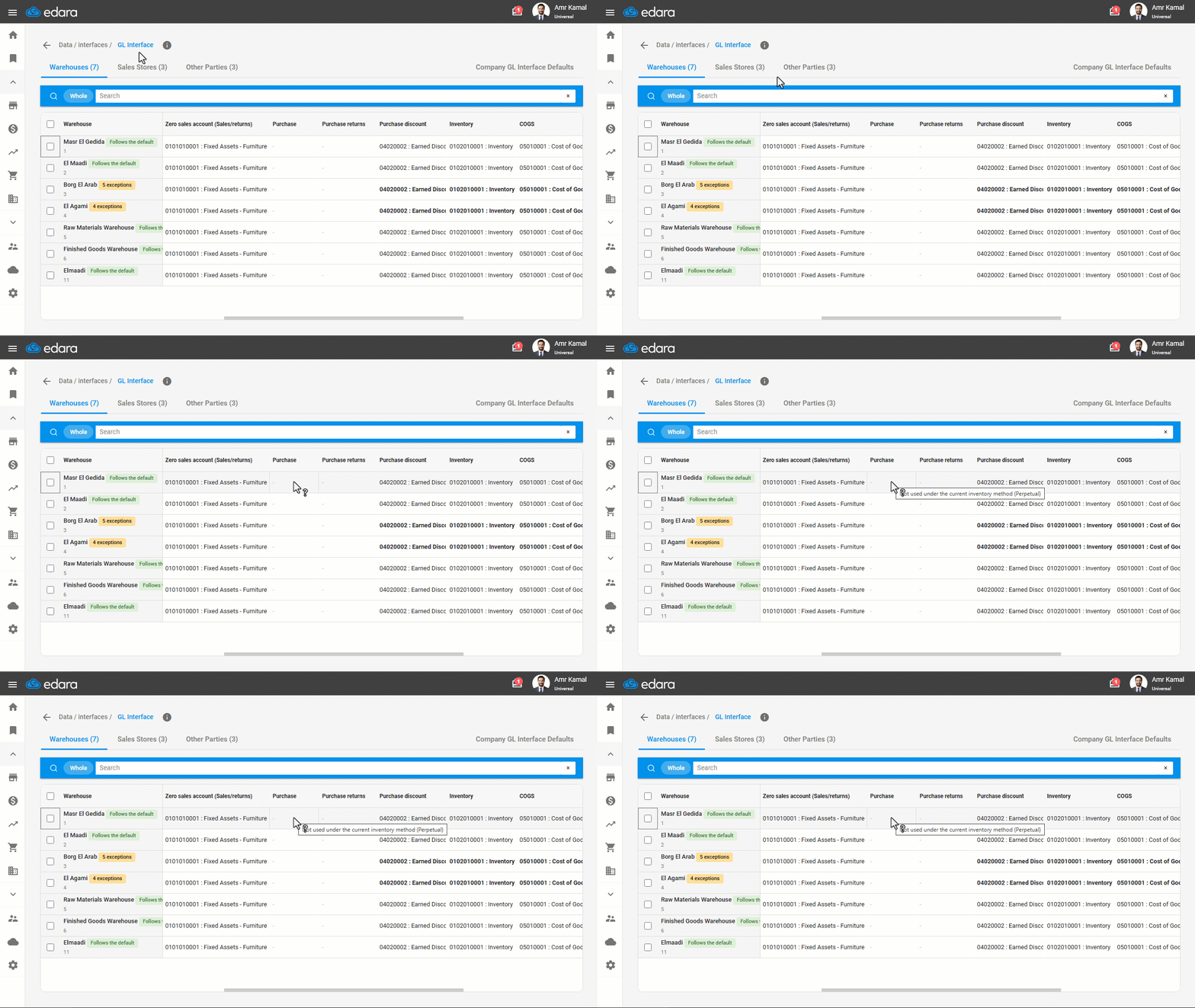
- Accounts that are not used according to the current inventory method are not hidden; instead, they appear disabled, with an explanatory message displayed when hovering over them to clarify why they are not used:Perpetual, the "Purchases" and "Issue Returns" accounts appear disabled.Periodic, the "Inventory" and "Cost of Goods Sold" accounts appear disabled.
Sales Stores Interface
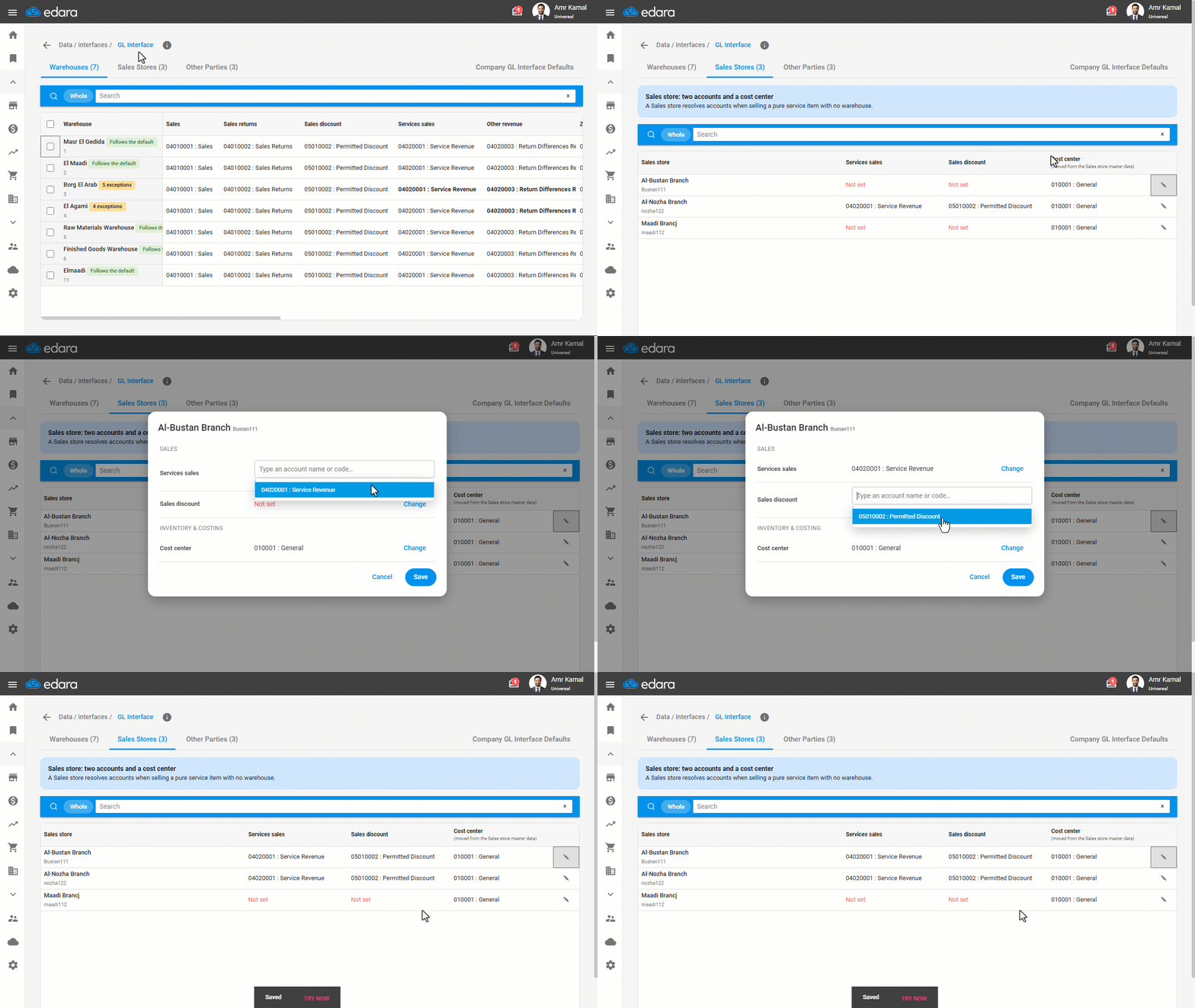
The Sales store is used to determine the accounts when creating a sales order from a sales store containing service items only, without going through warehouses.
- Go to “Sales Stores”.
- Click on the edit icon “
 ”, or double-click the warehouse row to open its settings.
 - Enter the required changes.
- Click on “Save”.
This tab includes accounts for service sales and sales discounts, as well as the cost center used when selling a service item without a warehouse.
The cost center setting has also been moved from the branch coding screen to this section so that it is included with the store’s account settings
Setting Up Other Party Accounts
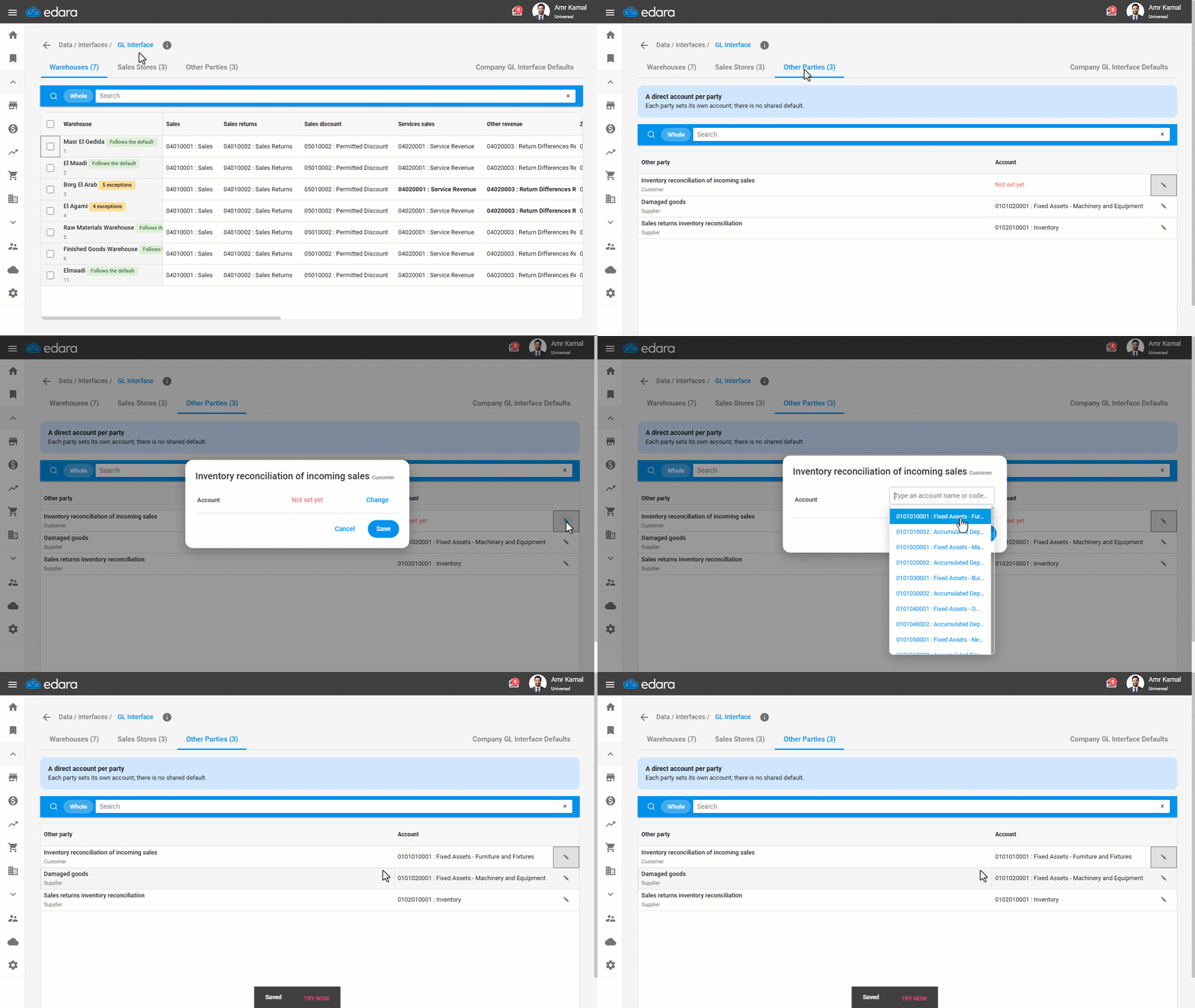
- Go to “Other Parties”.
The tab displays all other parties, whether they are linked to an account or show “Not set”, without requiring you to add them manually, while they can still be coded through the Quick Coding screen in Work Orders.
A settlement account is assigned directly to each party, with no shared default account, due to the different nature of settlements from one party to another.
Frequently asked questions
Is a warehouse with an exception account affected by changes to the company defaults?
If a warehouse has an account assigned as an exception, it will not be affected by changes to the company defaults for that account. Also, once an account is selected in the company defaults, it cannot be changed back to "Not set"; you can only change it to another account.
How do I return warehouses to the company defaults?
You can return warehouses to the default configuration by selecting the warehouses you want to reset and clicking on “Apply Default”. This removes their account exceptions and returns the selected warehouses to using the company defaults.
If you encounter any challenges or have questions during these processes, you can contact our technical support team, who are ready to assist you at any time.