

Selecting a Default Account for Zero Sales in the GL Interface
Last updated:
When you provide gifts to customers, whether during seasonal promotions and holidays or when launching a new item, record these transactions as zero sales to ensure the resulting accounting entries post to the appropriate account. Edara's GL Interface assigns a default account for zero-value sales.
Selecting a Default Account for Zero Sales in the GL Interface
First, ensure you have the necessary permissions for the accounts and the cost center you want to add. Then follow these steps to post the entries:
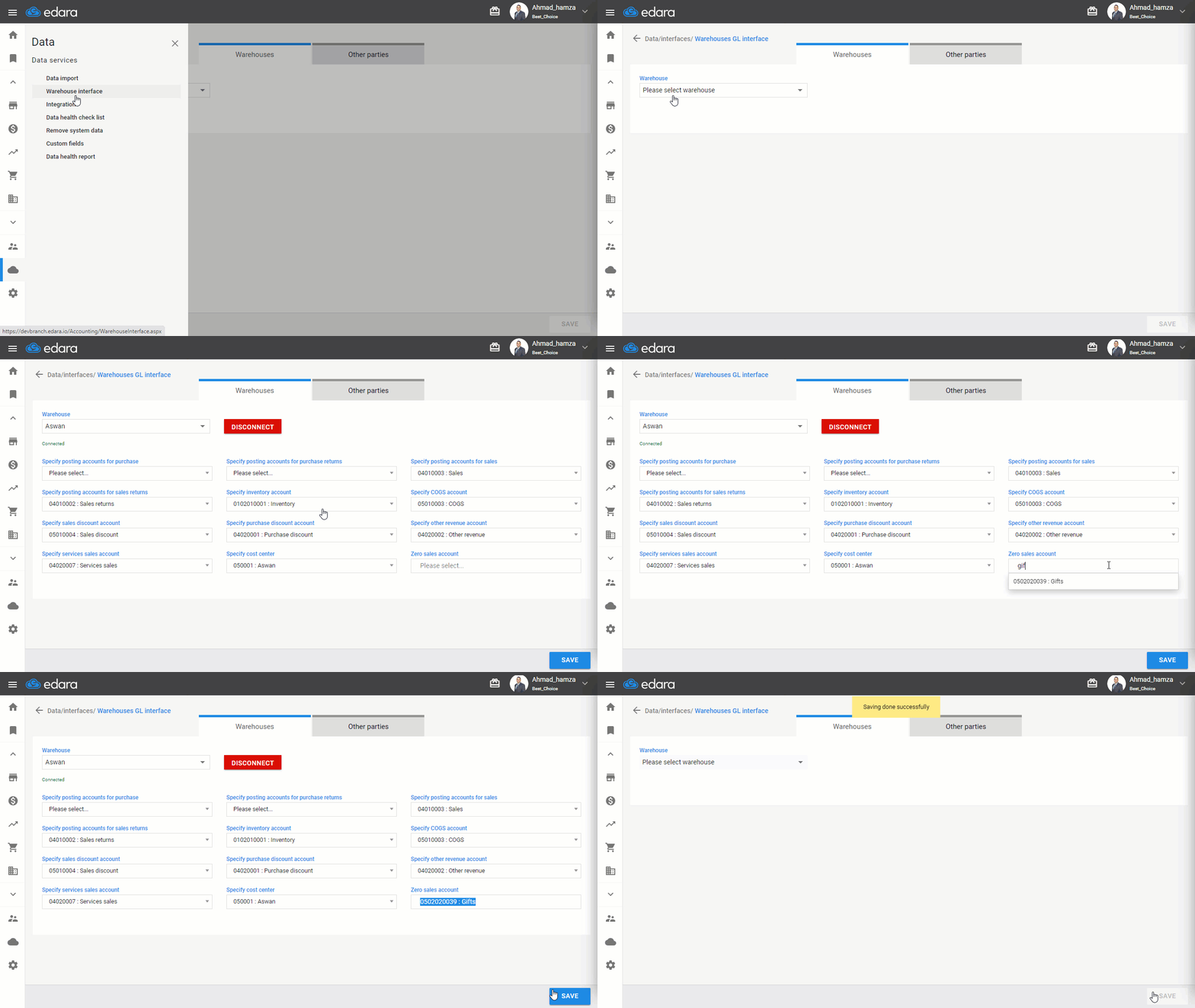
- Go to “Data”.
- Open the “GL Interface” page.
- Click on the edit icon “
 ”, or double-click the row of the warehouse for which you want to set a zero sales account.
- Click on “Change” next to the zero sales account.
Note: The zero sales account affects both IO and RR.
- Enter the name or number of the account you want to assign to zero sales.
Once you click on the account field, the available accounts appear for selection. You can search for an account by entering any part of its name or number.
- Click on “Save”.
If you encounter any challenges or have questions during these processes, you can contact our technical support team, who are ready to assist you at any time.