

Restoring Drafts and How to Delete Them
Last updated:
Many users face the issue of losing data entered into a document before saving it due to unexpected factors like power or internet outages, requiring them to re-enter the data.
To address this, we’ve added a feature in "Edara" that allows you to recover and save or delete documents collectively.
Restoring Drafts and How to Delete Them
Note: Drafts can be accessed in all "Edara" documents except for Sales Returns and Purchase Returns.
Here’s how you can manage drafts:
1. Restoring a Draft (Example: Purchase Order)
- Go to the Purchase Module.
- Open the "Purchase Order" page.
Note: If there are drafts, a red circle with the draft count appears next to the "📋" icon.
- Click "📋" to view available drafts, sorted by the last modification date.
- Select the draft you want to recover.
- Complete the missing data in the draft, then save it.
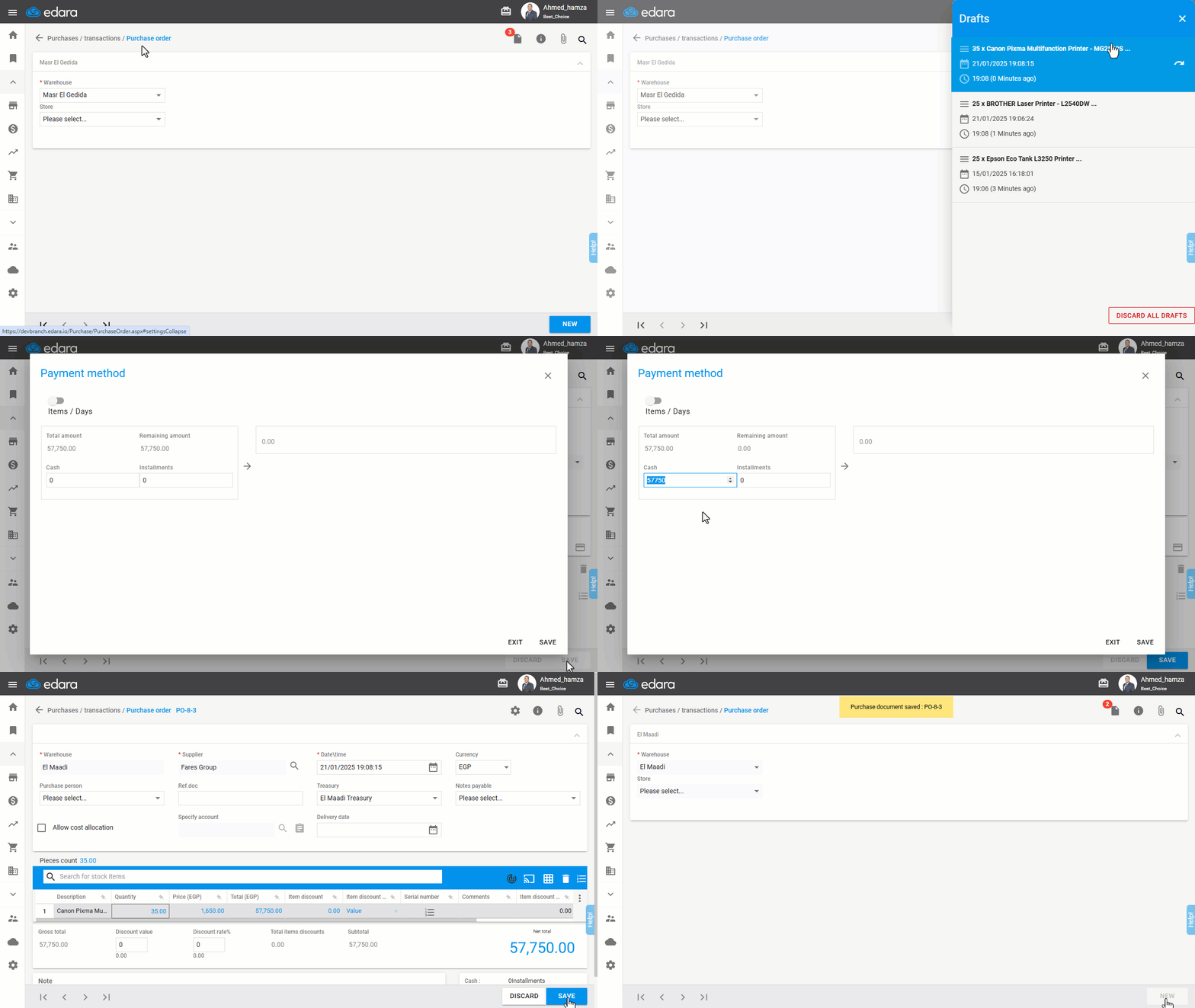
Note: Serial numbers are not saved within drafts.
2. Deleting All Drafts
- Go to the Purchase Module.
- Open the "Purchase Order" page.
- Click "📋".
- Click "Discard All Drafts".
- Confirm by pressing "Yes".
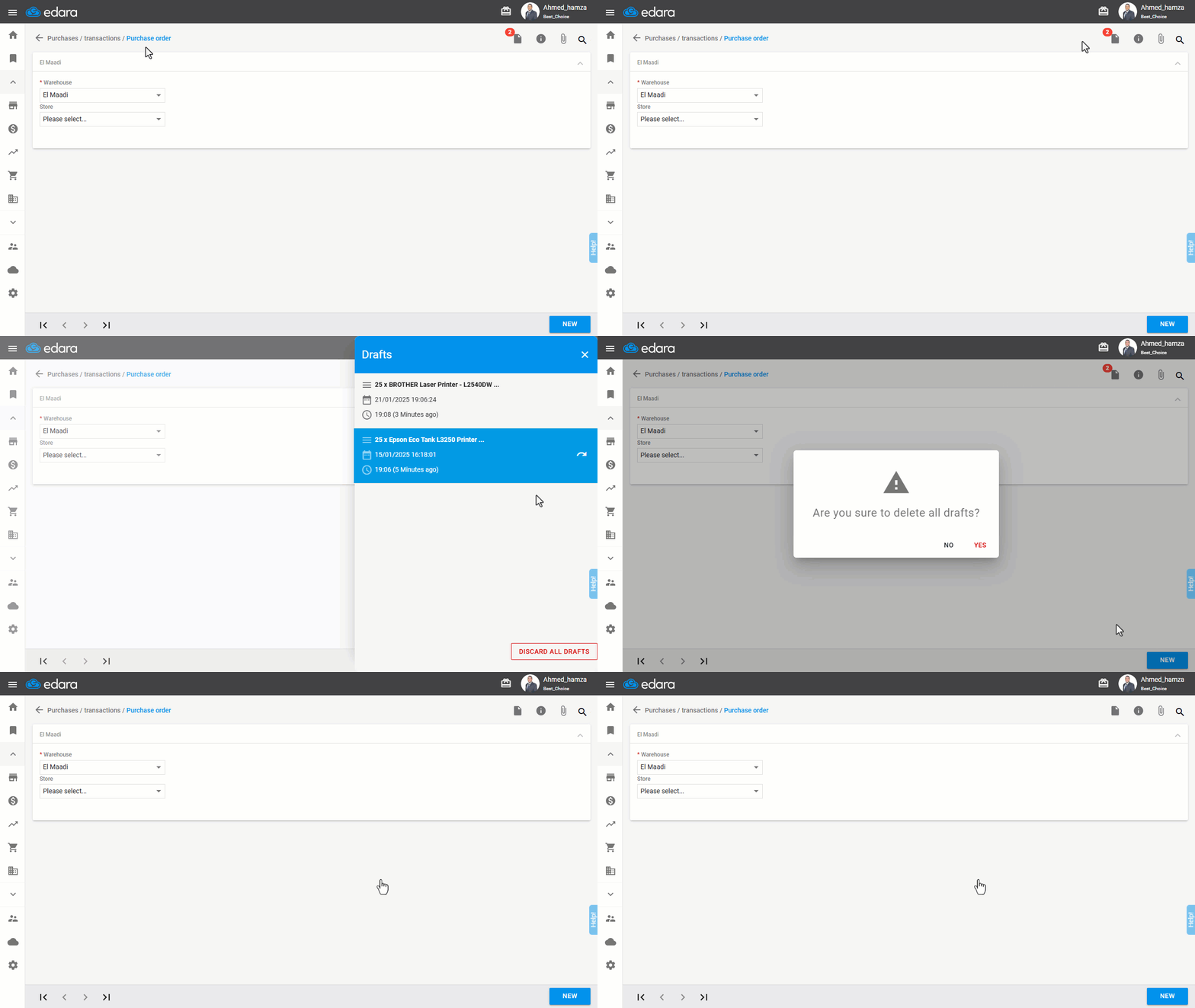
Note: You can delete each draft individually by clicking "Cancel", and confirming the deletion with "Yes".
Note: Drafts are linked to the browser and will be deleted if the browser is updated or if browsing data is cleared, making them unrecoverable.
Frequently asked questions
When are drafts deleted for good?
Drafts are linked to the browser and will be deleted if the browser is updated or if browsing data is cleared, making them unrecoverable.
If you encounter any challenges or have questions during these processes, you can contact our technical support team, who are ready to assist you at any time.