

Adding Duplicated Stock Items on the Same Row Instead of Separated Rows
Last updated:
Instead of adding duplicated stock items in a new row every time, you can activate a feature that allows duplicate stock items of the same type to be added to the same row. This speeds up your work and simplifies tracking orders.
This feature has been implemented in several documents, including:
- Sales Orders.
- Purchase Orders.
- Receive Supplies.
- Physical Count.
- Issue Transfer.
In this article, we’ll explain how to make use of it.
Adding Duplicated Stock Items on the Same Row Instead of Separated Rows
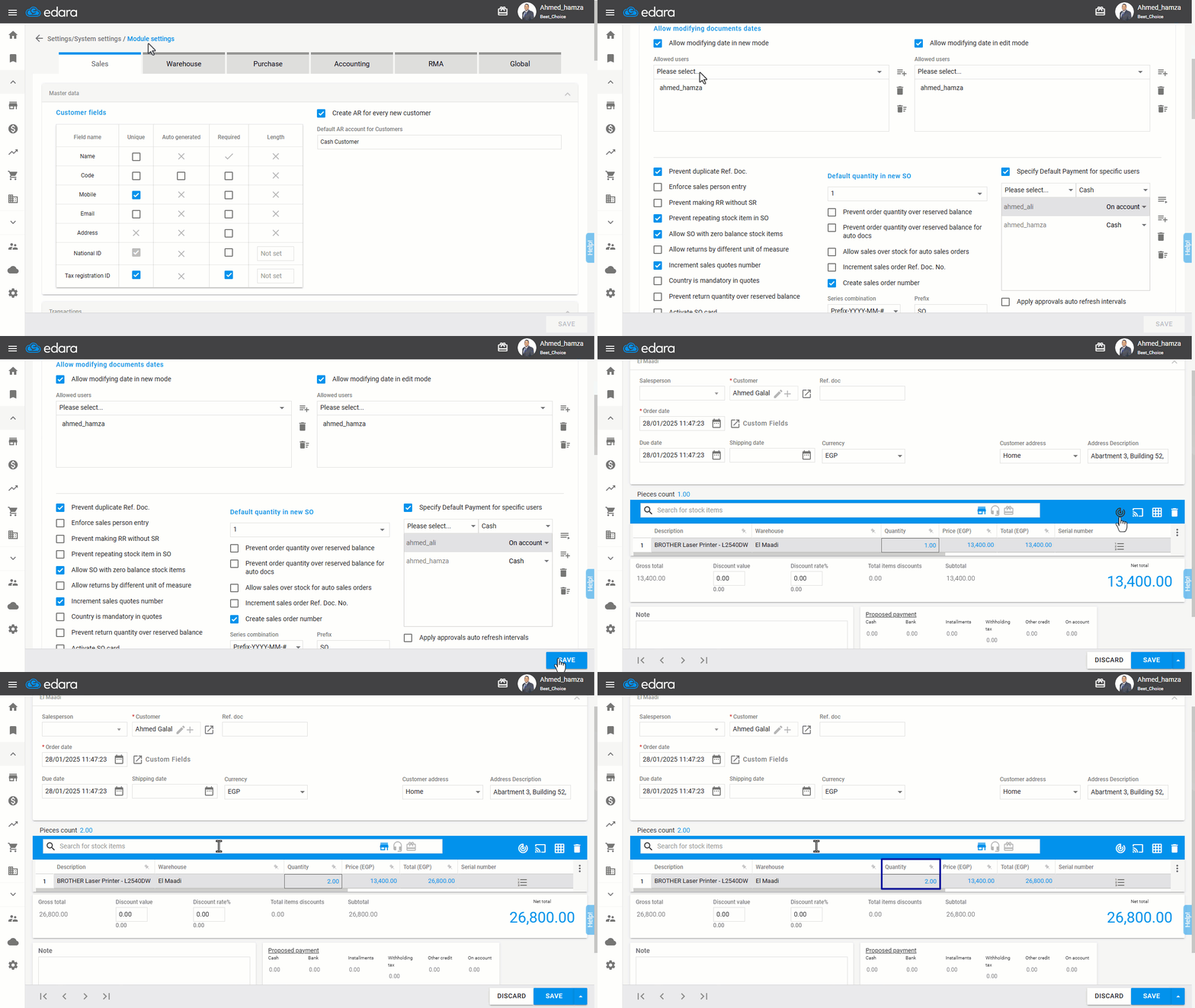
Here’s an example applied to Sales Orders:
- Go to Settings.
- Open the “Module Settings” page.
- Choose “Sales”.
- Ensure the setting “Prevent repeating stock item in SO” is not activated.
- Click “Save”.
Once you’ve selected at least one item, enable the " " icon. After this, when you add a duplicated stock item, the quantity of it will increase on the same row instead of creating a new one.
Note: This icon will not appear in Purchase Orders or Receive Supplies Documents if the “Prevent repeating stock item in PO” setting under Purchases is enabled. Ensure this setting is deactivated.
Note: When using this feature, the default quantity for any newly added stock item will change from 0 to 1.
If you encounter any challenges or have questions during these processes, you can contact our technical support team, who are ready to assist you at any time.