

Saving a View on the Sales Orders Page
Last updated:
Instead of rearranging columns or filtering data every time you open the Sales Orders page, you can now save your preferred views for reports and easily restore them anytime without affecting others' preferences.
Saving a View on the Sales Orders Page

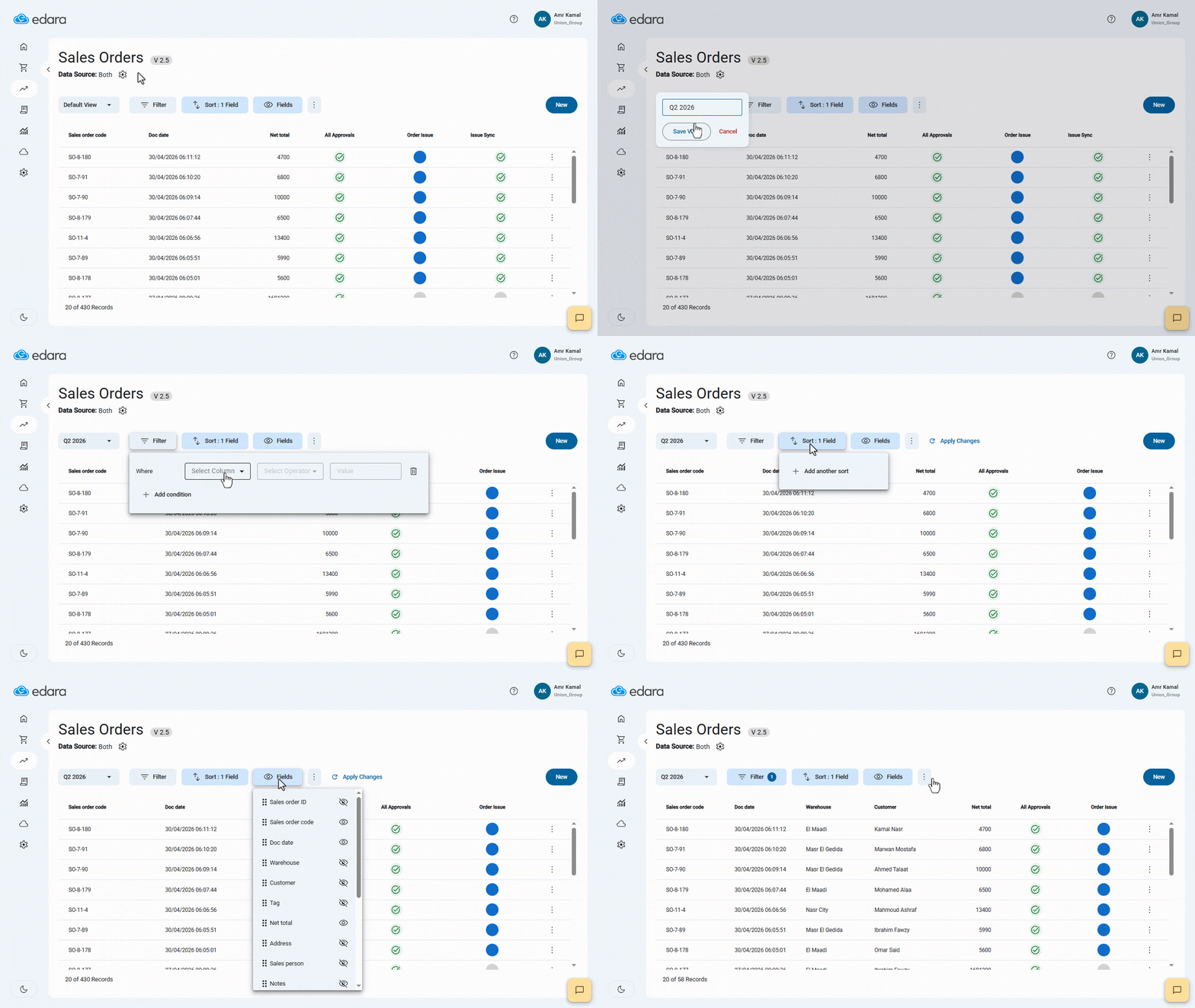
- Go to the “Point of Sale” module.
- Open the “Sales Orders” page.
- Open the available views menu, then click on “Create View”.
- Enter a name for the view.
- Click on “Save view”.
Notes:
- You can take advantage of features like filtering, sorting, and displaying/hiding fields to create a customized view.
- Any changes you make to the view will be saved automatically.
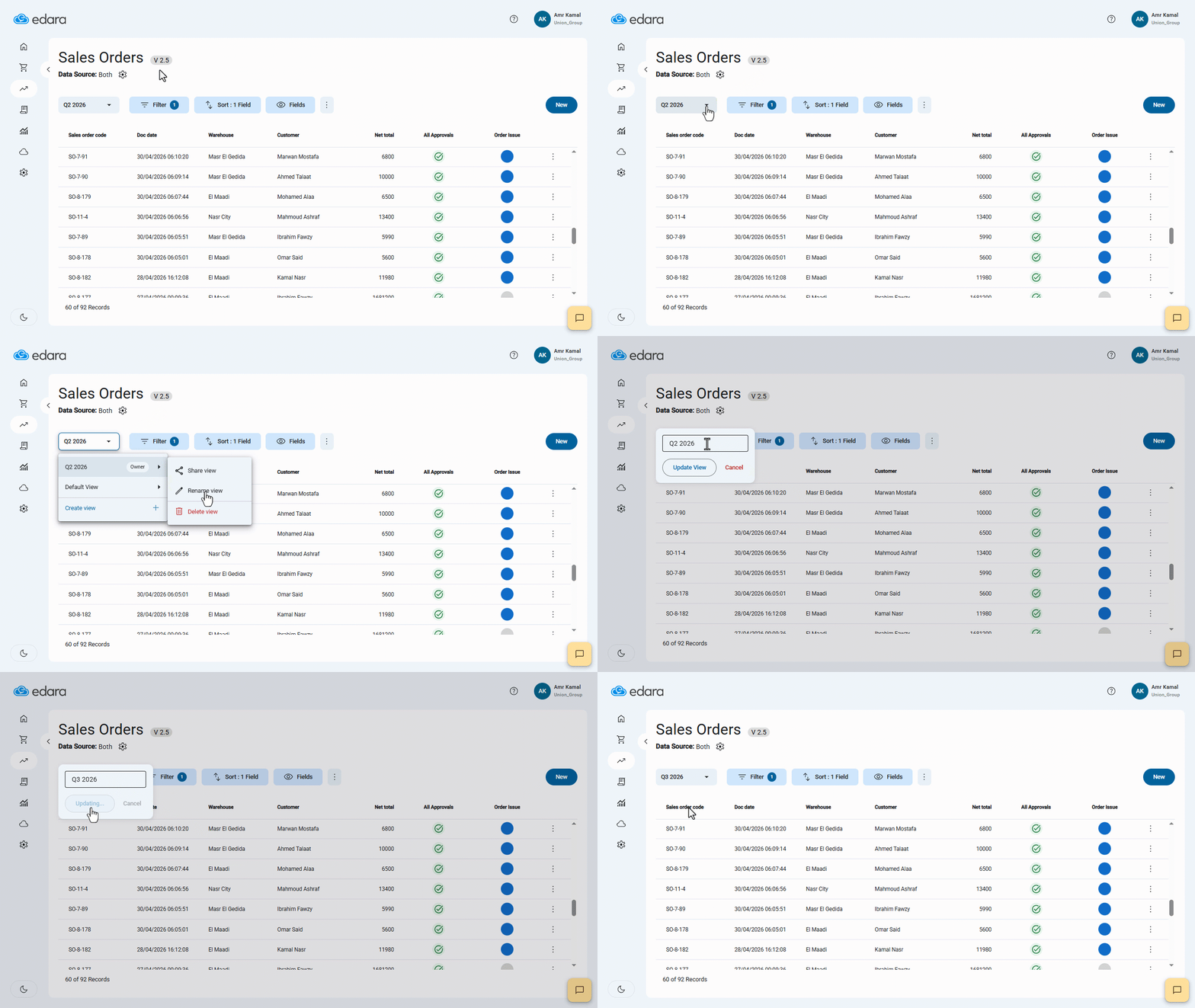
You can rename or delete a view by opening the available views menu, hovering over the desired view name, and making the adjustments.
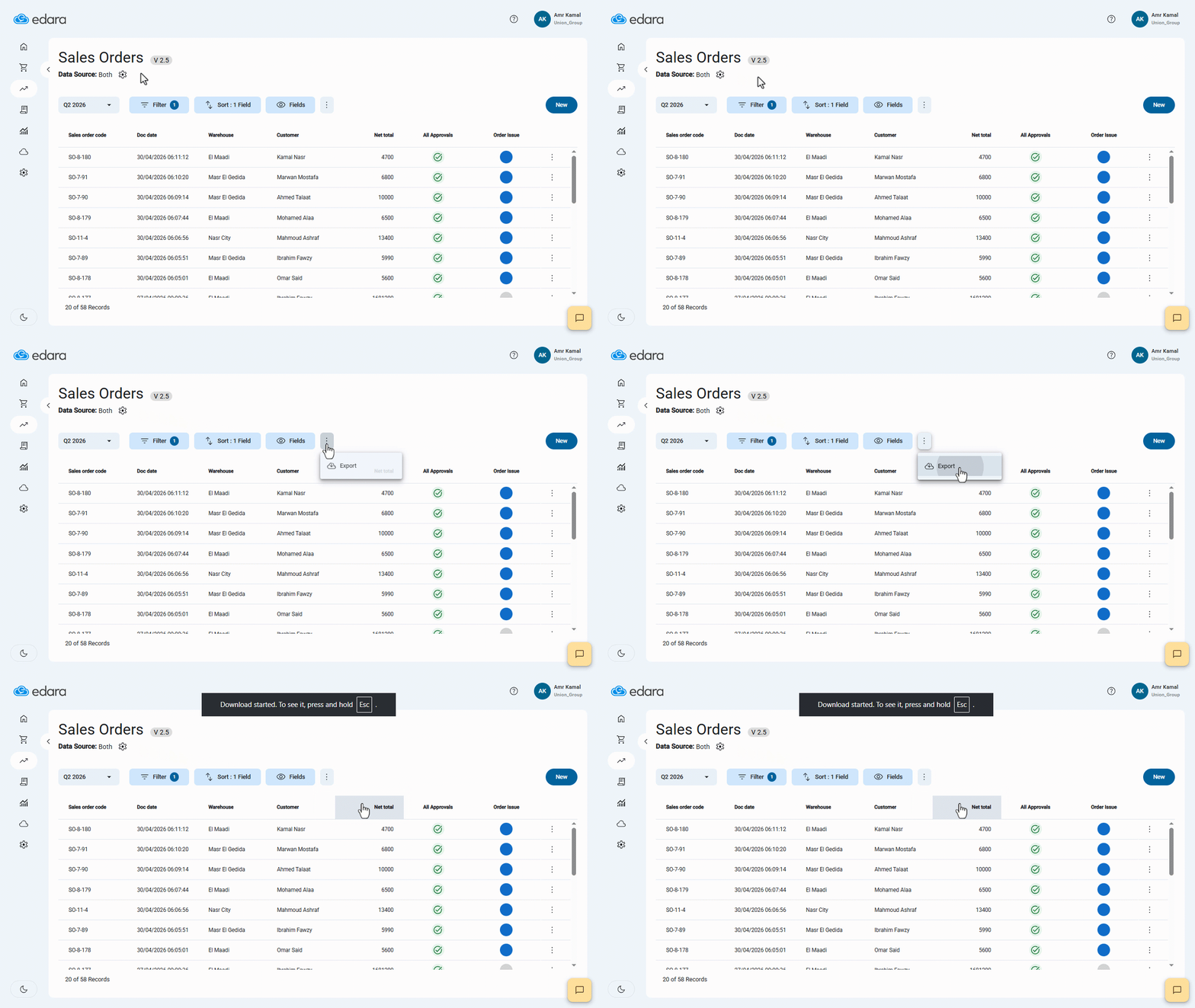
You can export a saved view by clicking on “⋮” then "Export".
Note: The same view is available on other pages within the system, such as “Cash In/Out” and “Promotions”, and others.
If you encounter any challenges or have questions during these processes, you can contact our technical support team, who are ready to assist you at any time.
Did this answer your question?