

Using Multiple Payment Accounts in Point of Sale
Last updated:
A customer may need to pay a sales order using more than one payment method in a single transaction, such as paying part of the amount in cash and part via one or more bank accounts. Therefore, you can add more than one payment account on the payment page, distributing the sales order amount across the different payment methods within a single payment transaction.
Using Multiple Payment Accounts in Point of Sale
Before starting, make sure that both the “Sales Order v2.5 (New Layout)” and “Multiple Payments” features are enabled under “Preview features”.
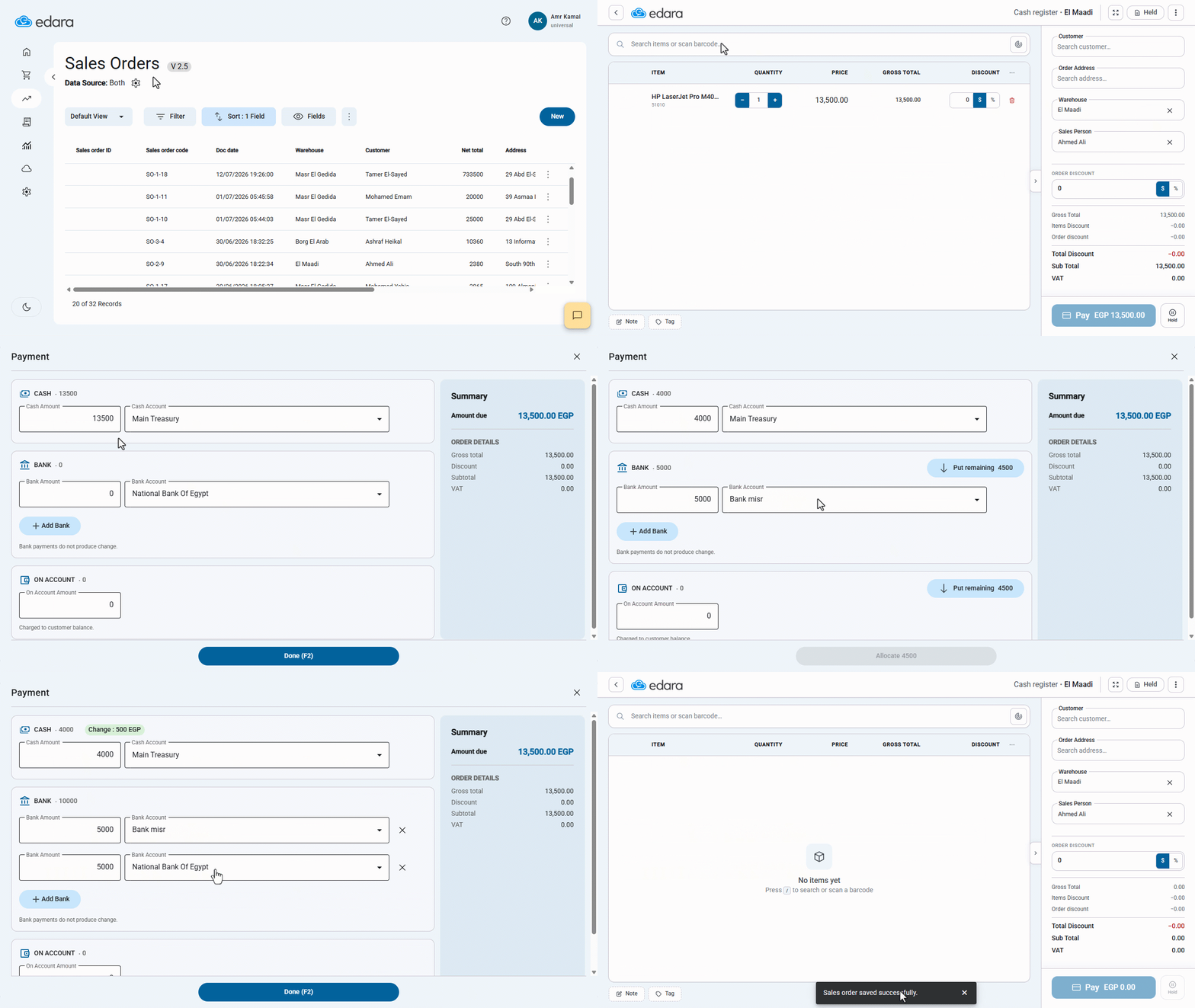
- Go to the “Point of Sale” module.
- Open the “Sales Orders” page.
- Click on “New”.
- Complete the sales order details.
- Click on “Pay”.
The full sales order amount is displayed by default in the “Cash Amount” field.
- Enter the amount you want to collect in cash.
- Enter the amount you want to collect through a bank account.
- Select the bank account.
- Click on “Add Bank” to add another payment account.
- Repeat entering the payment amount and selecting the bank account.
- Click on “Done”.
Notes:
- The system automatically calculates the change amount only for cash payments. When paying through bank accounts, you cannot enter an amount greater than the sales order total.
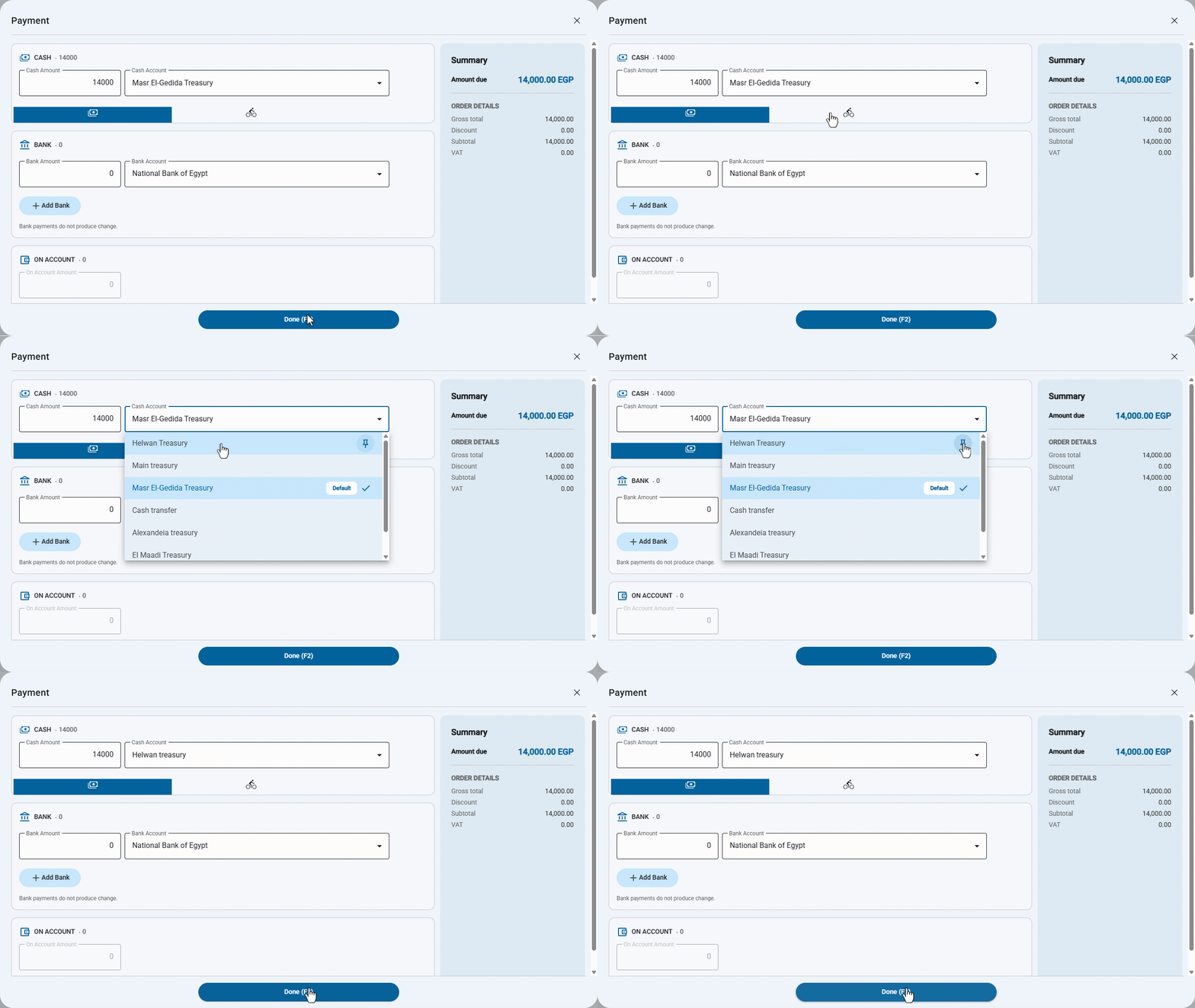
- You can set a payment account as the default account by clicking on the “📌” icon next to the desired account. It will then be selected automatically for future payment transactions.
Frequently asked questions
Can I enter an amount greater than the sales order total?
The system automatically calculates the change amount only for cash payments. When paying through bank accounts, you cannot enter an amount greater than the sales order total.
If you encounter any challenges or have questions during these processes, you can contact our technical support team, who are ready to assist you at any time.