

Creating a Pre-order in POS
Last updated:
If you have a store where the order taker (salesperson) is separate from the cashier, and a customer wants to prepare an order (whether for pickup or delivery), the order taker must create a Pre-order.
This pre-order is not converted into an actual order until it is processed through the cash register.
Creating a Pre-order in POS
Note: The user's role in the system must be "Order Taker" to create a pre-order.
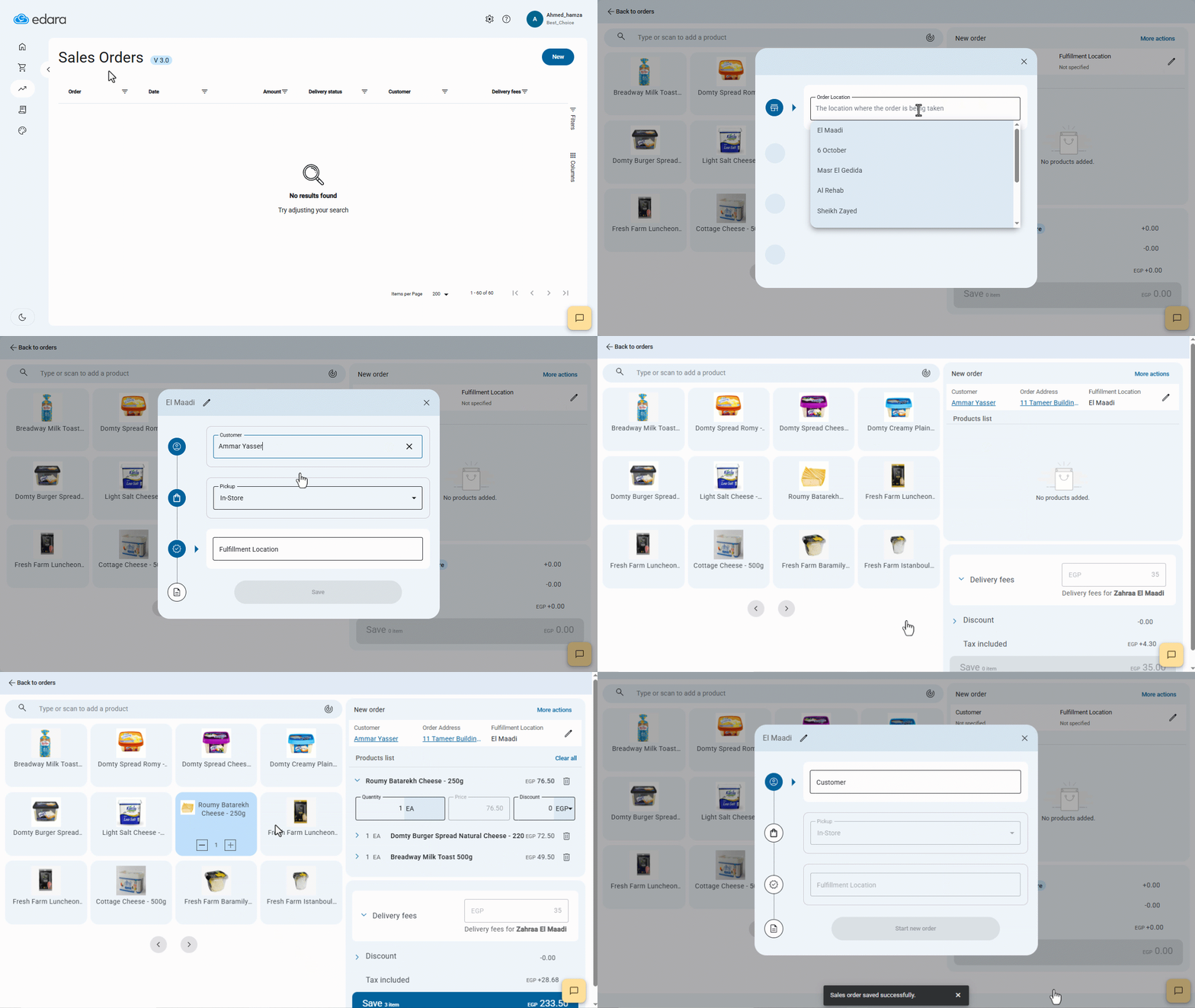
- Go to Point of Sale.
- Open the “Sales Orders” page.
- Click on "New".
- Select the order location (this is set once per user and used automatically thereafter).
- Enter the customer's name.
- Select the delivery method (In-Store Pickup or Delivery).
Note: If you select "Delivery", the system will use the customer’s default address, which can be changed if needed.
- Select the fulfillment location (the warehouse or store where the products will be prepared).
- Choose the products to be prepared.
- Click on "Save".
Updating the Pre-order Delivery Status
After these steps, a pre-order will appear in the Sales Orders list with the delivery status set to "New". You can update this status based on the order’s progress:
- Click on the Sales Order.
- Click "Set Delivery Status".
- Select the current status of the pre-order.
- Click on "Save".
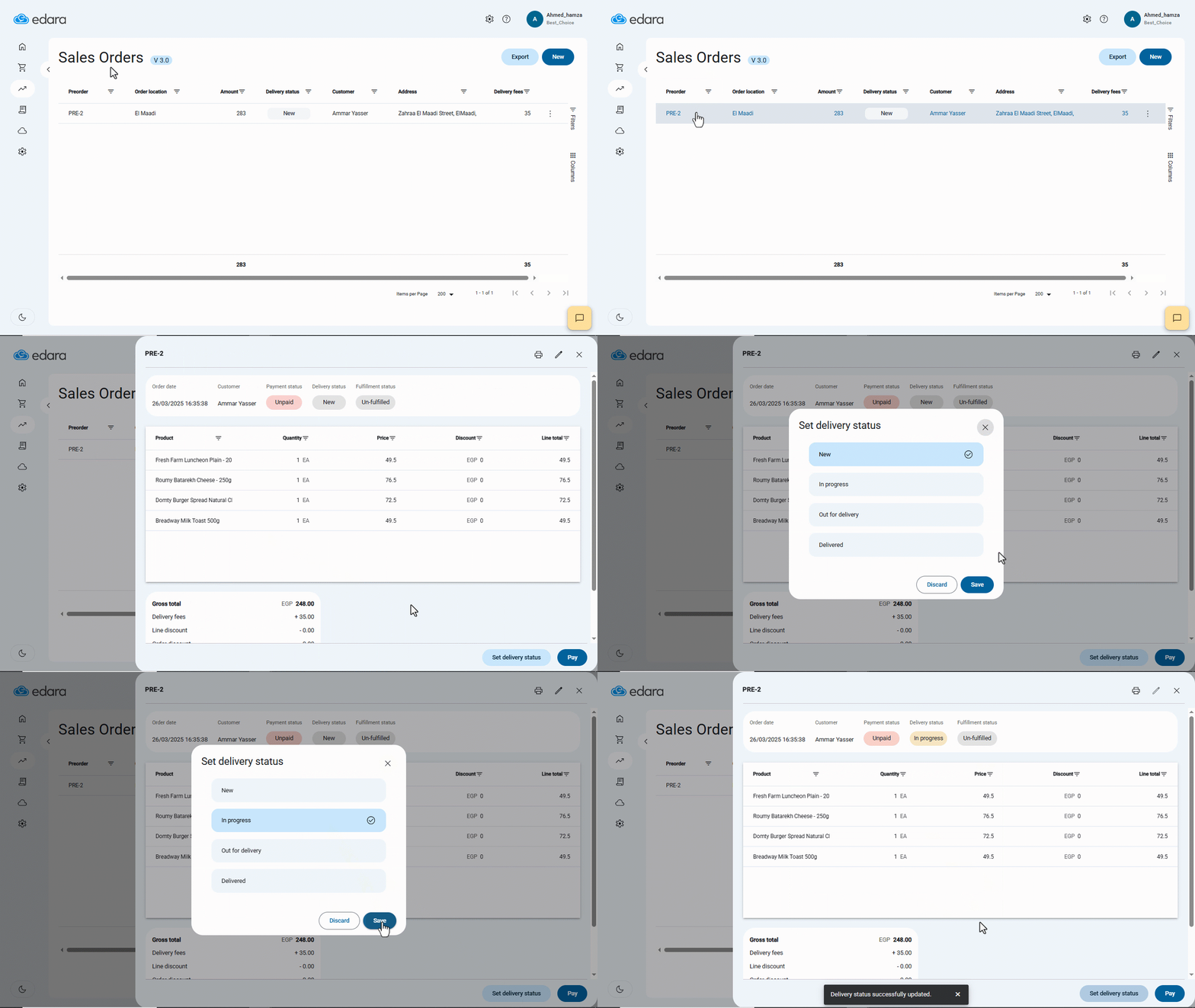
Note: There are 4 possible delivery statuses:
- New: The initial status when the order is created.
- In Progress: Selected when the order is being packed.
- Out for Delivery: Selected when the order leaves the fulfillment location for delivery.
- Delivered: Selected once the customer has received the order.
Updating the “delivery status” helps track orders and respond to customer inquiries efficiently.
If you encounter any challenges or have questions during these processes, you can contact our technical support team, who are ready to assist you at any time.