

Saving the Proposed Cash In for Sales Orders
Last updated:
If you create a sales order for a customer without receiving the cash payment immediately — intending to collect it later — it’s best to link the proposed cash-in to the sales order.
This helps complete the document cycle and ensures a proper sequence of related documents, making the review process easier and faster.
Saving the Proposed Cash In for Sales Orders
- Go to the Accounting module.
- Open the “Cash in” page.
- Select the “Treasury”.
- Click on the “Proposed SO” button to view the suggested sales orders for payment.
- Select the “Warehouse” specified in the sales order.
Note: If the sales order was created under a sales store, click " " to switch to the list of sales stores and select from there.
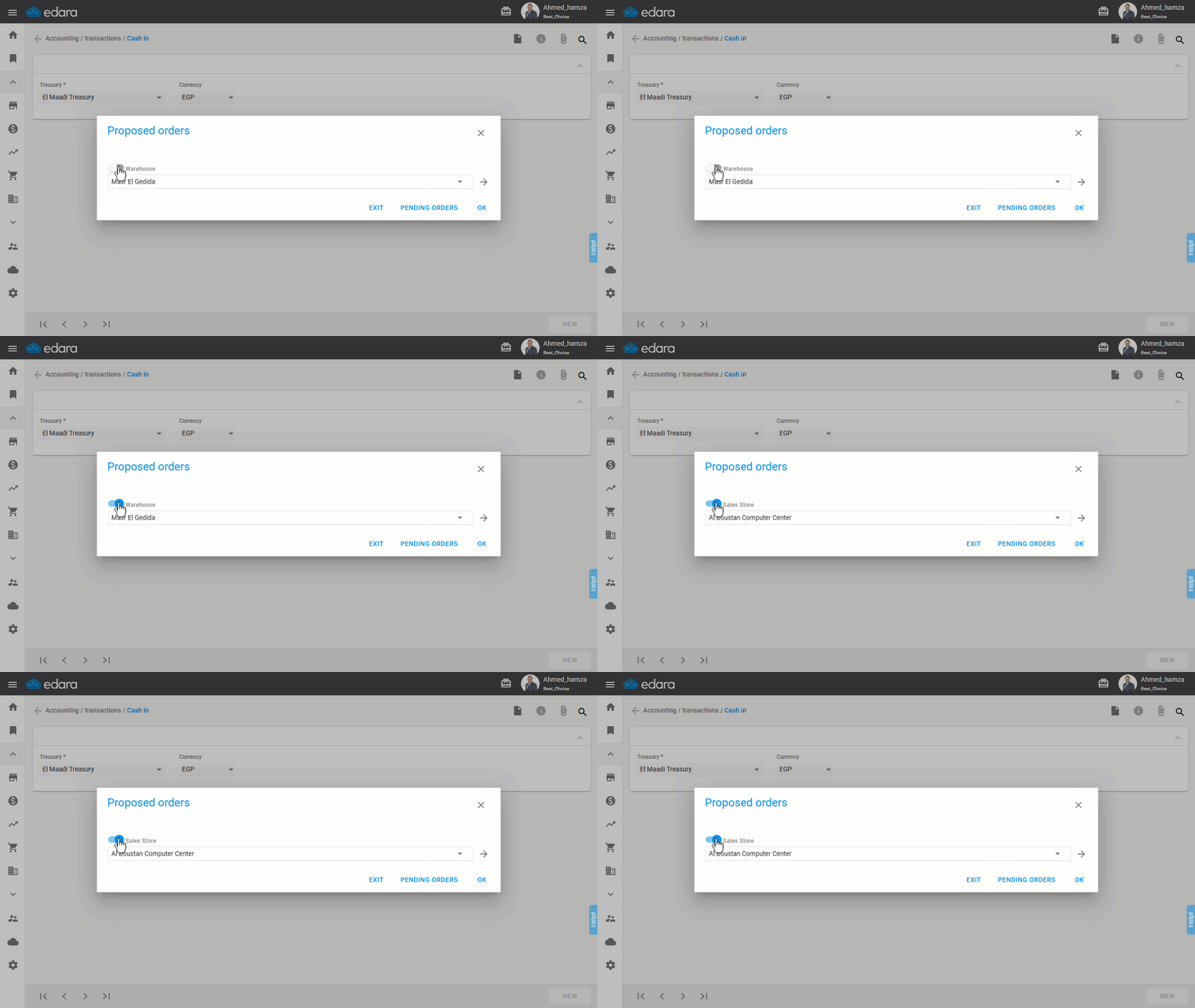
- Click on “→”.
- Search for the sales order by its code, customer name, or date.
- Choose the sales order and click “OK”.
Note: You can change the cash-in document date, and currency, and add a responsible person if needed.
- Click on “Save”.
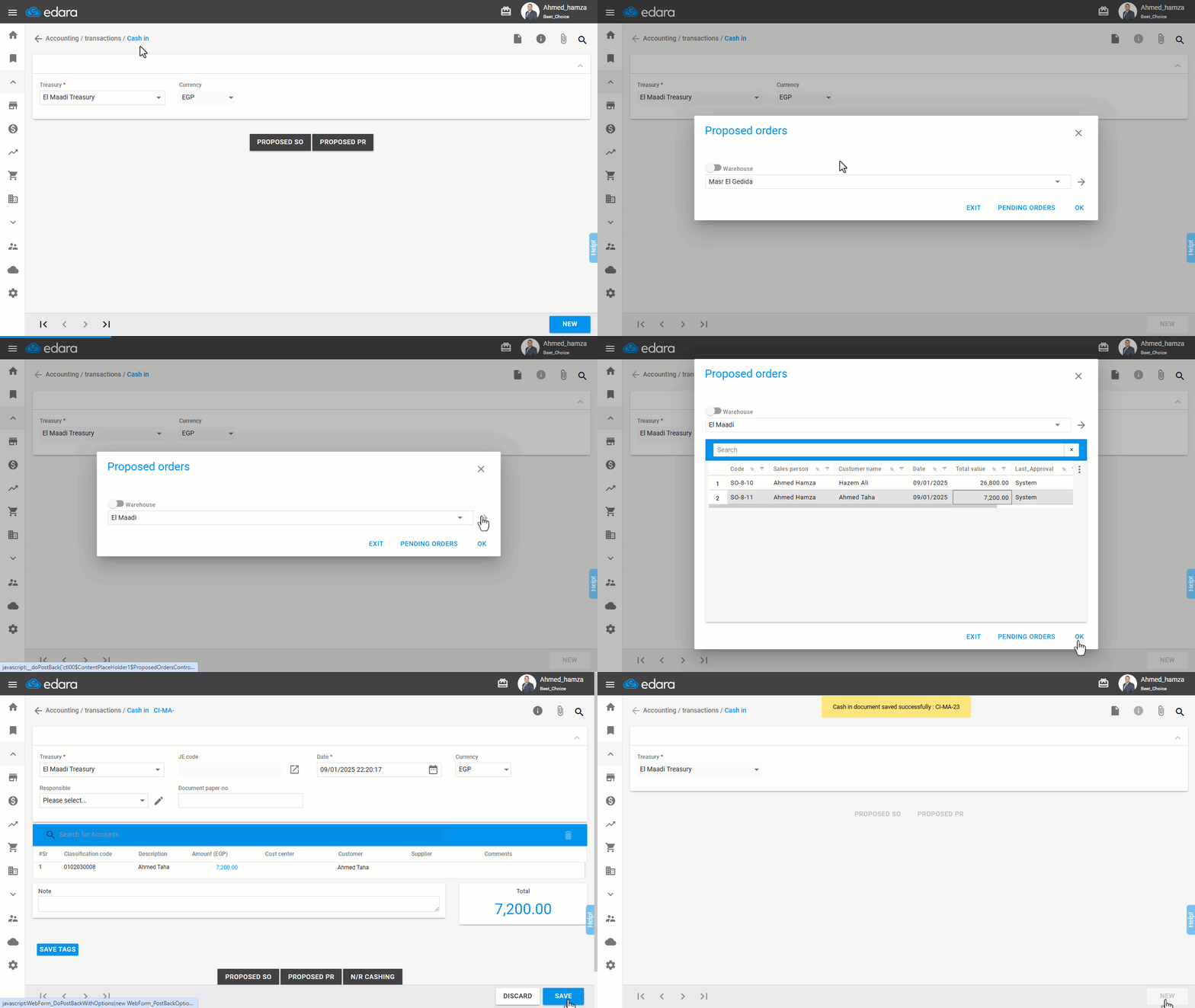
Note: It is not possible to modify the Treasury after saving.
Frequently asked questions
How do I choose a sales order created from a sales store?
If the sales order was created under a sales store, click "" to switch to the list of sales stores and select from there.
Can I change the treasury after saving the proposed cash-in?
It is not possible to modify the Treasury after saving.
If you encounter any challenges or have questions during these processes, you can contact our technical support team, who are ready to assist you at any time.