

Displaying Sales Orders for Specific Periods in Edara 2.5
Last updated:
Displaying sales orders within a specific date range helps you analyze selected orders, review their details, and make effective decisions that support meeting customer needs.
Displaying Sales Orders for Specific Periods in Edara 2.5

- Go to the ”POS” module.
- Open the “Sales Orders” page.
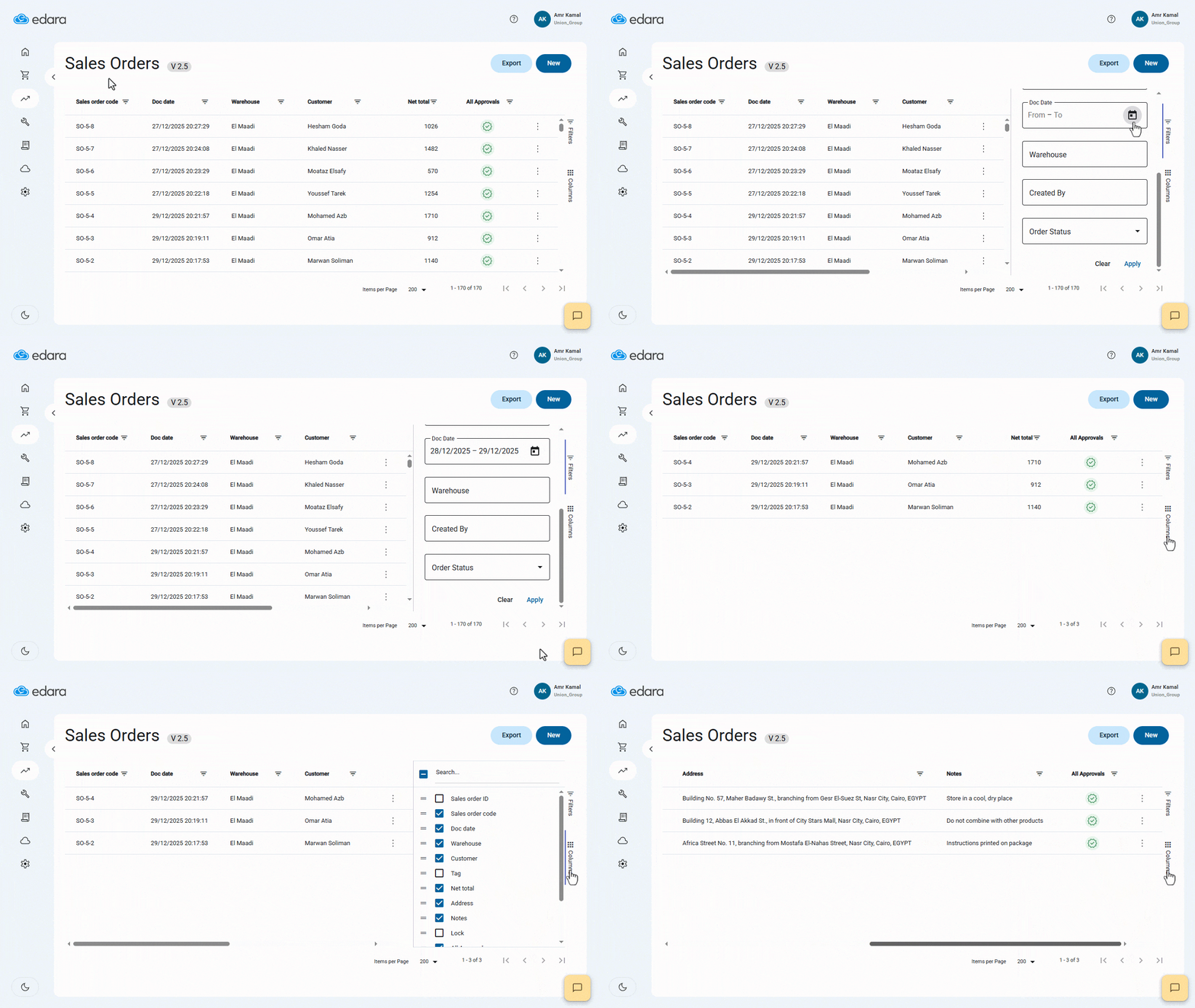
- Click on “Filters”.
- Select the required date range.
- Click on “OK”
- Click on “Apply”.
Note: You can add more filters to get more specific results, such as Warehouse, Order Status, Sales Order ID, and Synced/Un-Synced Orders.
- Click on “Columns”.
- Select the columns you want to display, such as Sales Order Code, Doc Date, Customer, Total Net, Address, Notes, Sales person, and others.
Note: The last applied filters are saved automatically, and the same filter settings will be applied the next time you open the page.
If you encounter any challenges or have questions during these processes, you can contact our technical support team, who are ready to assist you at any time.
Did this answer your question?