

Reading Actual Weights for Weighted Products
Last updated:
When selling weighted products such as cheese, grains, or nuts, the actual weight after preparation may differ from the required weight.
This feature in the Point of Sale module allows you to scan the product barcode to determine its actual weight and update it automatically. This ensures accurate data recording and speeds up order processing.
Reading Actual Weights for Weighted Products

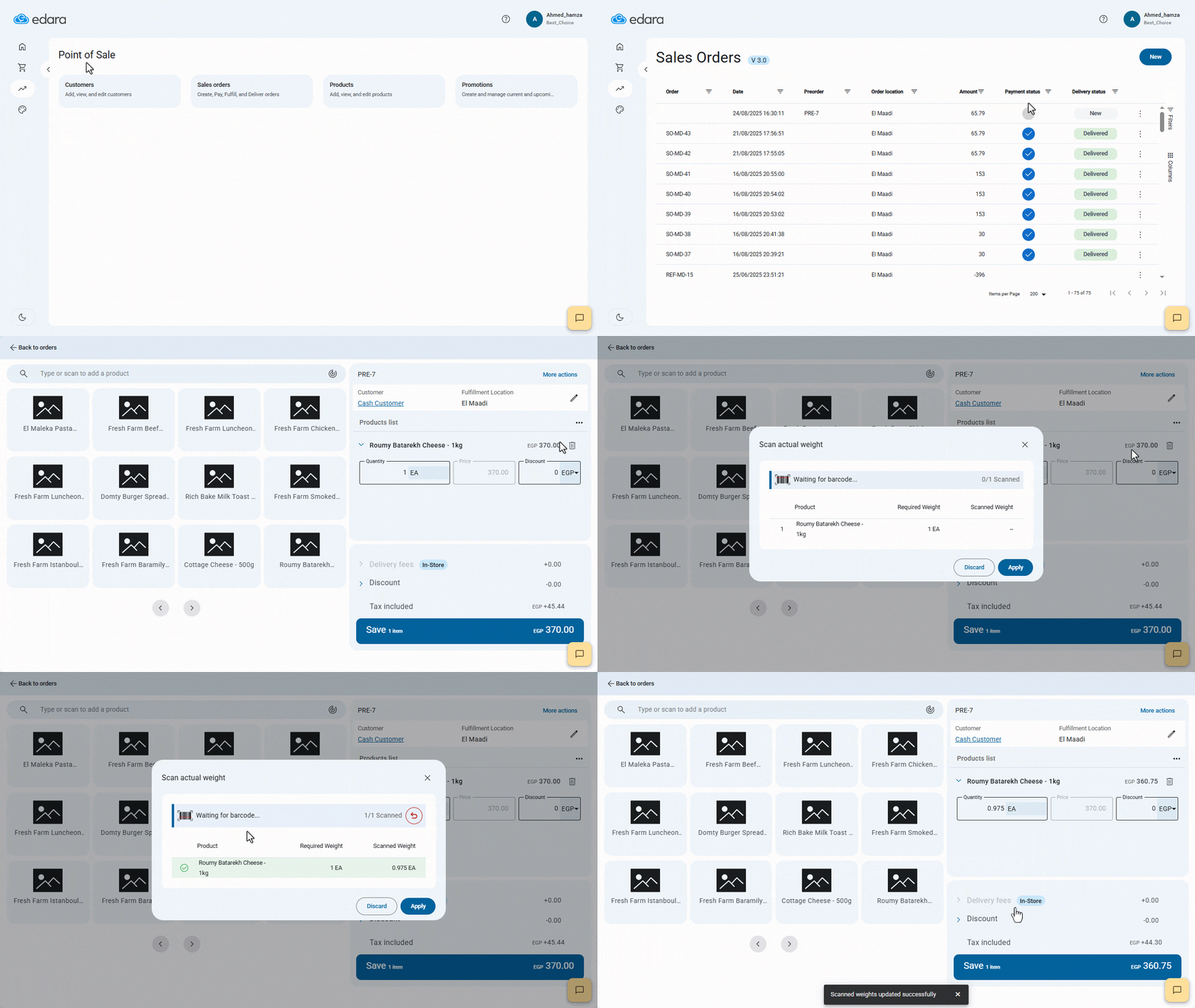
- Go to the “Point of Sale” module.
- Open the “Sales Orders” page.
- Search for the order you want to modify.
- Click on “⁝”.
- Click on “Edit”.
- Click on “…” to open the “More Actions” menu.
- Select “Scan Actual Weight”. A dedicated window will appear for weight reading (this window contains the columns "Required Weight" and "Scanned Weight").
- Use the scanner to read the barcode of the weighted product.
After scanning the weight with the barcode scanner, the system displays a visual confirmation in the dedicated weight entry window. If the product is not found, a message will appear. If the product appears multiple times with different quantities, the system will show options for the possible items to choose from.
- Click on “Apply” to update the product quantities in the order.
Notes:
- This Feature is available only in “Edit Mode”.
- The system identifies the product using 5 digits from the barcode and extracts the weight from another 5 digits.
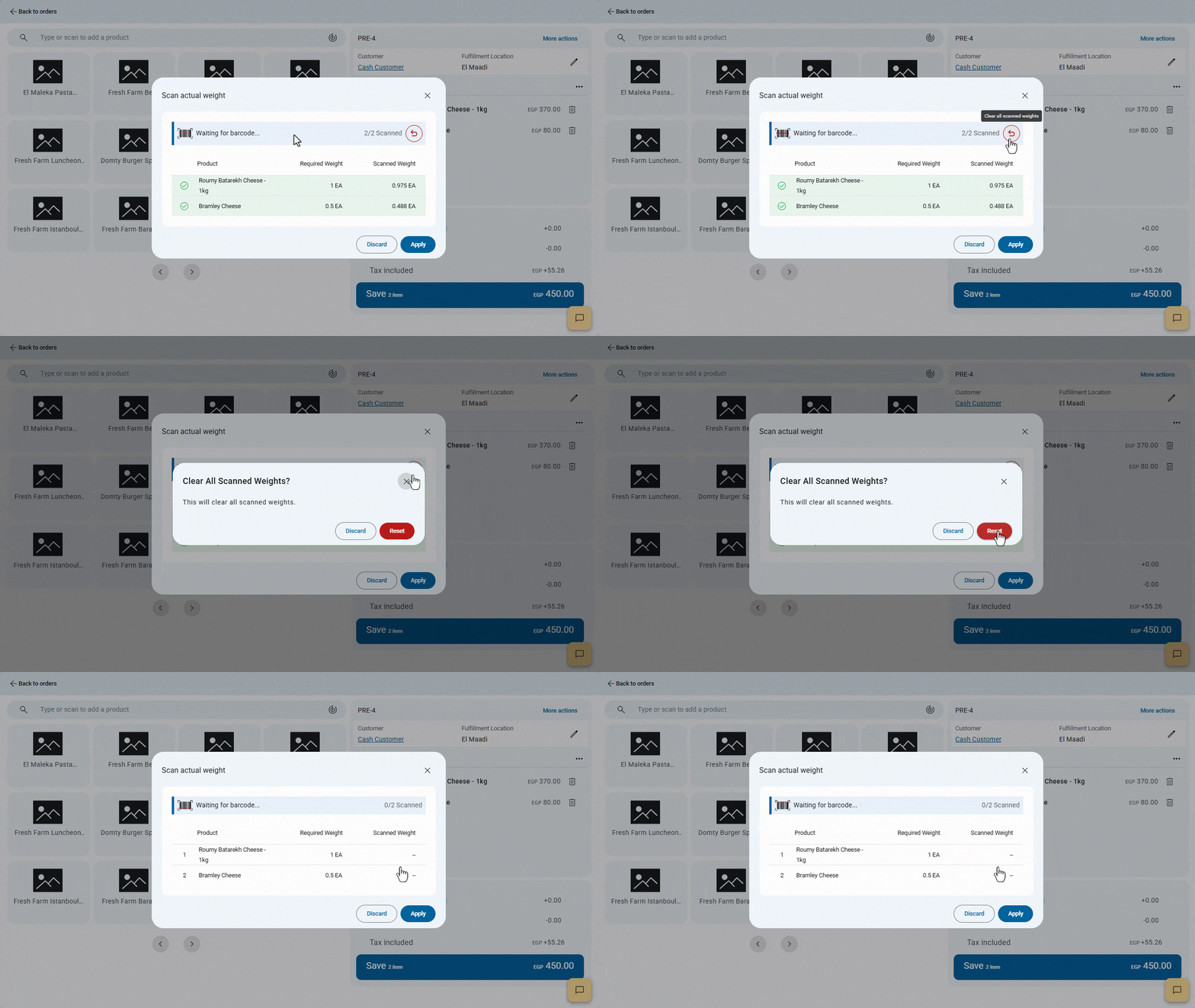
- If you need to reset all scanned weights, you can use the “Clear All Scanned Weights” option. The system will ask for confirmation before executing, as shown below:
If you encounter any challenges or have questions during these processes, you can contact our technical support team, who are ready to assist you at any time.