

Comparing Transfer Order Items with Received Items
Last updated:
Sometimes, there might be confusion between the items requested from the branches and the items received due to the similarity of those items and other factors.
To avoid this confusion, we have provided a feature in "Edara" to compare the items in the transfer order - in terms of type and quantity - with the items actually received.
Comparing Transfer Order Items with Received Items
- Go to the warehouse module
- Select "Receive Transfer Order"
- Choose the warehouse
- Click on "Load"
- Select the receipt date
- Choose the transfer order to be compared
Note: The comparison feature is automatically deactivated when more than one order is selected simultaneously.
- Click on "Compare Received"
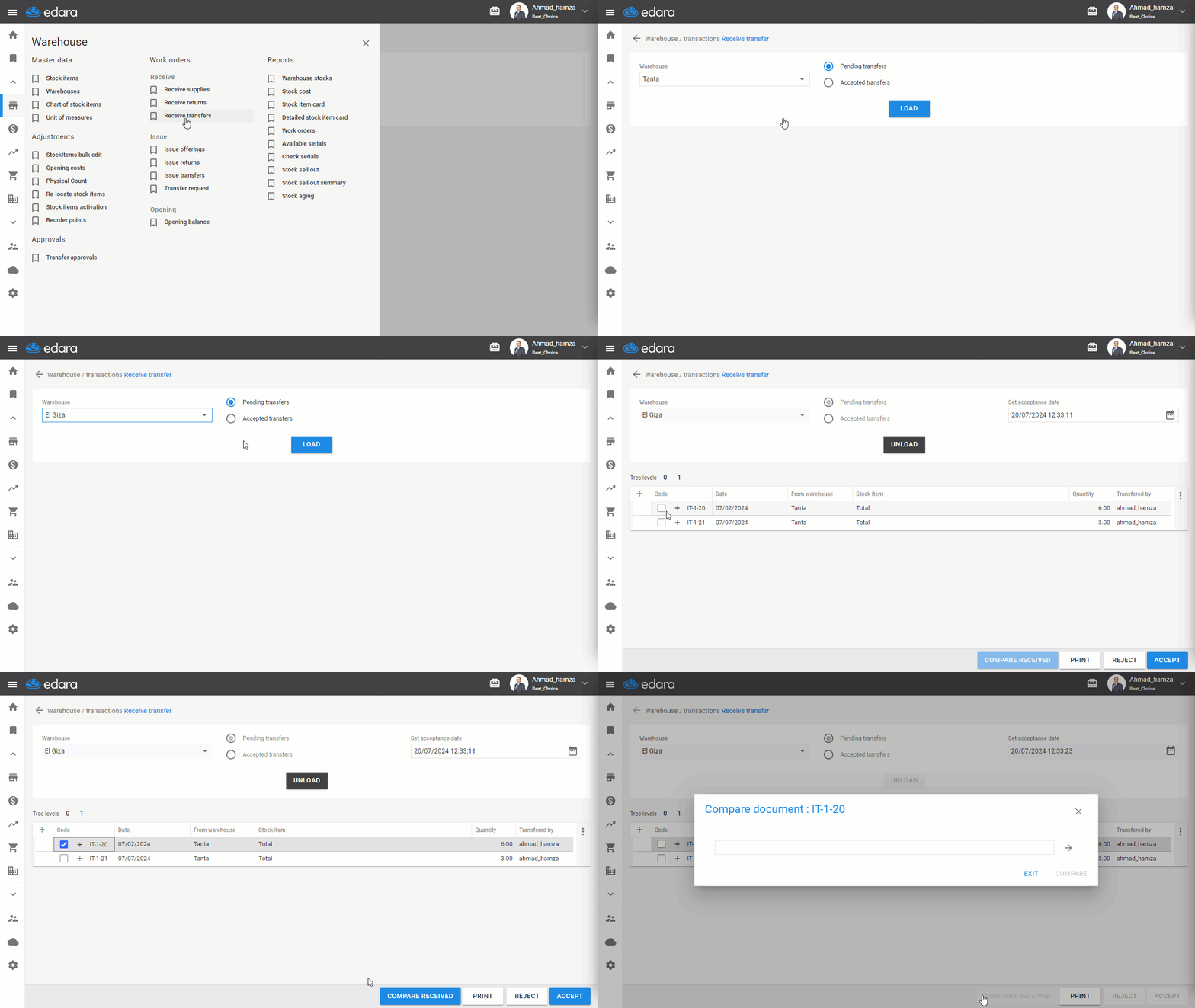
- Use the scanner to enter the barcode data of the item
- Complete the entry of all received item codes
- Click on "Compare"
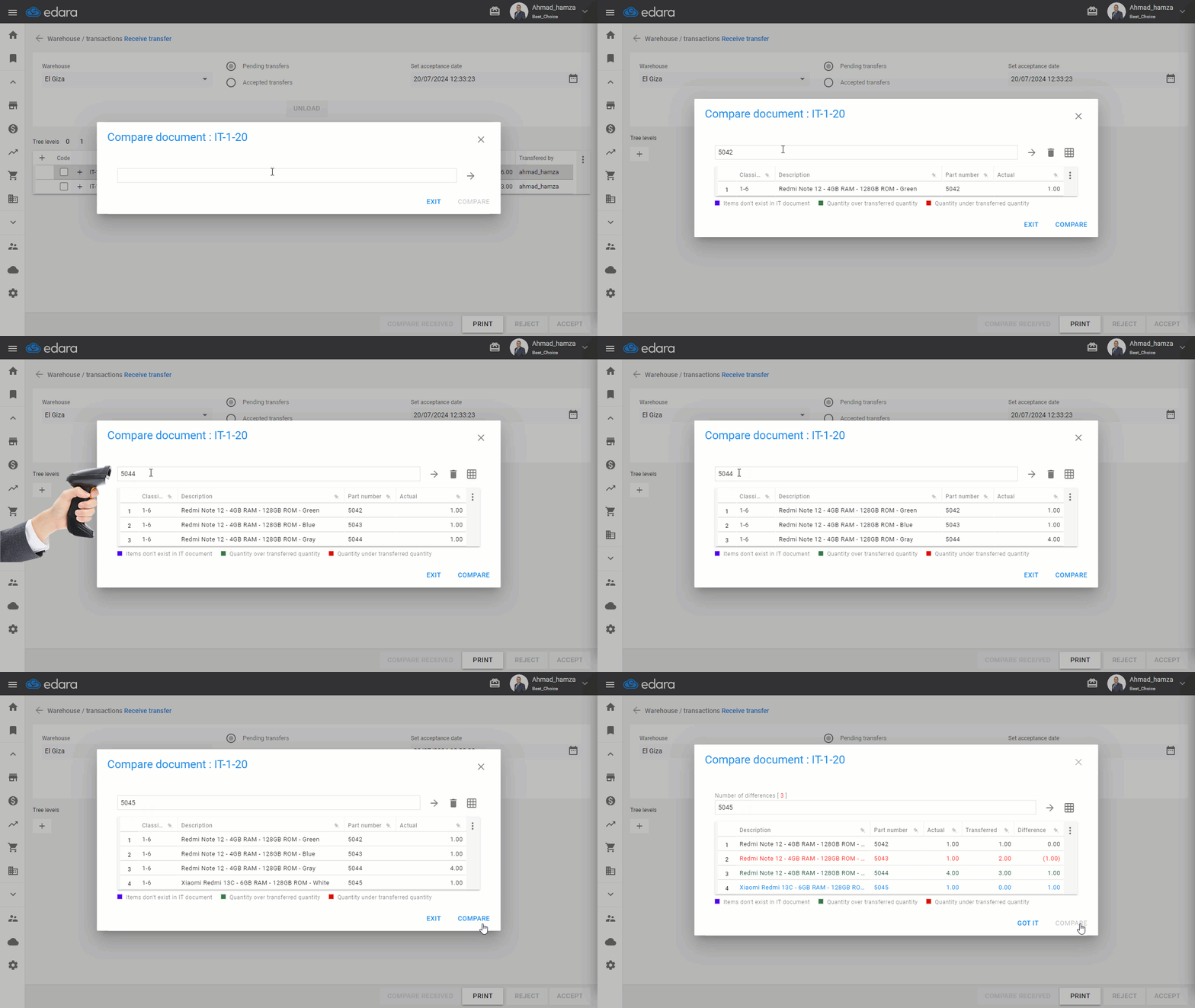
At this point, the program starts comparing the received items with the requested items in the transfer order and shows the comparison result to help ensure receipt only when there are no discrepancies.
In case of differences, the comparison data can be exported to Excel, and you can contact the transferring party for correction before accepting the transfer.
Note: Items in the comparison screen are color-coded as follows:
- Blue: Items not in the transfer order
- Green: Quantity is greater than the transfer quantity
- Red: Quantity is less than the transfer quantity
Frequently asked questions
What do the item colors mean on the comparison screen?
Items in the comparison screen are color-coded as follows: Blue: Items not in the transfer order, Green: Quantity is greater than the transfer quantity, Red: Quantity is less than the transfer quantity.
If you encounter any challenges or have questions during these processes, you can contact our technical support team, who are ready to assist you at any time.