

Updating Actual Quantity of Stock Items Using Barcode
Last updated:
When selling stock items that are prepared before delivery, the actual quantity after preparation may differ from the quantity requested in the order.
This feature in POS 2.5 allows you to scan the stock item barcode to automatically update the actual quantity, ensuring accurate data recording and speeding up order processing.
Updating Actual Quantity of Stock Items Using Barcode

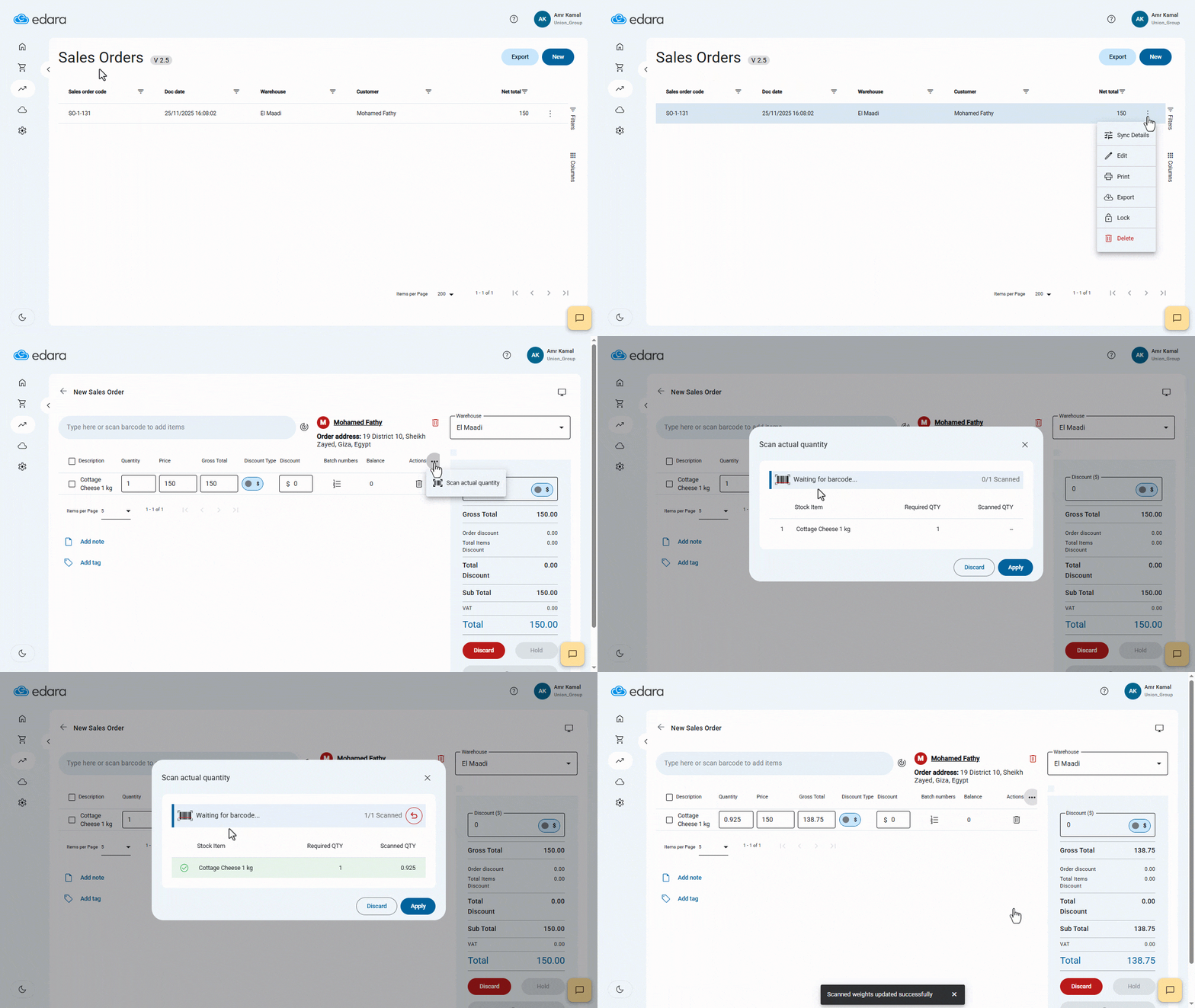
- Go to the “POS” module.
- Open the “Sales Orders” page.
- Find the sales order you want to update.
- Click the More Details icon "⁝".
- Click on “Edit”.
- Open the Actions menu "...".
- Select “Scan Actual Quantity”.
- Scan the barcode using a barcode scanner.
After scanning, the system automatically updates the requested quantity to the actual quantity read from the scale, displaying both values.
- Click on “Apply”.
If you are using the POS module from “Edara 3.0”, you can refer to the following article: Reading Actual Weights for Weighted products.
Also read: The Difference Between (Edara 2.0) and (Edara 3.0).
If you encounter any challenges or have questions during these processes, you can contact our technical support team, who are ready to assist you at any time.