

Editing or Unlinking a Customer from a Salesperson
Last updated:
If your sales representatives move between branches frequently, you may need to reassign customers to different salespeople from time to time.
Editing or Unlinking a Customer from a Salesperson
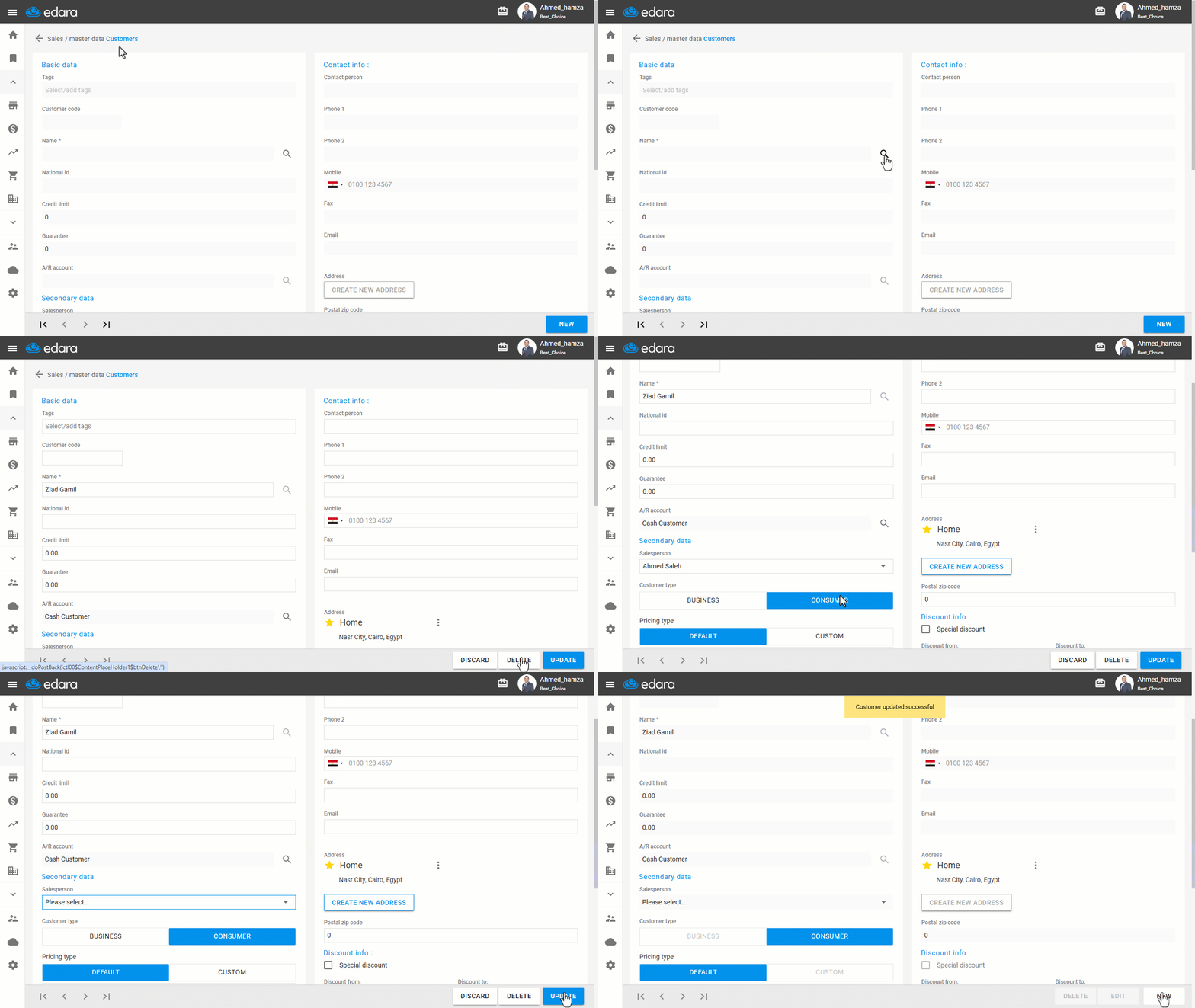
1- From the Customers Page
- Go to the “Sales” module.
- Click on “Customer”.
- Use the 🔎 icon to search for the customer name.
- Click on “Edit”.
- In the “Salesperson” field:
- Select "Please select" to unlink the customer from the current salesperson.
- Or choose a new salesperson from the list to reassign.
- Click on “Update” to save changes.
2- From the Customer Data Page
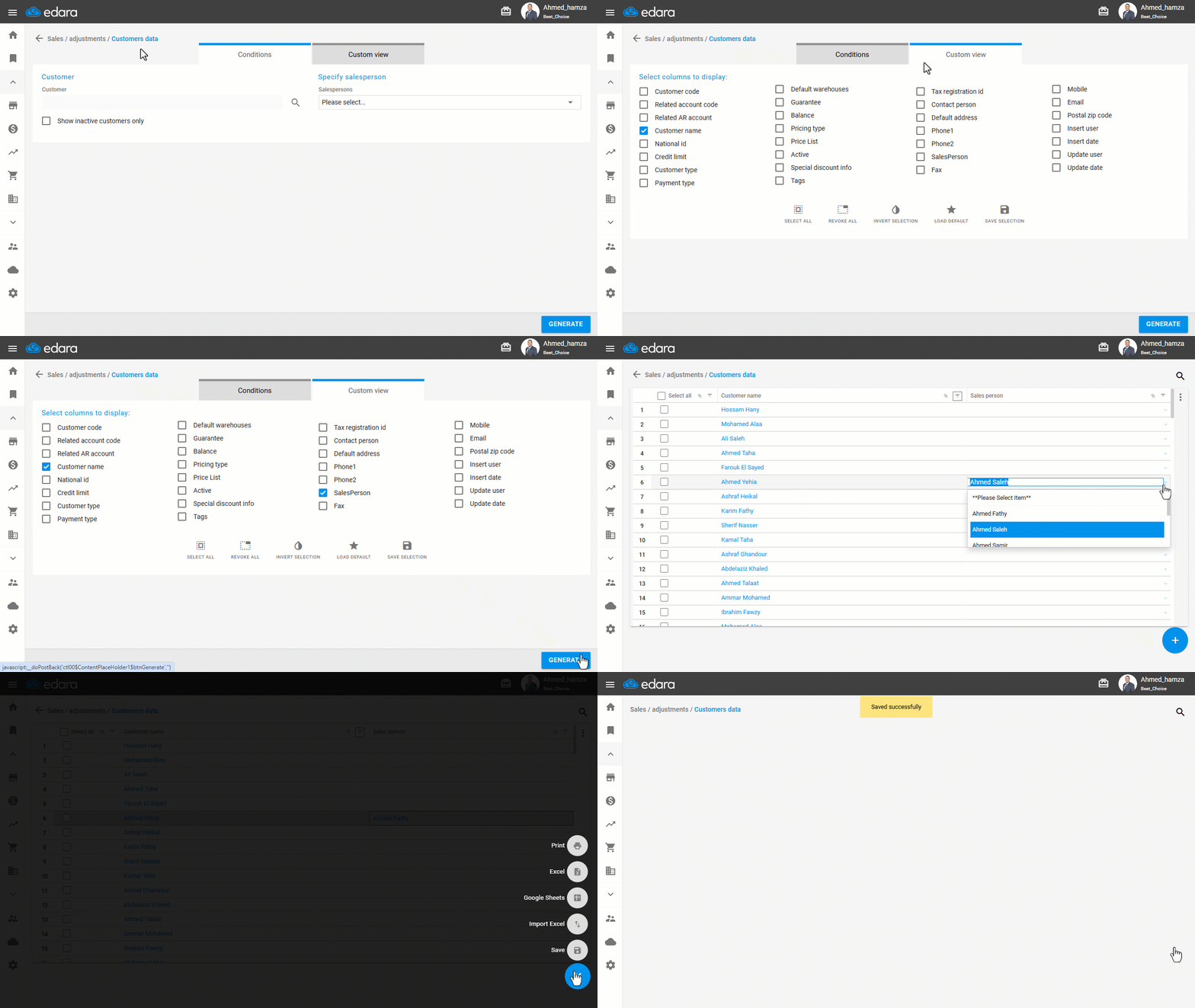
- Go to the “Sales” module.
- Click on “Customer Data”.
- Make sure the Salesperson is visible from the column settings “Custom view”.
- Click on “Generate” to load the data.
- Find the customer whose salesperson you want to change
- In the Salesperson column:
- Select "Please select Item" to remove all linked salespeople. Or choose a different salesperson from the dropdown menu.
- Click on the “➕” icon to apply the change.
- Click on “Save”.
Note: You can bulk edit customers linked to sales managers through Excel.
If you encounter any challenges or have questions during these processes, you can contact our technical support team, who are ready to assist you at any time.
Did this answer your question?