

Editing Customer Data
Last updated:
To save time and effort, Edara allows you to update customer data in bulk instead of editing each field individually.
Editing Customer Data
"Edara" allows you to edit your customers' data in two ways:
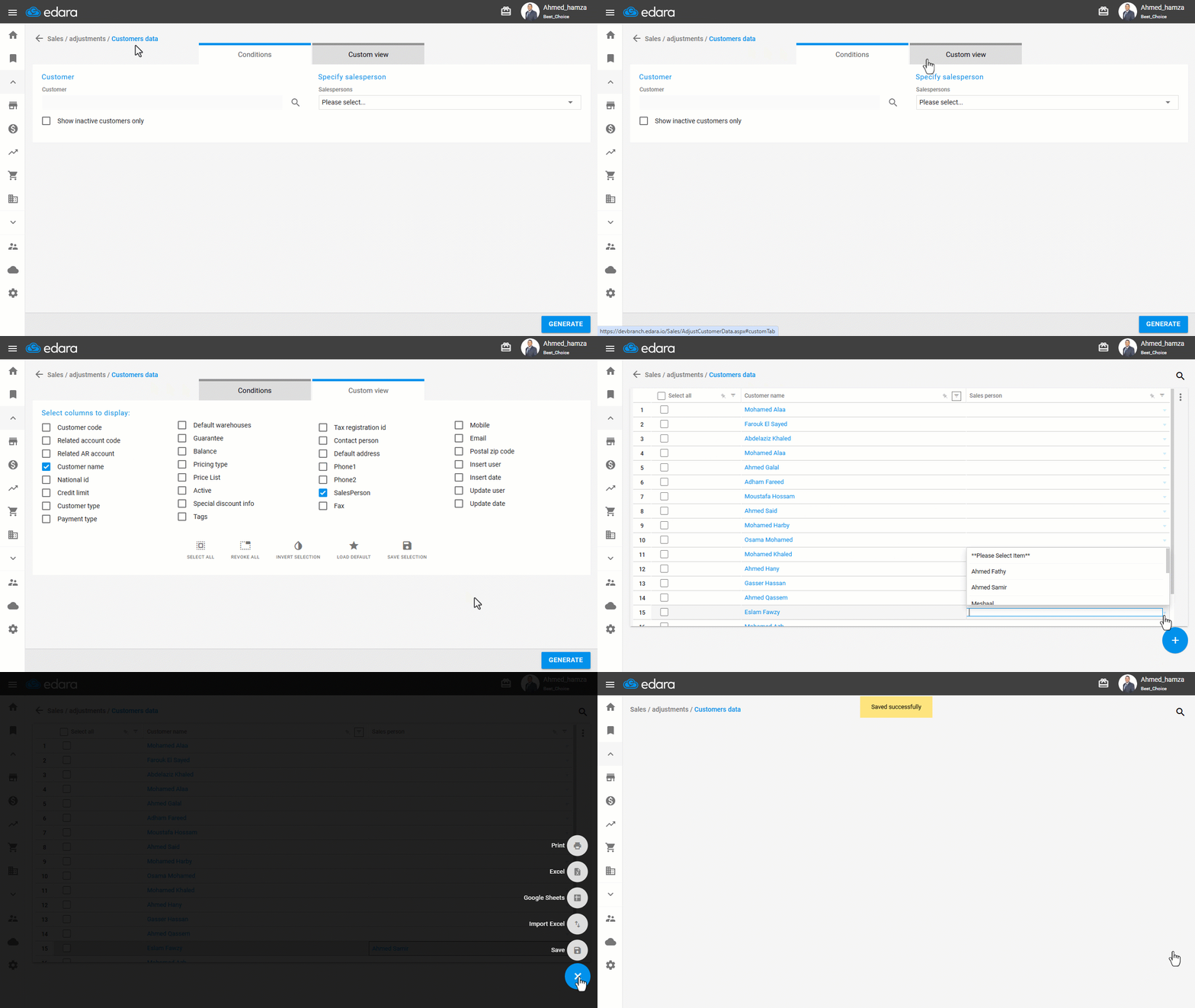
1- Manual Editing
- Go to the Sales module.
- Open the “Customers Data” page.
- Click on “Custom View”, and choose the columns you want to view and edit.
- Click on “Generate”.
- Edit the data directly in the table.
- Click on the ➕ icon.
- Click on “Save”.
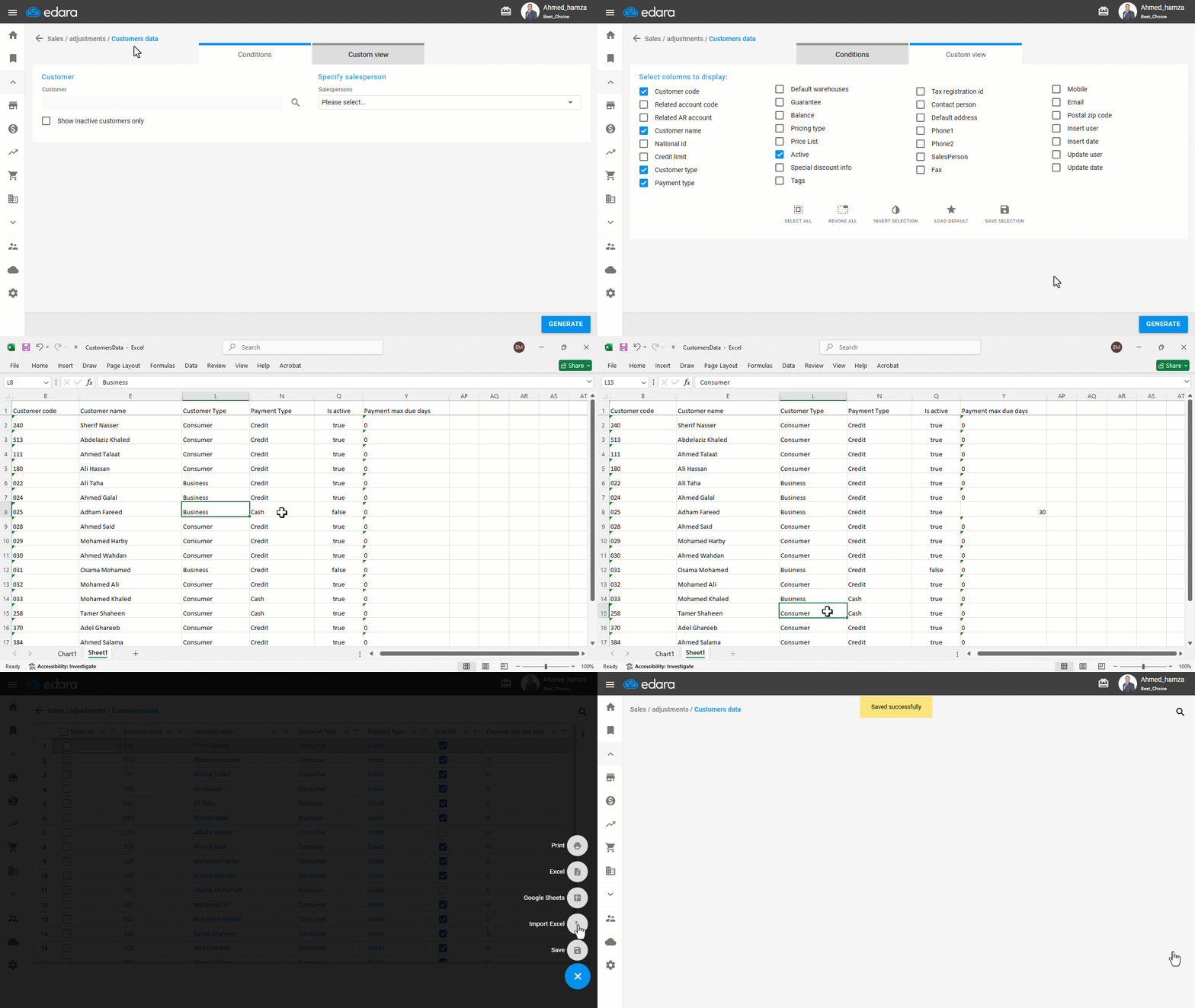
2- Editing with Excel
- Go to the Sales module.
- Open the “Customers Data” page.
- Click on “Custom View”, and choose the columns you want to view and edit.
- Click on “Generate”.
- Click on the ➕ icon.
- Select “Excel” to export the data template.
- Make the necessary changes in the exported file.
- Click the ➕ icon again.
- Select Import, and upload the updated file.
- Click the ➕ icon once more.
- Click on “Save”.
Note: You cannot use the bulk edit feature to update the customer’s address or their linked AR account.
Frequently asked questions
Can I bulk edit the customer’s address or AR account?
You cannot use the bulk edit feature to update the customer’s address or their linked AR account.
If you encounter any challenges or have questions during these processes, you can contact our technical support team, who are ready to assist you at any time.
Did this answer your question?