

Bulk Adding or Removing Tags for Customers from the Customers Data Page
Last updated:
Tags help you target customers more effectively through personalized marketing campaigns by grouping customers with similar characteristics. To save time, you can bulk add or remove tags instead of updating each customer individually.
Here’s how to manage customer tags in bulk from the Customer Data page.
Bulk Adding or Removing Tags for Customers from the Customers Data Page
- Go to the Sales module.
- Open the “Customers Data” page.
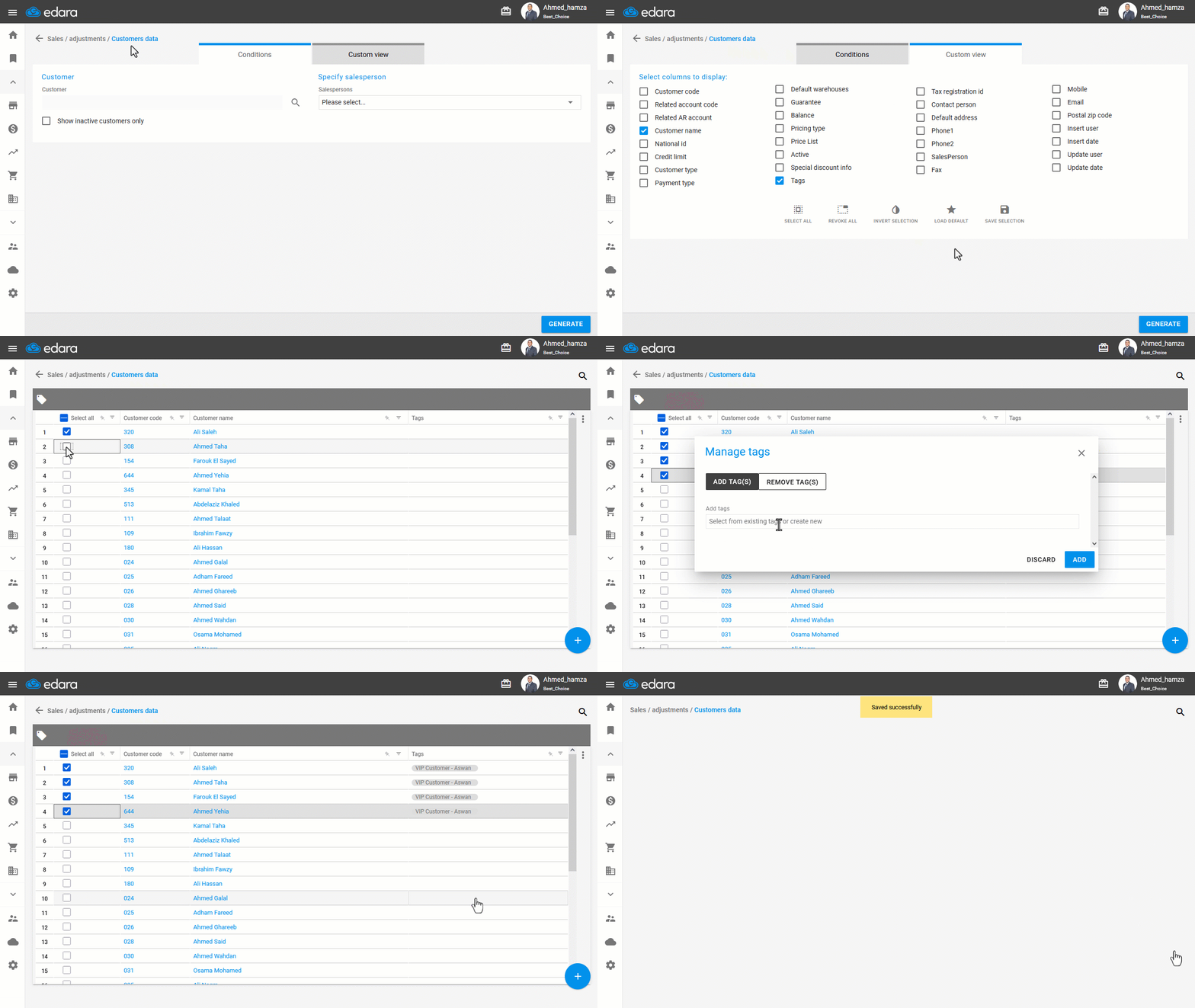
- Enable the “Tags” column from the “Custom View” Section.
- Click on “Generate”.
- Select the customers you want to update.
- Click on 🏷️.
- Choose “Add Tags” or “Remove Tags”.
- Enter the tags you want to add or remove.
- Click on ➕.
- Click on “Save”.
If you encounter any challenges or have questions during these processes, you can contact our technical support team, who are ready to assist you at any time.
Did this answer your question?