

Adding or Deleting Tags for stock items in Bulk
Last updated:
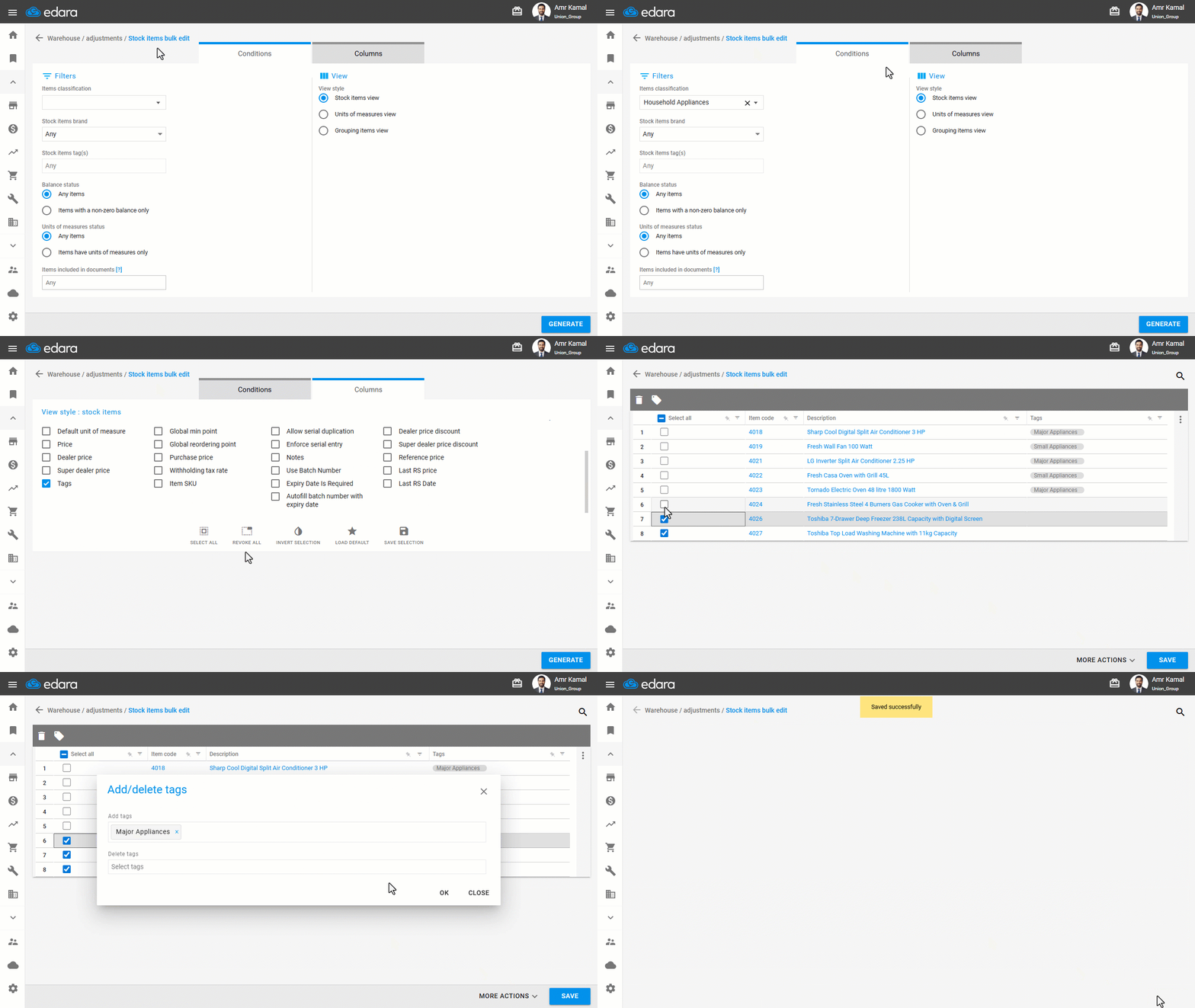
You can update tags for multiple stock items in bulk instead of editing each stock item individually. This saves time and effort and makes it easier to categorize and search later.
Adding or Deleting Tags for stock items in Bulk
- Go to the “Warehouse” Module.
- Open the "Stock items bulk edit" page.
- Select the appropriate conditions for the stock items you want to modify.
- Go to "Columns".
- Enable the “Tags” option.
- Click on "Generate".
- Select the required stock items.
- Click on “🏷️”.
- Enter the tag name to add or delete.
- Click on “OK”.
- Click on “Save”.
Note: New tags cannot be created from this page, but you can create them from the “stock Items” page, after ensuring you have permission to create them.
Frequently asked questions
Can I create a new tag from the bulk edit page?
New tags cannot be created from this page, but you can create them from the “stock Items” page, after ensuring you have permission to create them.
If you encounter any challenges or have questions during these processes, you can contact our technical support team, who are ready to assist you at any time.
Did this answer your question?