

Adding Address Details in the Customer Import Template
Last updated:
To enhance the customer import process and ensure proper data organization, you can now add detailed customer address information, including country, city, district, and street.
This allows for easier customer location identification, improving shipping, delivery processes, and overall data management.
Adding Address Details in the Customer Import Template
- Go to the “Data” module.
- Select “Data import”.
- Open the “Sales” module.
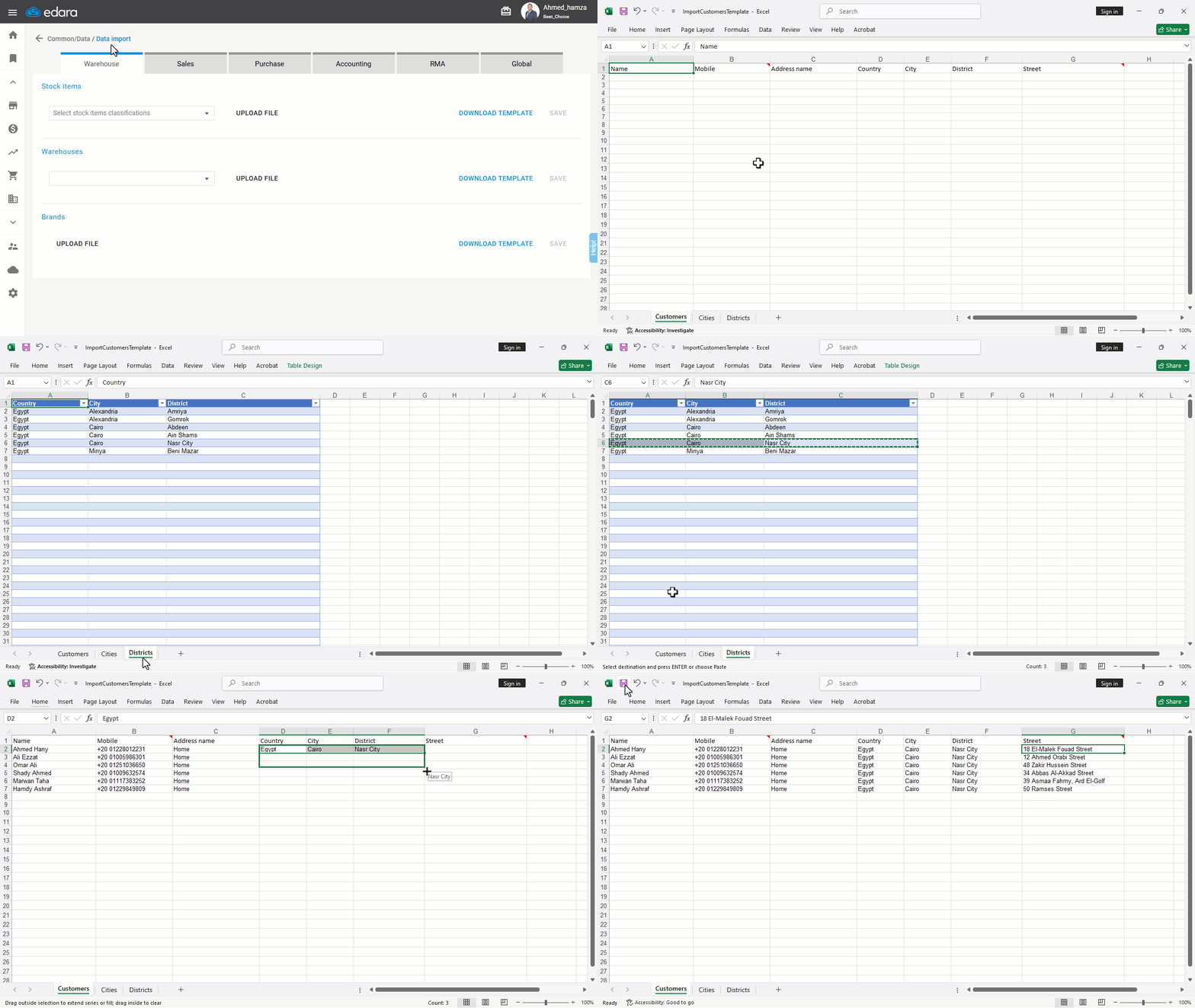
- Click on “Download Template” next to “Customers”.
- Fill out the template with customer names and address details.
Note: We've added dedicated sheets for cities and districts, allowing you to copy the predefined data instead of entering it manually, reducing errors in data entry.
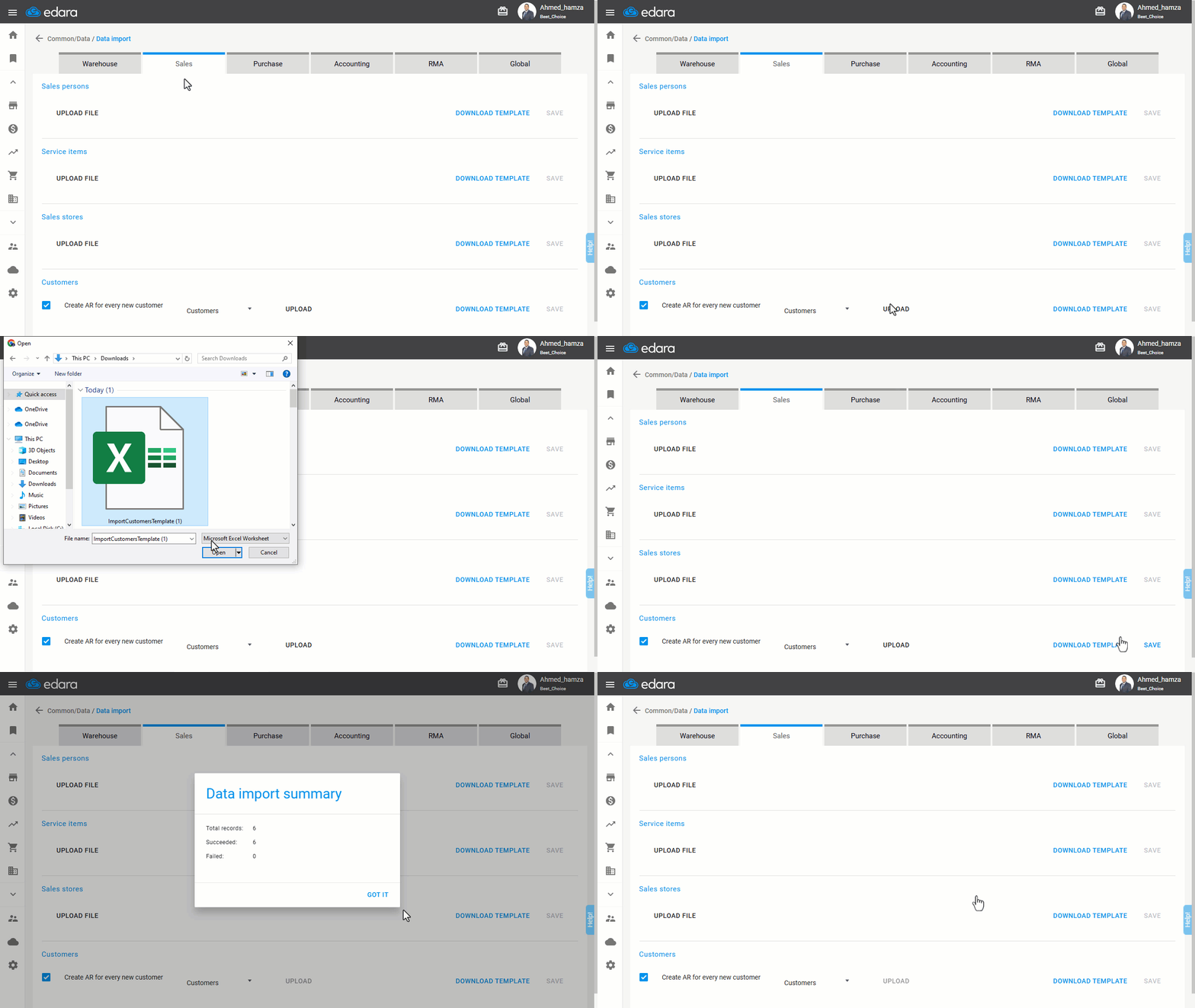
- Upload the file.
- Click “Save”.
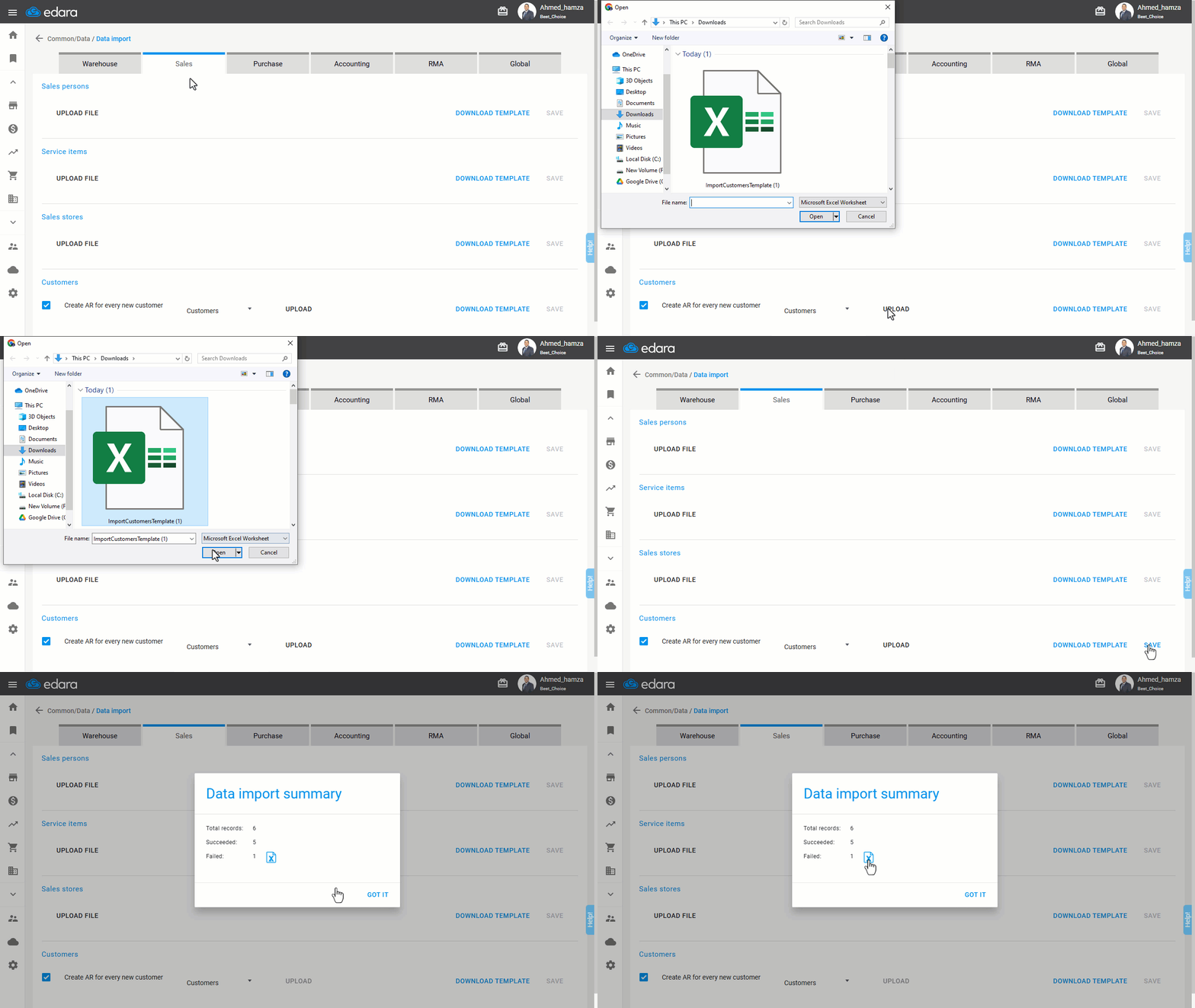
Once saved, a summary screen will display the import process results, including the total number of records and a breakdown of successful and failed imports.
Important Note: Common reasons for failed imports include:
- Duplicate customer names.
- Missing mandatory address details.
- Address details differing from those saved in the Management system.
For failed records, an Excel icon will appear, allowing you to download the data in a sheet that includes an additional column explaining the reason for failure. This helps you correct the data and re-upload it seamlessly.
Frequently asked questions
Why did some customers fail to import?
Important Note: Common reasons for failed imports include: Duplicate customer names, Missing mandatory address details, Address details differing from those saved in the Management system. For failed records, an Excel icon will appear, allowing you to download the data in a sheet that includes an additional column explaining the reason for failure. This helps you correct the data and re-upload it seamlessly.
If you encounter any challenges or have questions during these processes, you can contact our technical support team, who are ready to assist you at any time.