

Creating District, City or Country
Last updated:
When entering new customer data, you may need to add a district, city, or country that hasn't been previously coded in the system. This ensures the customer's address is recorded accurately and easily.
Here’s how to do it.
Creating District, City or Country
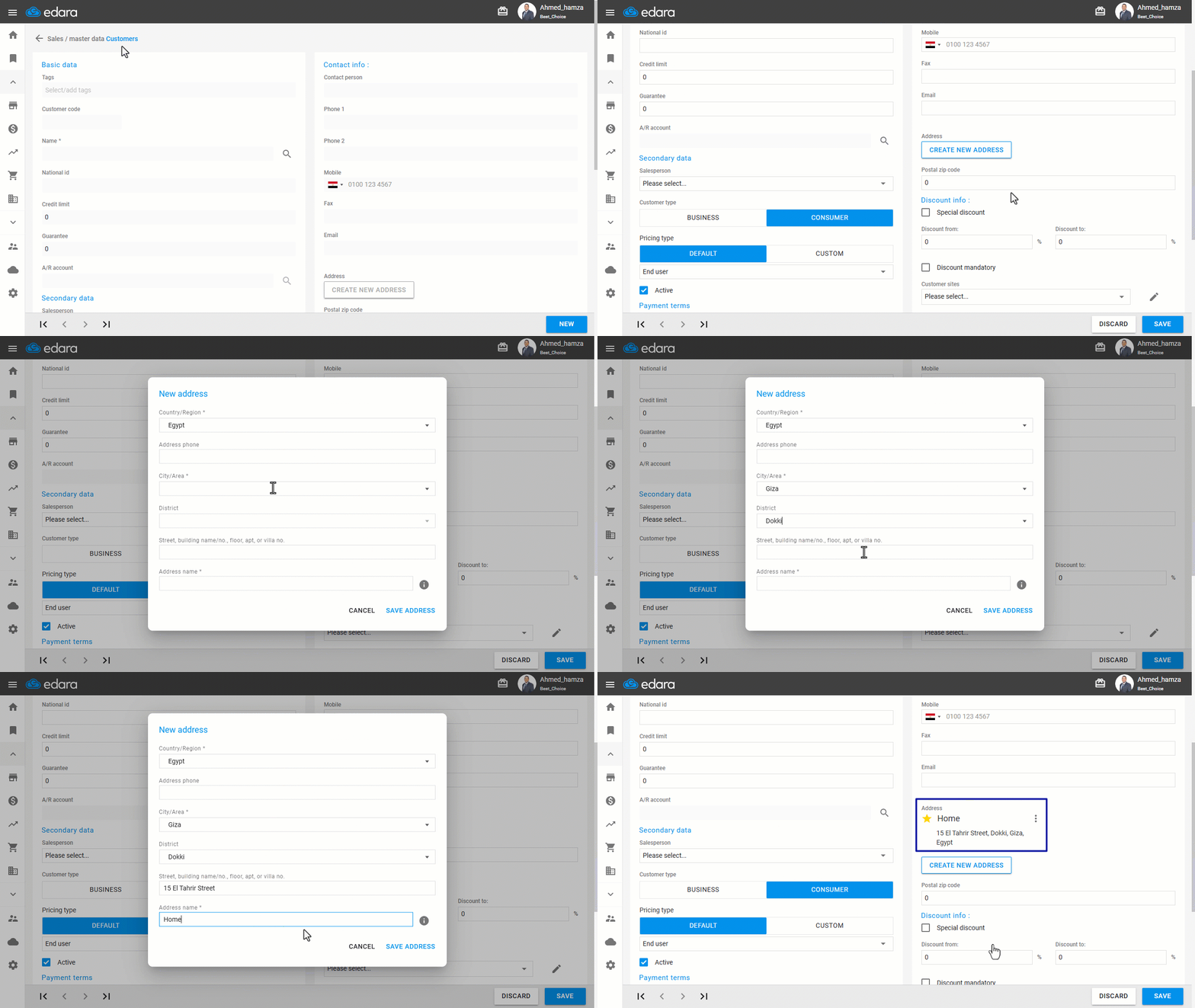
- Go to the Sales module.
- Open the “Customer” page.
- Click on “New”.
- Click on “Create New Address”.
- Fill in the address details in each field: (Country - City - District - Address Name).
- Click on “Save Address”.
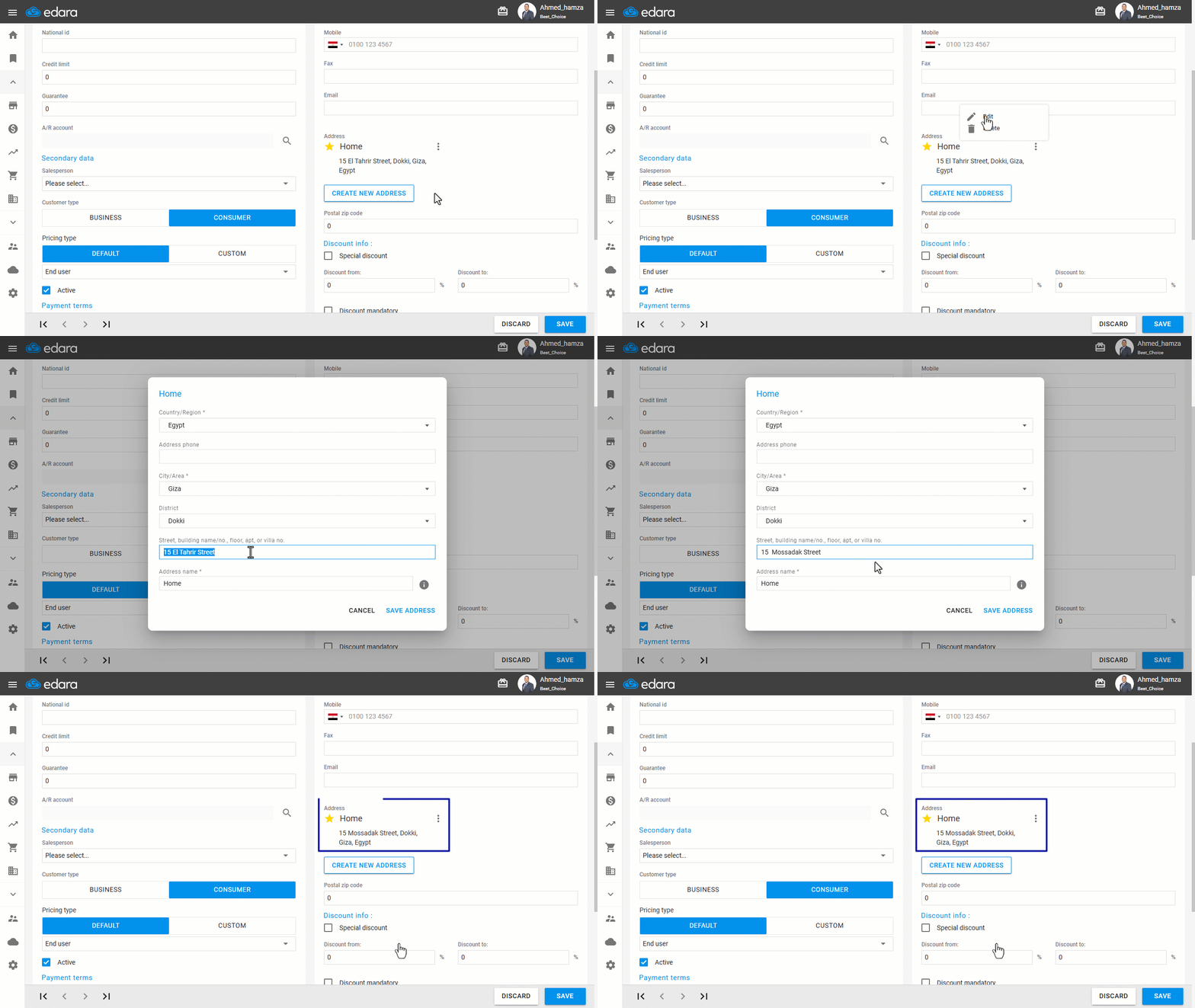
Note: You can edit or delete an address by clicking on the “⁝” menu next to the address. Then select " " to delete or "
 " to edit.
Frequently asked questions
How do I edit or delete an address?
You can edit or delete an address by clicking on the “⁝” menu next to the address. Then select "" to delete or "" to edit.
If you encounter any challenges or have questions during these processes, you can contact our technical support team, who are ready to assist you at any time.
Did this answer your question?