

Setting Delivery Zone Fees
Last updated:
To simplify the process for order takers, you can define delivery zone fees in detail. When a new order is created and the customer’s address is entered, the delivery fee will automatically appear in the system.
Setting Delivery Zone Fees
Note: A user with the "Order Taker" role cannot set delivery fees. This is the responsibility of the “Admin”.
- Go to Point of Sale.
- Open the “Delivery Zones” page.
- Click on “New” (When creating a delivery zone on the system for the first time, you’ll click on “Create one”).
- Enter the zone name.
- Specify the “Delivery Fees”.
- Click "
 " to define the coverage zone.
Note: You can click " " to change the country if needed.
- Select the governorate (or province) where the delivery zone is located (you can choose multiple governorates).
- Click on “Next”.
- Select the area within the chosen governorate(s) (you can choose multiple areas).
- Click on “Next”.
- Select the districts covered by the delivery zone (you can select all districts by clicking "◻" next to the search bar) (Note: This step is not required for users of KSA).
Note: If your desired district is not listed in "Edara," you can select the area instead. For example, if the city is "New Cairo" and the district you need is "District 10", but it’s not available, you can choose "New Cairo District" as an alternative.
- Click on “Done”.
- Click on “Save”.
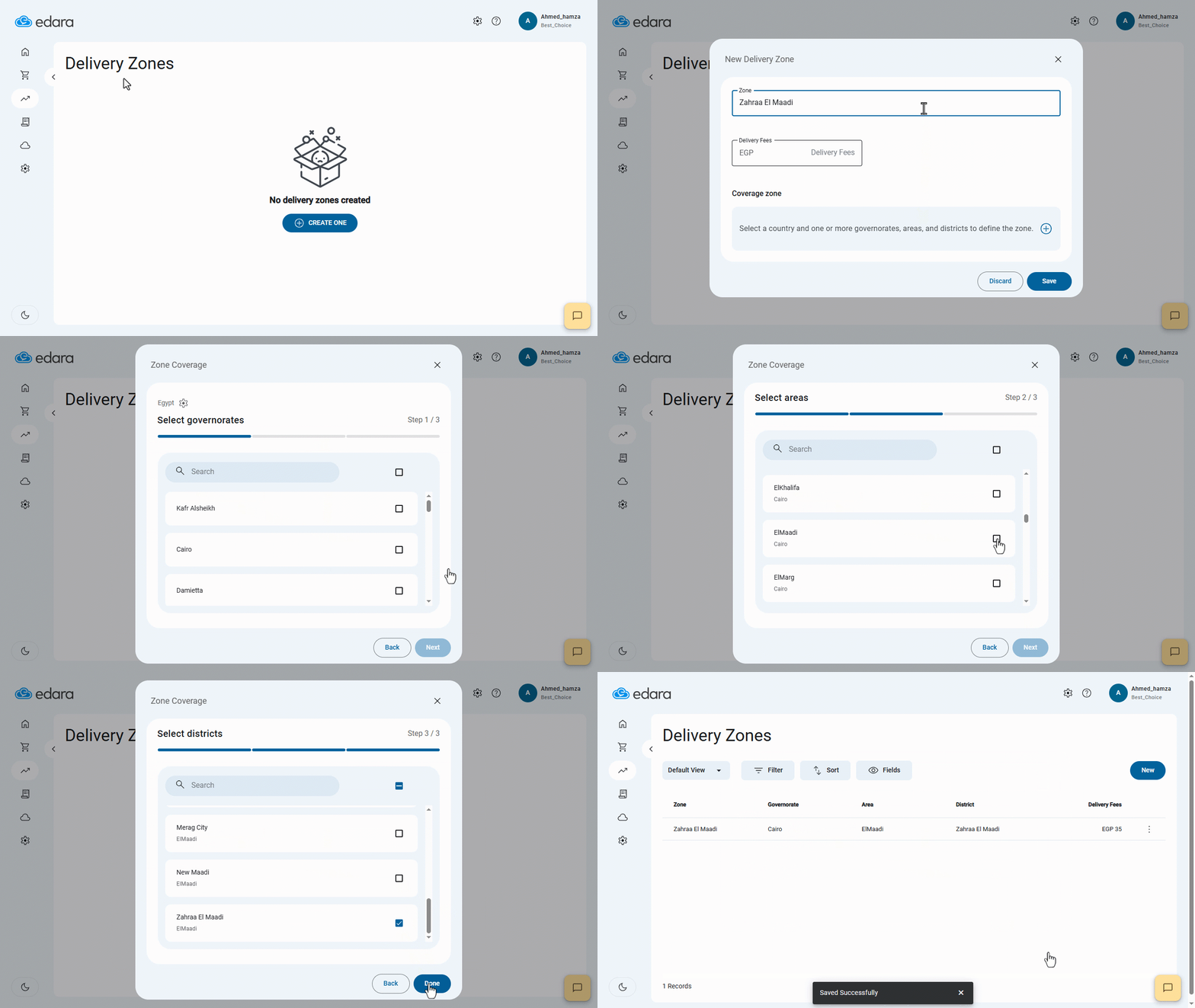
Important Note: If you select multiple governorates, you must define at least one area for each. And also if you select multiple areas, you must define at least one district for each.
Assigning Delivery Zones in Customer Data
- Go to Point of Sale.
- Open the “Customers” page.
- Start adding a new customer as outlined in the article "Creating a New Customer in POS".
Note: Any user can create a customer, register their address in the system, and utilize pre-configured delivery zones.
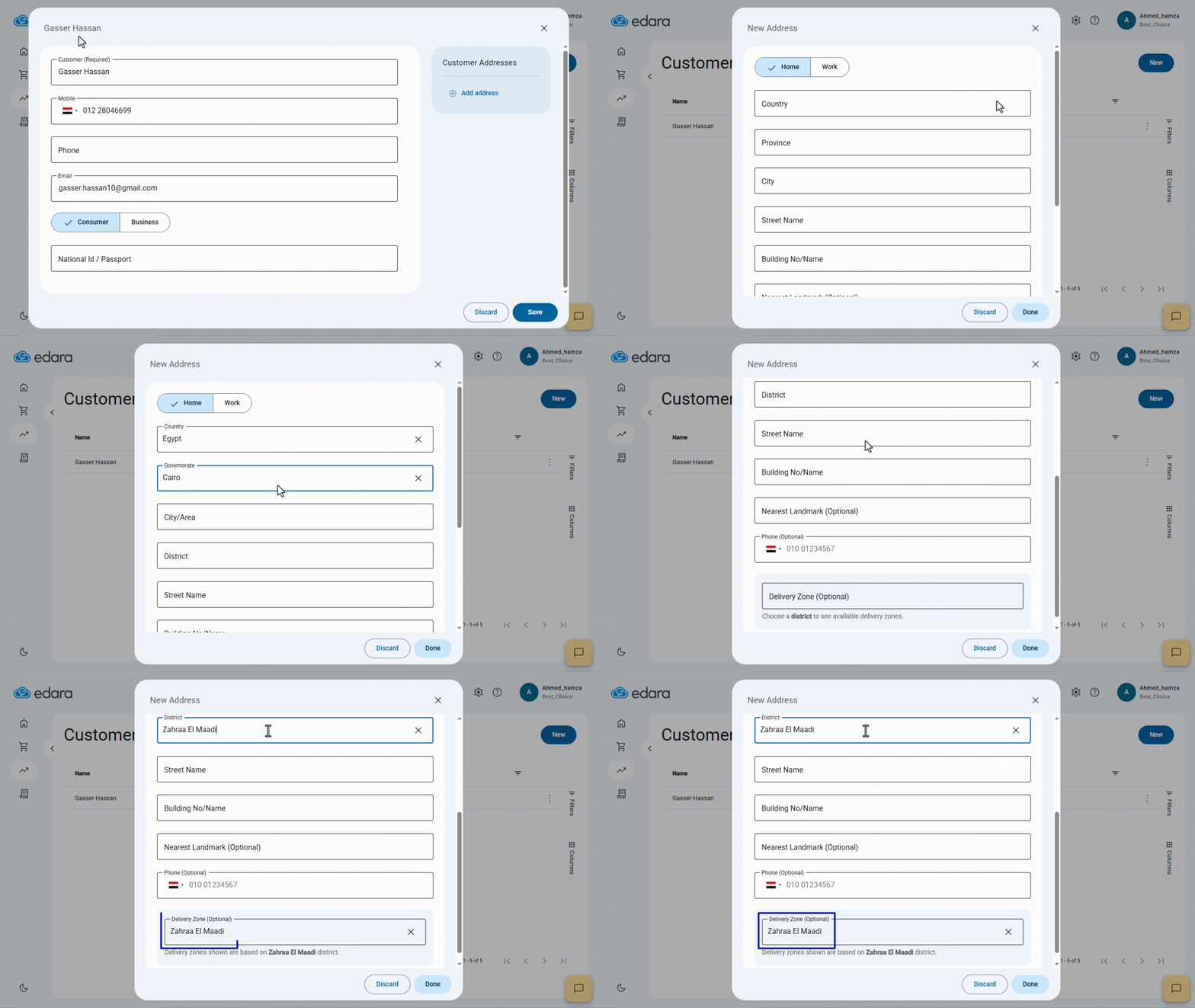
After entering the customer's address, If the address matches a single delivery zone, the system will automatically select it. But if the address matches multiple delivery zones, the system will suggest the available zones, allowing the user to choose one.
The image below provides an example of this process:
Using Delivery Zones in Sales Orders
- Go to Point of Sale.
- Open the “Sales Orders” page.
- Click on “New”.
- Enter the customer's name.
- Set the pick-up method to "Delivery".
- Enter the Order Address.
- Click "Save".
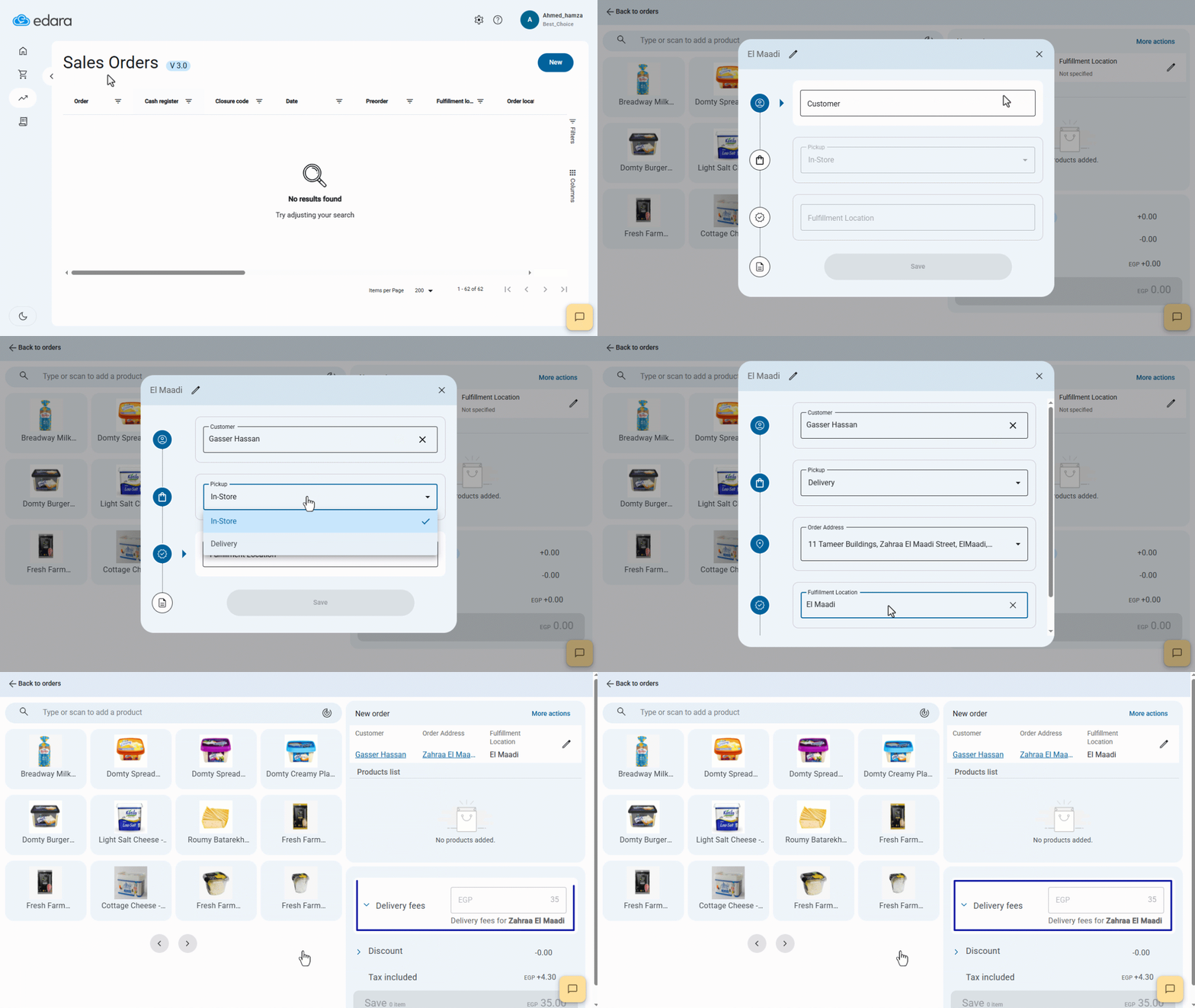
If the entered address falls within a predefined delivery zone, the system will automatically apply that delivery zone, and will add its delivery fees to the total order value. But in this case, you won`t be able to change the delivery fees.
The image below illustrates this process:
Frequently asked questions
Who can set delivery zone fees?
A user with the "Order Taker" role cannot set delivery fees. This is the responsibility of the “Admin”.
What if the district is not in the list?
If your desired district is not listed in "Edara," you can select the area instead. For example, if the city is "New Cairo" and the district you need is "District 10", but it’s not available, you can choose "New Cairo District" as an alternative.
If you encounter any challenges or have questions during these processes, you can contact our technical support team, who are ready to assist you at any time.