

Importing an Excel File with Customer Names
Last updated:
Importing customer names and data in bulk using an Excel file is one of the most time-saving features in “Edara.”
Importing an Excel File with Customer Names
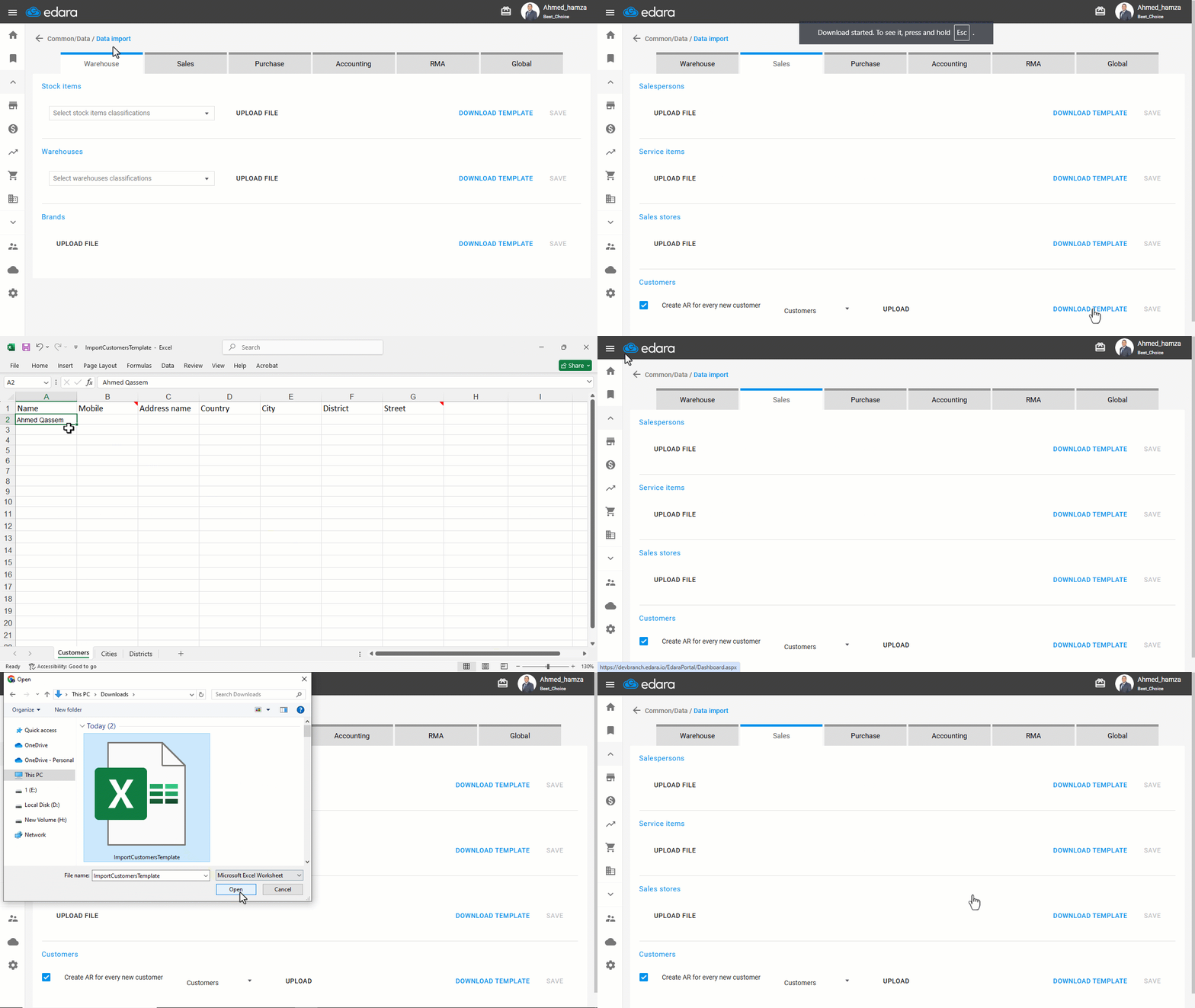
- Go to Data.
- Open the “Data Import” page.
- Choose the “Sales” module, then “Customers”.
Note: If you enable the option “Create AR for every new customer”, a corresponding account will be automatically generated in the chart of accounts.
- Choose the group under which you want to add the customers from the dropdown menu.
Note: If the above option is not enabled, you’ll need to specify the default AR account to which all customers will be linked.
- Click “Download Template” for customer data.
- Enter the customer names into the template.
- Click “Upload File” and select the Excel file you previously saved.
- Click on “Save”.
If you encounter any challenges or have questions during these processes, you can contact our technical support team, who are ready to assist you at any time.
Did this answer your question?