

Importing Stock Items via Excel
Last updated:
If you manage multiple stock items and want to avoid coding each item individually, the item import feature via Excel is your perfect solution, saving you significant time and effort. Here’s how to make the most of this feature.
Importing Stock Items via Excel
The Process of Importing Items Involves Several Steps:
1- Ensure The Chart of Stock Items is Created
- Go to the Warehouse module.
- Open the "Chart of stock items" page.
- Hover over "Chart of stock items" and click "New Classification".
Note: You can create a main group with the company name, And sub-groups under it with company department names.
2- Start Importing Items
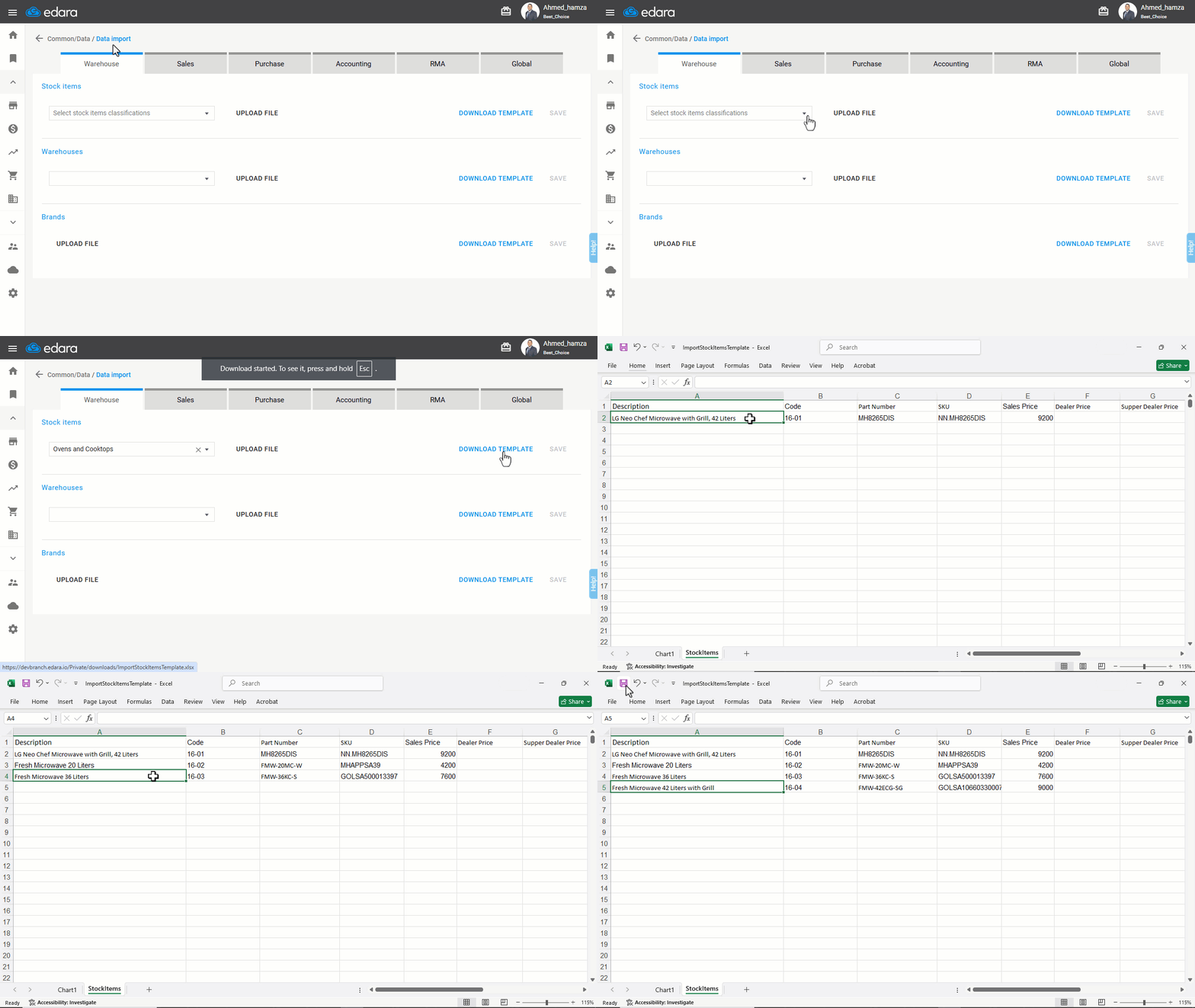
- Go to Data.
- Open the "Data Import" page.
- Select the “Warehouse” module.
- Choose the stock item classification under which you want to add the items.
Note: After importing items, you can move them between different classifications.
- Click "Download Template".
- Open the Excel file and add the following data: (Description - Code - Part Number - SKU - Sales Price).
Note: If no code is available, use a sequential number.
Note: Associating items with a Unit of Measure Series is not available in the “Stock Items Bulk Edit” page, making it a unique feature of the import process.
3- Complete the Import Process
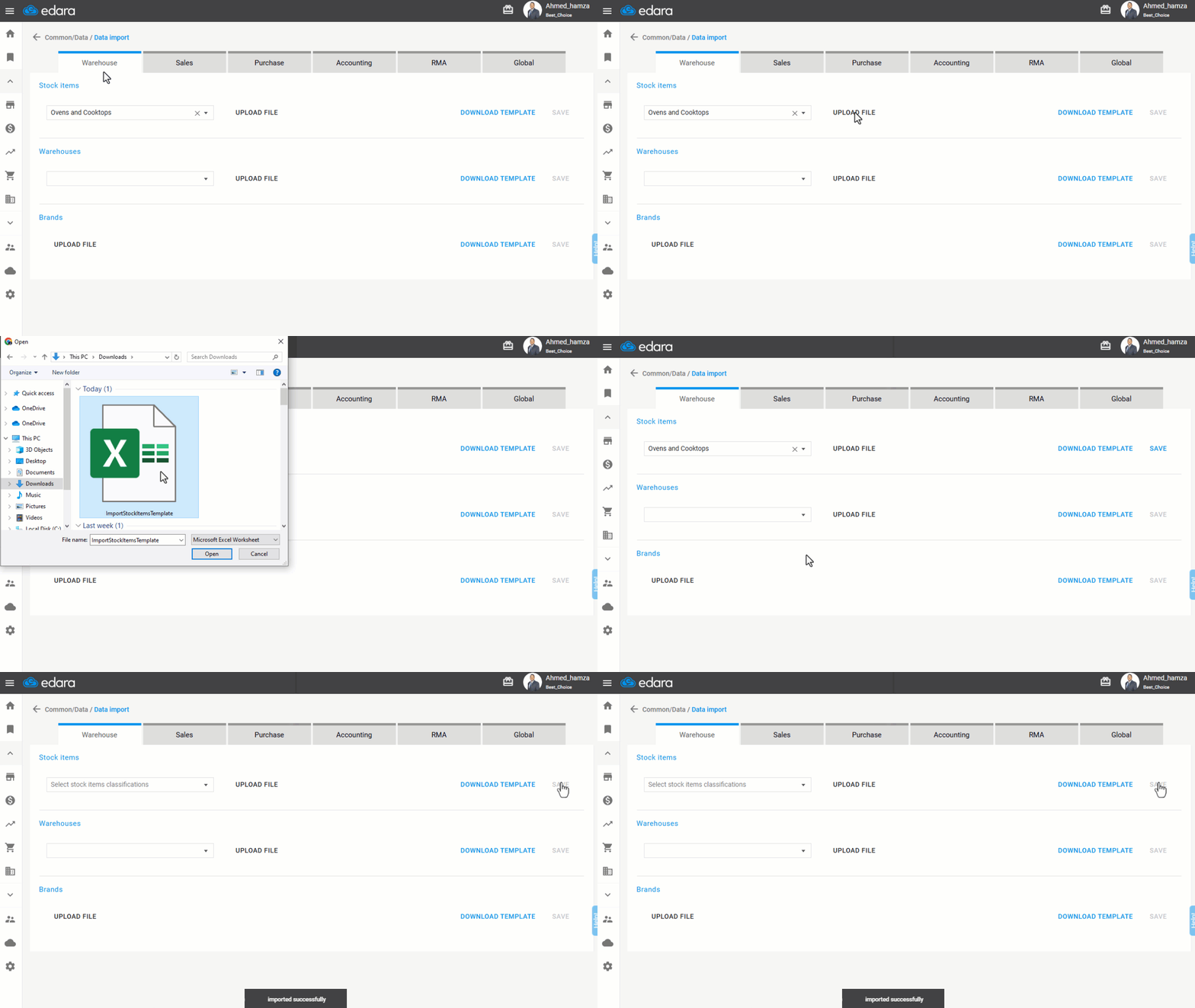
- Click "Upload File".
- Select the file containing the stock item data.
- Click on "Save".
If you encounter any challenges or have questions during these processes, you can contact our technical support team, who are ready to assist you at any time.