

Adding Weight to a Stock Item
Last updated:
Entering stock item weights and dimensions helps organize shipping and storage operations more accurately by reviewing shipment weights, selecting the appropriate shipping company, and estimating the storage space required for items within warehouses.
Adding Weight to a Stock Item
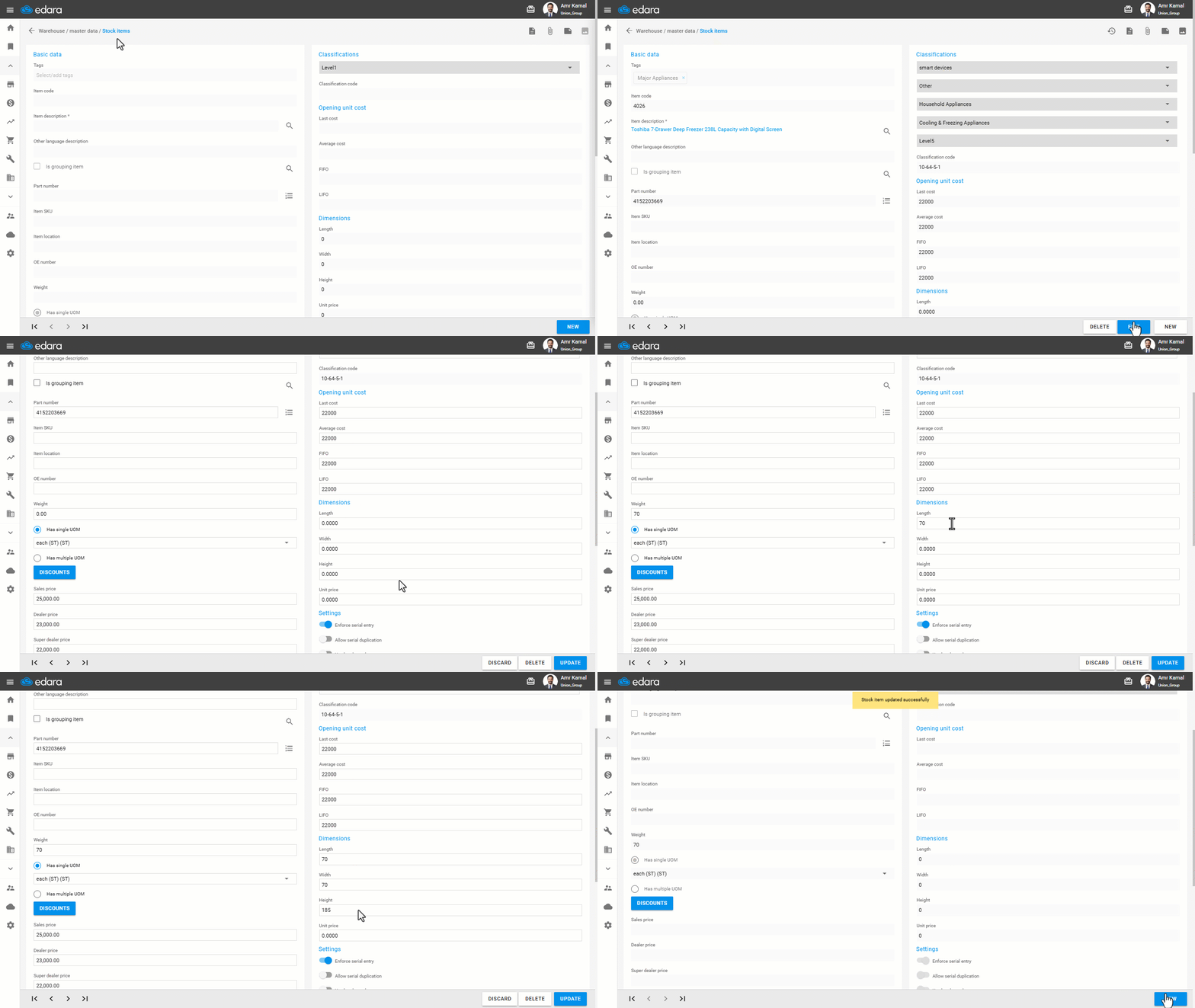
- Go to the "Warehouse" module.
- Open the "stock items" page.
- Search for the required stock item using the "🔍" icon or the navigation arrows at the bottom of the page.
- Click on "Edit".
- Enter the stock item weight.
You can enter stock Item dimensions such as "Length", "Width", and "Height" when needed.
- Click on "Update".
Notes:
- It is recommended to use a consistent unit of measurement for weight across all stock items (kilograms or grams) to avoid differences in reports later.
- You can add stock item weights in bulk manually or through an Excel file from the "StockItems bulk edit" page.
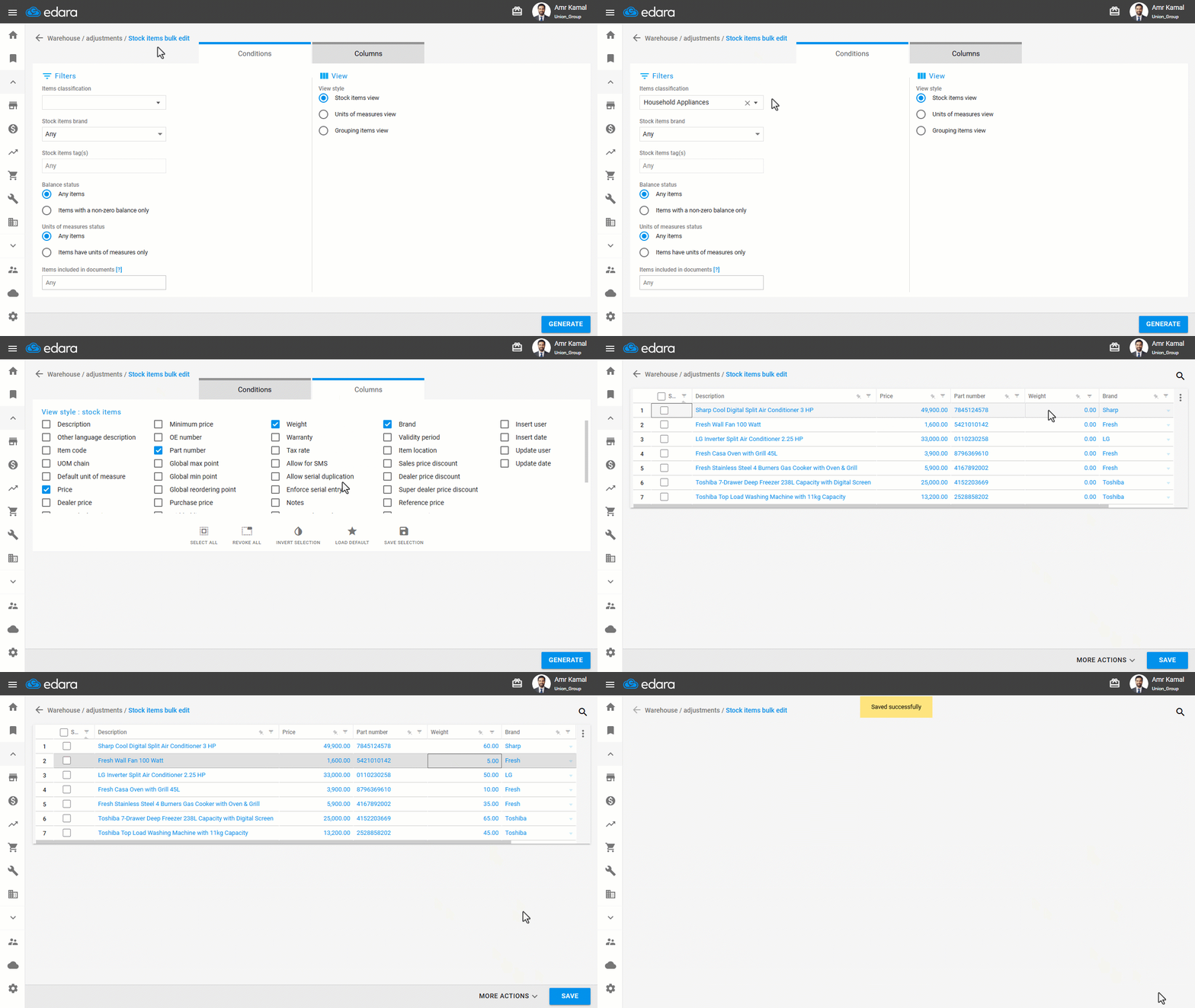
You can review stock item weights by following these steps:
- Go to the "Warehouse" Module.
- Open the "Stock sell out" page.
- Select the "Warehouse".
- Select the required date range.
- Go to "Custom view".
- Enable the "Weight" column.
- Click on "Generate".
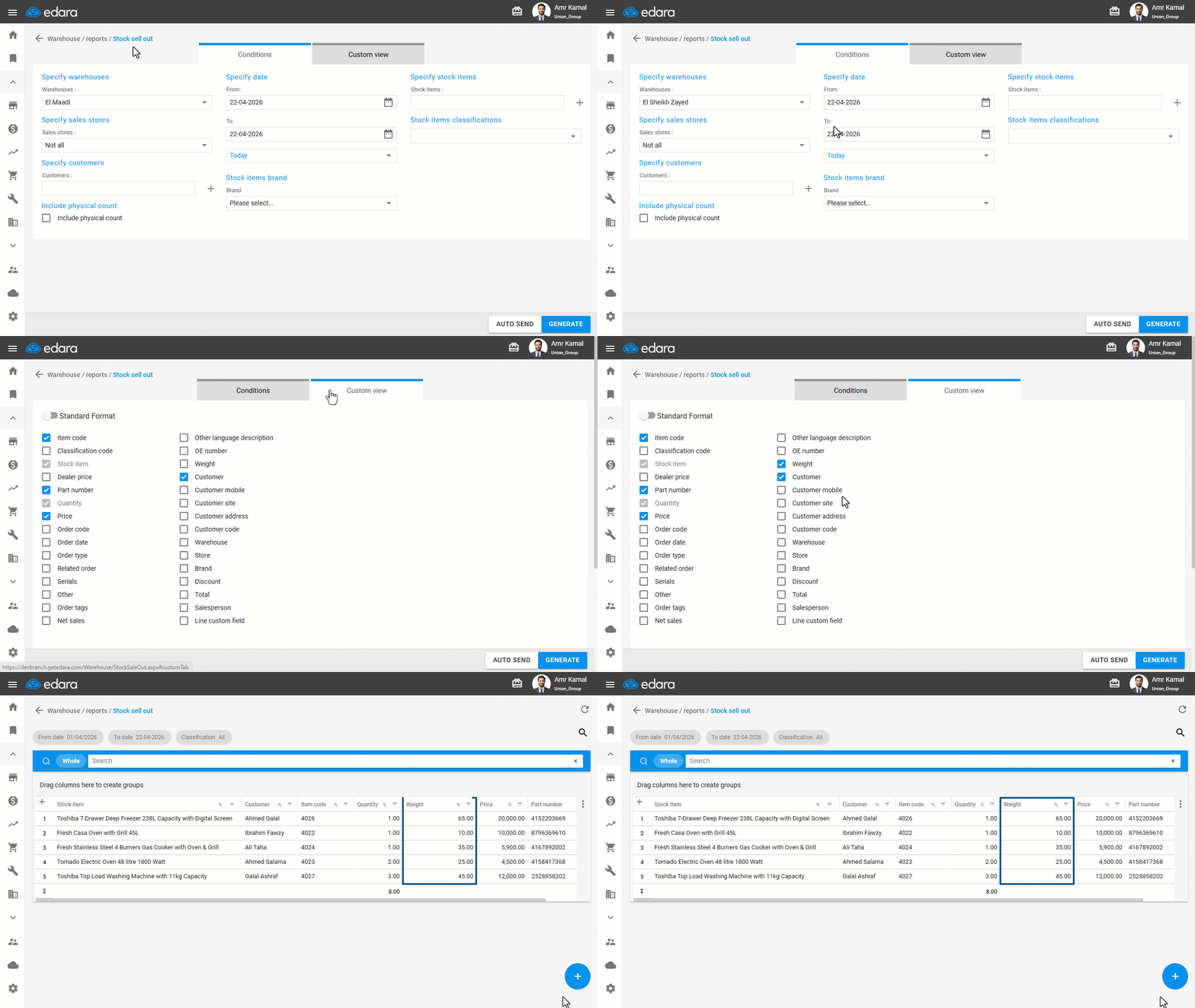
Notes:
- If a sales order contains more than one stock item, the total weight will not be automatically calculated in the report. In this case, you can export the report to Excel by clicking on "+", then use a formula to calculate the total weight.
- The stock item weight appears at the line level in the sales order only through "Sales approvals".
If you encounter any challenges or have questions during these processes, you can contact our technical support team, who are ready to assist you at any time.
Did this answer your question?