

Importing Opening Balance via Excel
Last updated:
"Edara" allows you to enter Opening Balances using an Excel file, saving time and effort.
Importing Opening Balance via Excel
You can complete this by following these steps:
Step 1: Export the Excel File from “Edara”
- Go to the Warehouse Module.
- Open the Warehouse Stocks Report.
- Select the Warehouse.
- Specify “All” in balance status.
- Ensure that available serial numbers are displayed (from Other options).
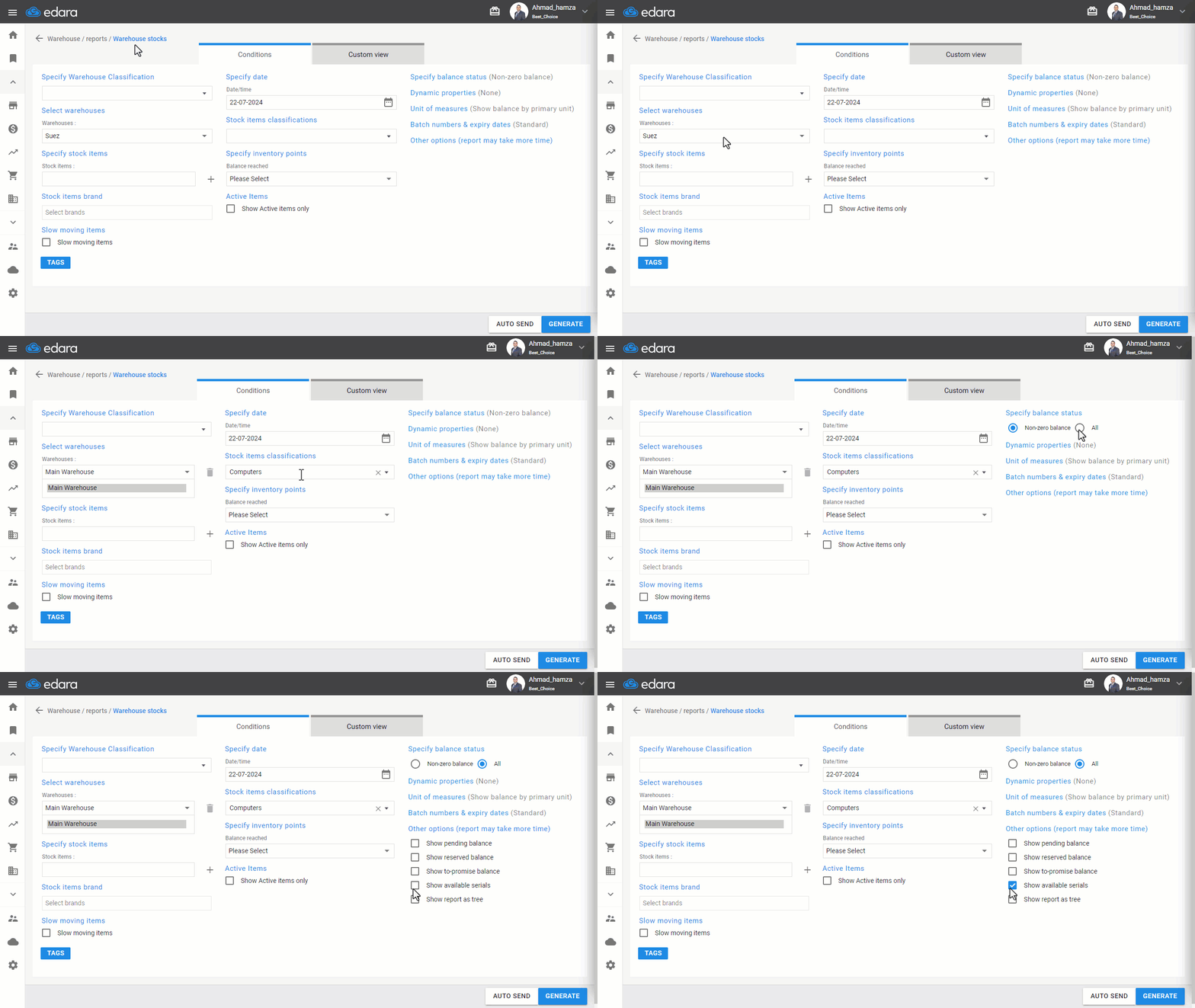
- Select the necessary columns to be displayed in the file from “Custom View”.
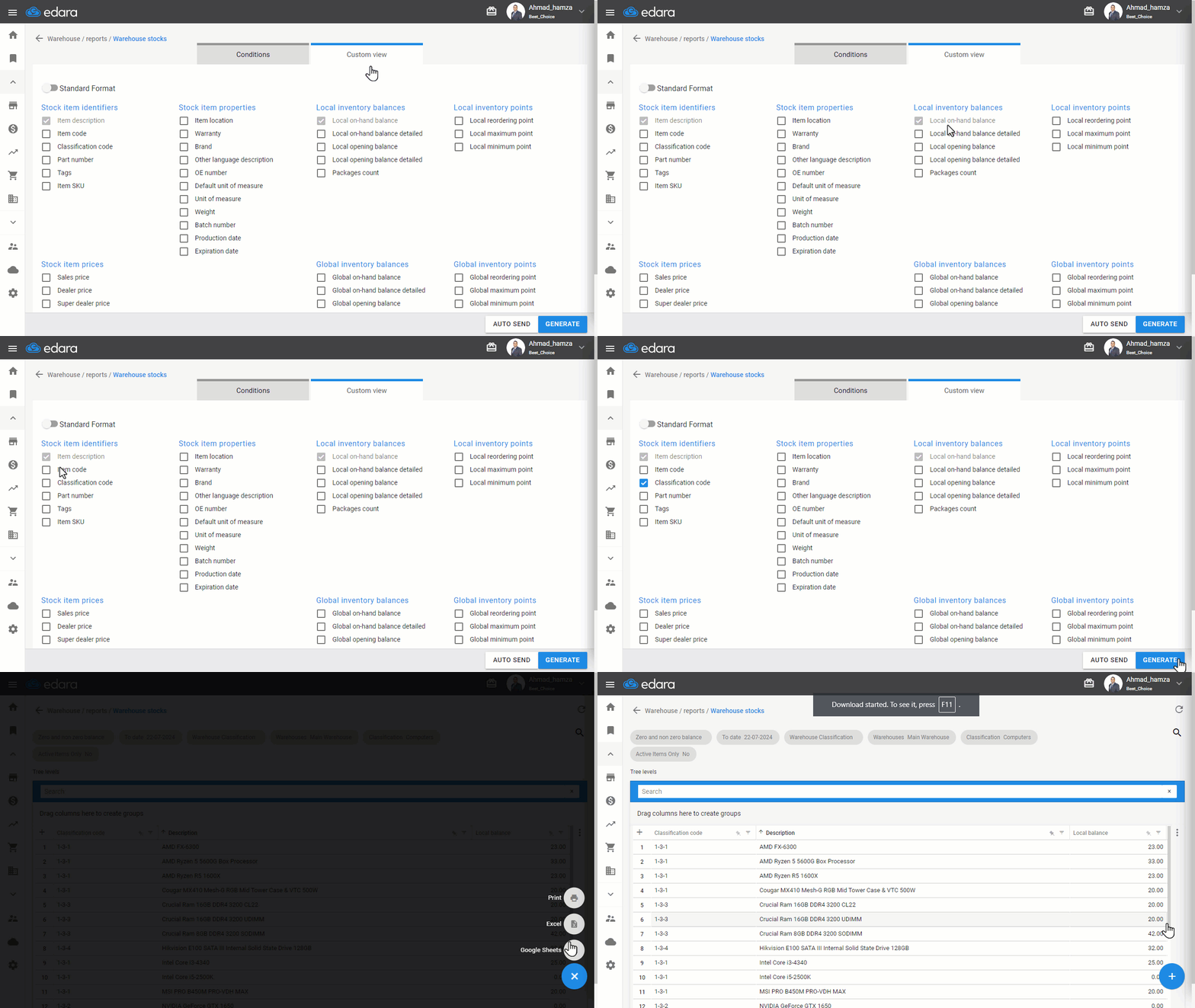
Note: The Excel file must be uploaded to the opening balance page with the following columns selected: Item description — Local balance — Classification code.
- Click "Generate".
- Click the "+" icon on the right, then select “Excel”.
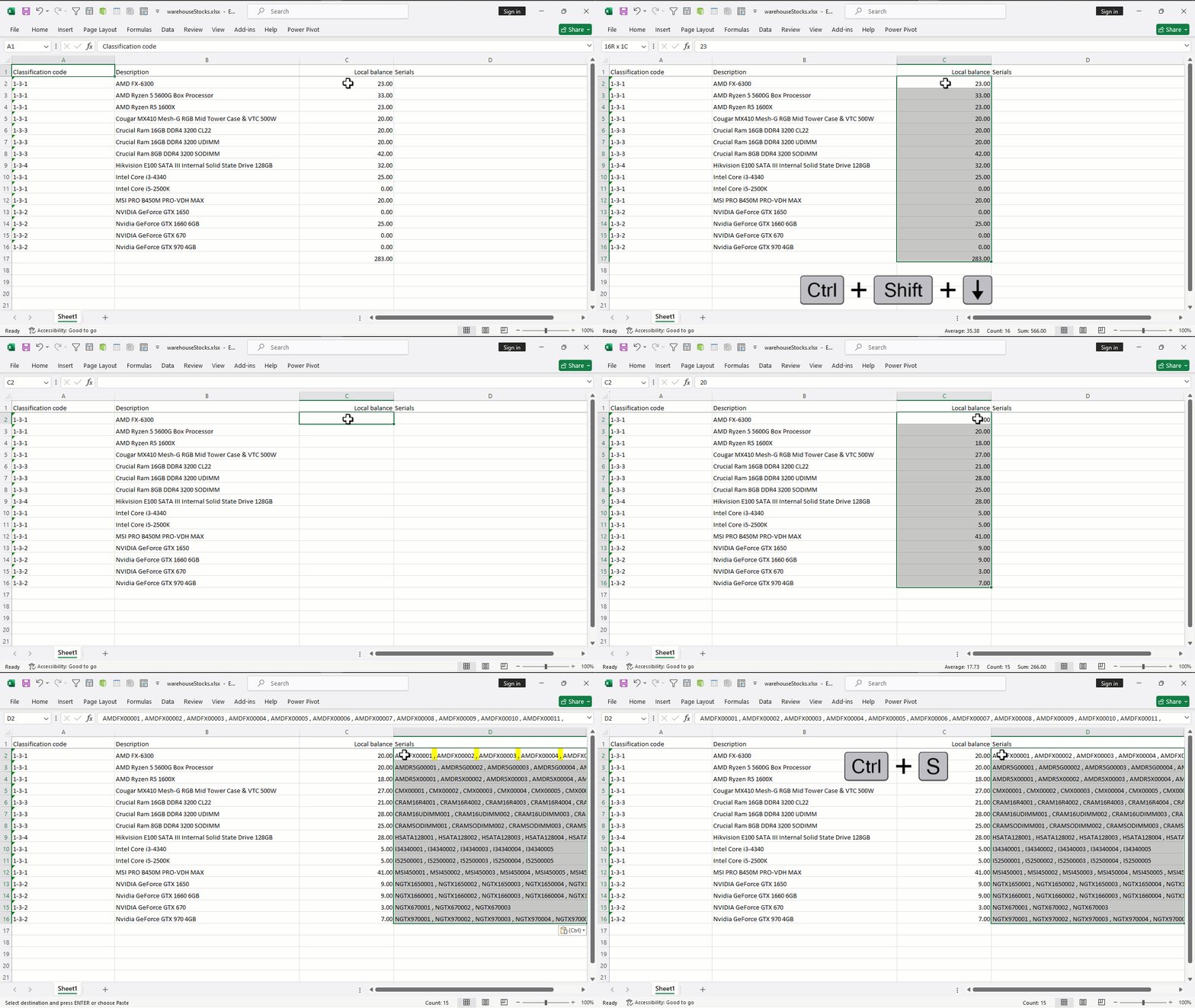
- Enter the Opening Balances for the items in the Excel file next to each item in the local balance column.
Note: Make sure to add a space before and after the comma in the serial numbers.
- Save the Excel file.
Step 2: Import the File in the Opening Balance Page After Completion
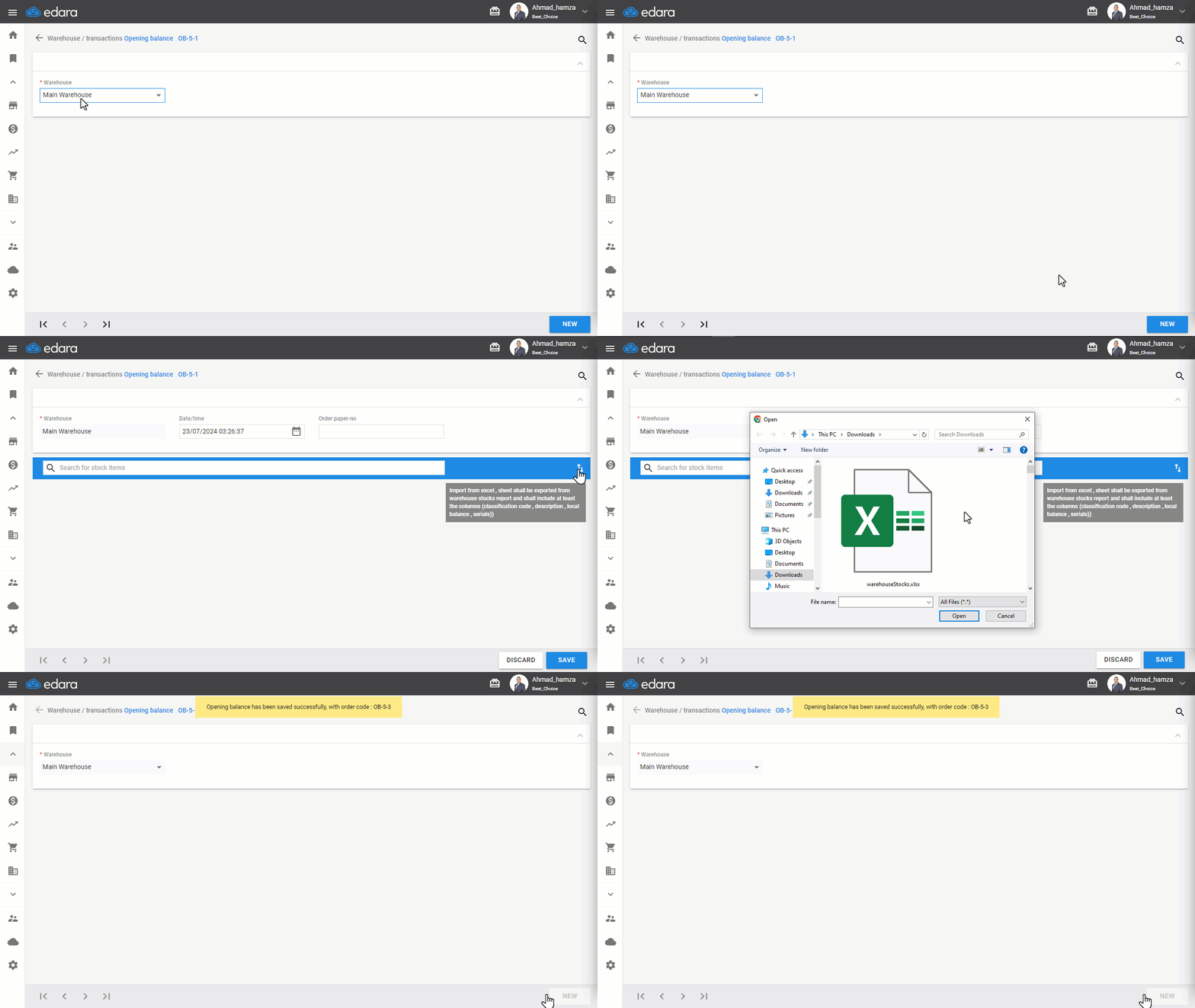
- Go to the Warehouse Module.
- Open the Opening Balance page.
- Select the Warehouse.
- Click "New".
- Click on "⇅" to import the Excel file from your device.
Note: Ensure that there are no zero balances in front of the items.
- Click “Save”.
Frequently asked questions
Which columns does the Excel file need for the opening balance?
The Excel file must be uploaded to the opening balance page with the following columns selected: Item description — Local balance — Classification code.
If you encounter any challenges or have questions during these processes, you can contact our technical support team, who are ready to assist you at any time.