

Importing Master Data into "Edara"
Last updated:
You cannot start working on 'Edara' without entering the basic data. So you can use the Data Import page to enter data in bulk.
Importing Master Data into "Edara"
“Edara” allows you to import a variety of data, including:
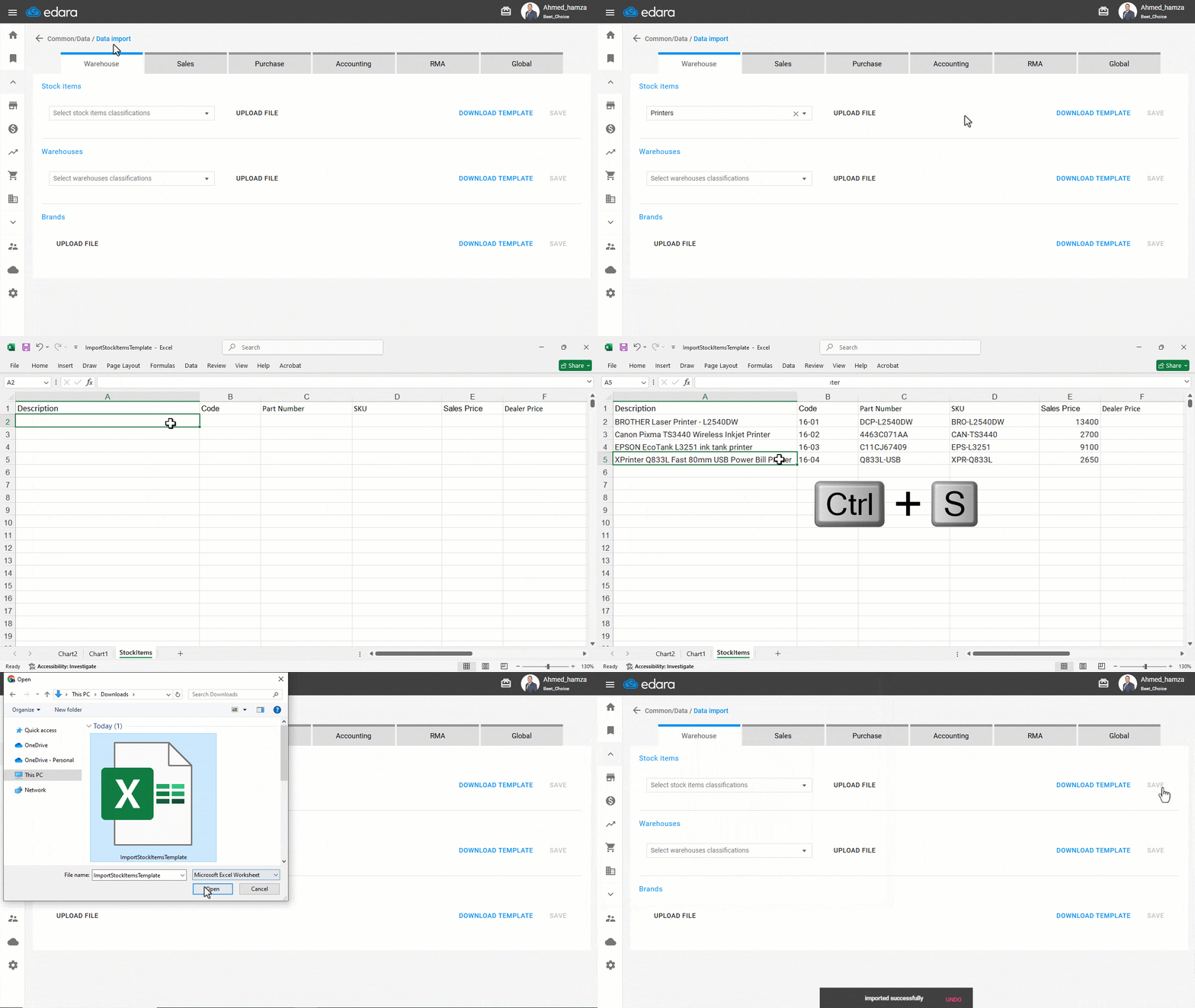
Importing Stock Items via Excel
- Go to the Data module.
- Open the “Data Import” page.
Note: The default Module is "Warehouse”
- Click on “Download Template” to export the Excel file.
- Fill in the data in the downloaded file.
- Save the file.
- Select the “Stock Items Classification”.
- Click on “Upload File” to upload your filled template.
- Click “Save” to complete the import.
Importing Customers via Excel
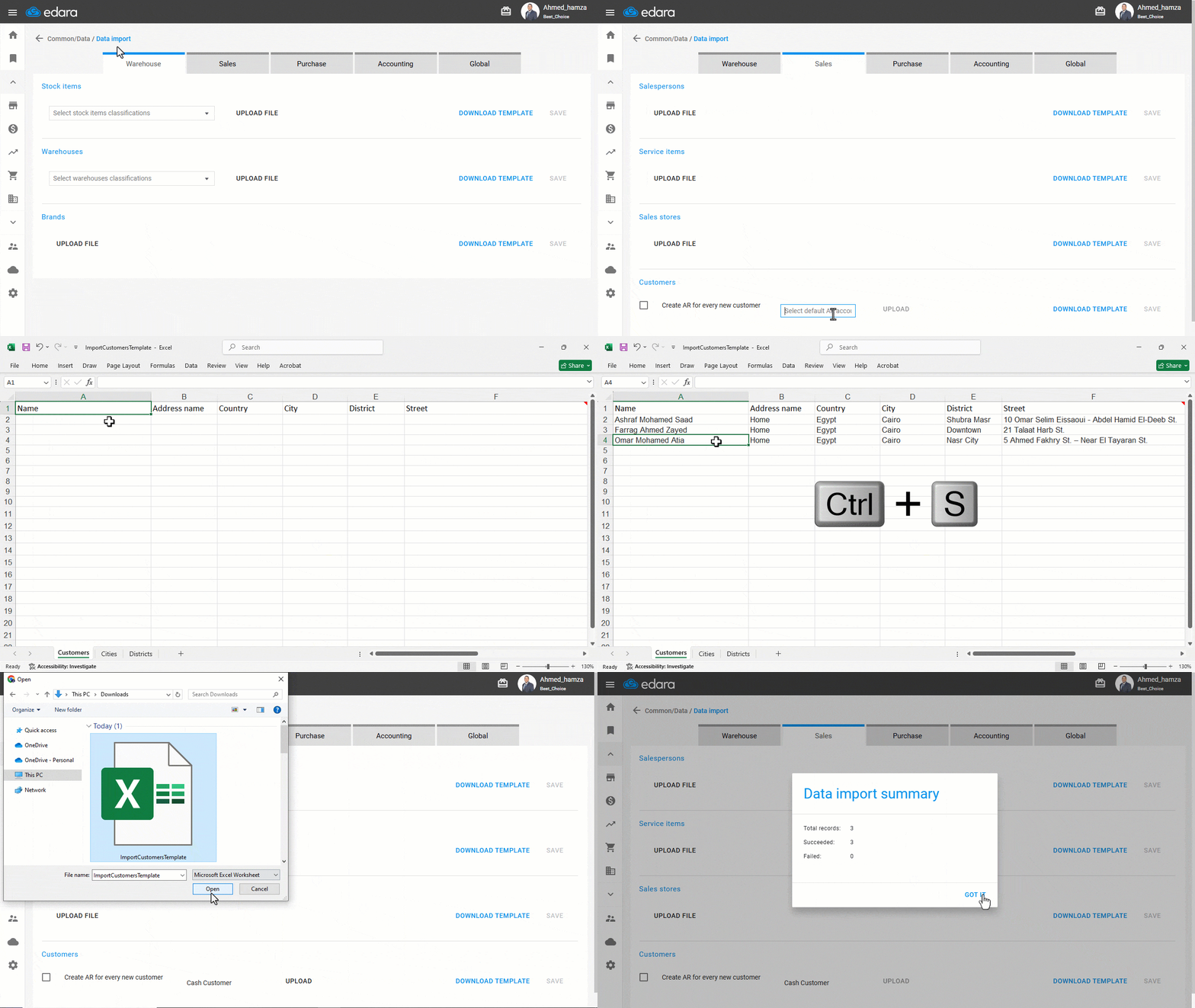
- Go to Data.
- Open the “Data Import” page.
- Choose the “Sales” module, then “Customers”.
Note: If you enable the option “Create AR for every new customer”, a corresponding account will be automatically generated in the chart of accounts.
- Choose the group under which you want to add the customers from the dropdown menu.
Note: If the above option is not enabled, you’ll need to specify the default AR account to which all customers will be linked.
- Click “Download Template” for customer data.
- Enter the customer names into the template.
- Click “Upload” and select the Excel file you previously saved.
- Click on “Save”.
Importing Suppliers via Excel
“Edara” allows importing supplier data in two ways:
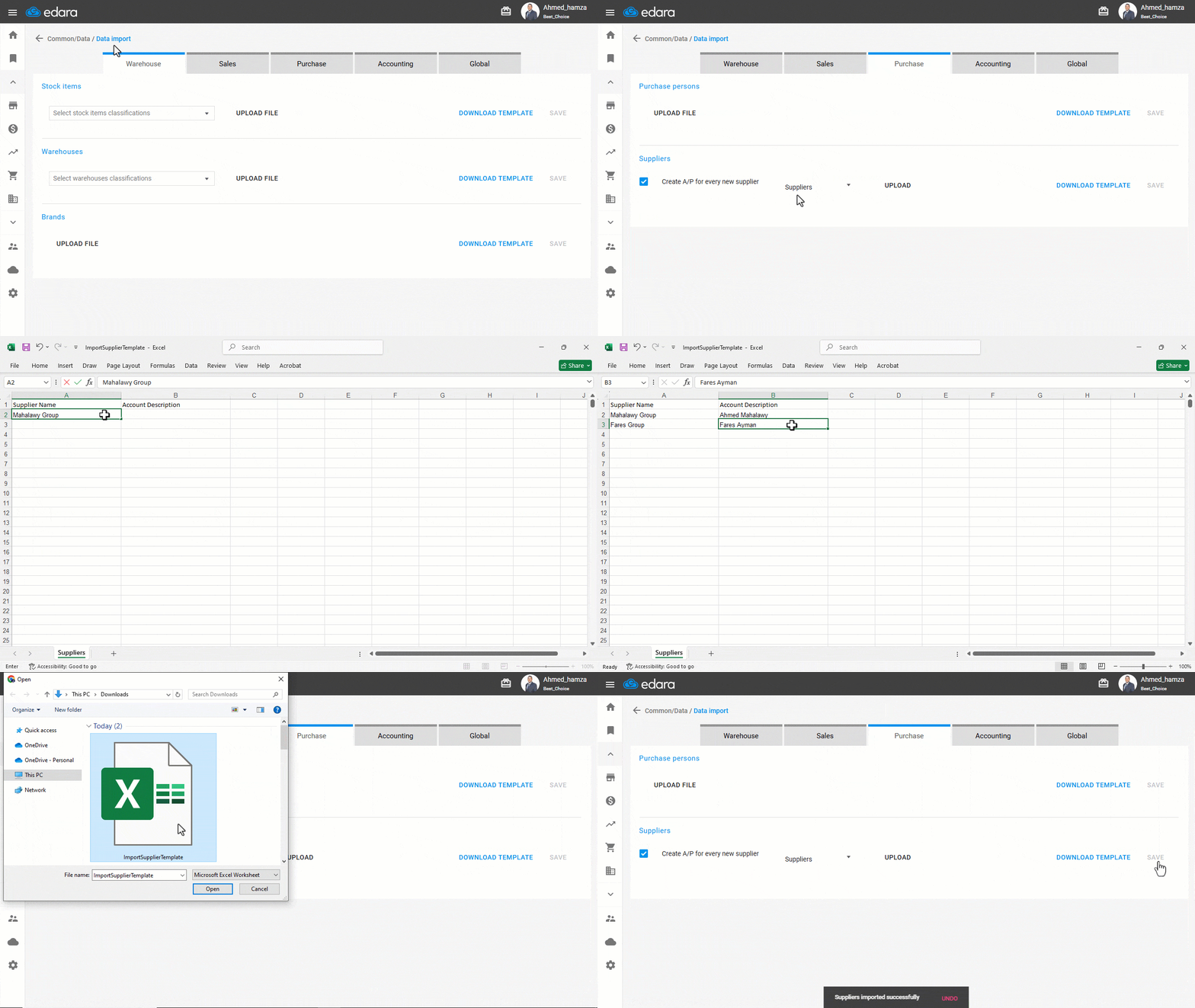
Importing Suppliers and Creating Accounts for Each One
- Go to the Data.
- Open the “Data Import” page.
- Select the “Purchase” module.
- Select the checkbox “Create A/P for every new supplier” under the Suppliers section.
- Click on “Download Template”.
- Enter the supplier account names in the downloaded file and save it.
- Select the Suppliers group under the Supplier accounts, which will be added to the chart of accounts.
- Click on “Upload” to upload the completed sheet.
- Click on “Save”.
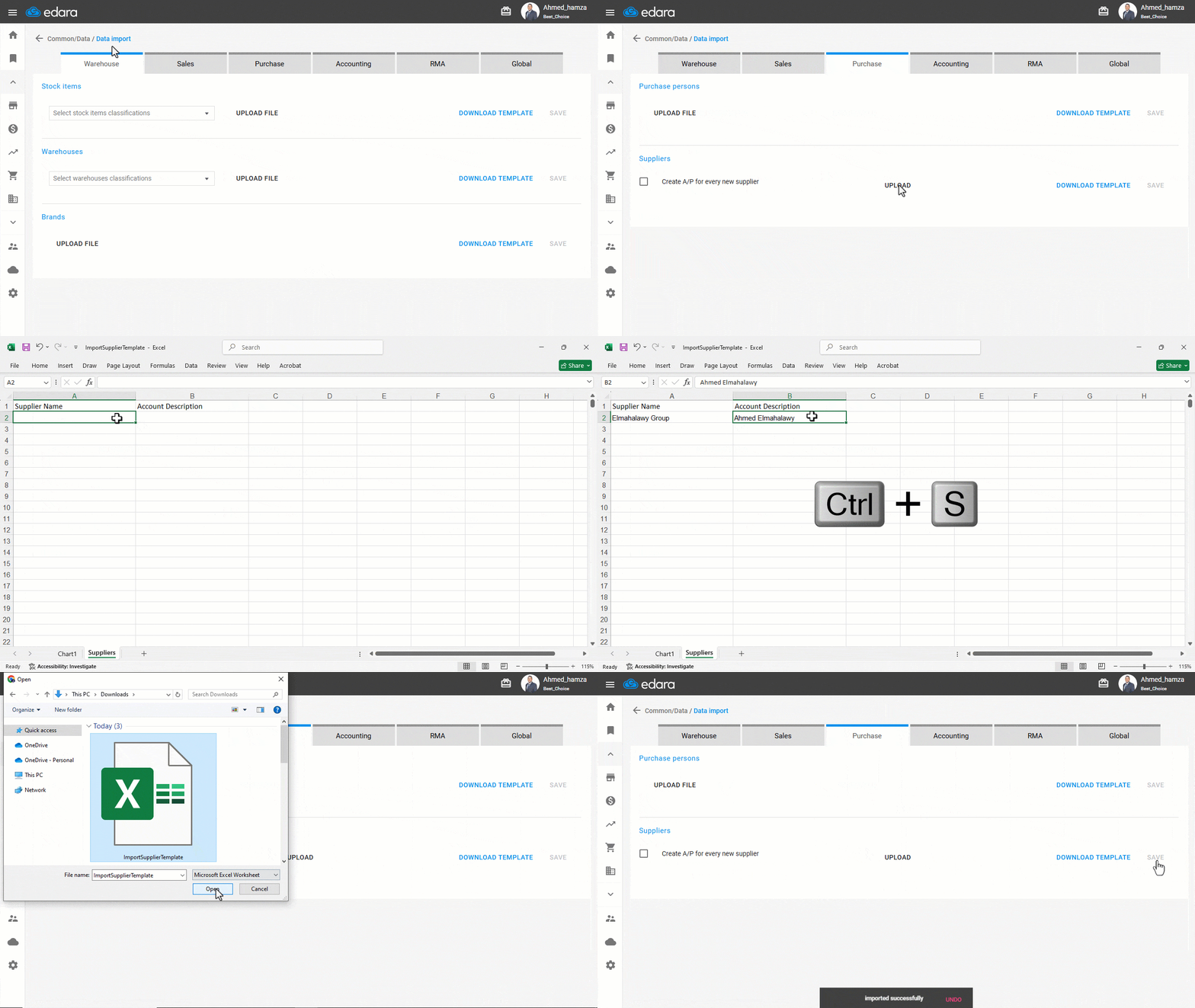
Importing Supplier Data and Linking it to Related Customer Accounts
- Go to the Data.
- Open the “Data Import” page.
- Select the “Purchase” module.
- Uncheck the option “Create A/P for every new supplier” in the Suppliers section.
- Click on “Download Template”.
- Fill in the supplier names along with their related customer account names in the "Accounts Description" field.
Note: To ensure the account name is correct, copy it from the customer page, from the (A/R account) field.
- Click on “Upload” to upload the completed template.
- Click on “Save”.
If you encounter any challenges or have questions during these processes, you can contact our technical support team, who are ready to assist you at any time.