

Importing Suppliers Data into Edara
Last updated:
You can easily import supplier accounts using the data import page, where you can upload all supplier records in a single Excel file. This saves time and ensures data accuracy.
Importing Suppliers and Creating Accounts for Each One
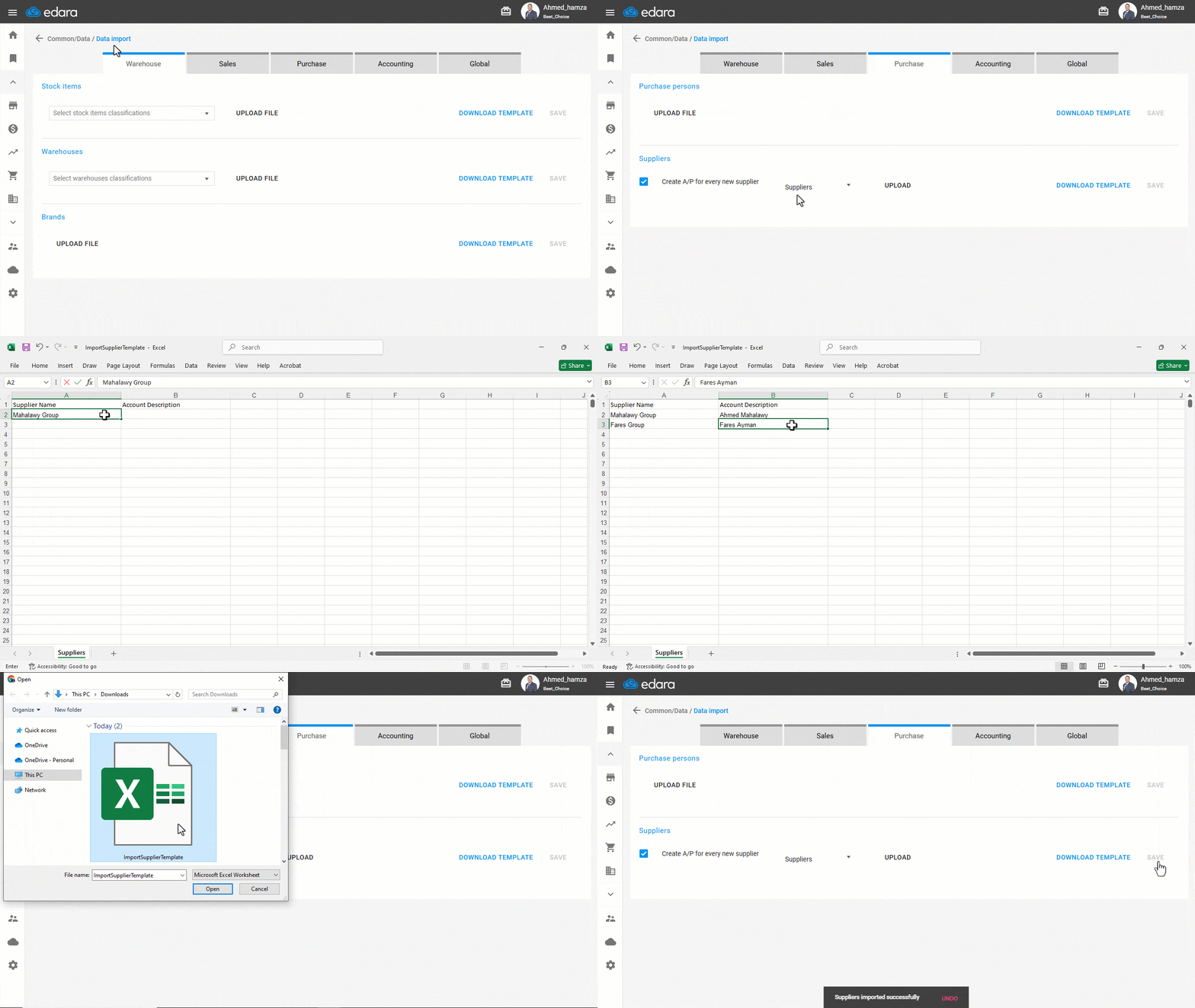
- Go to the Data.
- Open the “Data Import” page.
- Select the “Purchase” module.
- Select the checkbox “Create A/P for every new supplier” under the Suppliers section.
- Click on “Download Template”.
- Enter the supplier account names in the downloaded file and save it.
- Select the Suppliers group under the Supplier accounts, which will be added to the chart of accounts.
- Click on “Upload” to upload the completed sheet.
- Click on “Save”.
Importing Supplier Data and Linking it to Related Customer Accounts
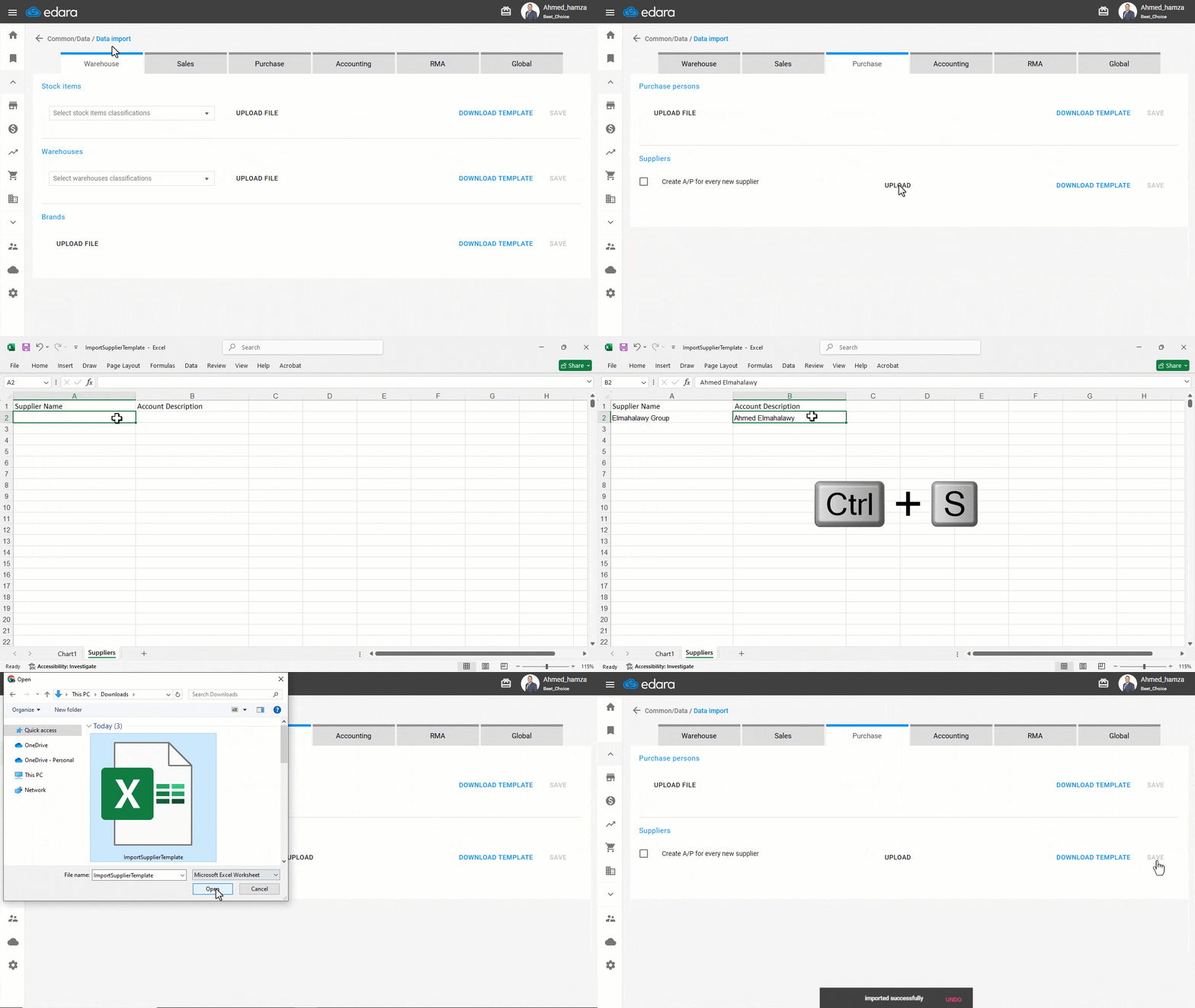
- Go to the Data.
- Open the “Data Import” page.
- Select the “Purchase” module.
- Uncheck the option “Create A/P for every new supplier” in the Suppliers section.
- Click on “Download Template”.
- Fill in the supplier names along with their related customer account names in the "Accounts Description" field.
Note: To ensure the account name is correct, copy it from the customer page, from the (A/R account) field.
- Click on “Upload” to upload the completed template.
- Click on “Save”.
If you encounter any challenges or have questions during these processes, you can contact our technical support team, who are ready to assist you at any time.
Did this answer your question?