

Linking the Bank of NR/NP to a GL Account
Last updated:
When the "Allow NR/NP posting" setting is enabled along with the Cheque Management Module in “Edara”, creating a bank and linking it to a General Ledger account allows the system to automatically generate journal entries related to cheque transactions (such as payment, collection, or rejection).
Here’s how to set it up.
Linking the Bank of NR/NP to a GL Account
There are two cases:
1. Linking to a New Account
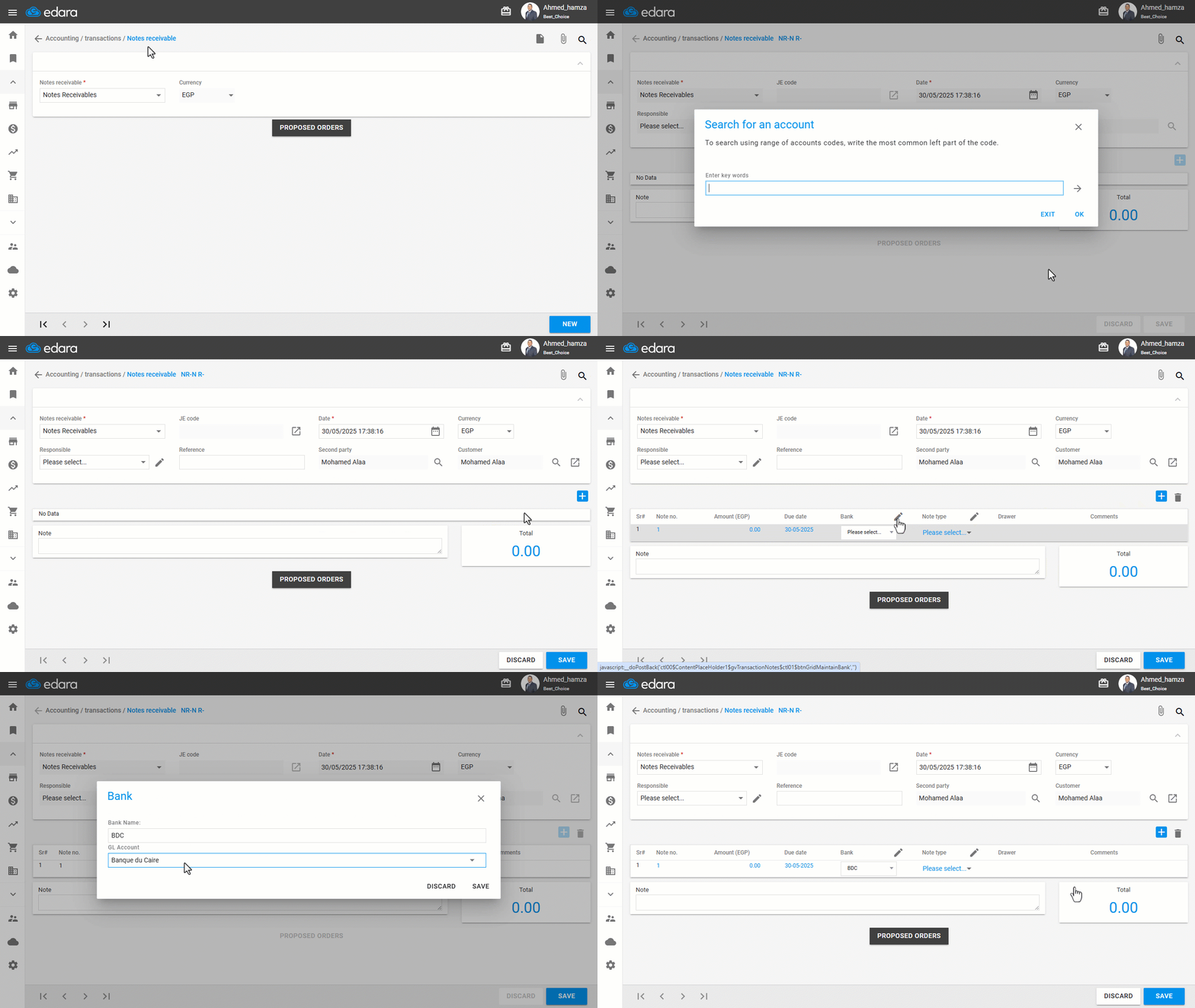
- Go to the Accounting module.
- Open the “Notes Receivable” or “Notes Payable” page.
- Click on "New".
- Enter the name of the customer or supplier.
- Click the ➕ icon.
- Click the 🖉 icon and select "Please select" from the Bank column.
- Enter the bank name.
- Choose the GL account to be linked to this bank from the dropdown list.
- Click on "Save".
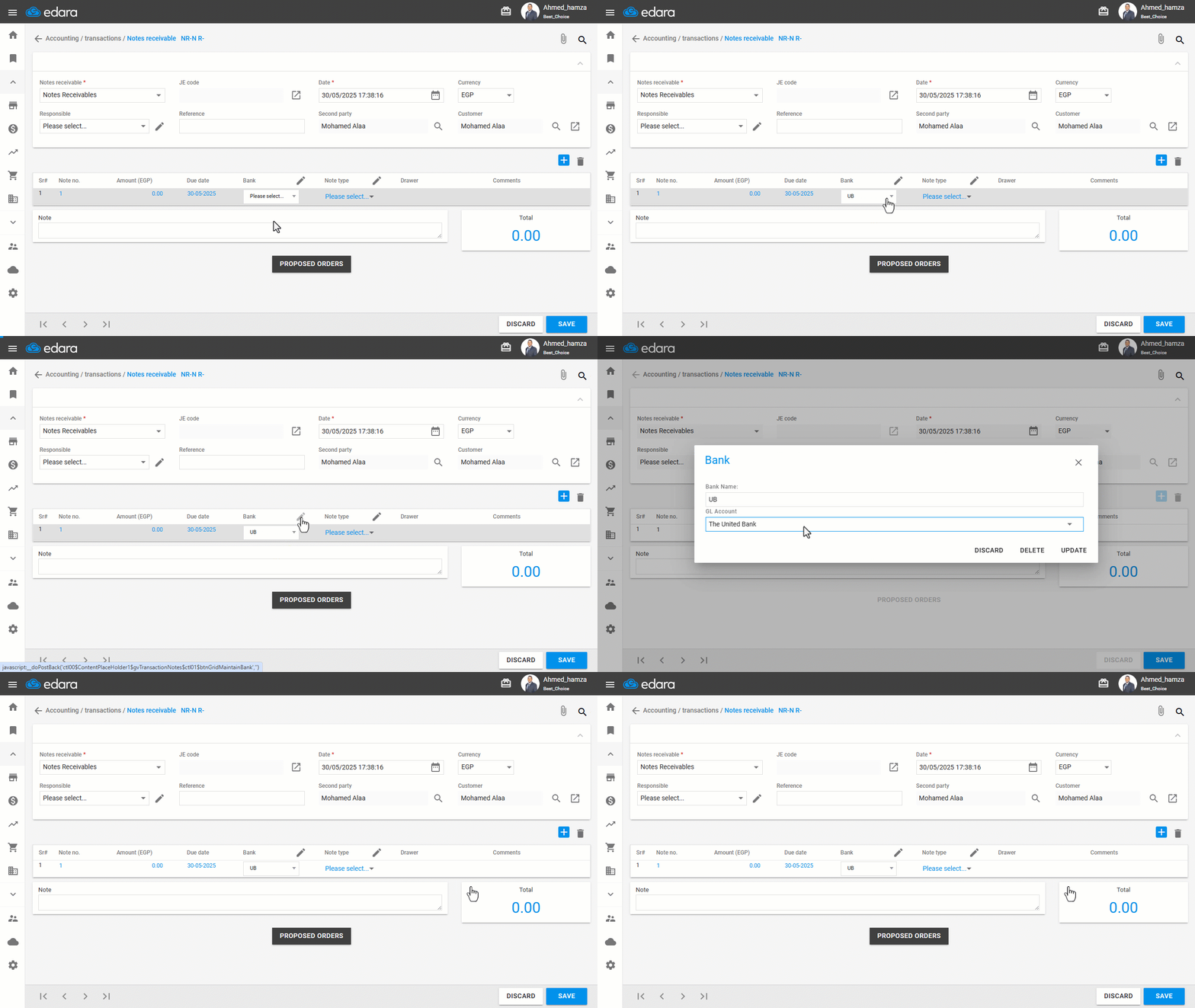
2. Linking to an Existing Account
You can select a previously saved bank from the dropdown list before clicking the 🖉 icon, and link it to an existing bank account.
Note: This link is only required for banks in which your company holds an account and can either issue cheques to suppliers or deposit cheques received from customers.
If you encounter any challenges or have questions during these processes, you can contact our technical support team, who are ready to assist you at any time.