

Creating a Notes Receivable Document
Last updated:
"Edara" allows you to create notes receivable to document and formalize debts.
Creating a Notes Receivable Document
First, ensure you have the necessary permissions for notes receivable, then:
- Go to the Accounting Module.
- Open the “Notes Receivable” page.
- Select the “Notes Receivable” Account.
- Click on “New”.
- Search for the account using the configured search settings.
- Select the Account Name.
- Set the Document Date.
- Choose the Currency associated with the account.
- Enter the Name of the Responsible Person (if applicable).
- Select the Second Party Name.
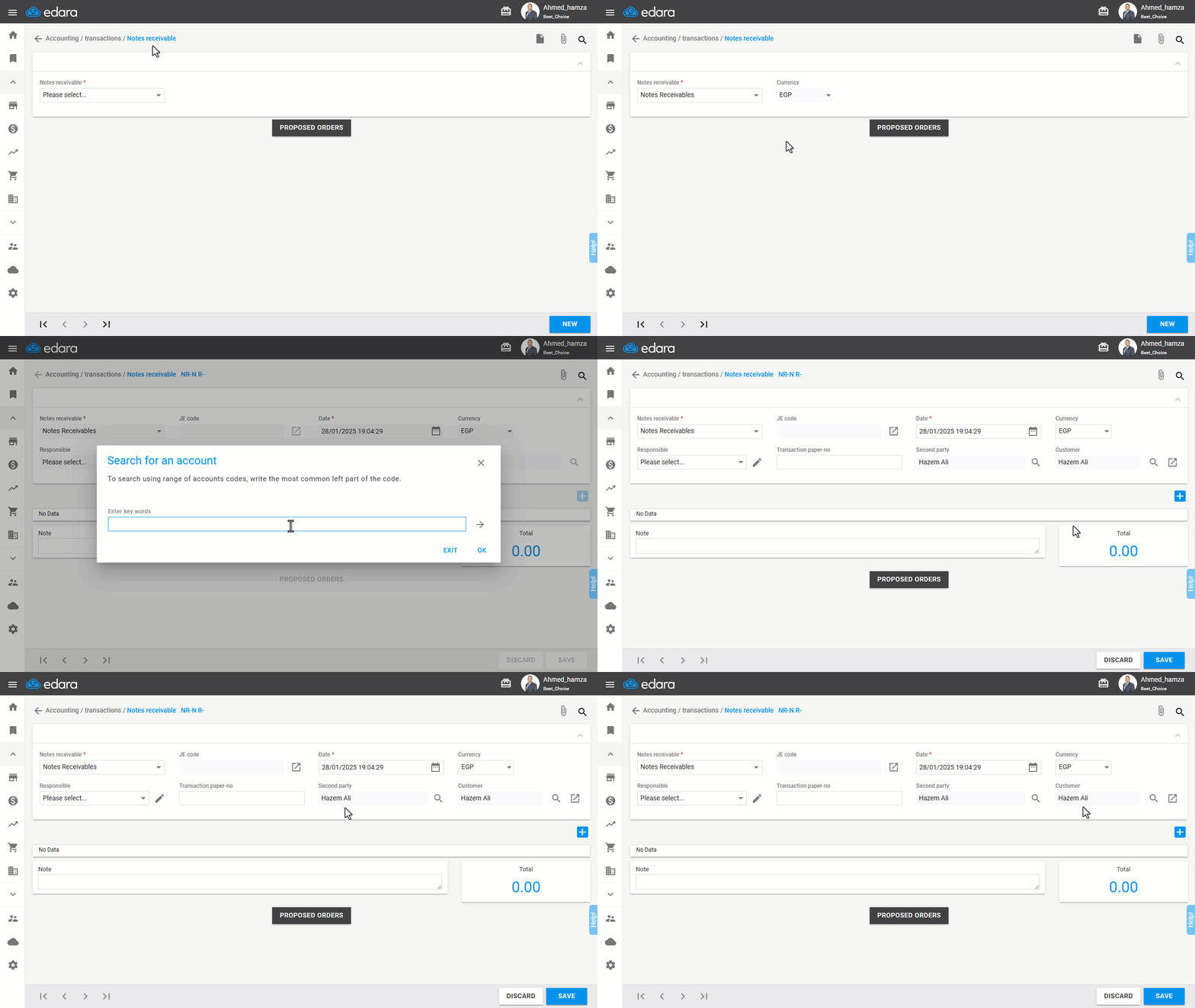
Note: An account may have multiple customers, so specify the account name in the Second Party field as needed.
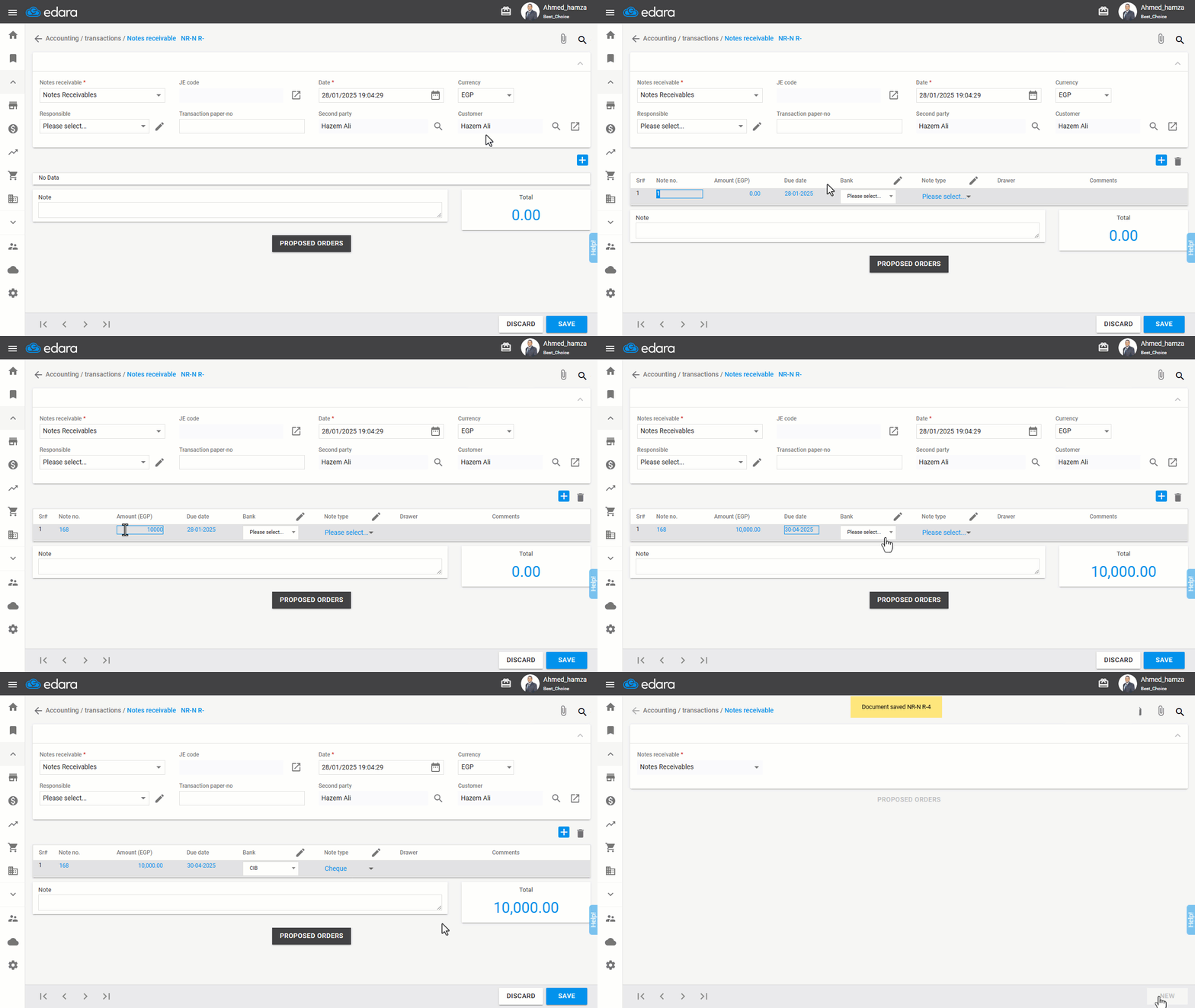
- Choose the Customer Name.
Note: Clicking on the associated icon opens the customer's profile, which includes the credit limit, responsible person's name, related balances, receipt notes report, and account statement for review before creating a new note.
- Click the "+" icon to input the Cheque Number.
Note: The cheque number can be unique or duplicated, depending on the configuration of the "Accounting" settings.
- Enter the Amount.
- Specify the Due Date.
- Select the Bank Name.
- Define the Document Type (e.g., Cheque).
- Add any Notes related to the cheque or notes receivable document.
- Upload an Image of the Cheque as an attachment.
- Add any related Documents or Entries.
- Click on “Save”.
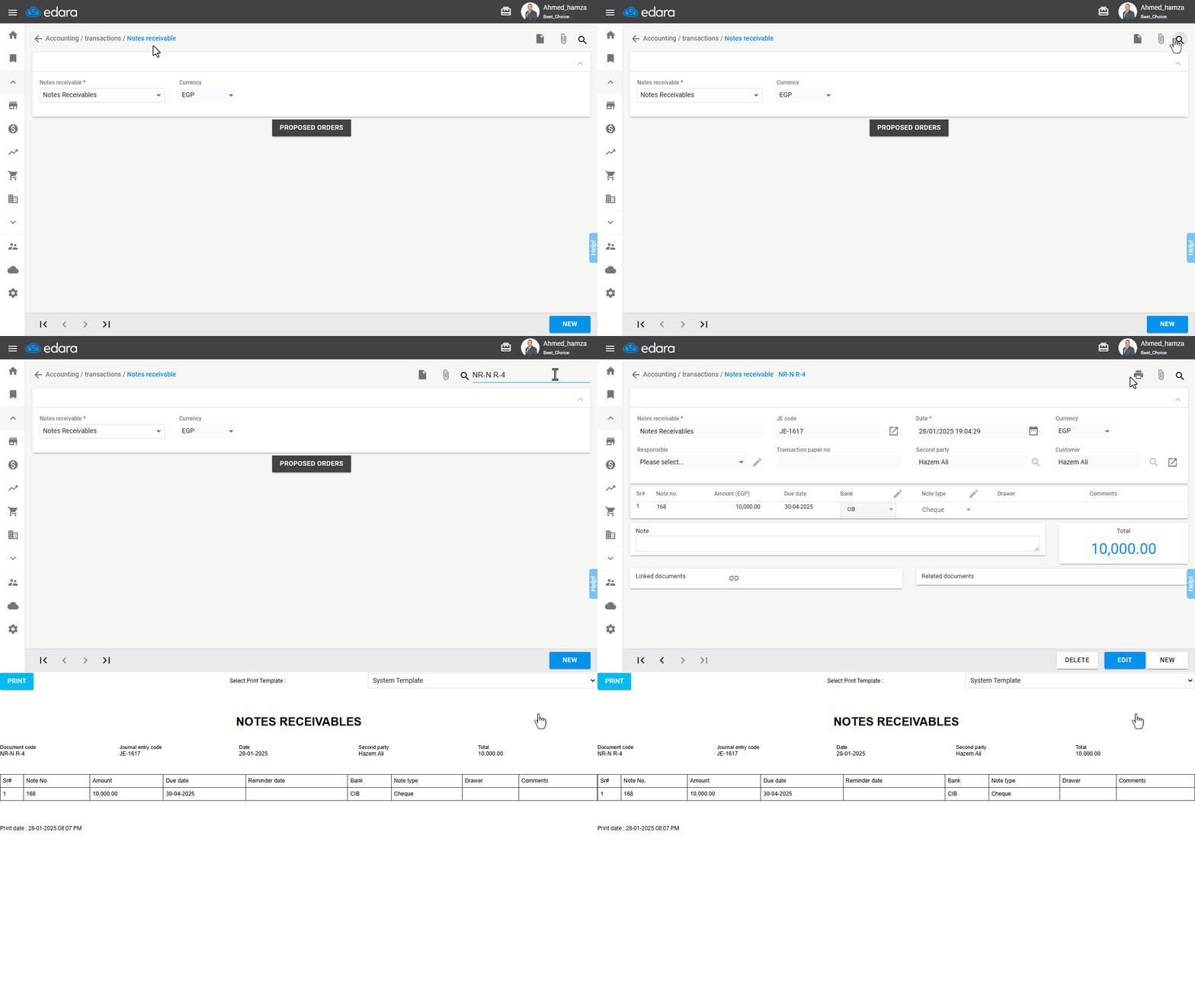
Printing the Notes Receivable Document
If you have printing permissions, you can click the Print Icon at the top of the screen to print the document. Alternatively, save and download the notes receivable document as a PDF.
Frequently asked questions
Can a cheque number be repeated?
The cheque number can be unique or duplicated, depending on the configuration of the "Accounting" settings.
If you encounter any challenges or have questions during these processes, you can contact our technical support team, who are ready to assist you at any time.