

Required Settings for Integration with “Fatoora” Platform
Last updated:
To complete the integration between “Edara” and “Fatoora” platform, make sure to verify the required settings for Accounting and Sales.
Required Settings for Integration with “Fatoora” Platform
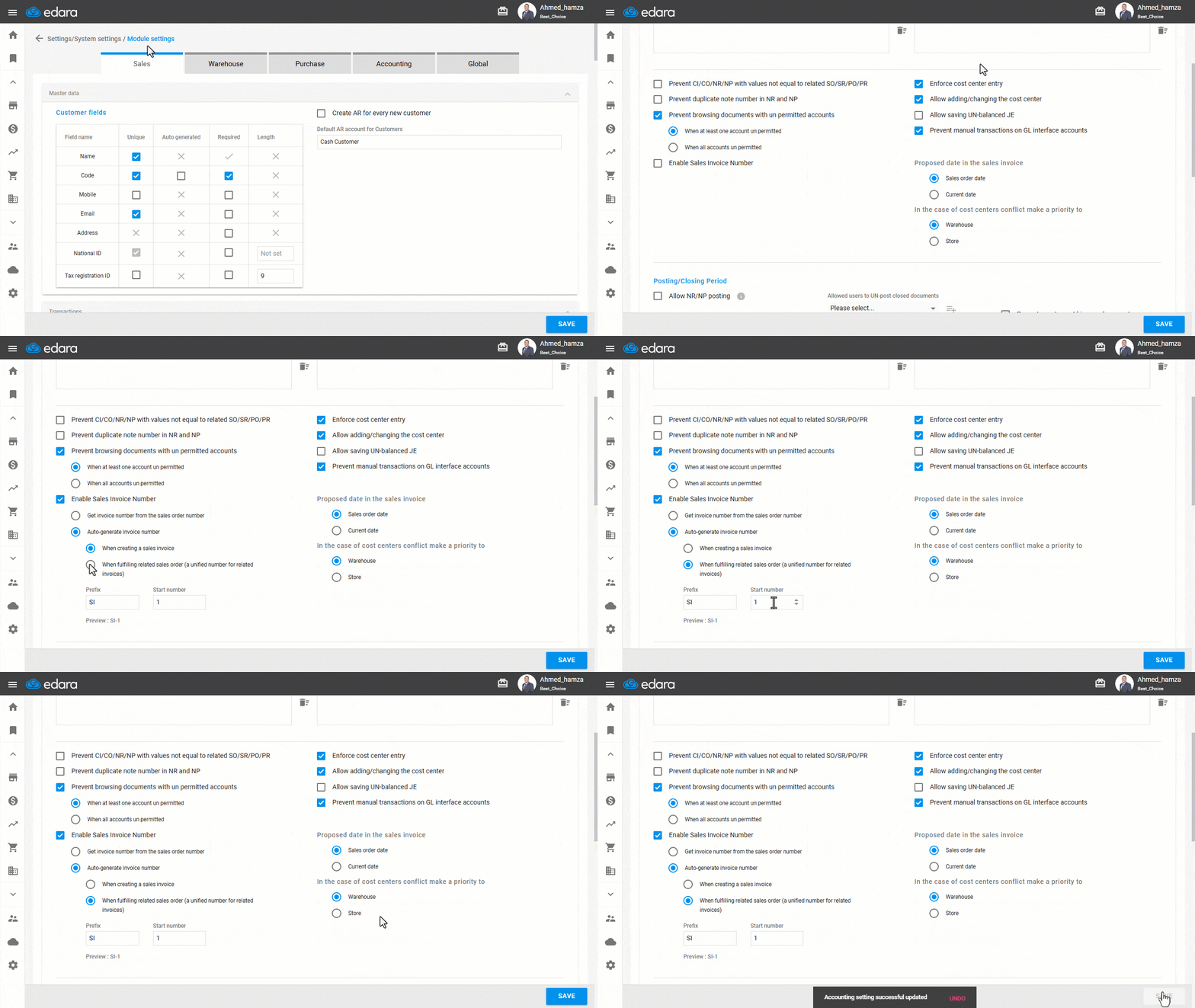
1. Accounting Settings
- Go to “Settings”.
- Open the “Modules Settings” page.
- Open the “Accounting” tab.
- Go to the “Transactions” section.
- Check the box next to “Enable Sales Invoice Number”.
- Select “When fulfilling related sales order (a unified number for related invoices)”.
- Set the prefix at the beginning of the invoice code.
- Set the Start number (the initial sequence number for invoices).
- Select the proposed date in the sales invoice, either “Sales order date” or “Current date”.
- Determine priority in case of a conflict between cost centers.
- Click on “Save”.
2. Sales Settings
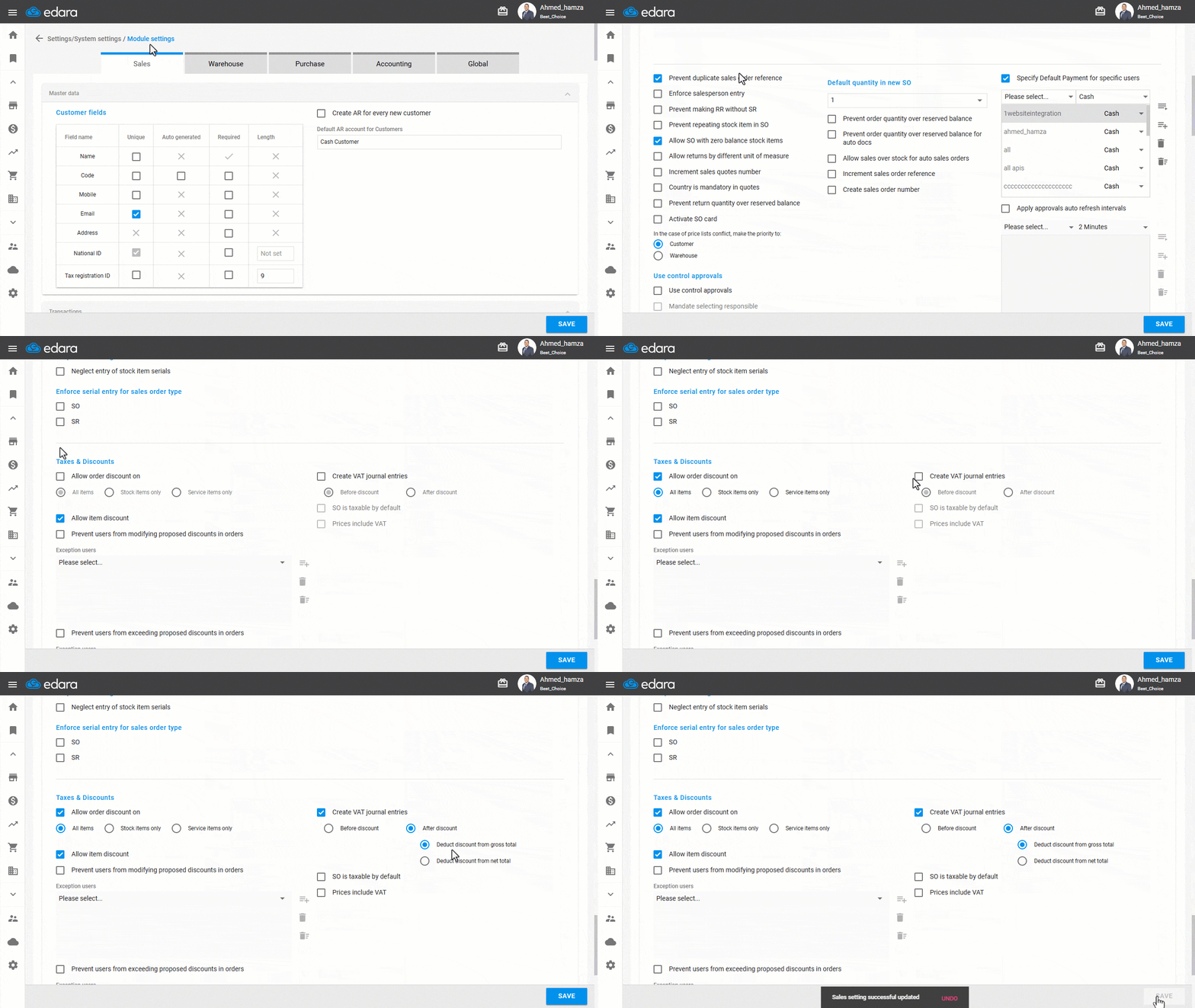
- Go to “Settings”.
- Open the “Modules Settings” page.
The default section displayed is the “Sales” tab.
- Go to the “Transactions” section.
- Enable “Prevent making RR without SR”.
- Enable “Allow order discount on”, and apply it to “All Items”.
- Enable “Create VAT journal entries”.
- Enable the “After discount” option.
You’ll then be able to choose between two options for applying the discount:
- “Deduct discount from gross total”: The discount is calculated on the total invoice amount before VAT.
- “Deduct discount from net total”: The discount is calculated after VAT, on the final net value of the invoice.
- Click on “Save”.
After configuring and saving these settings, you’ll be able to send all required invoices to “Fatoora” platform.
Note: Once the integration with “ZATCA” is activated, these settings can’t be changed.
If you encounter any challenges or have questions during these processes, you can contact our technical support team, who are ready to assist you at any time.
Did this answer your question?