

Selecting Search Parameters for Stock Items
Last updated:
Search filters help you quickly access the required data without manually searching through long lists of items.
Selecting Search Parameters for Stock Items
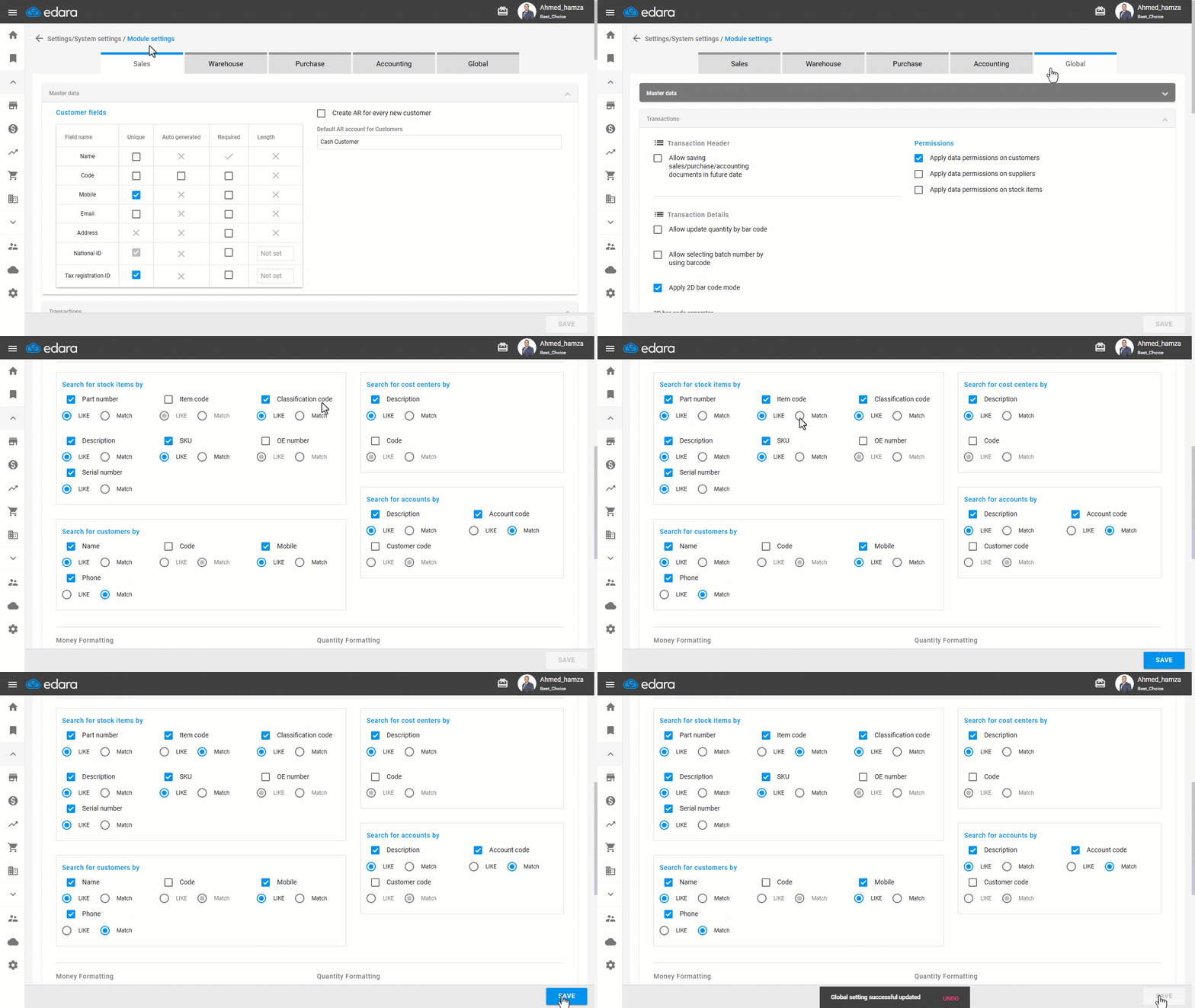
- Go to “Settings”.
- Open the “Modules Settings” page.
- Choose the “Global” tab.
- Go to the “Transactions” section.
- Select the desired search filter from "Search for stock items by".
Notes:
- You can select more than one parameter, such as (Description, Part number, or Item code),
- You can specify whether the search Parameter is Like or match:
- Like: Displays results containing the word or part of it, or that contain the code or part of it
- Match: Displays only results that match the entered text exactly.
- Click on “Save”.
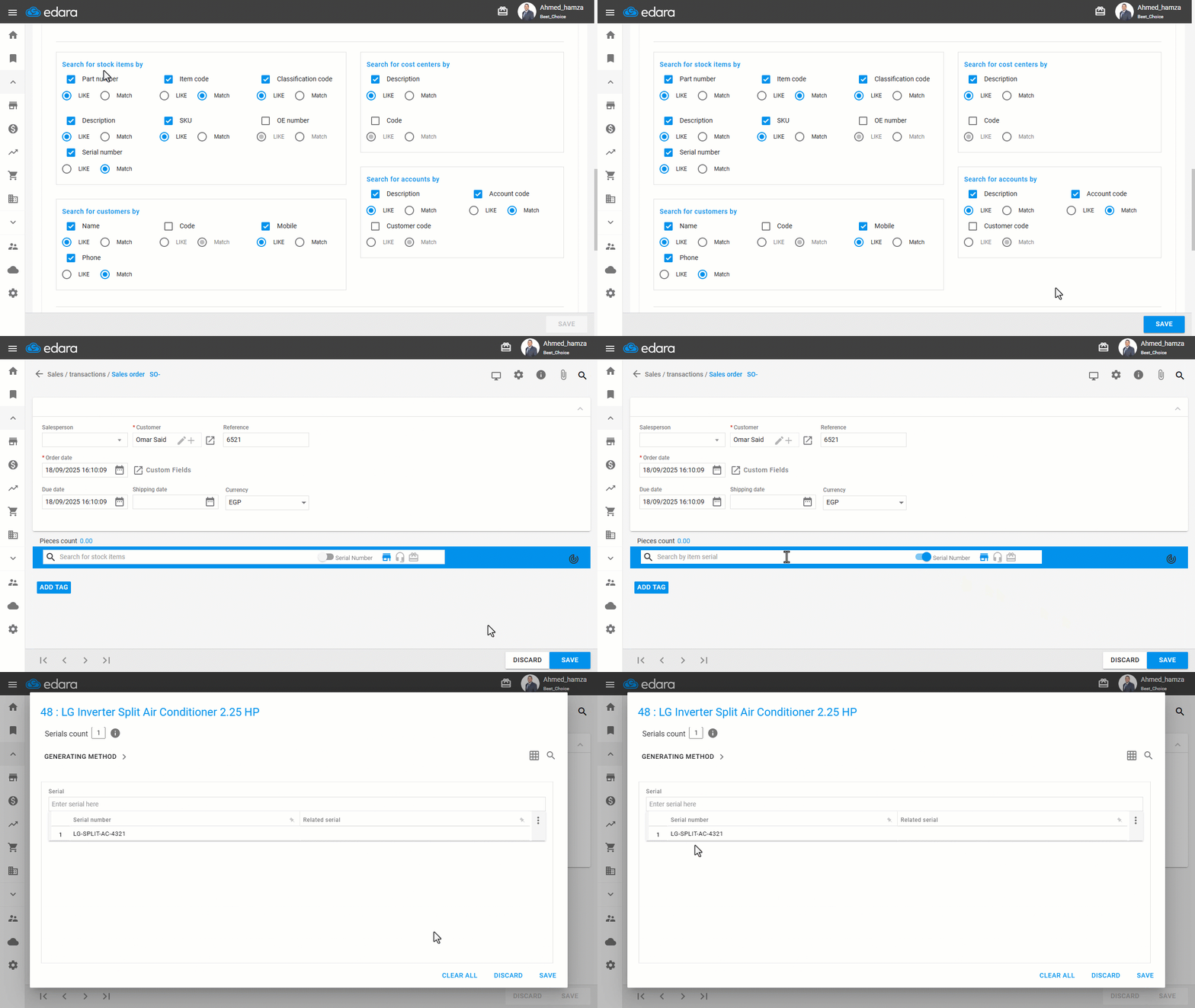
If you are not using the scanner to read the serial number and there is a unique part of the serial number (e.g., the last 4 digits) that is not repeated in another number and can be used to select the serial instead of typing it all, you can search by part of the serial number, after enabling the following setting:
- Go to “Settings”.
- Open the “Modules Settings” page.
- Choose the “Global” tab.
- Go to the “Transactions” section.
- Select “Like” under “Serial Number”.
- Click on “Save”.
If you encounter any challenges or have questions during these processes, you can contact our technical support team, who are ready to assist you at any time.
Did this answer your question?