

Restricting User Access to Specific Suppliers
Last updated:
You can restrict users’ access to suppliers by specifying the suppliers each user is allowed to work with, ensuring that each user can perform supplier-related operations only for the suppliers assigned to them.
Restricting User Access to Specific Suppliers
This can be done through two main steps:
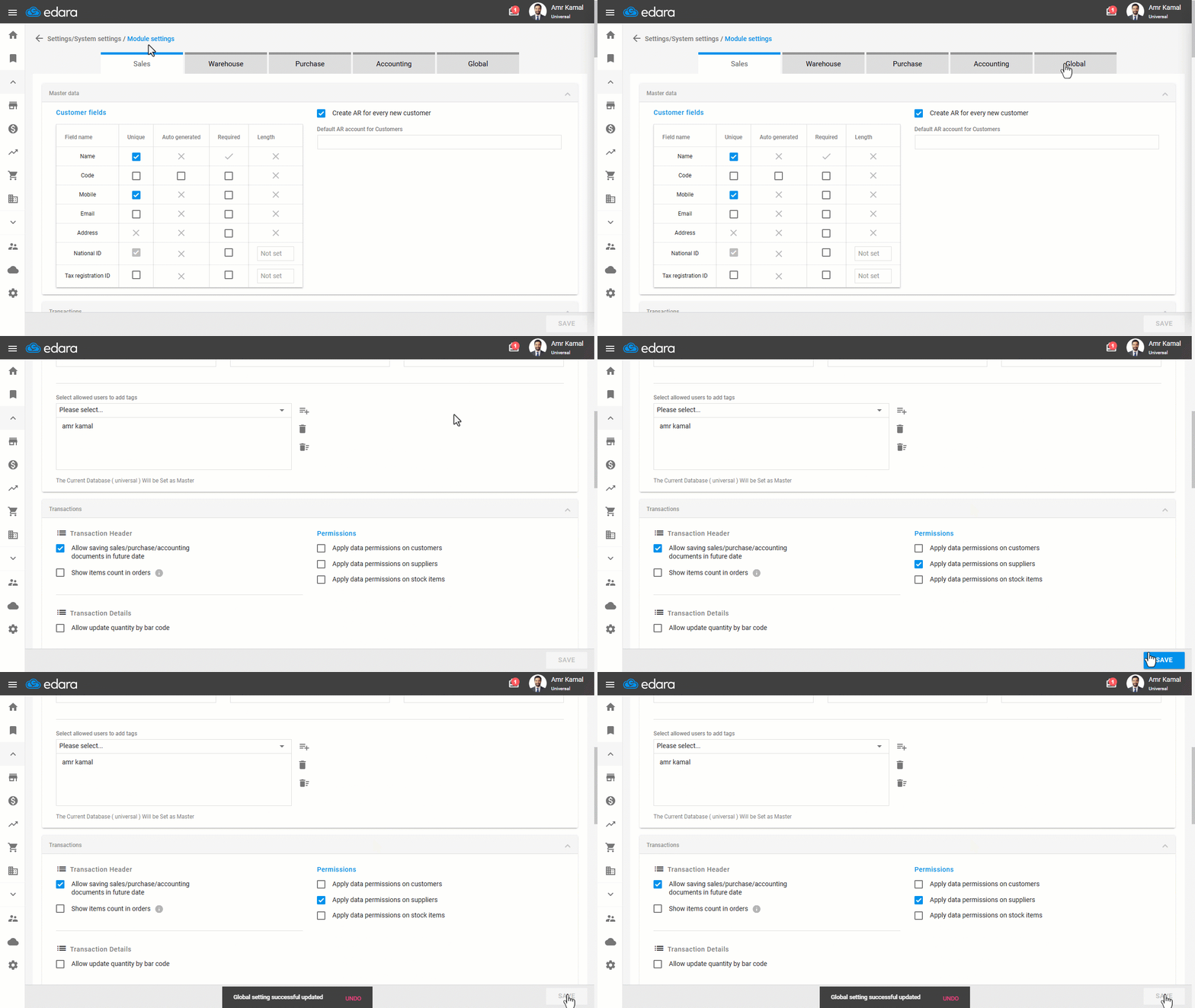
1. Applying data permissions on suppliers
- Go to “Settings”.
- Open the “Modules Settings” page.
- Go to the “Global” tab.
- Enable the “Apply data permissions on suppliers” option.
- Click on “Save”.
2. Granting a User Access to Specific Suppliers
- Go to “Users”.
- Open the “Data Permissions” page.
- Select the required user.
- Select the “Purchase” module.
- Select “Suppliers”.
- Click on “▶”.
- Click on the “▢” next to the supplier or suppliers the user is allowed to work with.
- Click on “Save”.
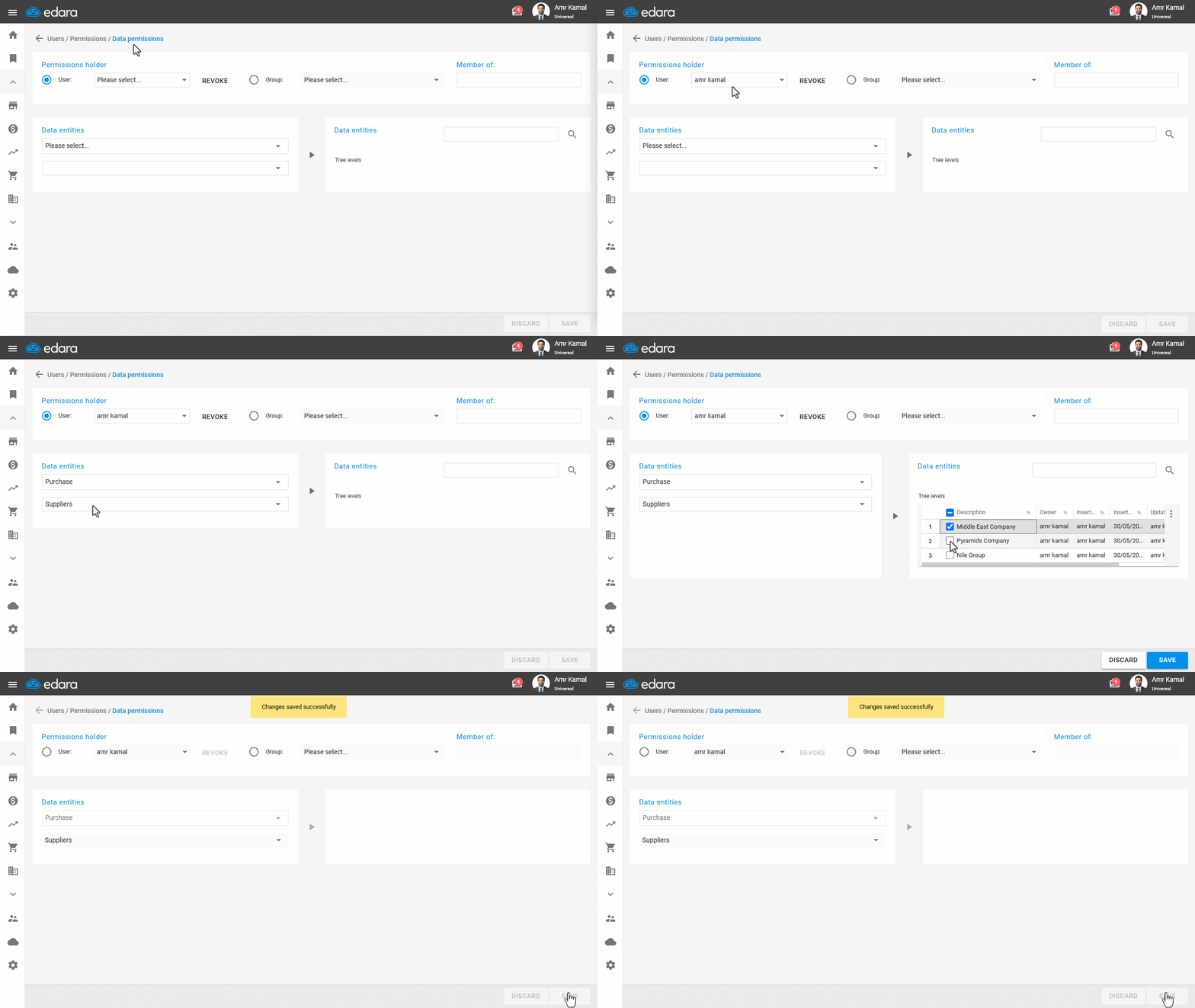
Note: You can also remove a user's access by following the same steps above, then clicking the “☑” checkbox to deselect it, and clicking on “Save”.
Frequently asked questions
How do I remove a user's access to a supplier?
You can also remove a user's access by following the same steps above, then clicking the “☑” checkbox to deselect it, and clicking on “Save”.
If you encounter any challenges or have questions during these processes, you can contact our technical support team, who are ready to assist you at any time.
Did this answer your question?