

Show Items Count in Orders
Last updated:
In some cases, you may need to display items count within a document accurately, especially when calculating the actual quantities for delivery.
In such situations, you can control how the count is calculated by choosing whether to calculate all items or stock items only, excluding any service items.
Show Items Count in Orders

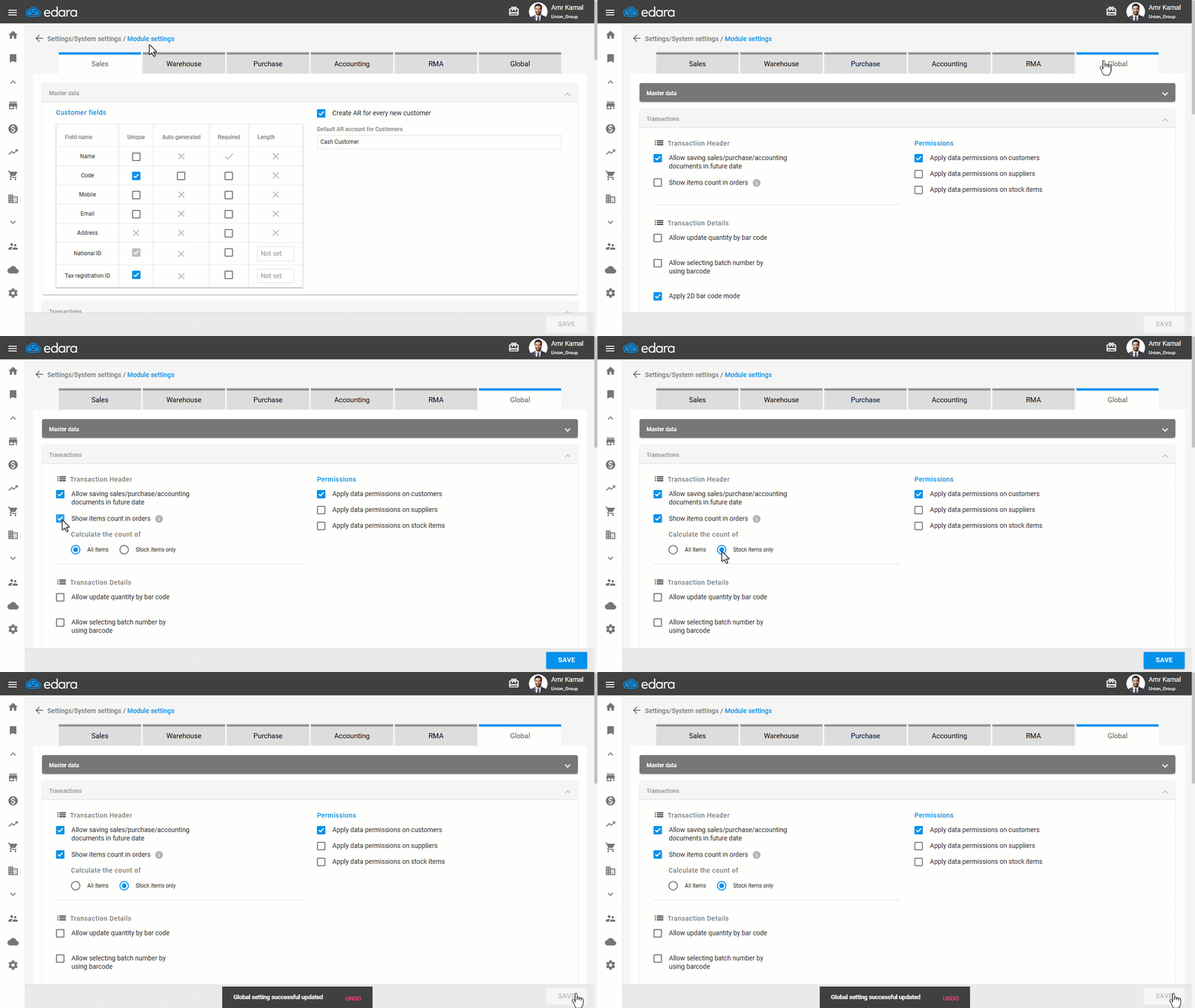
- Go to “Settings”.
- Open the “Module Settings” page.
- Open the “Global” tab.
- Go to the “Transactions” section.
- Enable “Show Items Count in Orders”, under “Transaction Details”.
- Choose how you want the system to calculate the items count:
- All items
- Stock items only
Note: This setting affects multiple document types, including RS, RR, IO, IR, IT, TR, SO, Rec SO and PO. It also affects the Print preview if the “Items Count” is selected in the template.
- Click on “Save”.
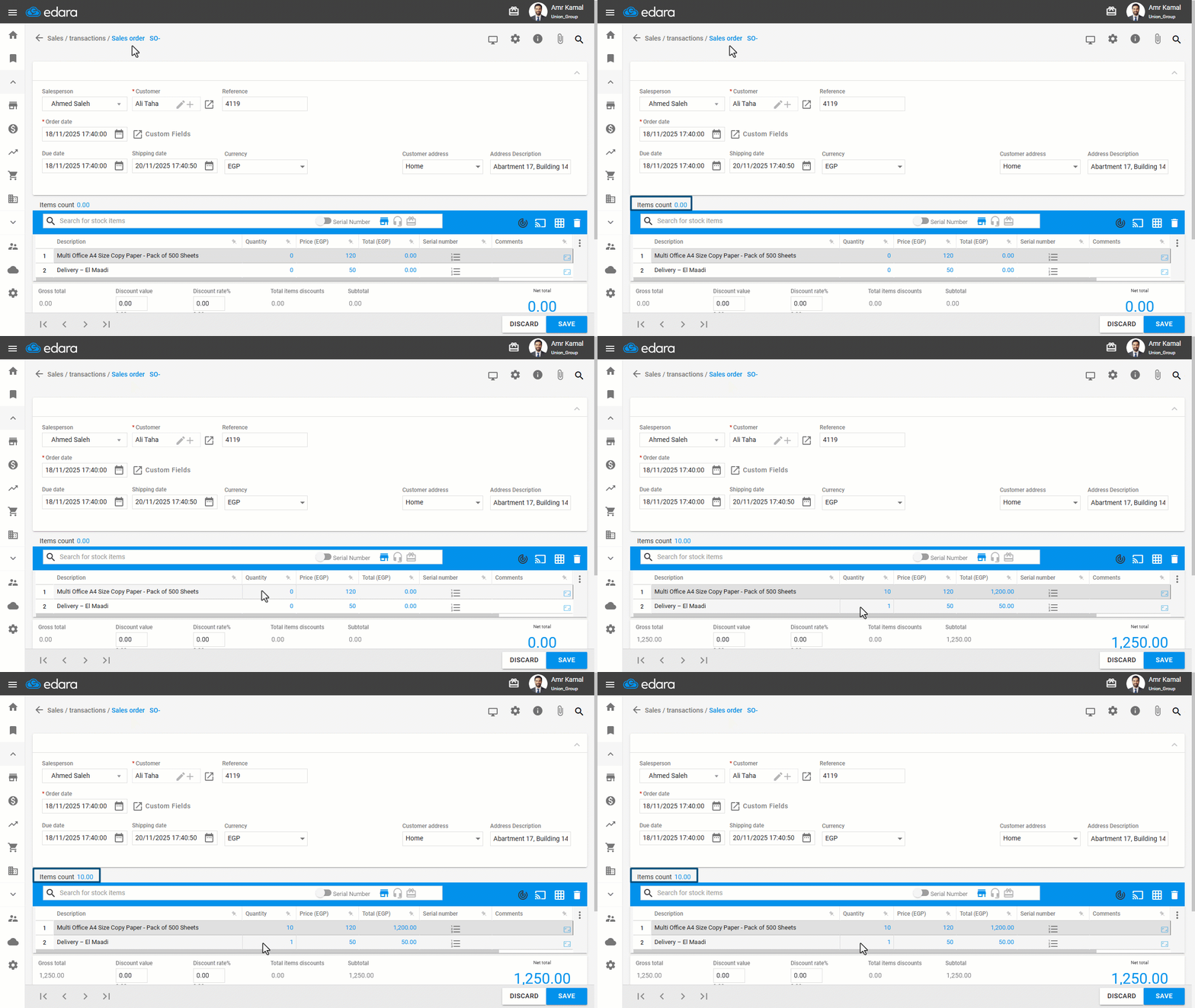
Note: When the items count is set to “Stock items only”, adding a service item will not affect the items count in the document.
Frequently asked questions
Which documents does the items count setting affect?
This setting affects multiple document types, including RS, RR, IO, IR, IT, TR, SO, Rec SO and PO. It also affects the Print preview if the “Items Count” is selected in the template.
Are service items included in the items count?
When the items count is set to “Stock items only”, adding a service item will not affect the items count in the document.
If you encounter any challenges or have questions during these processes, you can contact our technical support team, who are ready to assist you at any time.