

Skipping the Print Preview
Last updated:
In “Edara”, you can skip the print preview step to save time or when you don’t need to review the document before printing.
Skipping the Print Preview
- Go to “Settings”.
- Open “Modules Settings”.
- Select “Global”.
- Turn off the “Show Edara Print Preview” option.
- Click on “Save”.
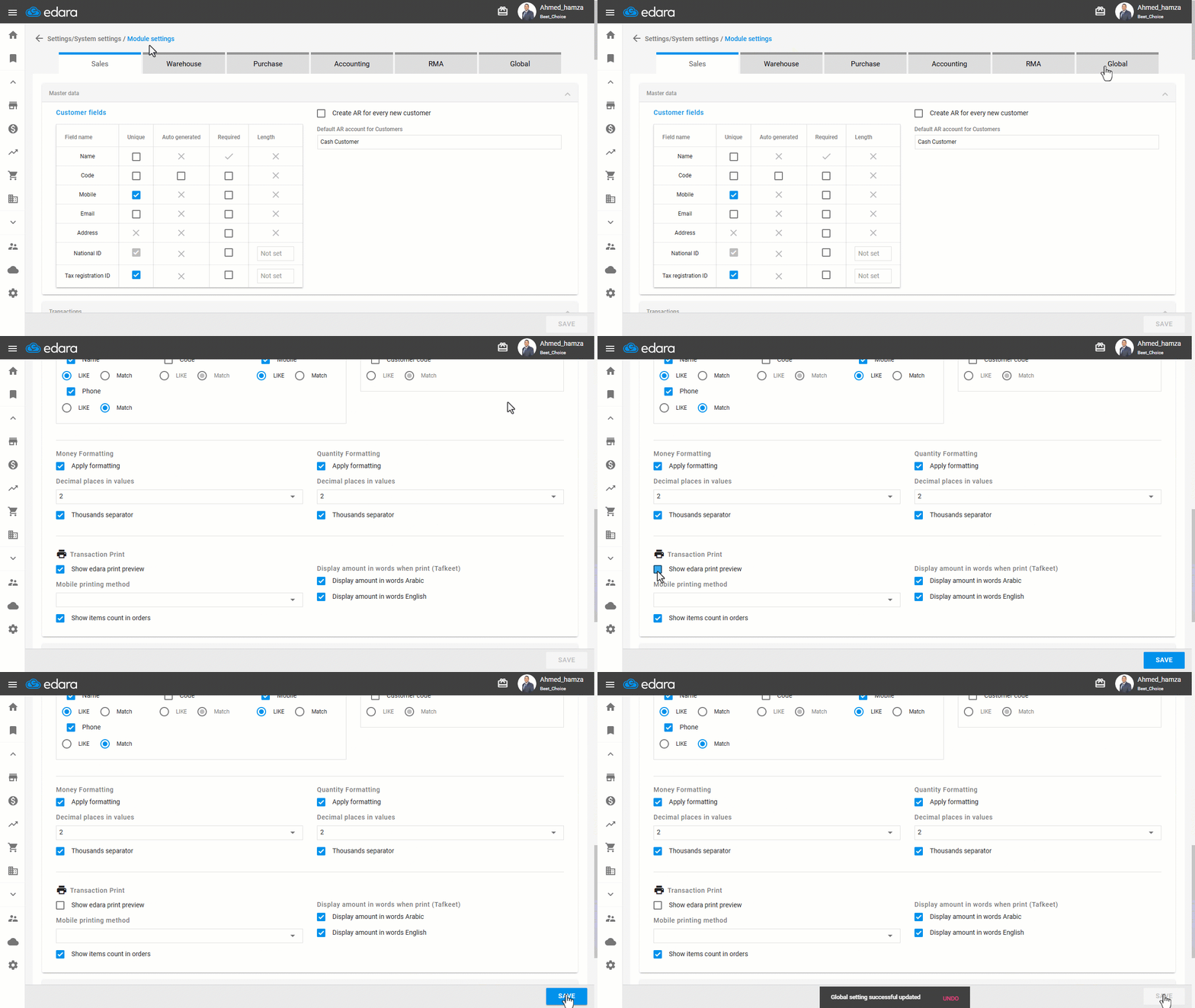
Accordingly, when printing, the print page will appear directly without showing the print preview, whether the printing is for multiple orders or a single one.
Here’s an example of printing in the case of multiple orders.
- Go to the “Sales Approvals” page
- Select the orders you want to print.
- Click on the Print icon.
- Click on “Print”.
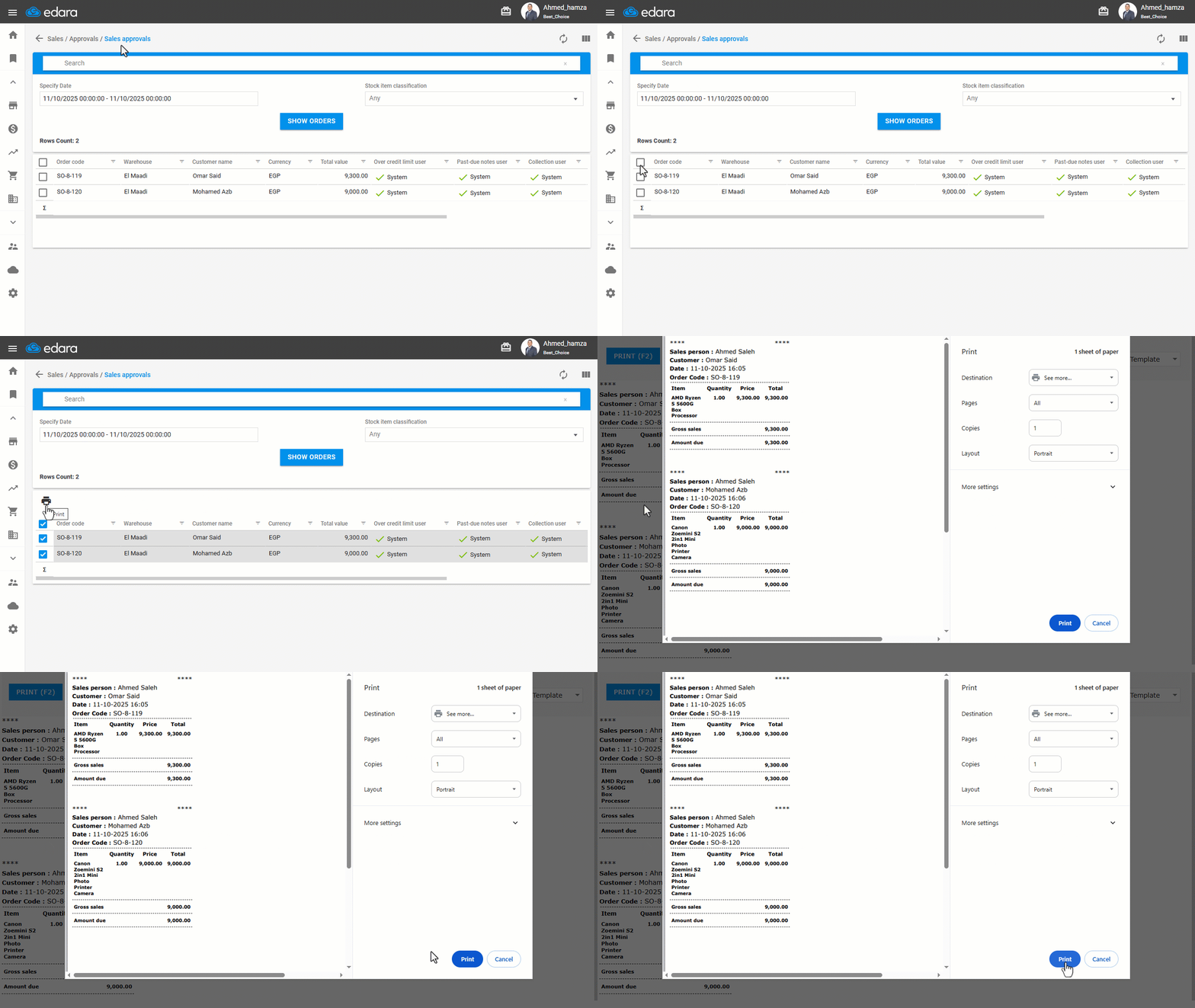
Notes:
- When the “Show Edara Print Preview” option is enabled, it’s recommended that each user has access to only one print template.
- If a user has permission for multiple templates, the system will automatically use the last template printed, or the first available one if none has been used before.
Frequently asked questions
Which print template is used when the print preview is skipped?
If a user has permission for multiple templates, the system will automatically use the last template printed, or the first available one if none has been used before.
If you encounter any challenges or have questions during these processes, you can contact our technical support team, who are ready to assist you at any time.
Did this answer your question?