

Linking Accounts Using the Chart of Accounts
Last updated:
If the setting “Prevent manual transactions on GL interface accounts” is enabled, and you need to perform certain transactions on a ledger account, you can create a new account and link it to the ledger account for this purpose.
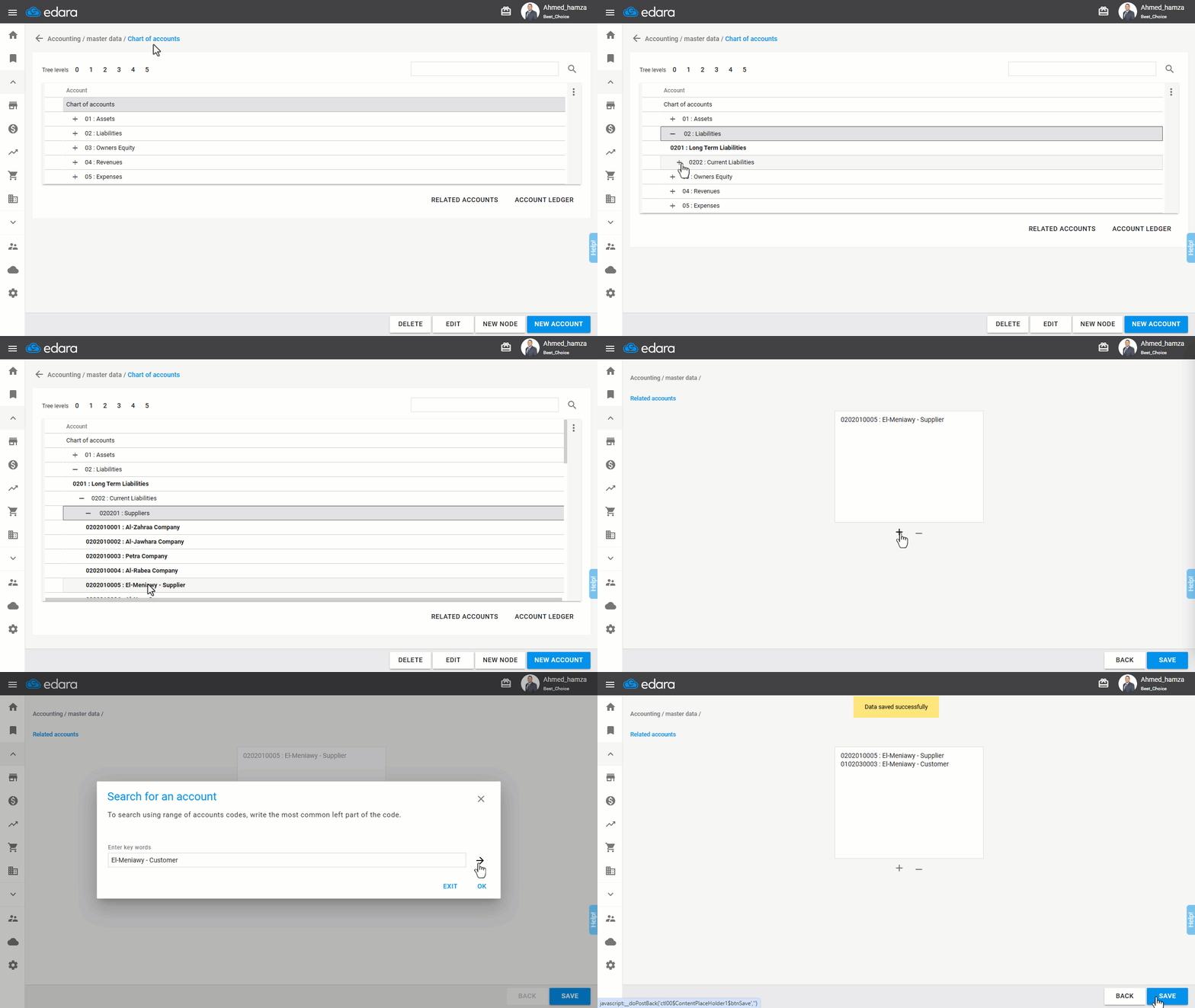
Here's a step-by-step guide on how to link accounts.
Steps to Link Accounts
- Go to the Accounting module.
- Open the "Chart of Accounts" page.
- Select the account you want to link to another account.
- Click on "Related Accounts".
- Click the "+" icon to add a linked account.
- Search for the other account you want to link to the first account.
- Click "OK".
- Click on "Save".
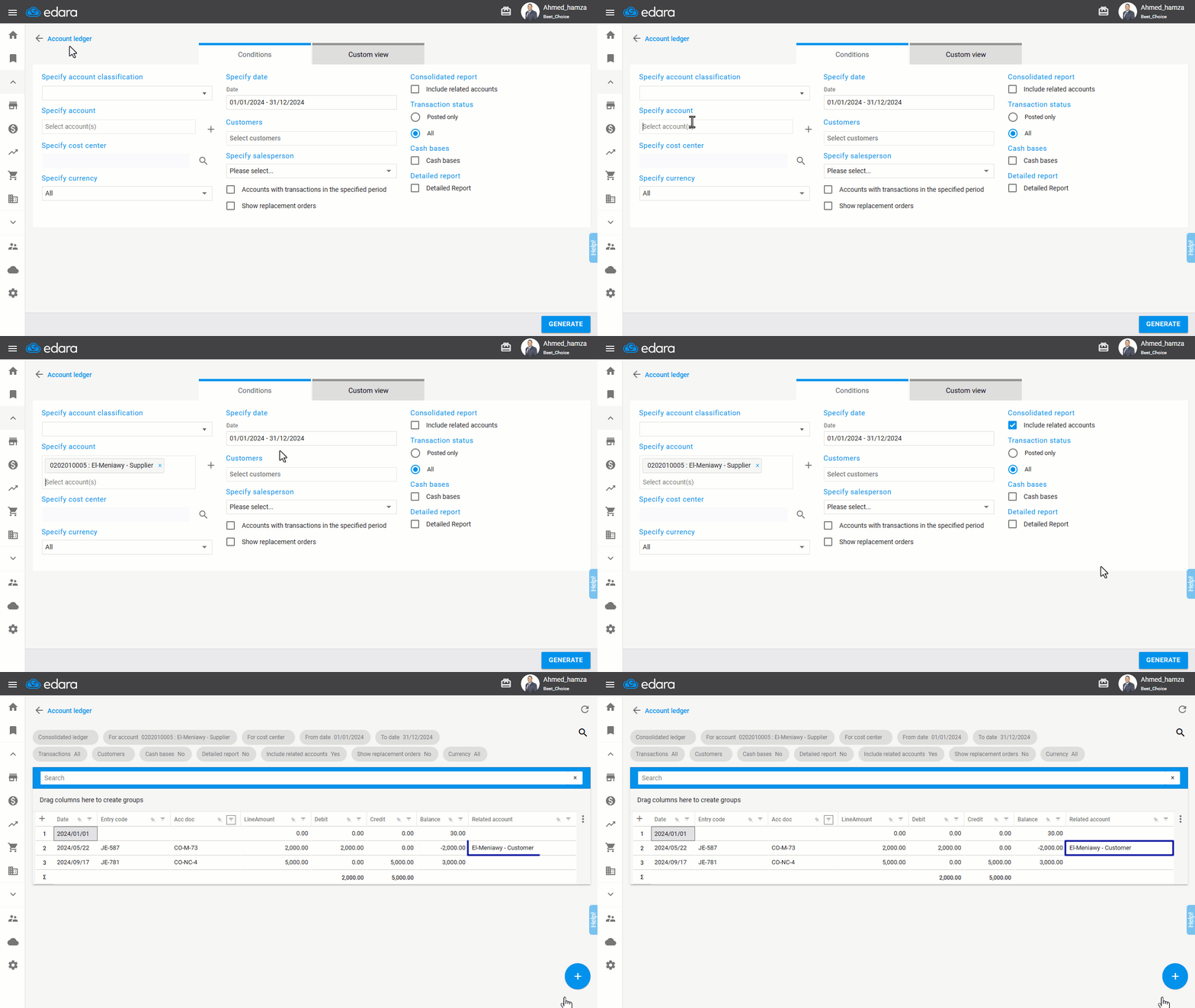
Note: When viewing the Account Ledger Report, ensure that the "Include Related Accounts" option is enabled if you want to view the transactions for all related accounts.
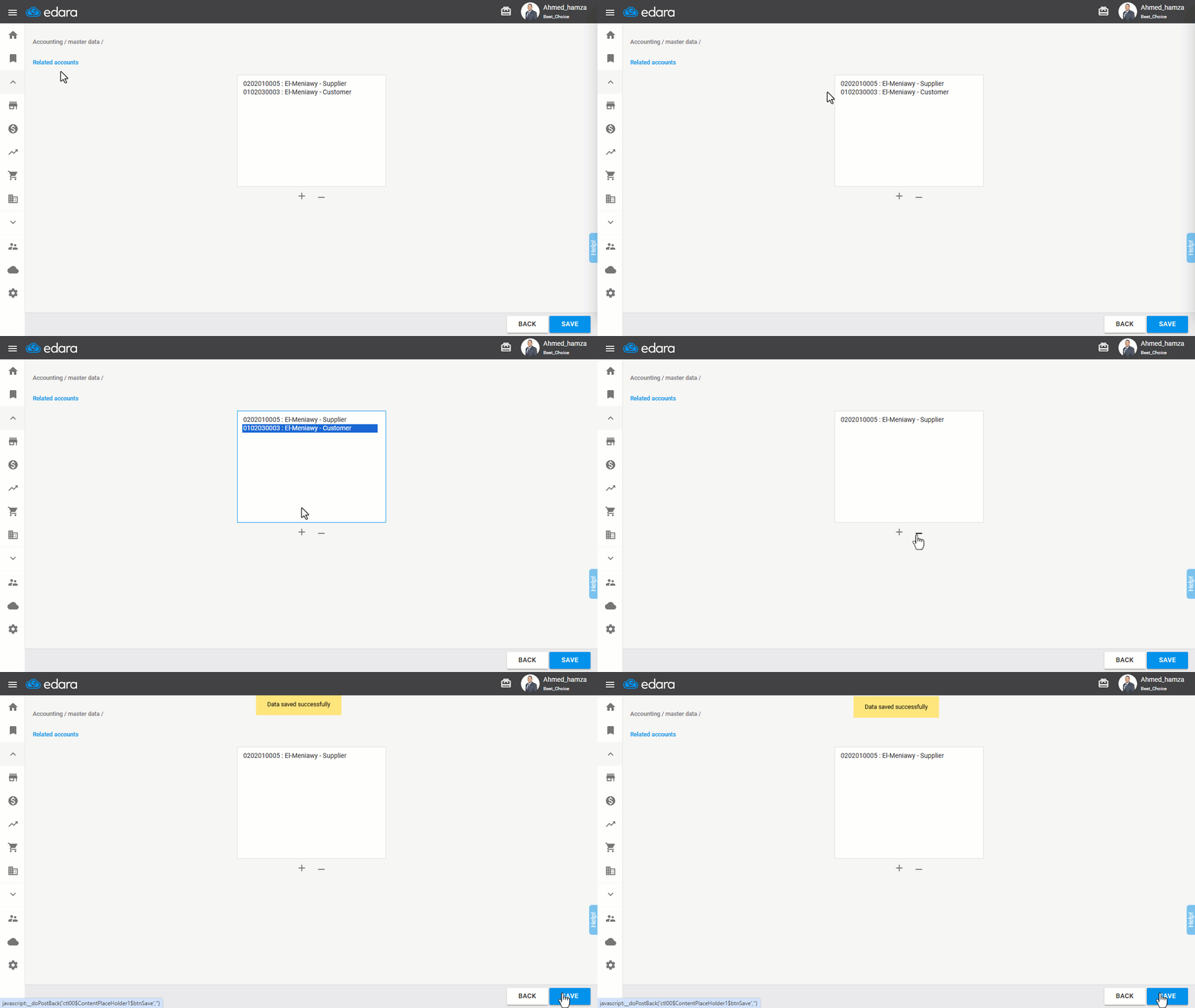
Steps to Unlink Accounts
- Follow the same steps above until you reach the "Related Accounts" page.
- Select the account you want to unlink.
- Click the "-" icon to remove the linked account.
- Click on "Save."
Frequently asked questions
How do I view the transactions of related accounts in the Account Ledger report?
When viewing the Account Ledger Report, ensure that the "Include Related Accounts" option is enabled if you want to view the transactions for all related accounts.
If you encounter any challenges or have questions during these processes, you can contact our technical support team, who are ready to assist you at any time.