

Viewing the Account Ledger Report
Last updated:
The Account Ledger Report provides a comprehensive and accurate view of the transactions made on an account, enabling users to effectively track financial activities.
Here are the steps to view it:
Viewing the Account Ledger Report
- Go to the Accounting Module.
- Select "Account Ledger Report."
- Specify the Account Name.
Note: You can choose to view a group of accounts from the dropdown list under "Specify Account Classifications", without having to select each account individually.
- Select the period.
- Ensure you choose "All" under Transaction Type to display all posted and unposted transactions.
Note: If the account you are viewing is linked to another account, you can view both account ledgers together by enabling the "Include Related Accounts" option.
- Select the columns you want to display from "Custom View".
Note: If you want to view the report in more detail, enable the "Detailed Report" option before running the report.
- Click "Generate".
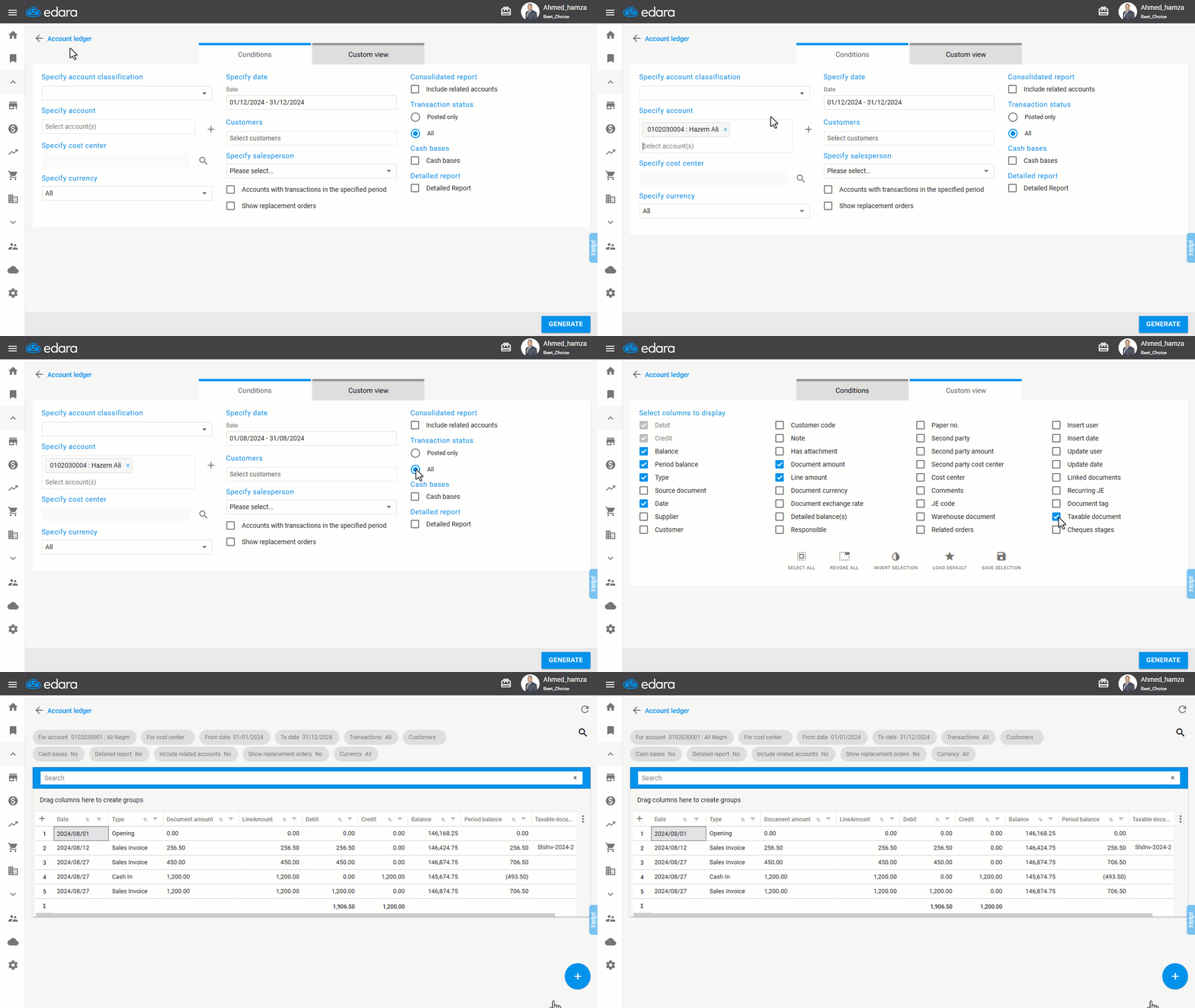
Note: The report can be exported to Excel, Google Sheets, or printed by clicking on "+".
Frequently asked questions
Can I view a group of accounts together?
You can choose to view a group of accounts from the dropdown list under "Specify Account Classifications", without having to select each account individually.
How do I view two linked accounts together?
If the account you are viewing is linked to another account, you can view both account ledgers together by enabling the "Include Related Accounts" option.
If you encounter any challenges or have questions during these processes, you can contact our technical support team, who are ready to assist you at any time.