

Displaying Detailed Account Ledger Columns
Last updated:
The Detailed Account Ledger report provides an accurate account statement that can be printed and shared with customers. It allows you to review all invoices details such as item, quantity, price, discount, and total after discount. This helps you track invoices accurately without relying on separate reports or multiple data sources.
Displaying Detailed Account Ledger Columns
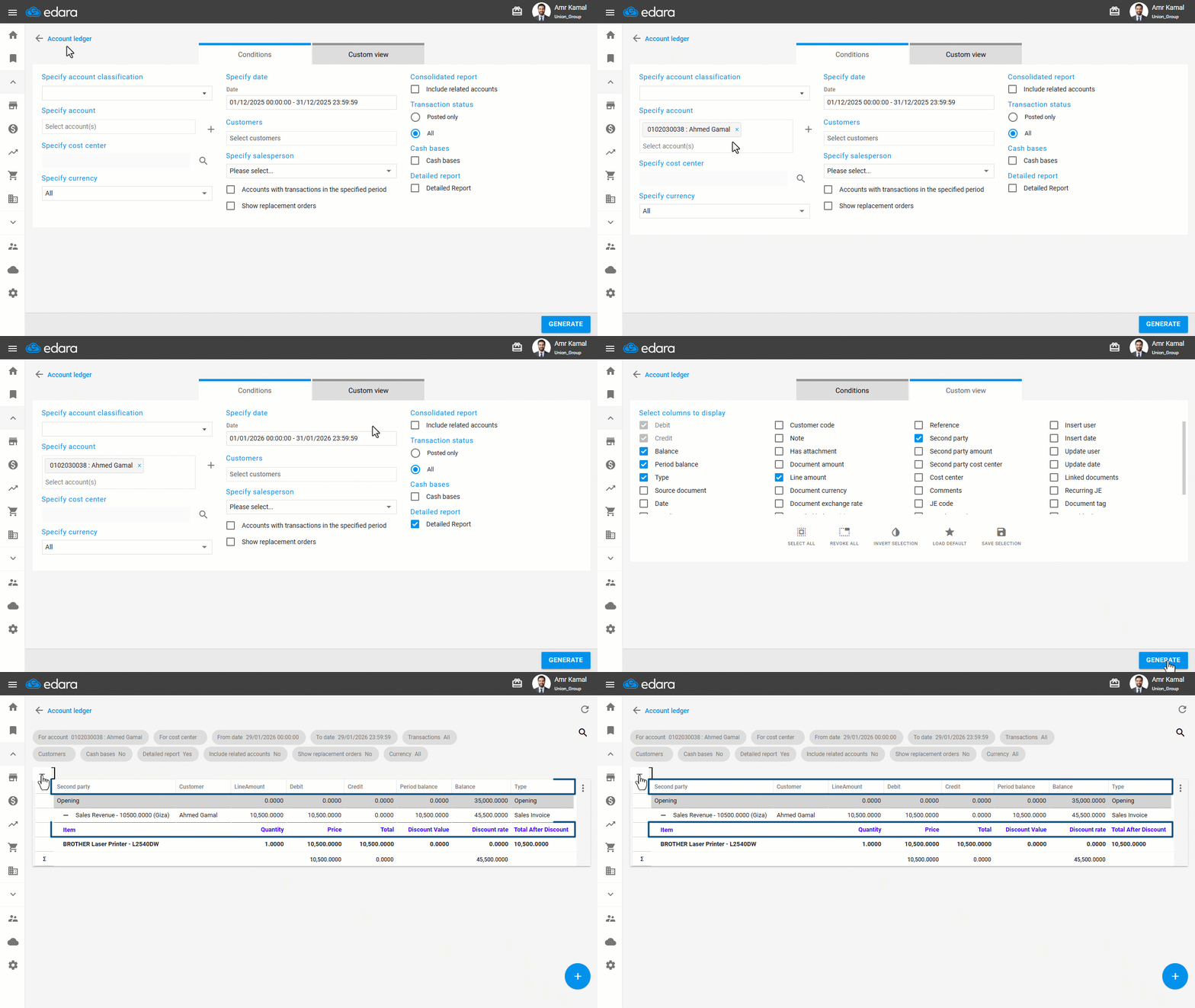
- Go to the “Accounting” module.
- Open the “Account ledger” page.
- Select the account.
- Select the date.
- Enable the “Detailed Report” option.
- Go to “Custom view”.
- Ensure that the “Detailed Account Ledger” columns are displayed.
The following table shows the columns displayed in the detailed account ledger columns and their corresponding original columns:
| Detailed Account Ledger Columns | Original Column |
|---|---|
| Item | Second Party |
| Quantity | Line amount |
| Price | Debit |
| Total | Credit |
| Discount Value | Period Balance |
| Discount Rate | Balance |
| Total After Discount | Type |
- Click on “Generate”.
- Click the “+” icon at the top-right of the table to display the detailed data.
The detailed data will be displayed as follows:
- Item: The item name as shown in the invoice, whether it is a stock item or a service item.
- Quantity: Represents the number of units for the item. It is calculated from the Work Order for stock items and directly from the Sales Order for service items.
- Price: The unit price of the item as recorded in the Sales Order. If the “price includes VAT” is enabled, the price is displayed excluding tax.
- Total: Price * Quantity
- Discount Value: The actual discount amount applied to the line, whether the discount was originally a percentage or a fixed amount.
- Discount Rate: Calculated by dividing the discount value by the total line amount.
- Total After Discount: Total - Discount Value.
If you encounter any challenges or have questions during these processes, you can contact our technical support team, who are ready to assist you at any time.
Did this answer your question?