

Deleting the Closing Entry
Last updated:
If you have closed the financial year and later discover that some documents within that year need modification, you must delete the closing entry, make the necessary adjustments, and then close the financial year again.
Deleting the Closing Entry
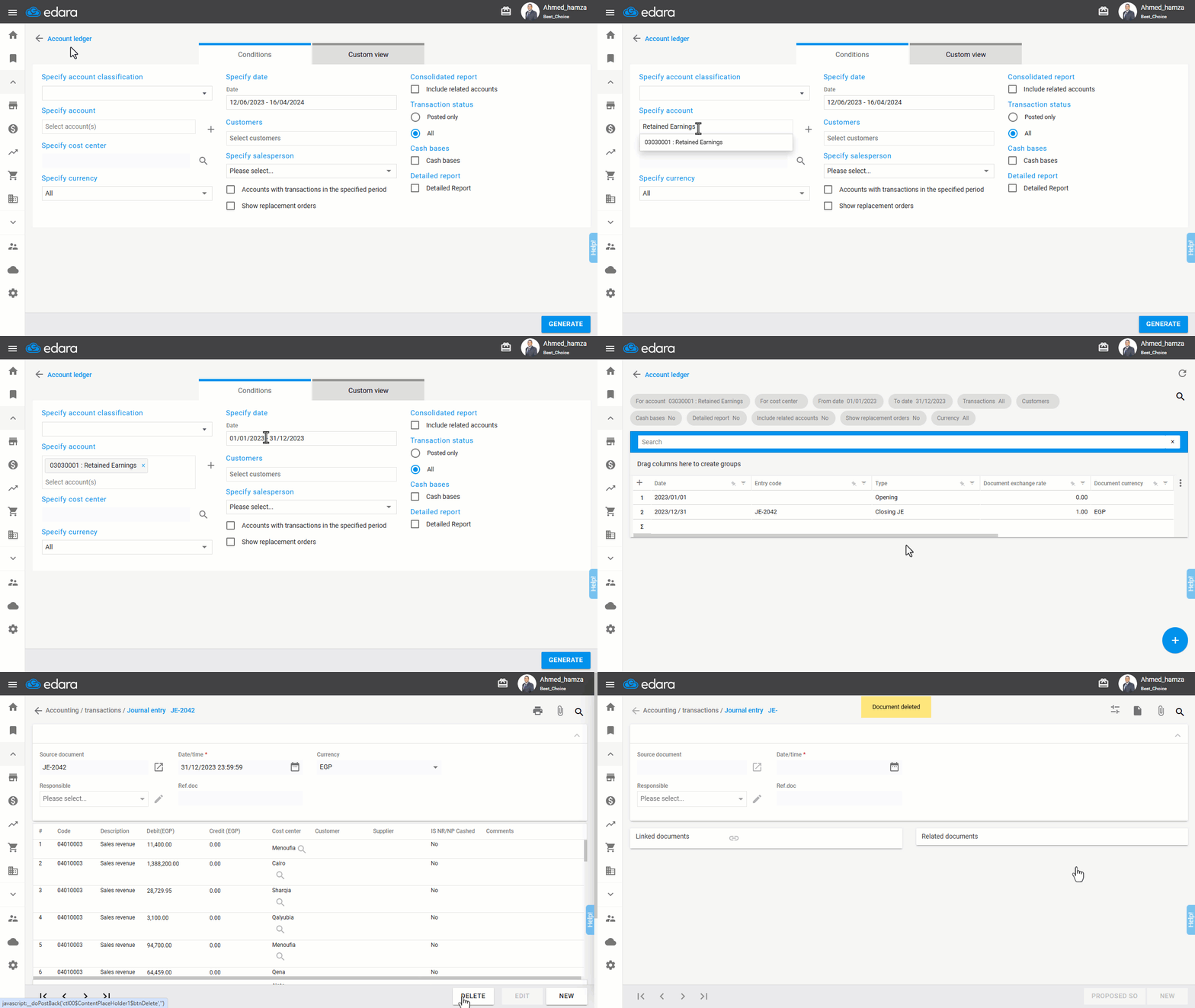
- Go to the Accounting module.
- Open the “Account Ledger” Report.
- Select the "Retained Earnings" account.
- Specify the time period.
- Click on "Generate".
- Double-click the closing entry.
- Click "Delete".
- Confirm by selecting "Yes".
Note: After deleting the closing entry, you need to activate the following setting to make modifications:
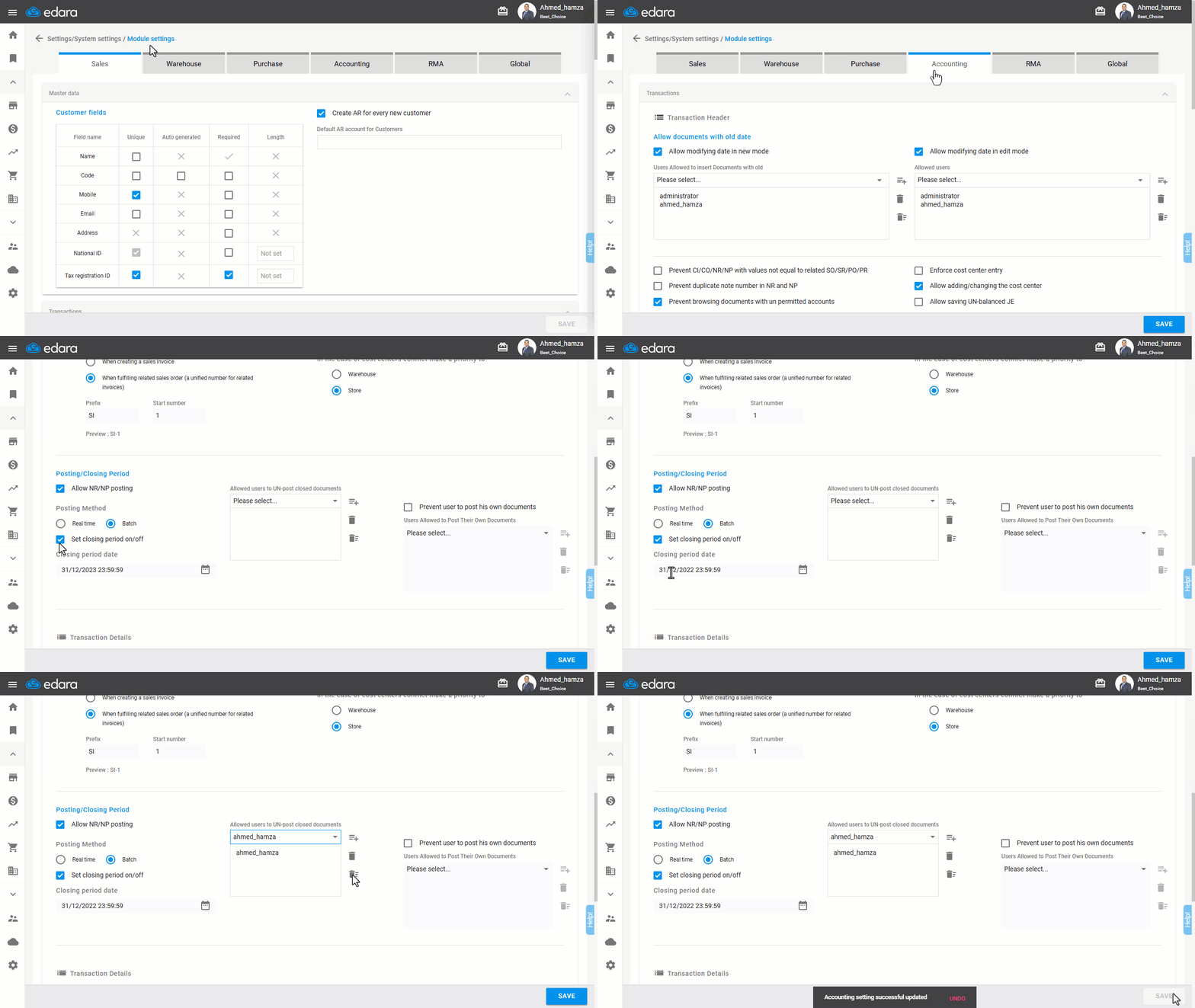
- Go to Settings.
- Open the “Module Settings” page.
- Select the “Accounting” module.
- Ensure you have permission to UN-post closed documents.
- Ensure to enable the setting "Set Closing Period on/off".
- Edit the “Closing period date”.
- Click on "Save".
Note: Example: If you closed the financial year 2023 but later need to modify some documents within it, after deleting the closing entry and navigating to the Accounting Settings, you will find the closing date set to December 31, 2023. To allow modifications, you should change it to December 31, 2022. This will let you edit documents from the 2023 financial year, after which you can close the financial year again.
If you encounter any challenges or have questions during these processes, you can contact our technical support team, who are ready to assist you at any time.