

Unposting a Posted Entry
Last updated:
A company may need to change the posted data after it has been posted, such as modifying the amount, account, or entry date. In such cases, the posted entry must be unposted and re-entered with the updated data.
Here are the steps to do that.
Unposting a Posted Entry
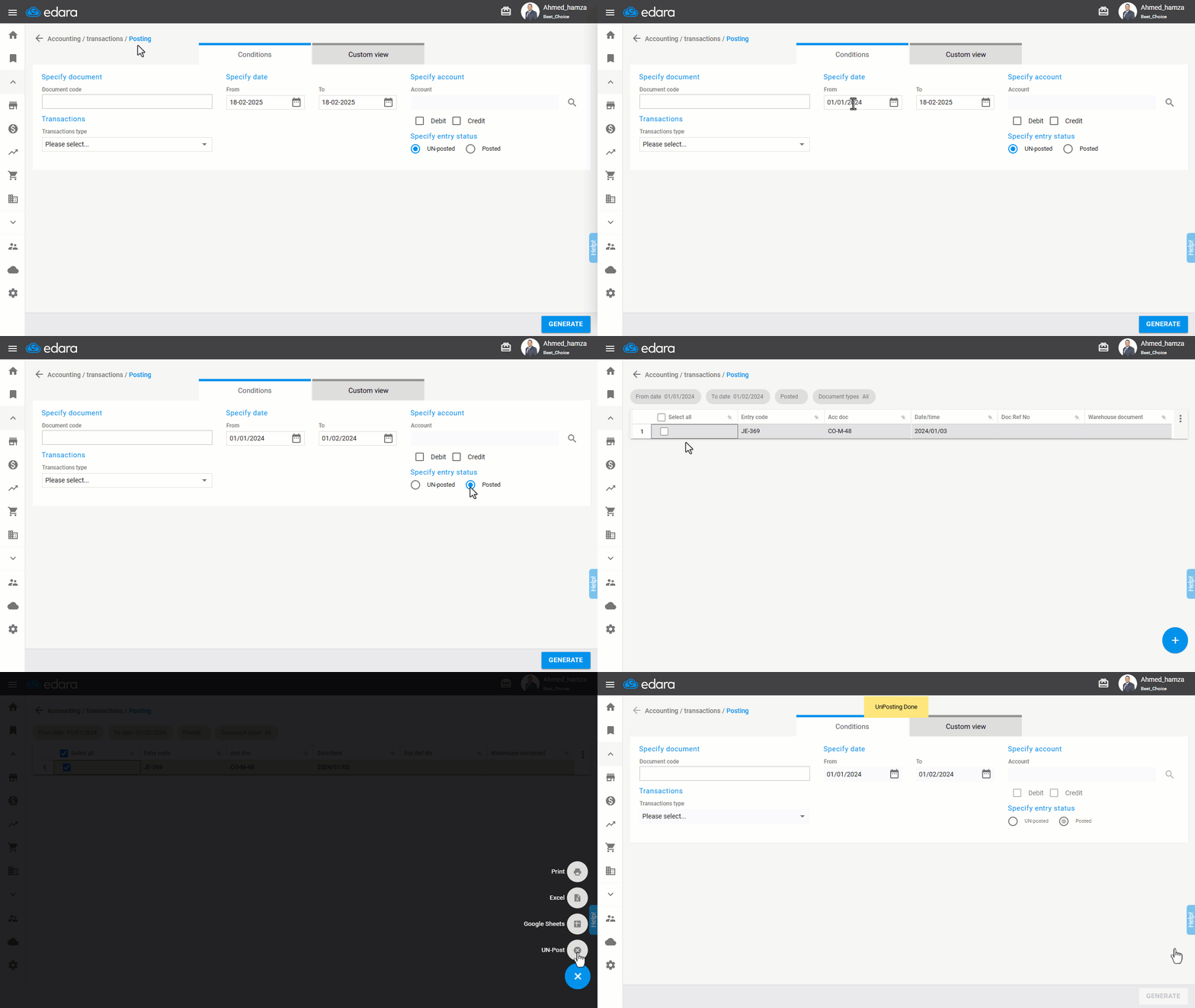
- Go to the Accounting Module.
- Open the “Post to GL” page.
- Set the required conditions.
Note: You can select appropriate filters to display the entries you want to unpost. You may filter by transaction type, a specific date range, or transactions related to a particular account.
- Select the “Posted” status.
- Choose the columns you want to display using "Custom View".
- Click on "Generate".
- Select all documents or click the checkbox ▢ next to the entry you want to unpost.
- Hover over the ➕ icon.
- Click on "Unpost".
Unposting Entries During the Closing Period
If you need to unpost an entry during the accounting period close, you can do this in two ways:
Granting the User Permission to "UN-post closed documents"
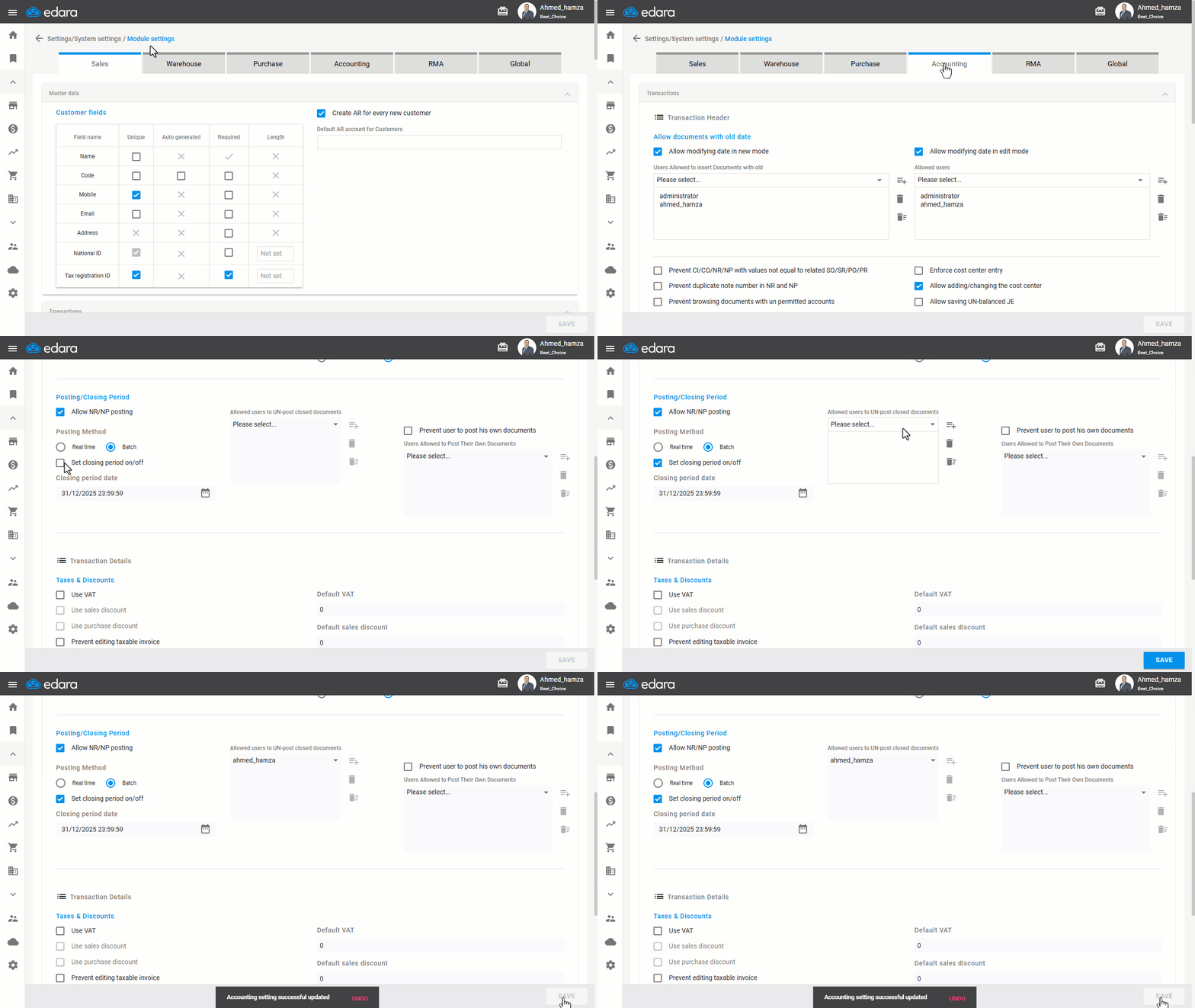
- Go to Settings.
- Open the "Module Settings" page.
- Choose the “Accounting” module.
- Enable "Set closing period on/off".
- Select the user you want to grant permission to from the dropdown list under "Allowed users to UN-post closed documents".
- Click on “Save”.
Deleting the Closing Entry, Then Unposting
First, delete the closing entry, then follow the previous steps to unpost the desired entry, make the required edits, and repost it.
If you encounter any challenges or have questions during these processes, you can contact our technical support team, who are ready to assist you at any time.