

Generating an Account Ledger for a Customer Linked to an AR Account
Last updated:
When dealing with a cash customer, their account will be linked to an Accounts Receivable (AR) account (e.g., "Cash Customer Account"). As a result, the customer's name will not appear in the Account Ledger Report unless you explicitly add the linked AR account as a filtering condition.
Follow these steps to generate the report.
Generating an Account Ledger for a Customer Linked to an AR Account
- Go to the Accounting module.
- Open the “Account Ledger” report.
- Enter the AR account name in the "Specify Account" field.
- Specify the customer’s name in the "Customers" field.
- Set the desired time period.
- Choose "All" in the transaction status field to display all transactions.
- Select the columns you want to display from "Custom View".
- Click on “Generate”.
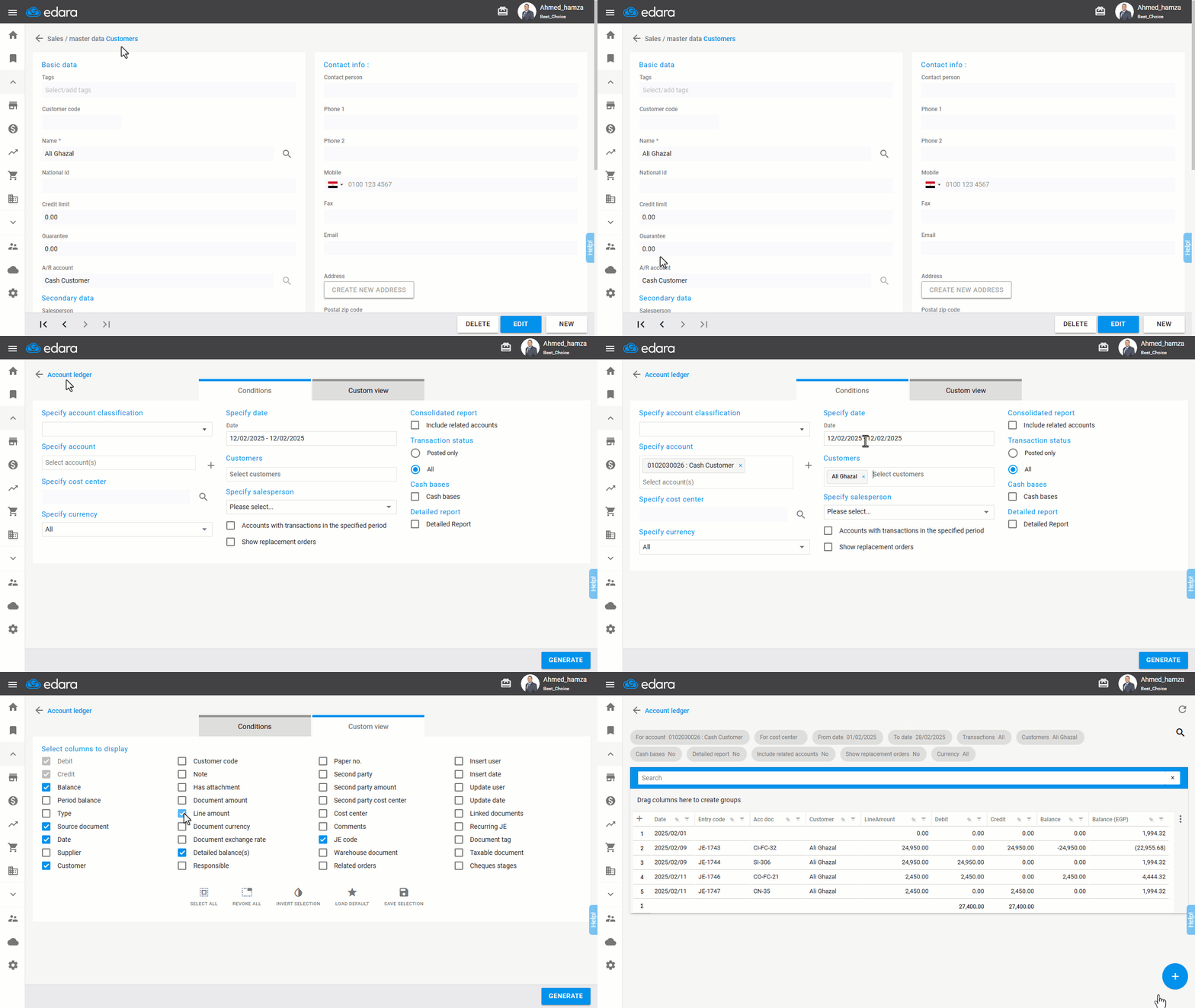
Note: You can export the report to Excel or Google Sheets or print it by clicking "+".
If you encounter any challenges or have questions during these processes, you can contact our technical support team, who are ready to assist you at any time.
Did this answer your question?