

Controlling Search Columns for Stock Items in Documents
Last updated:
When searching for stock items in documents, data that some users are not allowed to view may appear. For example, you may need to hide the dealer or super dealer pricing for stock items from being visible to some salespersons, to restrict their access to only the data relevant to their roles.
To support this, “Edara” allows you to control the visibility of columns in the item search window across all documents—whether created from warehouse or sales stores.
Controlling Search Columns for Stock Items in Documents
There are two types of stock item search windows in this context:
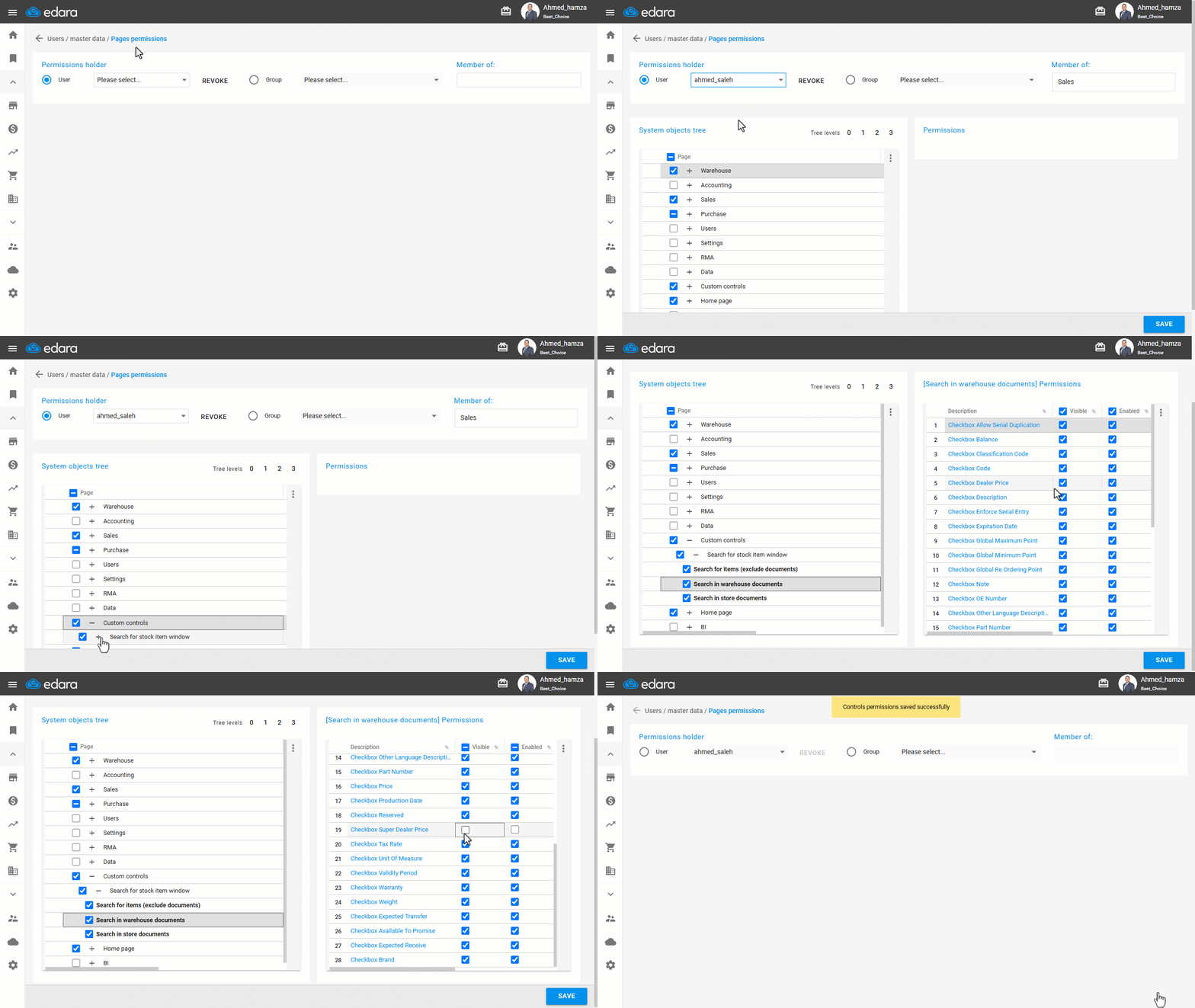
1- Search Window for Stock Items in Warehouse Documents
- Go to Users.
- Open the "Page Permissions" page.
- Select the user or group of users.
- Click on "+" next to "Custom controls", then "Search for stock item window".
- Click on "Search in warehouse documents".
- Uncheck "Dealer Price" and "Super Dealer Price".
- Click on "Save".
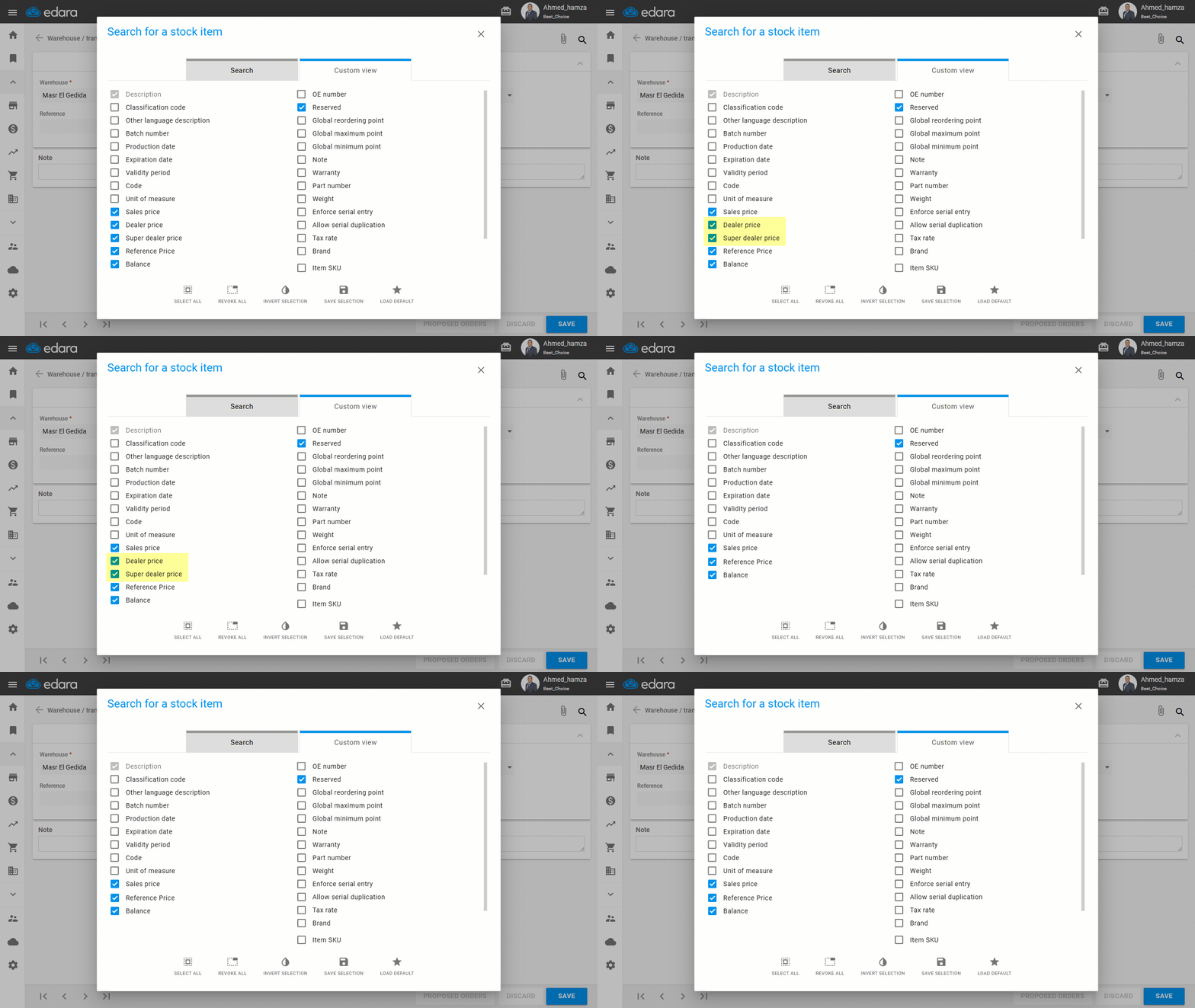
After completing these steps, the user will only see sales prices, without access to the other hidden pricing levels — as shown in the following image:
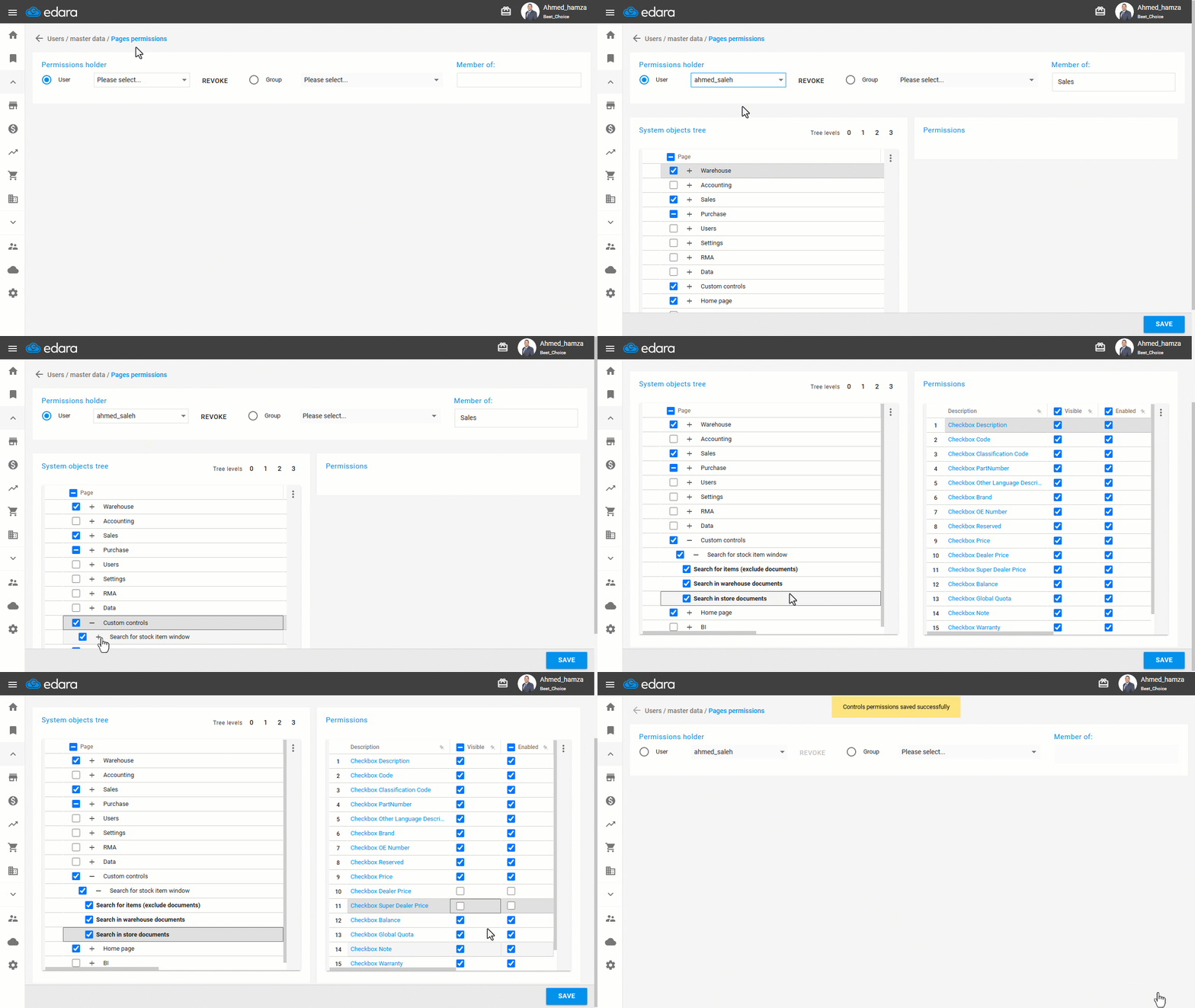
2- Search Window for Stock Items in Store Documents
- Go to Users.
- Open the "Page Permissions" page.
- Select the user or group of users.
- Click on "+" next to "Custom controls", then "Search for stock item window".
- Click on "Search in store documents".
- Uncheck "Dealer Price" and "Super Dealer Price".
- Click on "Save".
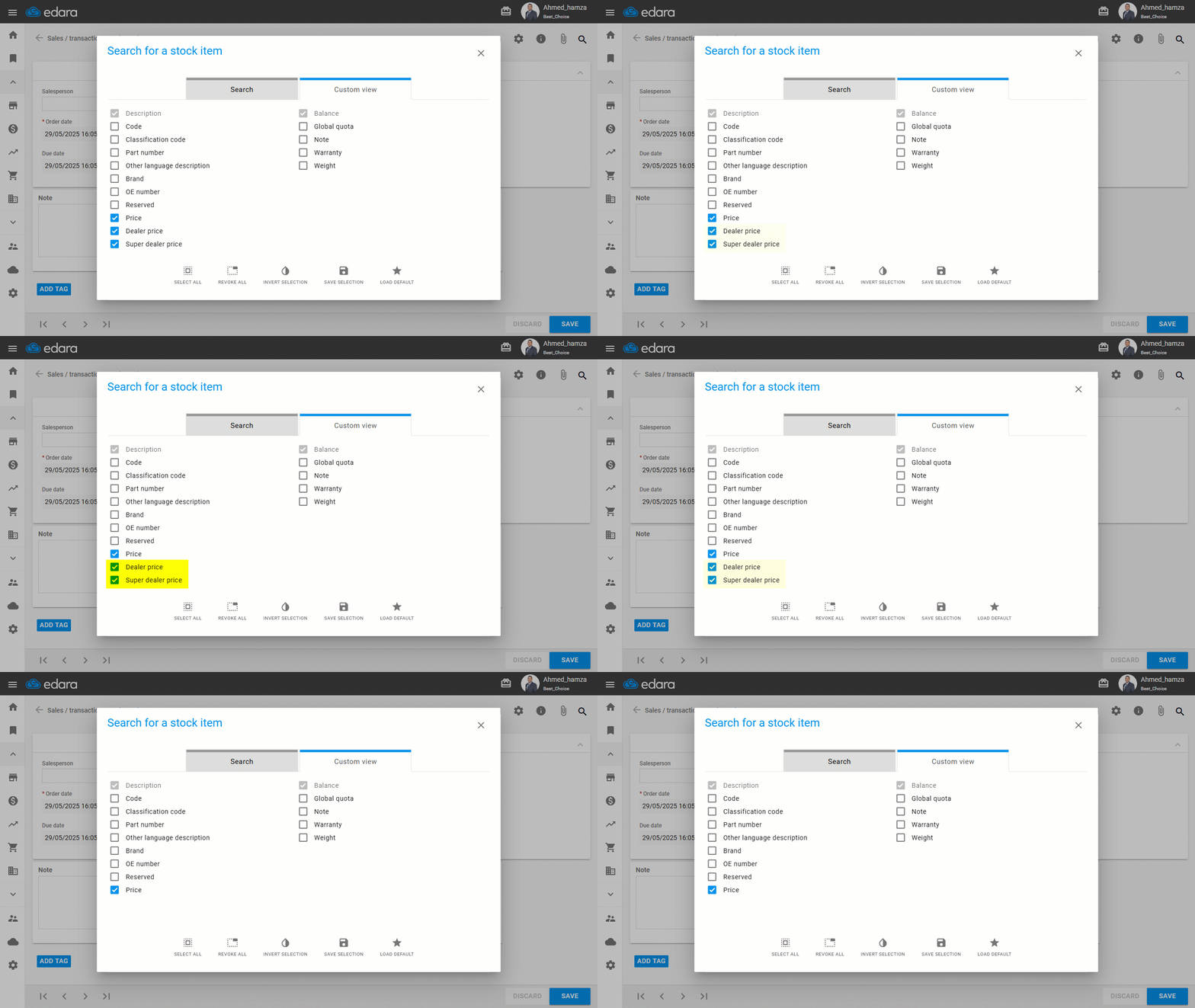
After completing these steps, the user will only see sales prices, without access to the other hidden pricing levels — as shown in the following image:
If you encounter any challenges or have questions during these processes, you can contact our technical support team, who are ready to assist you at any time.