

Controlling Column Visibility in Item Search Screens (Exclude Documents)
Last updated:
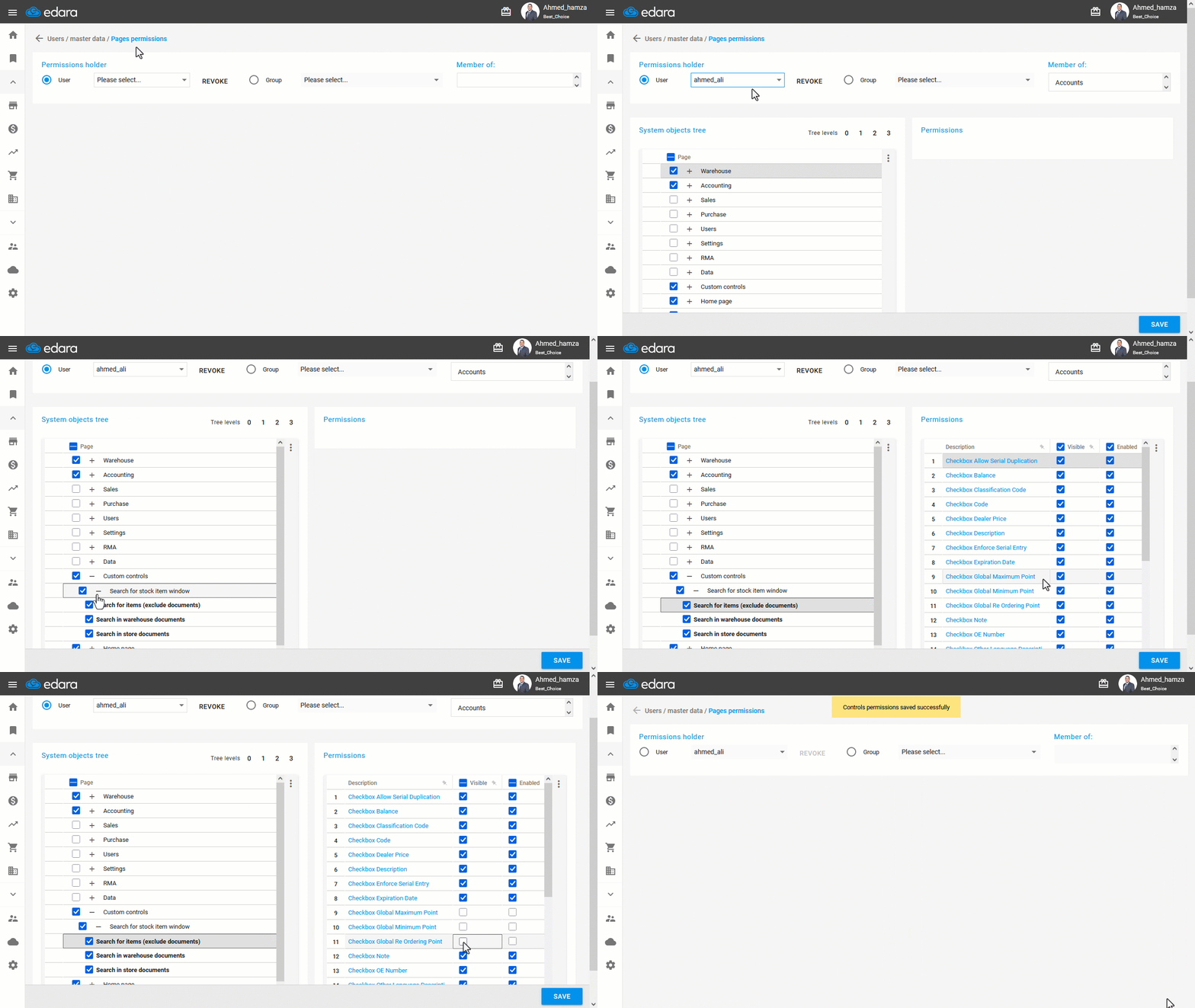
“Edara” allows you to control which columns appear in the item search screens—whether in the general item search screen that displays basic item data or the movement-based item search screen that shows item transaction history.
Controlling Column Visibility in Item Search Screens (Exclude Documents)
- Go to Users.
- Open the “Page Permissions” page.
- Select the user whose settings you want to edit.
- Click the plus sign (+) next to “Custom Controls” in the system permissions tree.
- Single-click on “Search for Items”, depending on your need, to display the internal permission options on the left.
- Enable or disable individual data fields by checking or unchecking the box next to each item.
- Click on “Save”.
If you encounter any challenges or have questions during these processes, you can contact our technical support team, who are ready to assist you at any time.
Did this answer your question?