

Deleting Browsing Data in Chrome
Last updated:
Over time, Google Chrome stores browsing data like history, cookies, and site data. If this data becomes corrupted, it can cause issues such as pages not loading properly or crashes. Clearing this data can improve your browsing experience.
Deleting Browsing Data in Chrome
- Open Google Chrome.
- Click on the “፧” icon in the top-right corner of the page.
- Select “Settings” from the dropdown.
- Scroll down and click “Privacy and Security”.
- Click on “Delete browsing data”.
- In the pop-up window, choose the “Advanced” tab.
- Set the Time range to “All time”.
- Select the data you want to clear (e.g., browsing history, cookies, cached images).
- Click “Delete data”.
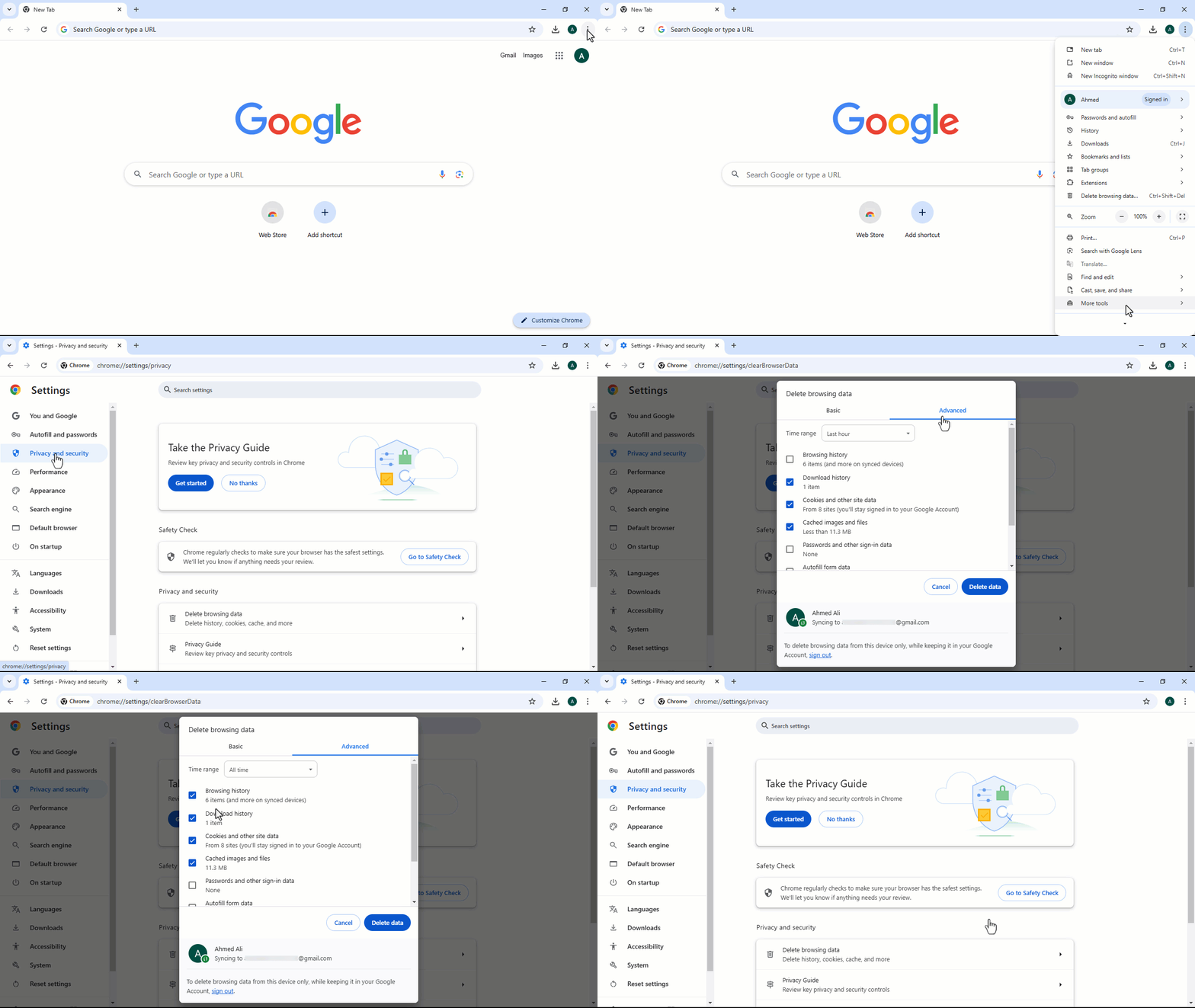
This will remove unwanted or potentially problematic browsing data and improve the performance of your browser.
If you encounter any challenges or have questions during these processes, you can contact our technical support team, who are ready to assist you at any time.
Did this answer your question?