

Temporarily Pausing Organization on Edara
Last updated:
In emergency situations that require stopping system access — such as physical count or suspected unauthorized usage — you can temporarily pause your organization without deleting any data.
This feature allows you to instantly disable system access for all users and branches within seconds, with the ability to easily resume operations at any time using the same data and settings.
Temporarily Pausing Organization on Edara
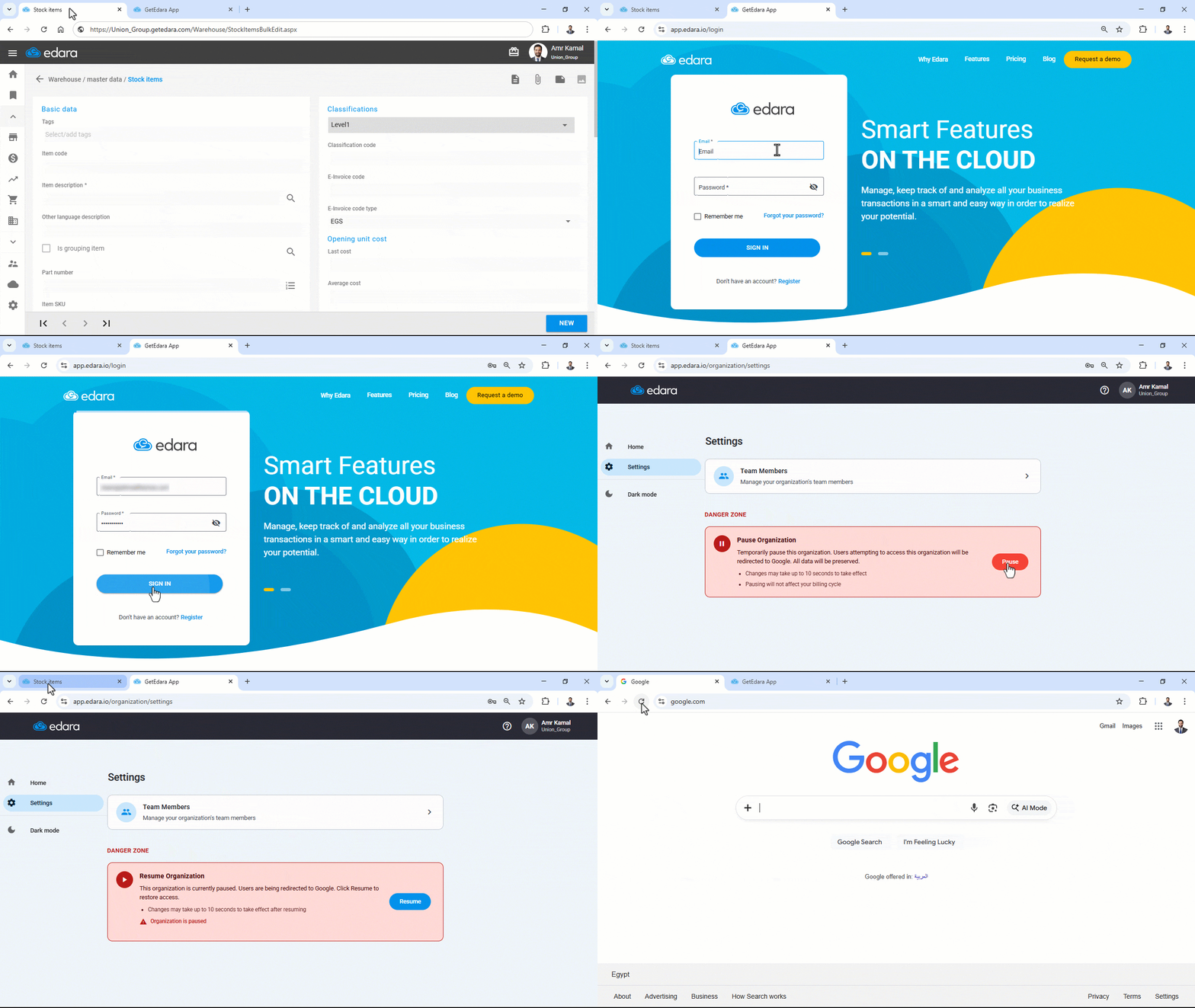
- Log in to GetEdara App.
- Click on “Settings”.
- Click on “Pause”.
The pause is applied within approximately 10 seconds. Any user attempting to access the system link during this time will be automatically redirected to Google and will not be able to access the system until it is resumed.
Notes:
- Temporarily pausing the organization does not affect your subscription or billing cycle. Subscription time continues to be calculated normally during the pause period.
- The pause option is only available to users who have the System Administrator role, have access permissions to the same organization, and use a login sub-domain that matches the organization name in Edara.
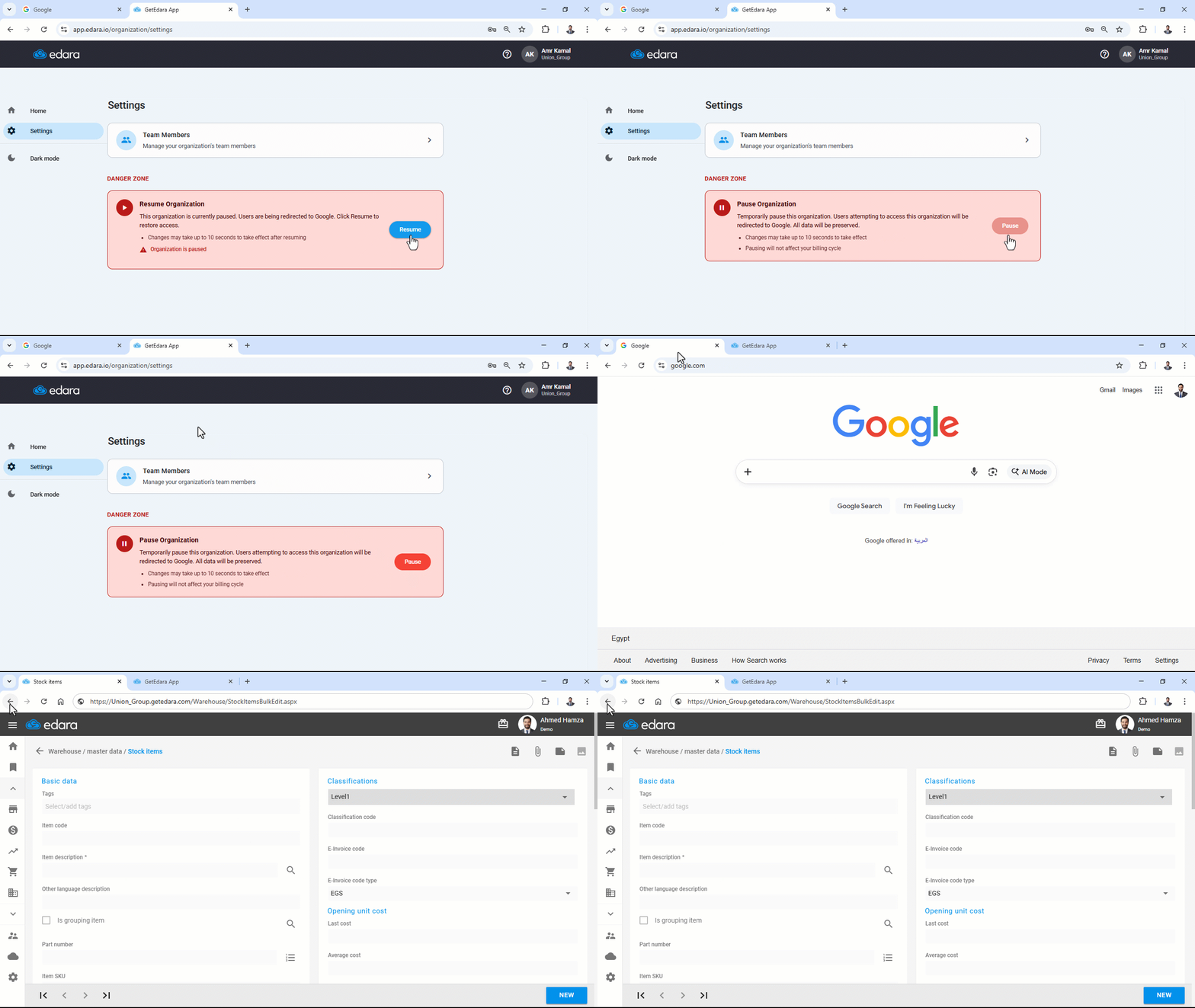
- To resume system access, log in again to GetEdara App, follow the same steps, and click “Resume”. The system will immediately return to normal operation using the same data and settings.
You can also pause your organization through the Edara Mobile App available on Google Play:
- Open Edara Mobile App.
- Click on “More”.
- Click on “Manage Organization”.
- Click on “Pause Organization”.
- A confirmation message will appear. Click on “Pause Organization” to confirm.
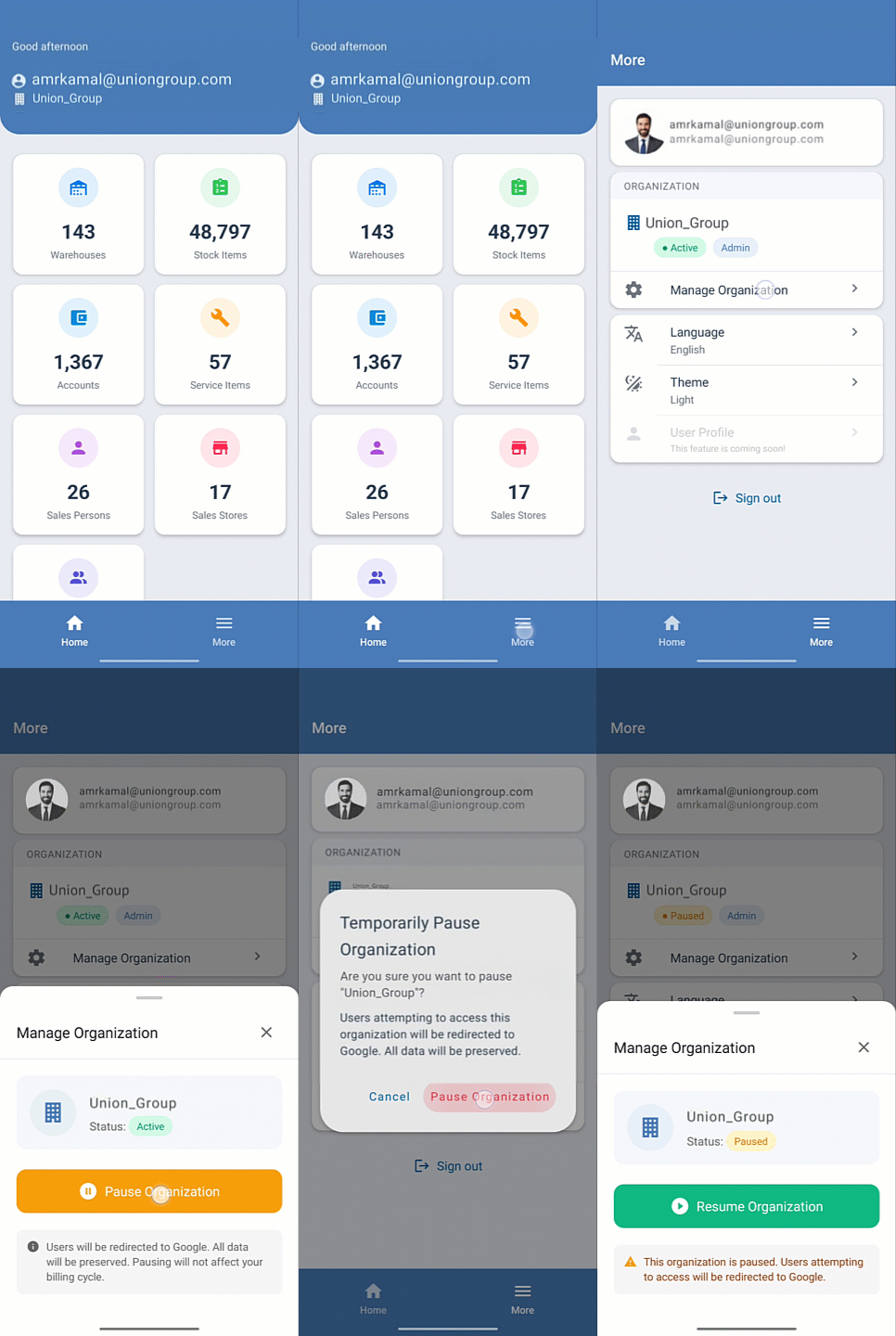
Note: The pause is applied immediately using the same mechanism, disabling access for all users and branches within seconds. To resume operations, follow the same steps and click on “Resume Organization”.
Frequently asked questions
Does pausing the organization affect the subscription?
Temporarily pausing the organization does not affect your subscription or billing cycle. Subscription time continues to be calculated normally during the pause period.
How do I resume the system after pausing it?
To resume system access, log in again to GetEdara App, follow the same steps, and click “Resume”. The system will immediately return to normal operation using the same data and settings.
If you encounter any challenges or have questions during these processes, you can contact our technical support team, who are ready to assist you at any time.