

Browsing E-Invoice Documents
Last updated:
"Edara" enables you to browse E-invoice documents to check their status within the system. This feature allows you to send ready documents or modify invalid ones to ensure they can be successfully submitted.
Browsing E-Invoice Documents
- Go to Data Module.
- Open the Integration page.
- Click on “Manage”.
- Select the Narration as “Browse Documents”.
- Specify the date of the documents you want to browse.
- Choose the document type.
- Click “Show”.
The status of the documents will be displayed, as shown in the following example:
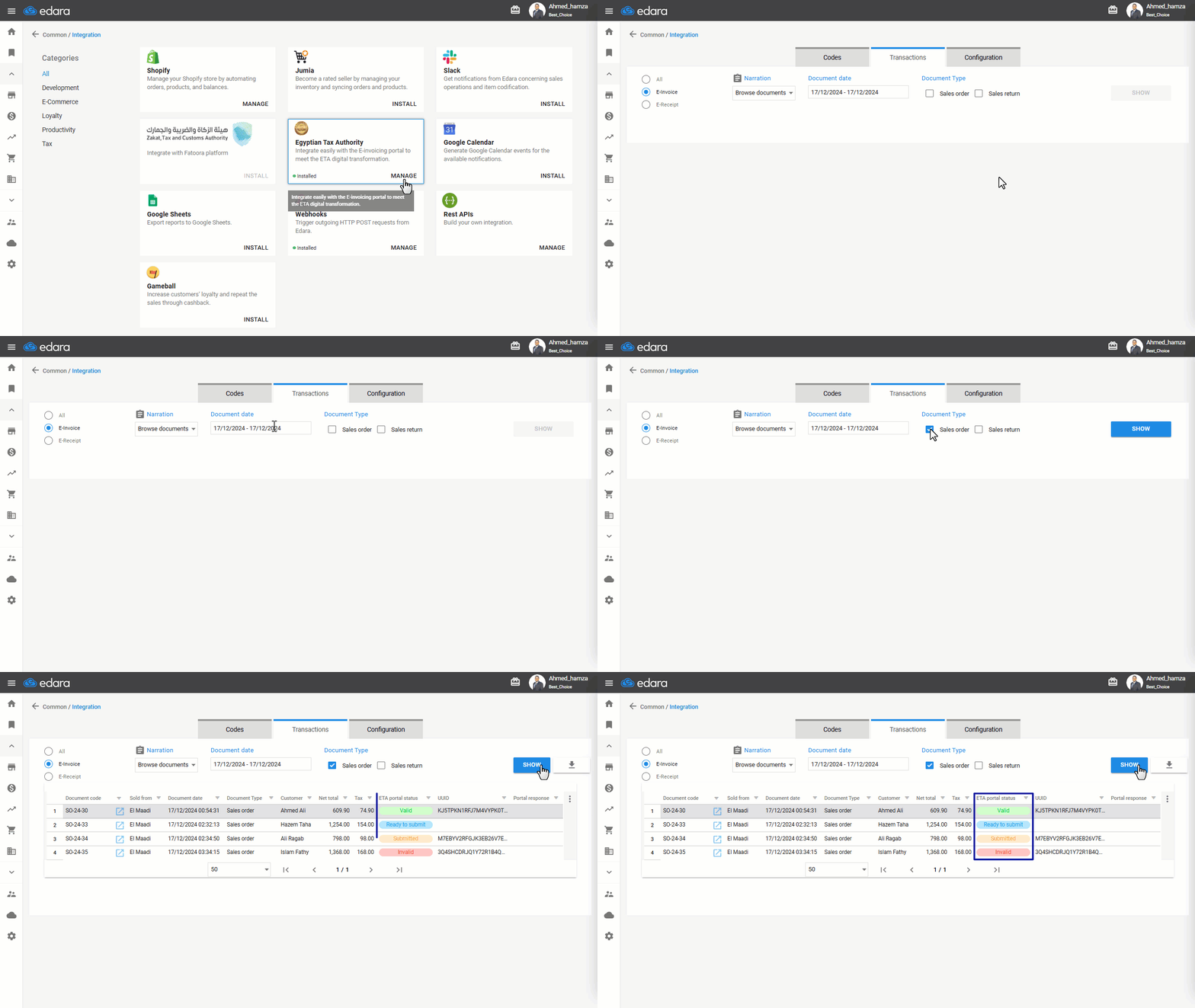
Note: Document Status Types:
- Ready to Submit: These documents, including a tax rate, have been issued and can be submitted.
- Submitted: The document has been submitted to the E-Invoice Portal and awaits acceptance or rejection.
- Invalid: The document does not meet the E-invoice requirements and needs correction before resubmission.
- Valid: The document has been accepted after submission to the E-Invoice Portal.
- Canceled: The document was canceled after being submitted to the E-Invoice Portal.
Note: You can download the invoices as an Excel file by clicking “ ”.
”.
Frequently asked questions
What does each document status mean?
Document Status Types: Ready to Submit: These documents, including a tax rate, have been issued and can be submitted, Submitted: The document has been submitted to the E-Invoice Portal and awaits acceptance or rejection, Invalid: The document does not meet the E-invoice requirements and needs correction before resubmission, Valid: The document has been accepted after submission to the E-Invoice Portal, Canceled: The document was canceled after being submitted to the E-Invoice Portal.
If you encounter any challenges or have questions during these processes, you can contact our technical support team, who are ready to assist you at any time.